
I’ve used Squarespace for a range of projects over the past decade. For me, it’s one of the best website builders for all experience levels with beautiful templates for creatives. But it’s not perfect and may not suit everyone. To help you decide, I’m sharing my real-world experience through this in-depth Squarespace review.
I’ll keep the review simple and cover categories I know people care about the most. We’ll look at website templates, customizations, ease of use, tools that help build traffic and cost. I’m going to share my testing experiences, what’s working and what could certainly improve.
Naturally, I’m coming at this from a photographer’s perspective, but it also applies to other creative fields. Quick spoiler, I consider Squarespace to be one of the best photography website builders.
Squarespace Review: At a Glance
Here are the core features, tools and the best price you can get with Squarespace…
- 180+ templates
- SEO tools for traffic growth
- eCommerce tools to sell products
- Invoicing tool so clients can pay you
- Blogging tools
- Customizable pages
- Domain and email hosting
- Pop-box for email marketing
- Personal plans cost $16 per month on annual billing.
I found building a Squarespace website extremely easy. It only took a single afternoon to tweak my site and launch it online. The templates are perfect for photography, allowing you to showcase them in beautiful galleries or as large, full-bleed frames.
As someone who writes about photography, I found the blogging tools useful. They’re great for blending copy with images and embedding videos as well. The guidance with SEO is also excellent and I was able to generate 10,000 visitors a month to my site.
Customer service is decent, but I would like the team to resolve issues quicker and offer better communication. However, I seldom needed to contact them, as the platform as whole runs smoothly and without concerns.
You can get a 14-day free trial before signing up for a paid subscription. Join Squarespace
Squarespace Review: Features
Below, I’ll break down the features even further and explain how they shape the overall experience.
Templates & Design System
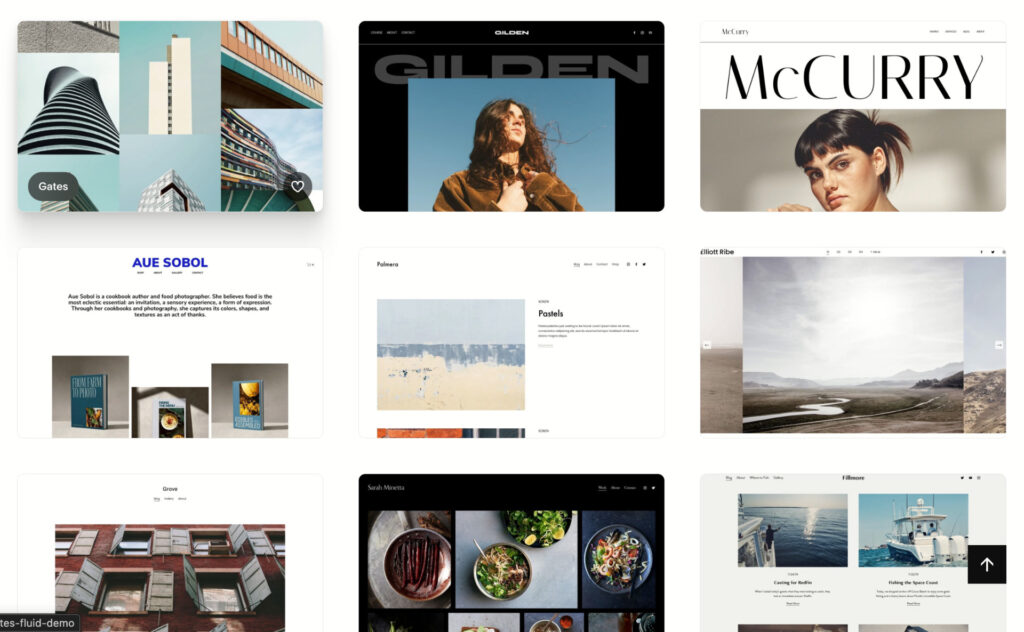
I’ve touched on templates already, but I want to give you some further detail. For photographers, you’ll notice templates named after prominent photographers in the field. McCurry, Gilden, Sobol are some of the names you’ll see, all of which use Squarespace to host their websites.
There’s a variety of ways to display your images. You can have multiple images on the screen, and mix up aspect ratios. Alternatively you can have a single image, offering a slideshow experience to your audience. There’s even the option to have different galleries on a single page, making it easier for your audience to navigate.
What works well:
- Wide range of templates for photography, blogging, studios, ecommerce and personal brands.
- Block-based editor that makes arranging content simple and predictable.
- Modern typography and color systems built into every template.
- Multimedia-ready layouts that support full-screen images, slideshows and video.
What could improve:
- Some templates feel similar, especially if you’re looking for highly experimental layouts
- Creative freedom isn’t as unrestrained as full freeform builders, which may limit some power users
Squarespace ultimately strikes a balance: enough flexibility to shape a custom site, while still giving you structure so the final result looks consistently professional.
Related: 13 Photography Portfolio Examples To Unleash Your Creativity
Editor
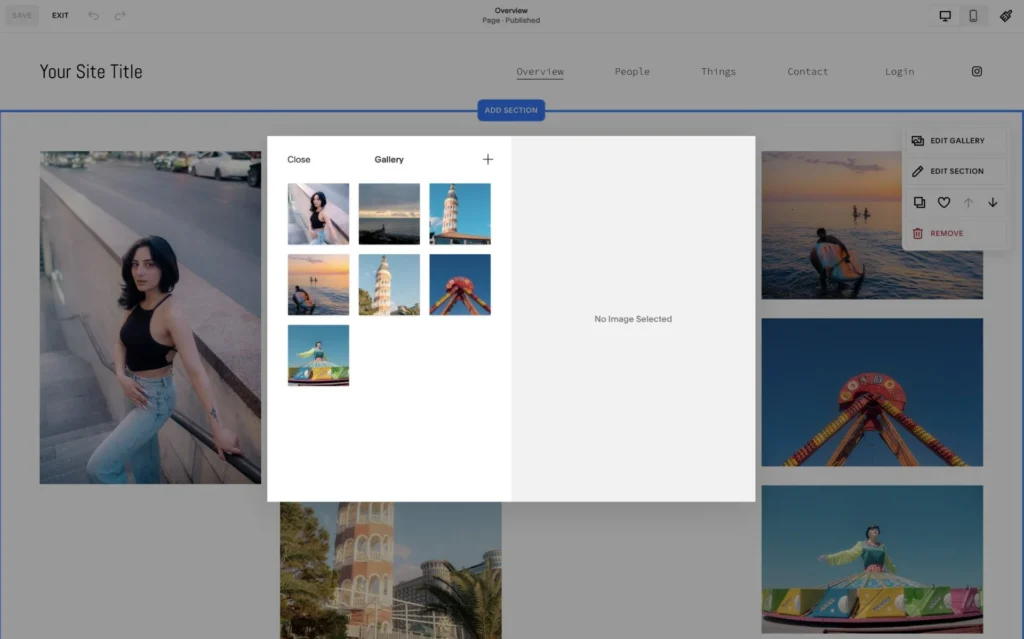
The editor is your opportunity to customize the appearance of your website, allowing you to add a personal touch. For example, you can add a personal logo to the header of your website for more brand recognition. It’s possible to go much further, with the ability to edit site spacing, padding, fonts and color schemes.
The page builder gives the most control, as you can create something from scratch. For example you could have a full bleed image at the top of your page, some copy to say more about you and then some galleries. I personally think it’s good to add some video content here, giving your site a more dynamic, professional feel.
What works well:
- Clear layout and page structure that helps you stay organized
- Drag-and-drop blocks that behave predictably
- Real-time preview so you always know how your changes will look
- Smooth workflow for adding products, galleries, forms and blog posts
What could improve:
- Slightly steeper learning curve compared to ultra-simple builders
- The mobile app feels limited and doesn’t replace the desktop experience
If you want more capability than minimalist builders offer but still want a simple, no-code workflow, Squarespace hits that middle ground.
Ecommerce Tools
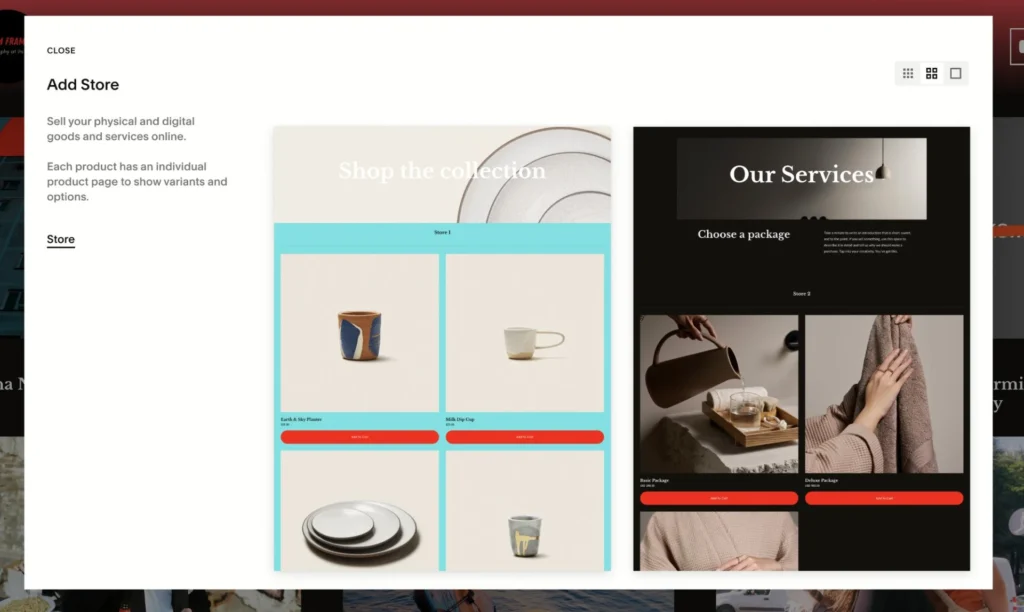
Squarespace isn’t just for showcasing your work, it’s also a genuine business platform capable of running a full online store. Whether you’re selling prints, digital downloads, services, or monthly memberships, the tools are already built in.
You can integrate the platform with third party sell on demand services. Companies like Gelato, Loxley Color and more integrate with Squarespace, making it much easier for customers to buy and for you to sell. You can also integrate with PayPal and other payment services so you can easily receive the funds you make.
What works well:
- Sell physical products, digital files, subscriptions and services
- Inventory management, variants, coupon codes and abandoned cart recovery
- Integrated checkout with 0% transaction fees on higher plans
- Analytics dashboard to monitor sales performance
For creatives wanting to turn their portfolio into a revenue stream, Squarespace does the heavy lifting and keeps everything under one roof.
Blogging & Content Tools
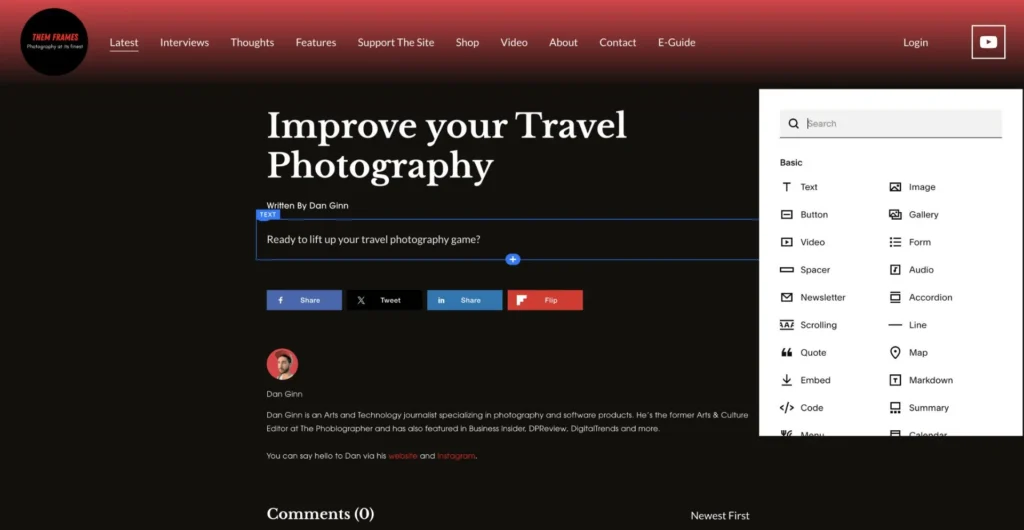
Squarespace’s blogging tools are some of the most complete of any no-code platform I’ve used. If storytelling, tutorials, or long-form writing are part of your creative brand, this is an area where the platform really shines.
What works well:
- Clean, distraction-free writing environment
- Tagging, categories, scheduling and multiple authors
- Easily embed images and videos
- SEO-friendly editor that helps posts perform well on Google
It’s ideal for creators who publish regularly and want their blog to feel seamless with the rest of their site.
Related: Why You Should Absolutely Start a Photography Blog
SEO, Marketing & Growth Tools

Squarespace comes with built-in marketing features that help you grow and that make it easy for people to find you search engines and other online space. There’s an SEO checklist too, so if you’re new to these concepts, the platforms can guide you through each step.
What works well:
- Advanced SEO customization across pages and images
- Automatically generated sitemaps and clean URL structures
- AI-powered SEO suggestions
- Built-in email campaigns with branded templates
- Social media integrations for quick content sharing
- Announcement bars and promotional popups
For anyone building more than a portfolio, these tools eliminate the need for extra subscriptions.
Integrations & Extensibility
Squarespace connects seamlessly with a range of third-party tools, giving your site more power without adding complexity.
What’s available:
- Analytics integrations (Google Analytics)
- Payment gateways (Stripe, PayPal, Afterpay depending on region)
- Scheduling and bookings through Acuity (a Squarespace company)
- Third-party apps for print-on-demand and dropshipping
- API access for developers on higher-tier plans
These integrations allow creatives to scale their online presence as their business grows.
Squarespace Review: My Real World Experience
There are two ways to use Squarespace: The desktop or mobile app.
The app, which I tested on iPadOS isn’t at all useful for doing anything productive like building pages or adding blog posts. The layout is all over the place and it feels impossible to build a smooth work flow. Honestly, it’s only good for a quick glance at analytics.
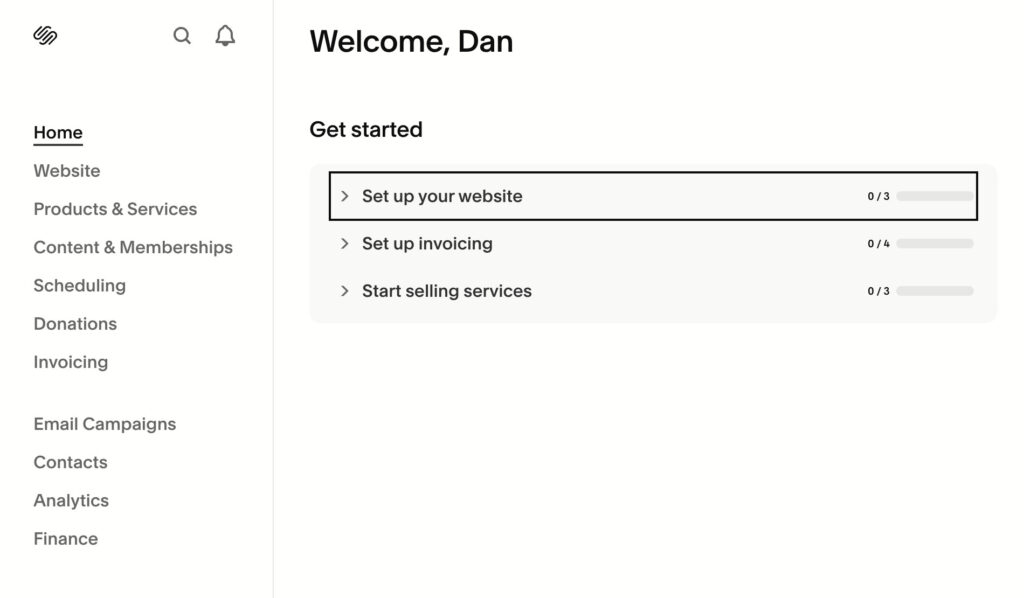
Desktop app
Thankfully, the desktop app is much better and the layout and spacing of features is much easier to interact with. Adding pages is possible through the left hand menu, and if you hover over a page you’re presented with the option to edit. Modifying your design comes through a right hand menu, here you can access fonts, colors and adjust spacing.
If you’re totally new to website building, it’s going to be a game of trial and error. What I like is that Squarespace gives you an option to preview your changes before publishing them. It’s a good way to gauge if you’re happy with the look and feel of your site – though this feature isn’t unique to Squarespace.

Backend editor

Frontend preview
Uploading and arranging images was a total breeze. I could drag and drop them in or upload them manually. For best loading times on the frontend, I recommend sizing images to 1920 x 1080 pixels where possible. Squarespace also has 20MB cap on file size for uploads.
Perhaps my main gripe with Squarespace is the constant tweaking of the layout in the backend. I feel I often have to find where features have been moved to. This won’t be an issue for new users, but long term users like myself become frustrated with the changes.
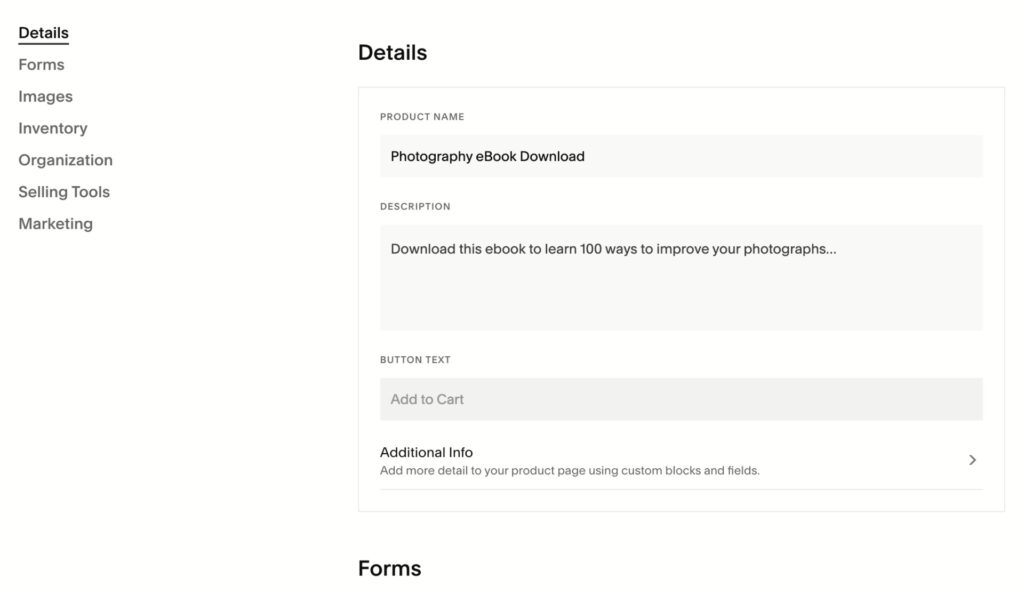
Adding digital products like eBooks, Presets to sell to my audience was a breeze. I really like how Squarespace has done the layout here. It’s uncomplicated, making the process of adding pricing, payment methods, product images and information painless. The space for SEO is especially useful as it helps you rank on Google when people search for “Lightroom presets” for example.
On the short end you can get a basic website live in a couple of hours or less. For more featured-full websites, with design tweaks, your site could be live within a day.
Squarespace Review: Customer Service
For basic support, Squarespace has a live chat tool. You can also delve into the knowledgebase to find answers to common questions about using the platform. For more technical support, your communications shifts to email communication and wait times can be anything between a few hours to a few days.
In my experience, overall Squarespace did a good job of supporting me with any issues. I did have a technical issue with one of my pages and this issue could have been resolved in a day rather than the week it took. Squarespace told me this was because they attend to bug issues in sprints rather than as and when they come in, so keep that in mind.
I must say, in the 10 years of using the Squarespace platform, I’ve only ever needed to contact support a handful of times and 99% of the time I had a positive response and outcome.
How Much Does Squarespace Cost?
Squarespace offers four main plans, each building on the last with more features and flexibility. Pricing below reflects the monthly equivalent when billed annually.
1. Personal — $16/month
Ideal for simple sites and portfolios.
- Supports up to 1,000 pages
- 30 minutes of video storage
- Free SSL included
2. Core — $23/month
A step up for users who need more capability.
- 5 hours of video hosting
- Access to custom code blocks
- 0% transaction fee on online store sales
3. Plus — $39/month
Well-suited for creators adding ecommerce or integrations.
- 50 hours of video hosting
- Connect third-party apps
- Built-in ecommerce metrics and insights
4. Advanced — $99/month
Best for businesses running a serious content or digital-product operation.
- Unlimited video hosting
- No transaction fees on digital goods or memberships
- 2.7% credit card processing rate
For most creatives, photographers, and portfolio-focused users, the Personal plan is more than enough, especially if you don’t rely heavily on video. The higher-tier plans mainly add incremental upgrades, so unless you’re publishing a lot of video content or scaling an online business, the lower-cost options offer the best value.
Signing Off
There are reasons I’ve used Squarespace for so long; it’s stable, reliable and is the perfect host for your website. Sure, it can make improvements to certain backend features, and there are some more affordable options out there. But, for a best-in-class experience, it’s hard not to recommend Squarespace.
If you’re unsure, remember there’s a 14-day free trial and you don’t need to pass over your credit card. As much as I trust my own opinion, nothing beats trying for yourself.
Join Squarespace to see if it’s for you.
More reading: The 6 Best Squarespace Alternatives