
Choosing the right cloud storage to backup your photos can feel like a mission. pCloud is a force in the market, but it can be difficult to know if it really is better than other services. I’ve been testing cloud storage for a decade, and with new features available, I thought it was a good time to create a fresh pCloud review to share if it’s the best option for photographers.
From large file backup to easy sharing tools, the best cloud storage for photographers tends to overlap when it comes to features. However, pCloud is doing things differently, offering photo-centric tools that you seldom see elsewhere.
I’m going to break them down further, but spoiler alert, amongst the features is a native photo-editor, which allows you to edit RAW files. I’ll get into that, plus cover the platform’s user experience, its commitment to security and privacy and share if it’s offering good value for money.
TL;DR: pCloud Review is it Worth It?
I use pCloud because it is easy to use across desktop, web and mobile. I often work with large TIFF files, yet they upload very quickly and are instantly available across different devices. The fact it comes with client-side encryption means I can trust my photos are truly private.
I should note you can totally avoid paying monthly subscriptions thanks to the affordable life-time plans. Pay once and it’s yours to own forever, making it much more cost effective compared to others services.
Why pCloud is right for you
- No file size limits on uploads
- Fast performance
- Solid file management
- Secure file sharing
- 100% private.
pCloud Review: Features
I’ll break down the features so you can see how good pCloud is. I won’t cover them all, rather the core tools that will appeal to photographers.
I’ll get into them in more detail, but here they are at a glance…
- Photo editing tools: Make edits to your photos with adjustment tools and filters.
- Photos tab: Remove other file types and quickly access photos via a dedicated tab.
- Auto backup: Run automated backup of photos via the pCloud desktop app.
- Shared files tab: Easily access files shared between you and others.
- File sharing: Create sharable links and set security permissions for files.
- File management: Create folders and sub folders to organize all your images.
- Rewind: Recover deleted images for up to 12 months.
Photo Editing Tool
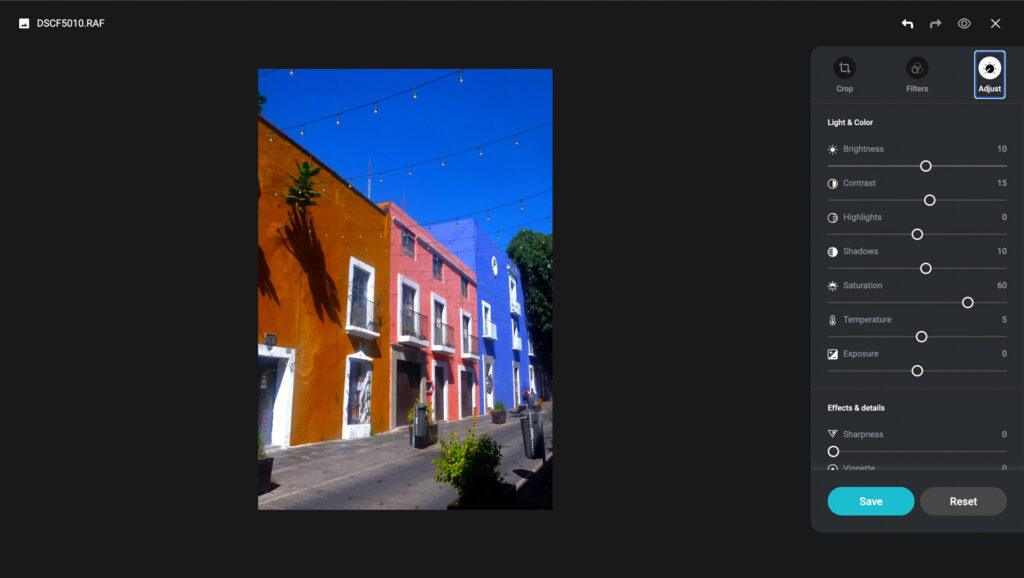
The native photo editing tool offers basic adjustments to help give your image more power. You can tweak exposure, contrast, white balance, sharpness and more. There are nine filters too if you prefer single click edits.
Advanced tools like masking, color toning and a curve-tool are not available, nor can you make adjustments to specific parts of your frame. For that, check out the best photo editing software available. That aside, for light edits and for those who don’t want to spend a long time editing photos, pCloud is decent, especially if you’re purely sharing on social media.
Photos Tab
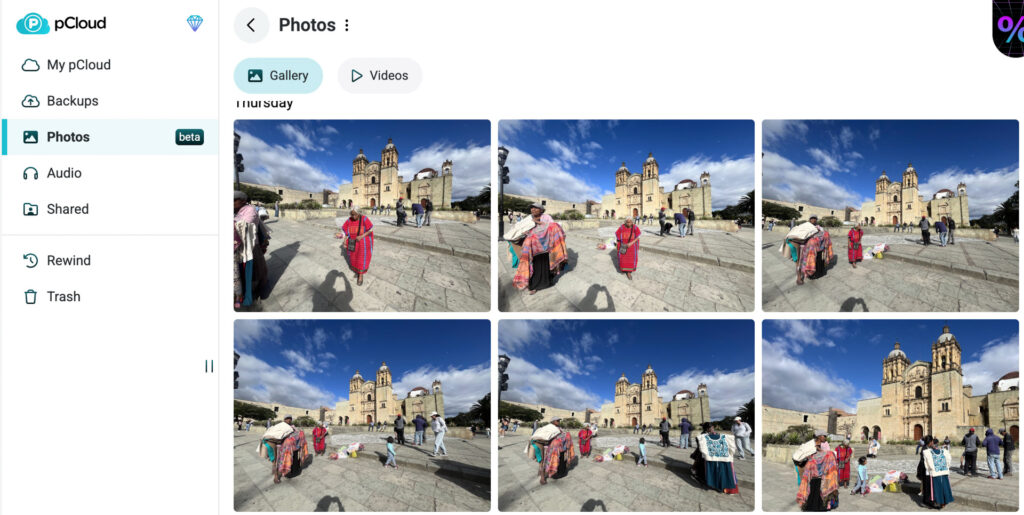
If your intention is to use pCloud for a variety of file types, then the dedicated Photos tab could certainly come in handy. It’s still in BETA but available to all users with an account. Click on it and you can access your photos without distraction. Right now it sorts photos in order of uploads, it would be nice to see folders and filters in the future.
Automated Backup
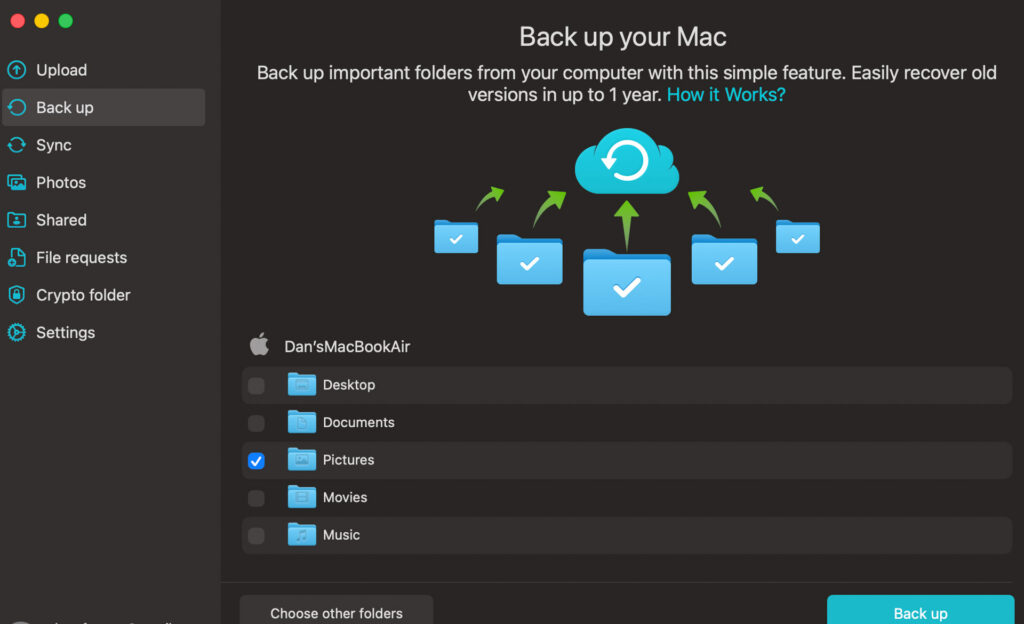
Via the desktop app you can program pCloud to backup your images automatically. Simply install the app, navigate to backup and select your pictures folder. Any images you manually add or export to that folder on your computer will automatically be available on your pCloud account via the web app.
Shared Files
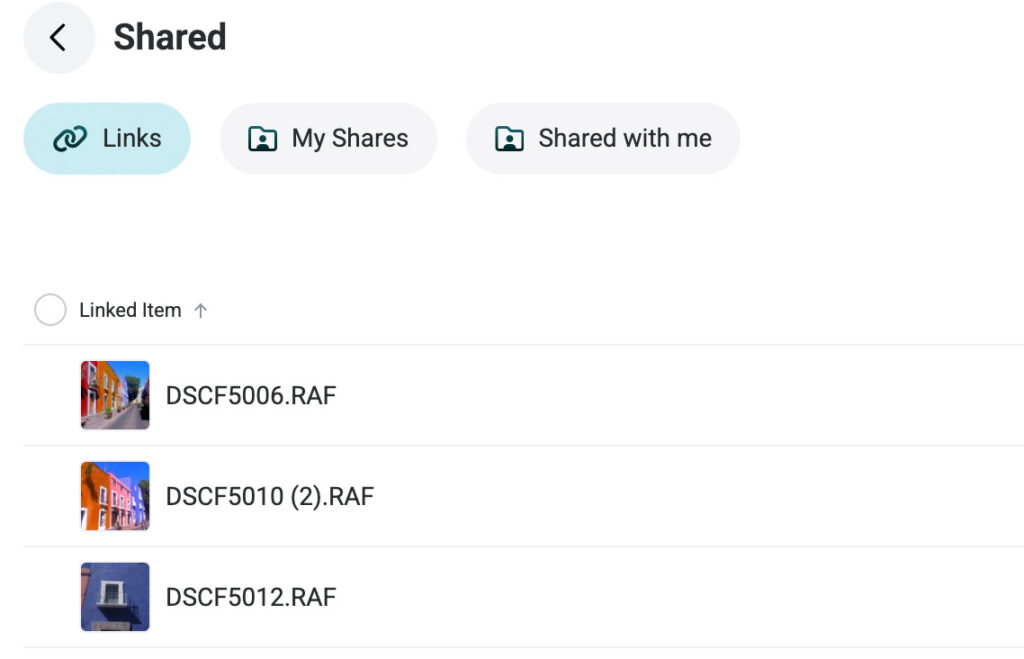
There’s a dedicated tab that allows you to quickly navigate to your shared files. This is a fast way to access client work, or photos you’ve shared with friends and family. This is also a space to access files people share with you. Say you’re on a group photography trip, you can allow other photographers to upload their images directly to your account.
File Sharing
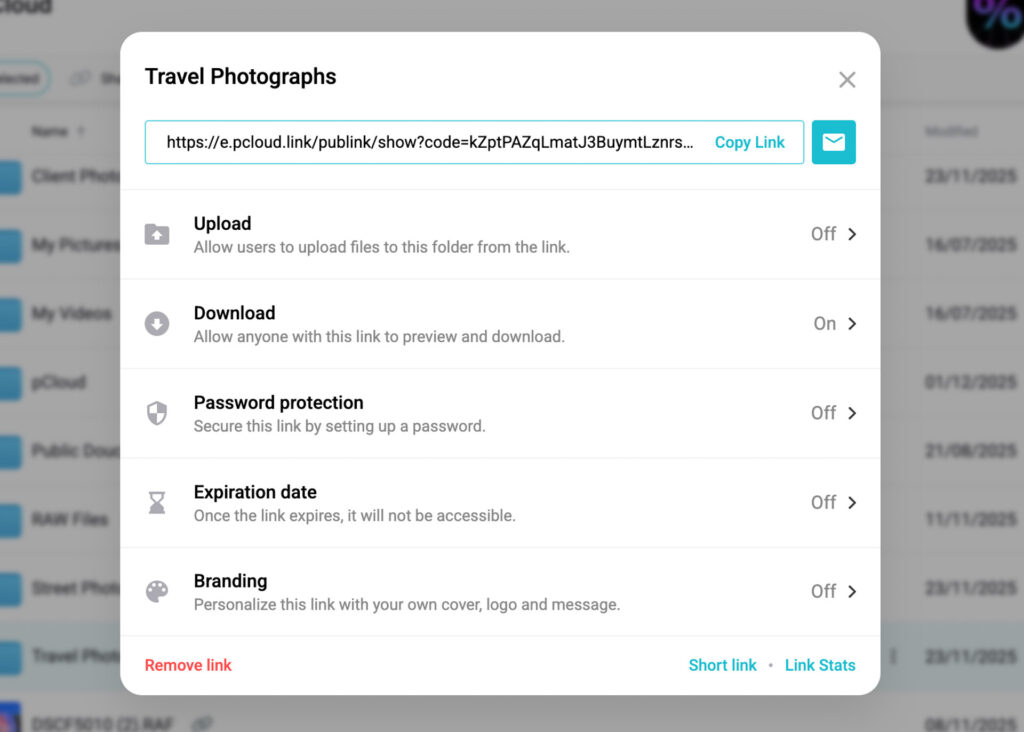
The perk of using cloud storage is that it’s much easier to share files with others. pCloud covers all the basics; you can share a link to a file or folder, add an access password for further protection and limit how long people can access the file for. For a personal touch you can add your logo to shared files and create neater, shorter links.
File Management
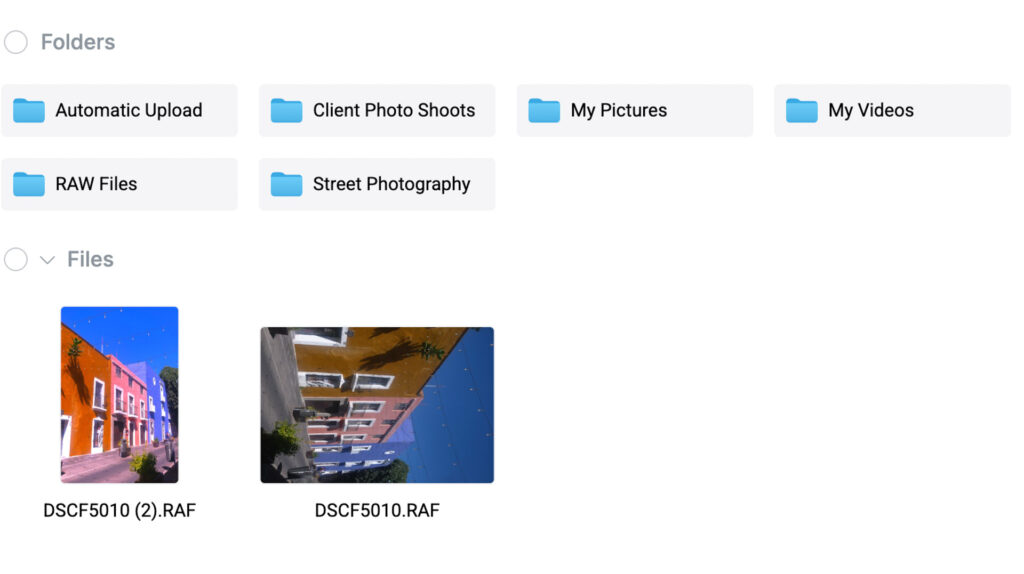
To keep things organized, you’re able to divide your images into different folders. You can also create sub-folders within a folder for more detailed organization. Unlike other apps such as MEGA and Google Drive, you can’t color code your folders. It’s perhaps not a must-have feature but one I hope pCloud introduces in the future.
Rewind
Rewind will be your best friend if you accidentally delete an image or set of images. Paid plans allow you to recover an image for up to 30 days, which should be plenty for most users. You can extend this to 12 months, however it comes as a paid add-on.
pCloud Review: User Experience
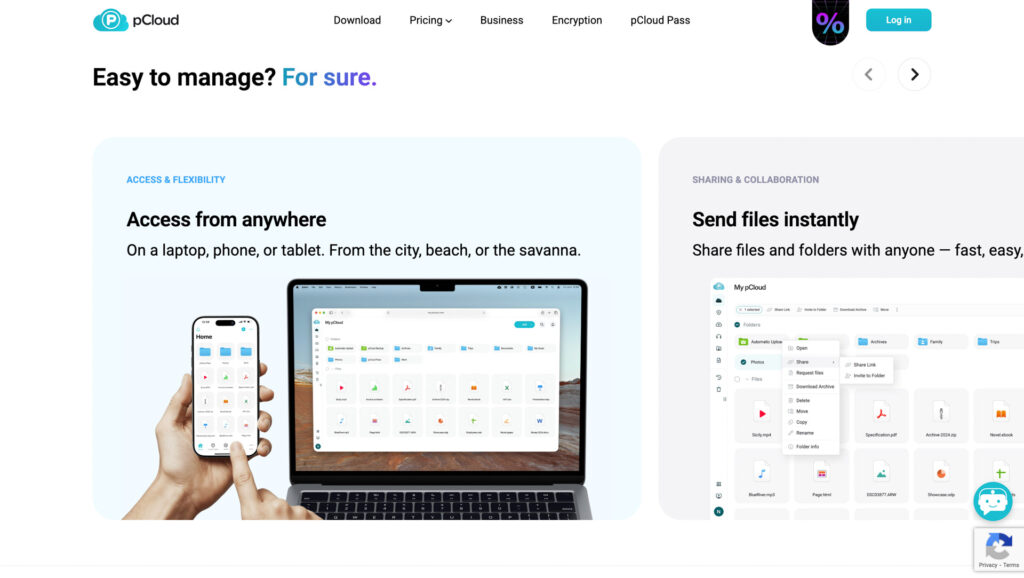
pCloud has done an excellent job of making access to its features as simple as possible. This is largely due to its streamlined user interface that’s giving minimalist vibes. I used the web app first as this is the most common place for users to backup their photos. The white background and blue folders offer a familiar user experience that most will enjoy.
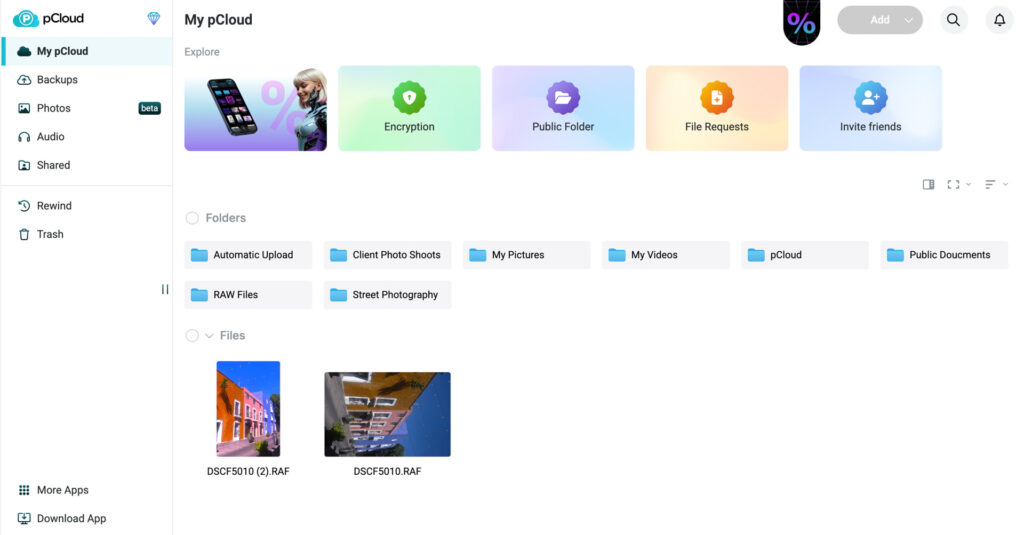
There are some large, vibrant tabs at the top of the UI. This is fine, but above that is a smaller “Add” tab where you can upload files and folders. I feel the loud tabs slightly distract away from this and it takes a moment or two to figure out how to add your images. I’m picking here though, and this won’t disrupt your user experience.
Performance wise pCloud is doing all the right things. I dragged and dropped 100 photos into the web app and it didn’t stall, crash or require me to start the process again. Uploads were fast and I was running them on a 300MB internet connection.
The desktop app – which I tested on macOS – offers a slightly different user experience, but still positive. After downloading the app, a pop-up app appears where you can upload images, run a backup, view your photos and more.
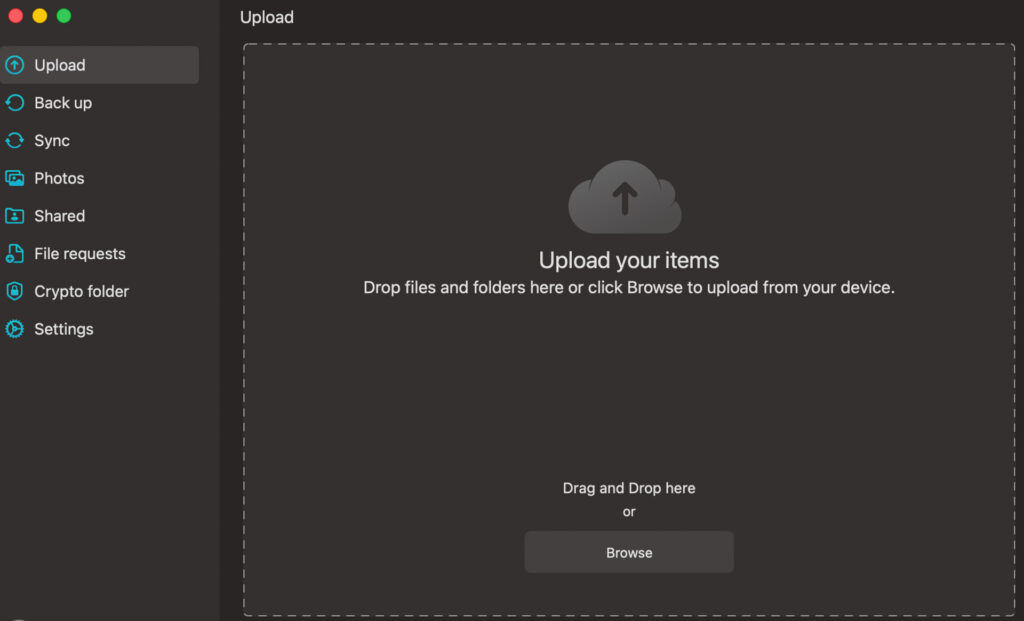
I recommend setting up your backup folder first as this ensures any images you interact with on your desktop automatically go to the cloud. All functions are easy to run, though I found it easier to share files via the web app compared to the desktop.
The mobile app is great for smartphone photographers. You program the app to automatically upload images each time you create a new one. To save data, you can instruct the app to only upload images when you’re on a WiFi connection.
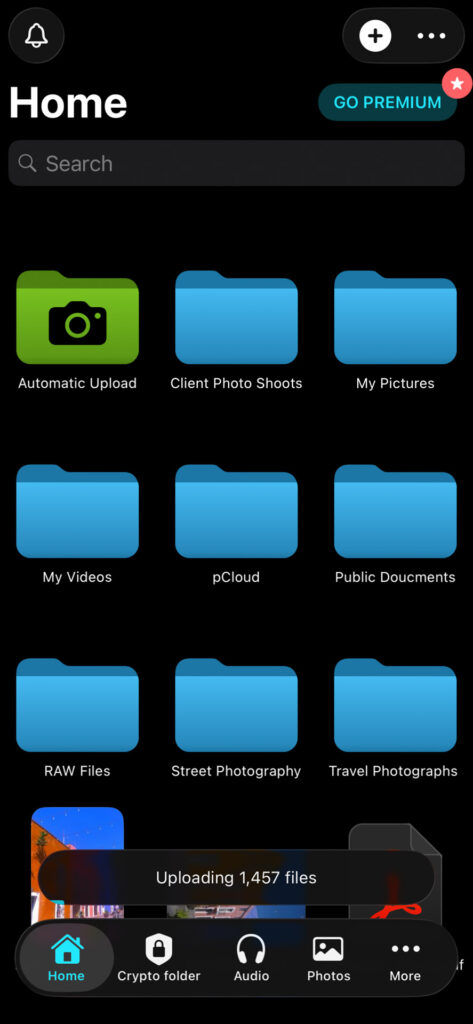
I found the design of the app to blend well with pCloud’s overall design language. Manual uploads were a breeze as was jumping between folders to access images.
pCloud Review: Security & Privacy
pCloud uses TLS/SSL when your files are in transit and AES 256-bit encryption when they rest on their servers. This is industry standard and pretty impossible for hackers to bypass. You can also set up two-factor authentication through the Google Authenticator app, making it even harder for outsiders to access your account.
Client-side encryption is also available with pCloud. This is the most private level of encryption as it even prevents staff at pCloud from accessing your files. In contrast this is something the likes of Google Drive, Dropbox and OneDrive don’t offer their users.
I should note client-side encryption does cost extra. It’s not much, costing $3.99 per month when you pay annually. However, it would be nice to see pCloud incorporate it into the standard price – like services such as Sync.com – while remaining competitive in the market.
How Much Does pCloud Cost?
pCloud lets you choose between monthly, annual, or lifetime payments. In the long run, the lifetime tiers deliver the strongest value, and their pricing is impressively reasonable.
| Plan | Monthly | Yearly | Lifetime |
| 500GB | $4.99 | $49.99 ($4.16 per month). | $199 |
| 2TB | $9.99 | $99.99 ($8.33 per month). | $399 |
| 10TB | $19.99 | $199.99 ($16.66 per month). | $1190 |
pCloud: Is It Worth It for Photographers?
If you’re a photographer who wants fast uploads, simple file management and reliable tools for backing up and sharing large images, pCloud is absolutely worth considering. Its blend of photo-focused features, smooth performance and strong privacy options makes it stand out in a crowded market.
What really seals the deal is the pricing. While the monthly and yearly plans are solid, the lifetime options offer unbeatable long-term value, pay once and you’re set for good. If you’re ready to streamline your workflow and keep your images safe, pCloud is an easy recommendation.
Click below to try pCloud and get the best value by choosing a lifetime plan.
More reading: The 6 Best Squarespace Alternatives You’ll Love Using
FAQs
Is pCloud safe and legit?
Yes. pCloud uses industry standard encryption to keep out hackers, plus client-side encryption to give you a truly private experience.
Is pCloud really lifetime?
In theory, yes. You pay once and you’re able to use the account for as long as it’s active. However, in the unlikely event pCloud were to cease to exist within your lifetime then access will no longer be available.
Which is better, pCloud or Dropbox?
Both pCloud and Dropbox offer easy to use cloud storage. However, pCloud has the edge as it offers a more private experience to users thanks to client-side encryption.
Want your work featured on Them Frames? Pitch us.