

In all my testing, I’ve found that pCloud is the best cloud storage for photos. It offers optimal privacy, doesn’t require a degree in tech to use and cool tools like a built in photo editor.
However, it’s not perfect, and it may not be the right cloud storage app for photos depending on what you’re looking for. With that, I’ve got three other options, targeting those who want to back up smartphone pics, right through to professional photographers.
On the surface, most cloud storage services look very similar. You upload your photos, create some folders, and copy a link if you’re looking to share. But deeper into the digital waters, you learn they’re not the same, and some services do a better, more reliable job of hosting your images on their servers.
In my selection of the best cloud storage for photos, I’ve included options that take privacy seriously, make file sharing easy and offer good value for money to their customers. I’ve also ensured I include services that have cool – and useful – features that you won’t find on other providers.
Quick Comparison: Best Cloud Storage for Photos
| Software | Best Price | Key Feature | Who Is It For | Optimal Privacy | Overall Rating |
| pCloud | $199 lifetime (500GB); 5GB free | Built-in photo editor.l | Users wanting an all-round, privacy-first option for their photos | Zero-knowledge encryption | 5/5 |
| Google Drive | $1.99/mo (100GB); 15GB free | Advanced smart search. | Families and non-technical users wanting easy sharing | Standard encryption, no zero-knowledge | 4/5 |
| SmugMug | $29/mo (unlimited storage) | Integrated website builder. | Professional photographers needing client proofing and print sales | Standard encryption | 4/5 |
| MEGA | Free (20GB, up to 30GB for 12 months) | Customizable slideshow. | Casual users wanting the most generous free storage | Zero-knowledge encryption on every plan | 4/5 |
Video version…
pCloud: The Best Cloud Storage For Photos Overall
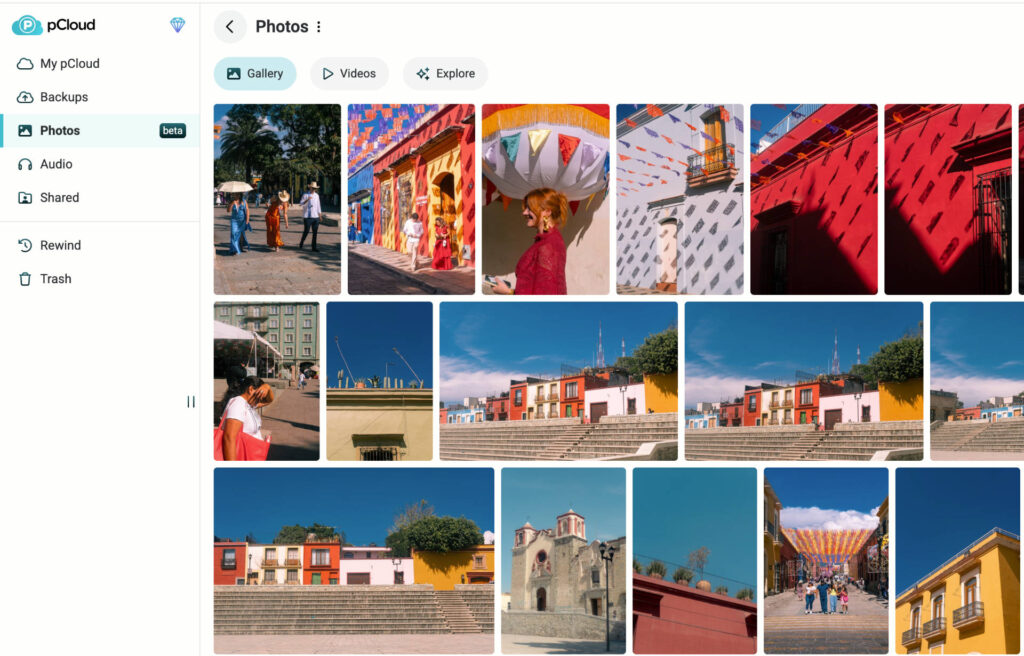
I’ve been using pCloud to back up my photos for the past four years. Its biggest draw for me is that it offers zero-knowledge encryption, which means nobody, including pCloud, can access my images without my permission. This means I can enjoy ultimate privacy for my photos.
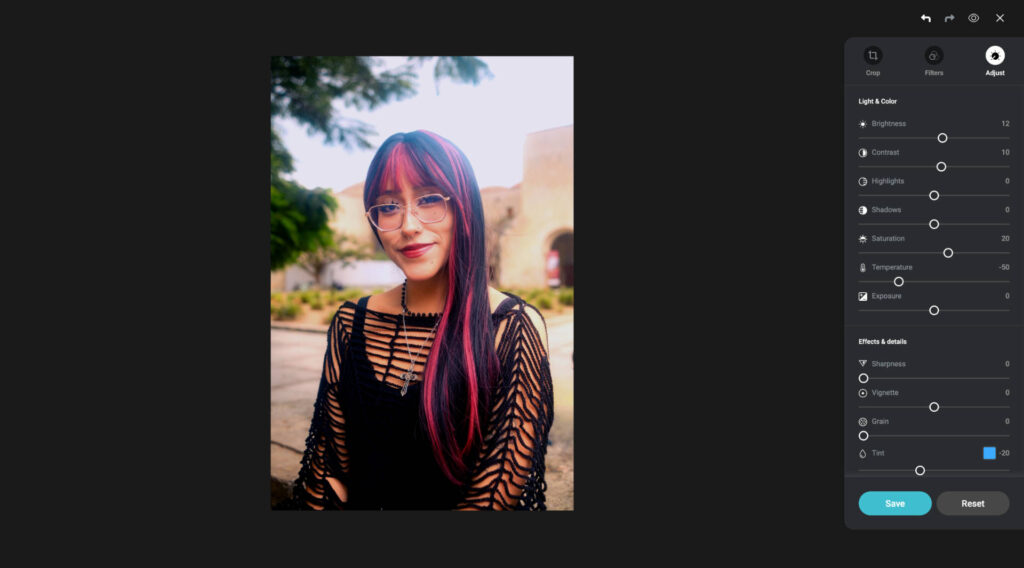
What sets pCloud apart from other cloud storage services for photos, is that it has an built-in image editor. It’s not as advanced as the best photo editing software, but it has enough to give your images a little more life. You can choose from a range of presets, and make manual adjustments as well with a slider-based panel in the right hand menu.
For easy access, pCloud offers a dedicated photos tab. Select it, and it will filter out any other file types you have (.doc, .MOV et al) and only show you your images. If you’re backing up smartphone images, you can download the pCloud mobile app and set it up to back up photos automatically so you don’t risk losing any of your favorite photos.
pCloud: My Real-World Experience
I tested pCloud across three platforms; web, desktop and mobile. All three of them offer a similar experience, with clear and obvious ways to upload your files. I think the mobile and desktop apps are the best route to backing up photos as you can do it automatically, whereas the web browser requires a manual upload.
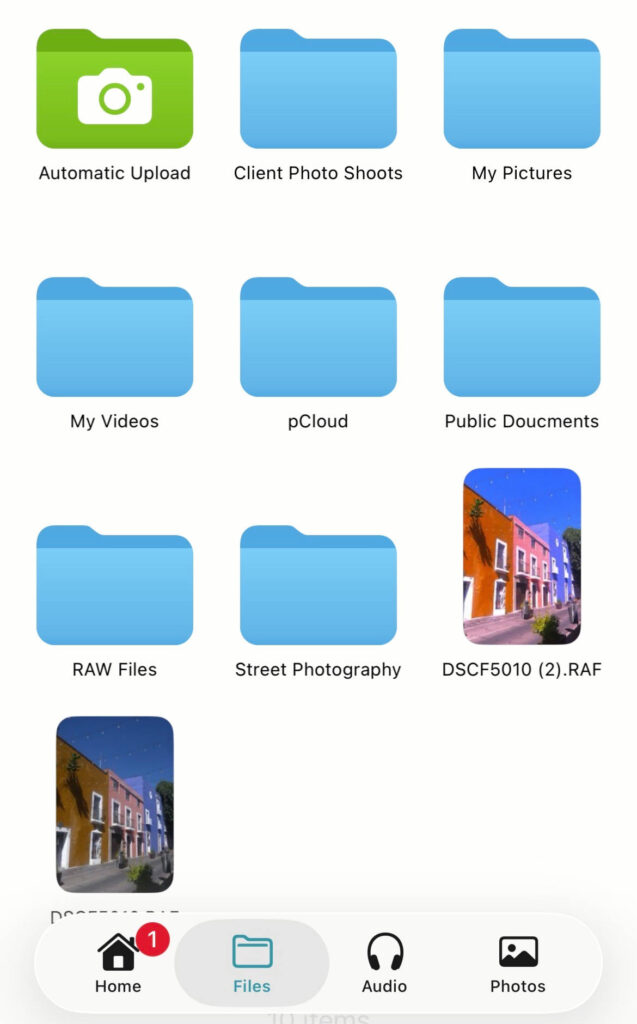
Uploads were quick, as were downloads, I got 2GB worth of images uploaded and downloaded in around five minutes, on a 200MB internet connection.
The photo editing app really is basic. I can’t edit RAW files, so this is purely for JPEGs. I imagine for most users this is fine, as those shooting RAW will be using a professional photo editor. The sliders were responsive and edits happened in real time, just be mindful you need an internet connection to use it though as it’s only available on the web app.
File sharing was a breeze and I was able to copy a shared link in a couple of clicks. What I like about pCloud is the level of control I have over files I share. I can limit downloads, add password protection and set an end date for when people can access the file. It’s great there’s a personal branding option too, so you can add a company logo if you’re using it professionally.
One area of improvement is file search. Unlike other options you’ll see in this article, there’s no advanced search options like finding a file just to describe the contents of the photo. This is minor though and for most won’t be a barrier to have a positive user experience.
Related: pCloud Review for Photographers: Features, Pricing & More!
How Much Does pCloud Cost?
pCloud offers three payment options; monthly, yearly and lifetime. For long term use, lifetime plans offer the best value, as you pay an upfront fee and it’s yours to use for as long as you keep your account active.
- 500GB: $4.99/mo, $49.99/yr, $199/lifetime
- 2TB: $9.99/mo, $99.99/yr, $399/lifetime
- 10TB: $29.99/mo, $299.99/yr, $1190/lifetime
You can get 5GB of free cloud storage for your images and see if it works for you.
Google Drive: Best Cloud Storage for Photo Management
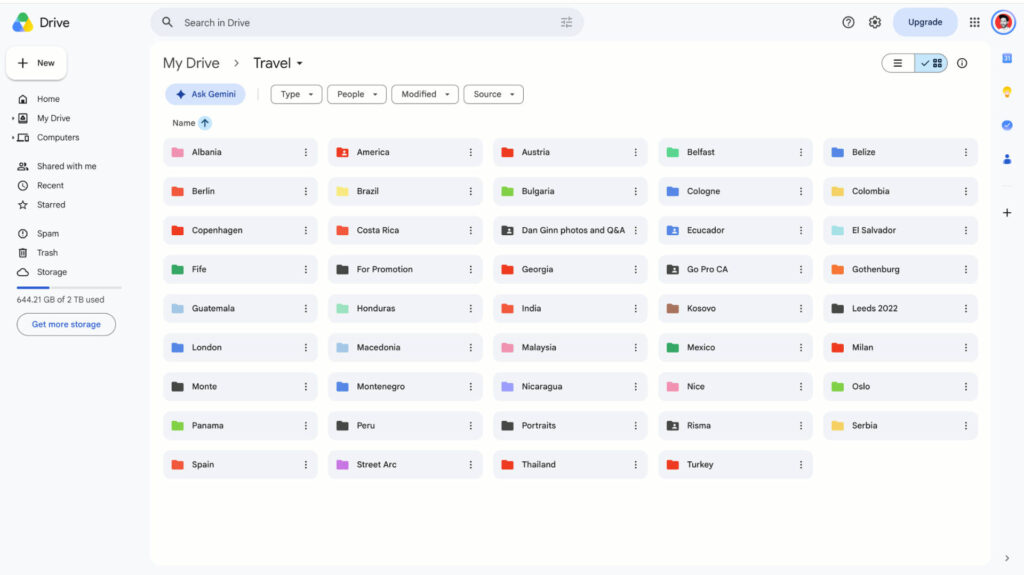
Google Drive is excellent for those wanting a simple, easy to use cloud service to manage and sort all of their images. It’s packed with excellent search capabilities so you can quickly find any image you desire, and you can sort your images into different colored folders which can make it easy to scan and locate files.
Although Google doesn’t offer the same native-style photo editor as pCloud, you can integrate it easily with a photo editor app (that’s its actual, unoriginal name) which opens up editing options in a different tab.
The main allure of Google Drive is how well it syncs with other Google apps. You can pull a photo from Drive and add it to a Gmail message in just a few clicks, making file sharing a seamless experience.
One drawback to Google Drive is that there’s no zero-knowledge encryption. This means Google’s bots can scan your images, flagging anything it deems to go against its ever–changing user guidelines.
Google Drive: My Real World Experience
Google Drive was the first cloud storage service I used, and I do still use it to this day. Familiarity is what keeps it a frontrunner, as most people are aware of it, which makes it easy to share images with friends and family members.
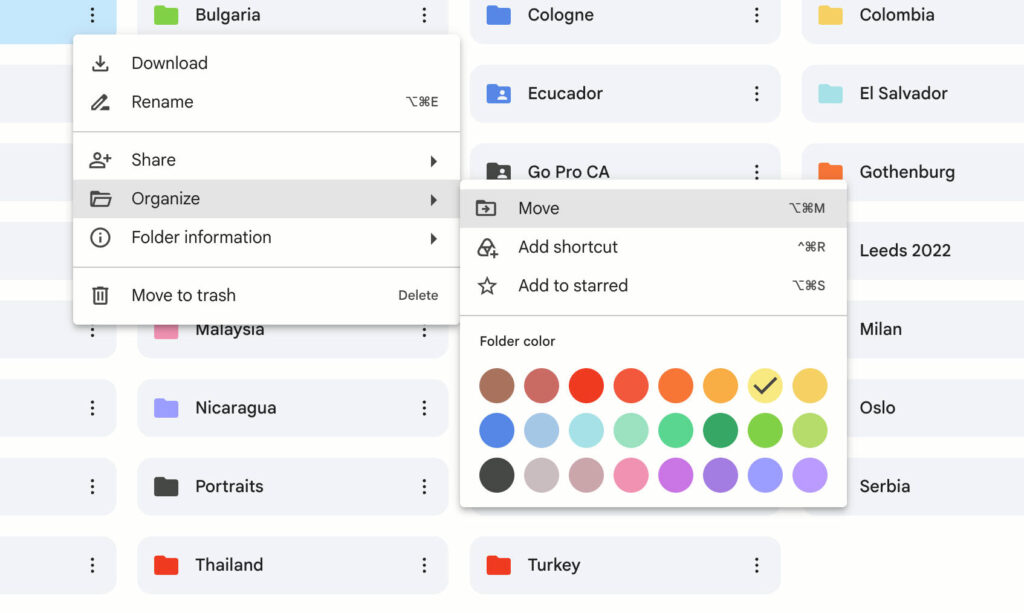
I love Google’s design language, as it’s minimal, modern, and has customization features such as color coding and folder renaming to make it a truly personalized experience. The desktop app is one of the best I’ve tested for file sharing as it offers all the user controls you get on the web app, without having to open your browser.
Adding the same 2GB of images, I had similar upload and download speeds to pCloud, both coming in at around the five minute mark.
I’ll say it clearly, the photo editor is absolute trash. Opening it up takes me back to early internet days where we were all happy to have something that kind of worked without it looking pleasing on the eye. It didn’t always load the image and it just had a handful of filters to apply to a frame. Skip Google Drive if that’s what you’re looking for.

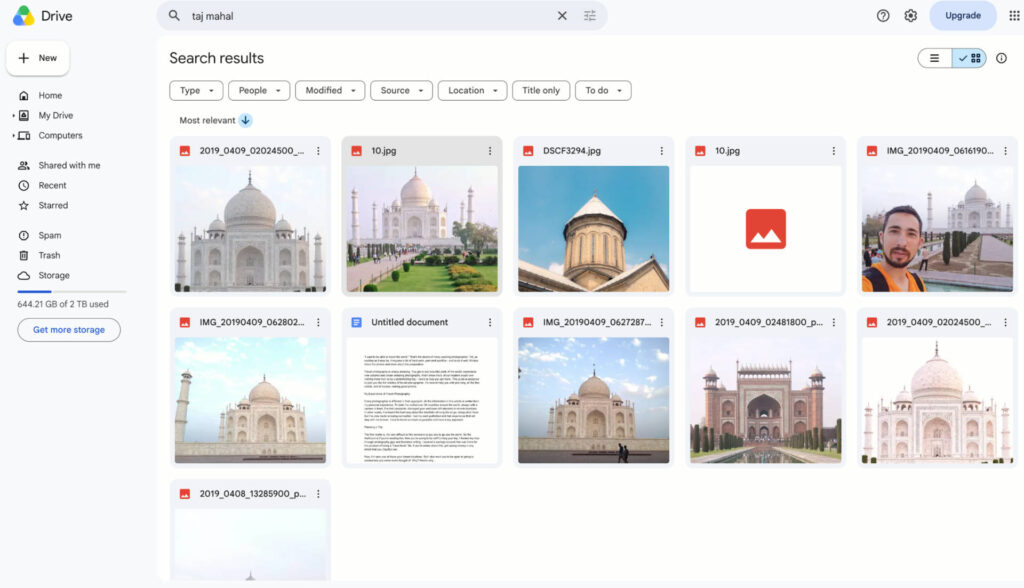
The advanced search is best-in-class. I can search for “Taj Mahal” for example and out of the 25,000 files I have backed up, it presents me with any images I made of the famous landmark.
Google Drive’s simplicity also makes it suitable for non-technical people. So if you’re using a family account to share family photos, then everyone, regardless of their experience level, will have no issue using the cloud storage app.
How Much Does Google Drive Cost?
Google Drive doesn’t offer lifetime storage options, so you’re tied into monthly and yearly plans. There are plenty of storage options available though, starting with a very generous free 15GB plan.
- 100GB: $1.99/mo, $19.99/yr
- 2TB: $9.99, $99.99/yr
- 5TB: $19.99, $199.99/yr
Annual plans result in up to 16% savings, with the 2TB offering the best value for money.
SmugMug: Best Cloud Storage for Professional Photographers
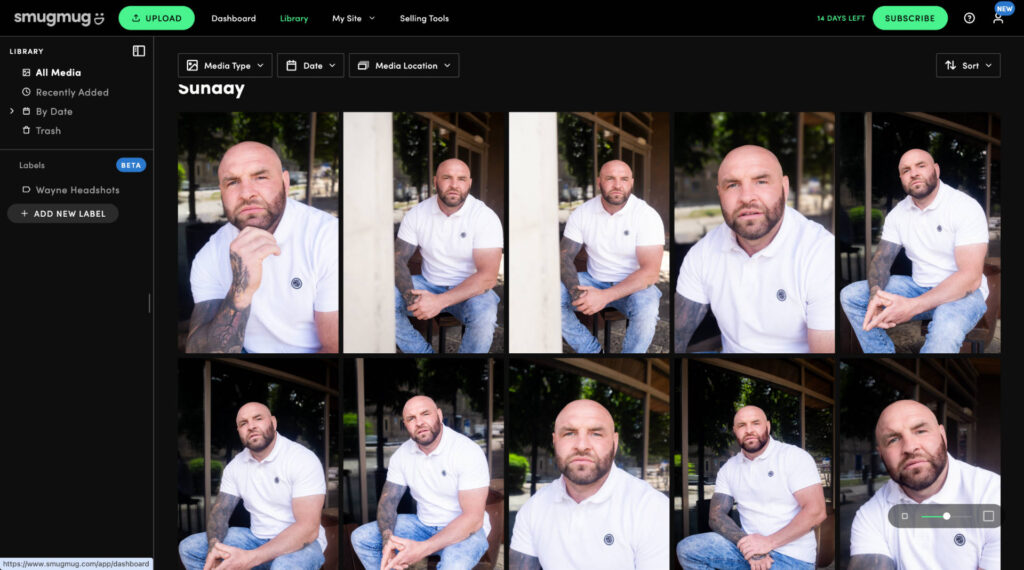
SmugMug sets itself apart from the other cloud storage services by offering an all in one professional business management tool. It still functions in a similar fashion, allowing you to upload and back up photos and create different galleries.
What makes it more aimed at professionals are its other tools. You can use Smugmug for client proofing, meaning you can share a gallery and they can tell you which images they like the most from a shoot. It’s also possible to sell prints of images (or buy them for yourself) directly from your SmugMug account.
The platform also offers basic website building tools so you can publish images online and market your work. You can create contact pages, an about me page and multiple galleries for different projects you’ve done.
SmugMug: My Real-World Experience
SmugMug’s user interface has a very professional look and feel, which I think is good if you’re sharing projects with clients for proofing. Uploading individual files or full folders is possible, and this is achievable through the unmissable, green Upload button in the top menu.
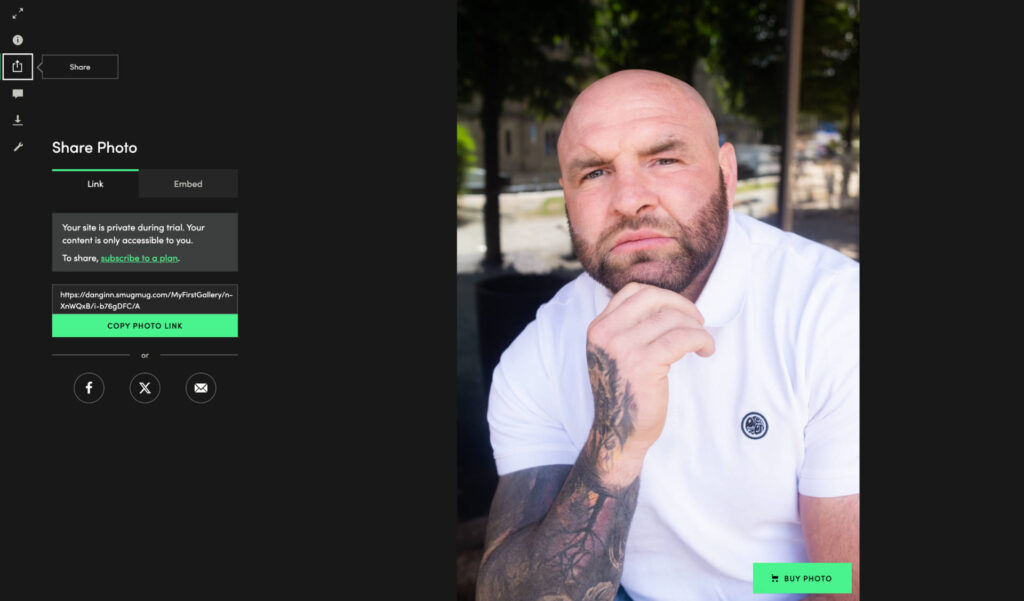
I do have some problems with the platform though. Sorting folders and creating sharable links is nowhere near as straightforward as it should be. A simple drop down menu should present these options, however, I instead had to publish to a site gallery after my upload. For me this is an unnecessary step in one’s workflow.
Upload and download times were slower than other options. My 2GB folder went up in around seven minutes, and came down in around six. Not much difference, but a difference all the same.
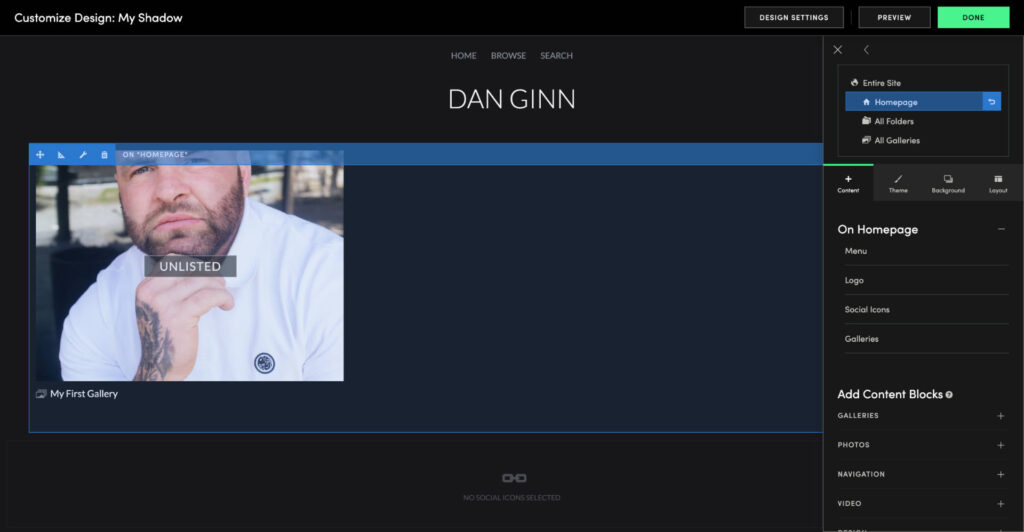
Creating a public portfolio was very easy, this is mainly due to how basic the tools are. I chose a template, added in some information and it was live. I felt the templates were fine, but not fully in line with modern standards. For a truly professional, modern option I recommend building a website with FORMAT.
How Much Does SmugMug Cost?
All of SmugMug’s plans offer unlimited storage space, but for that privilege you’ll see starting costs are much higher than the other options in this article. I’d say they’re only worth it if you’re looking to, or already are, making money from your photos.
- Direct: $29/mo, $240/yr.
- Portfolio: $35.50/mo, $283/yr.
- Pro: $52/mo, $444/yr
- Enterprise: Speak to sales
Yearly plans leverage a cheaper monthly fee. You can try SmugMug for 14 days free of charge.
MEGA: Best Free Cloud Storage for Photos
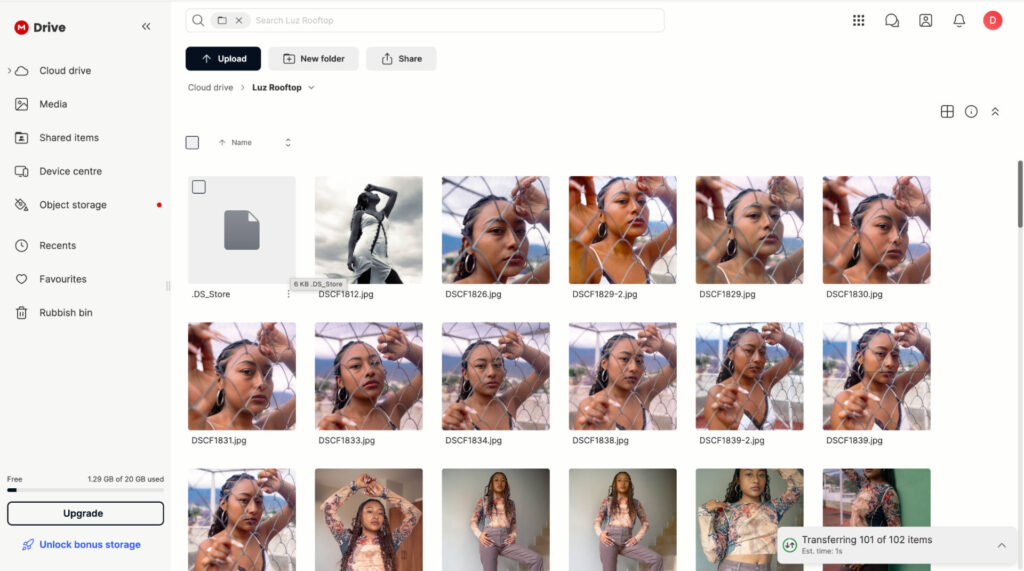
From all the leading cloud storage companies, MEGA is the most generous with its free storage space. Users get 20GB of free storage for as long as their account is active, that’s around 4000 images if you’re shooting on your smartphone. You can unlock an extra 10GB of free space for 12 months, simply by installing the desktop and mobile apps.
Like pCloud, MEGA offers zero-knowledge encryption for your files. And, unlike pCloud, it’s available across all plans without paying an extra fee. MEGA is so secure in fact that it generates a unique encryption key, which you’ll need if you ever forget your password, as the company doesn’t store any private data on its servers.
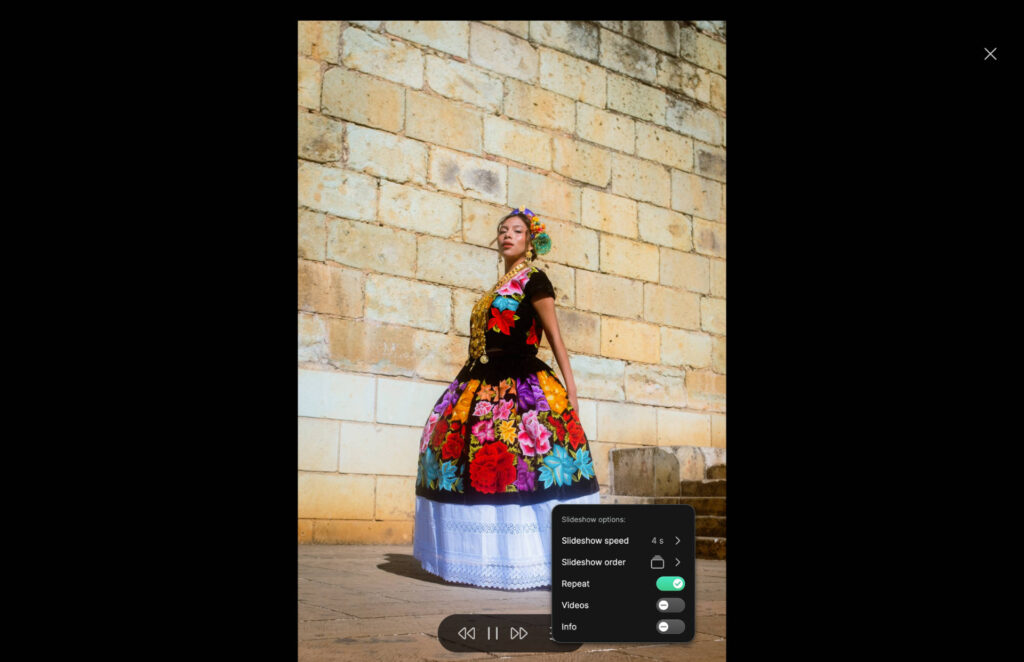
MEGA also offers a slideshow tool. If you’re reviewing vacation or wedding snaps, for example, you can hit the play button and enjoy all the good (and bad) photos from the events. You can control playback speed and choose to show photos in order or in a random shuffle.
MEGA: My Real World Experience
I enjoy using MEGA because it has a no thrills approach to its user interface. It feels professional compared to other options, and the medium-sized fonts, clean, white background, and clear feature placement make it easy to get going as soon as you create your account.
Speeds were decent, clocking in at five and a half minutes for uploads, but seven minutes for downloads.
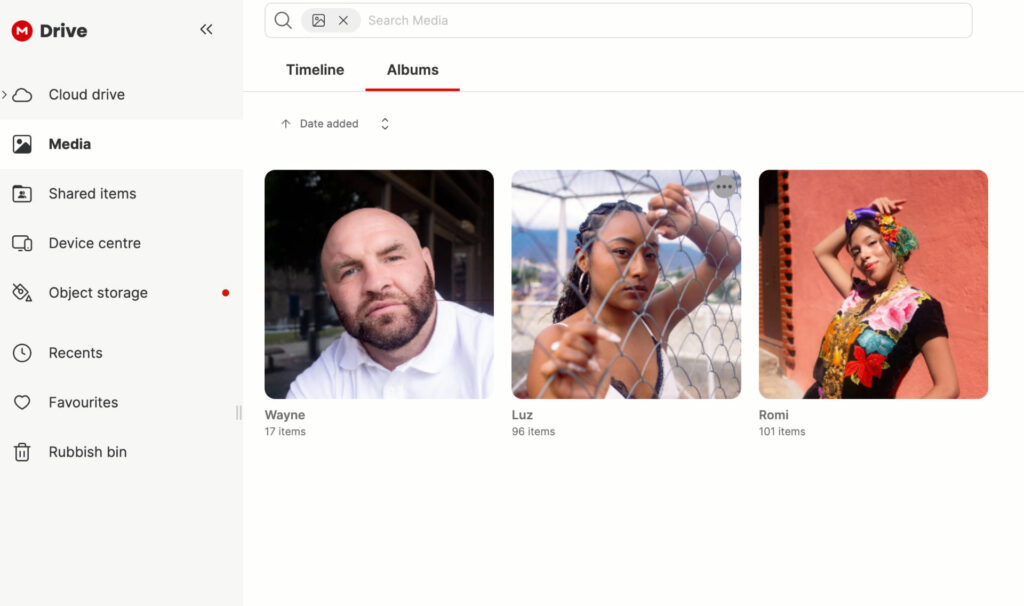
My favorite feature is the Media tab. Here you can sort your images into different albums and exclude all other file types. I do wish it created the albums automatically in line with the folder of images you upload. Instead, you need to upload the images and then create an album manually. This can be done with relative ease, but some automation here wouldn’t go amiss.
How Much Does MEGA Cost?
On top of the free plan, MEGA has plenty of paid options if you ever need to open up more storage space. MEGA prices its plans in Australian dollars. The below amounts are in USD but they may fluctuate depending on conversion rates.
- Essential (200GB): $46.68/yr (no monthly options).
- Pro Lite (750GB): $69.96/yr (no monthly options).
- Pro I (3TB): $11.65/mo, $116.64/yr.
- Pro II (10TB): $23.32/mo, $233.28/yr.
- Pro III (20TB): $34.98/mo, $349,92/yr
Best Stock Cloud Backup For Smartphone Photos
Whether you use iOS or Android, both operating systems come with built-in cloud storage to back up your photos.
For iOS, you can use an iCloud account to automatically back up your images, and you can access them across mobile, Macbook and iPad if you use multiple devices. This makes it easy to back up images with very little effort. As an iPhone user myself, I think iCloud is good for basic photo backup, but loses points for all around user experience.
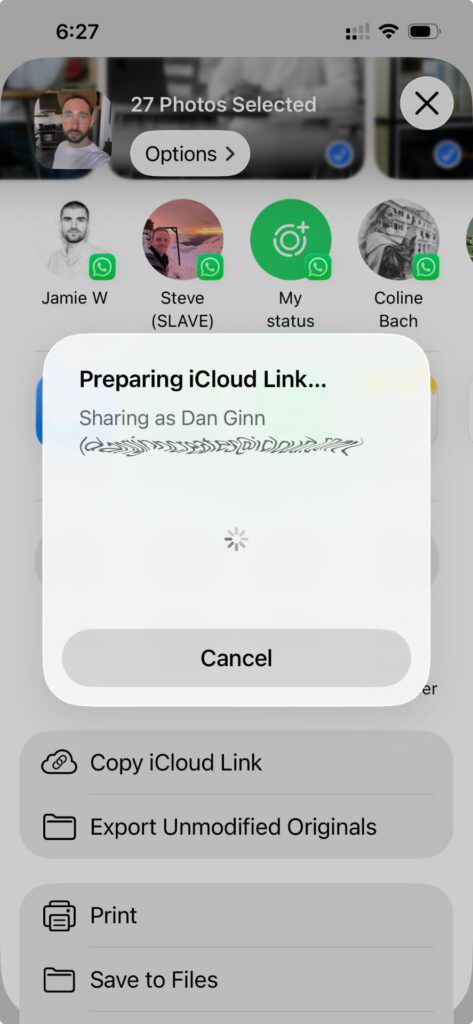
Sharing files through iCloud on iOS.
For example, sharing bulk images with others, through links, often takes multiple attempts and file management feels far too messy. For a company known for its strong design language, Apple hasn’t built a cloud infrastructure that’s on a par with other options in this article.
Google has done much better with its stock Google Photos app. Sharing images is as easy as you’d find on Google Drive, and it has more workable features too, even on older devices. For example, I can remove awkward objects from images through the Google Photos app on my iPhone 13, but I can’t do the same with the Apple version of this AI functionality.
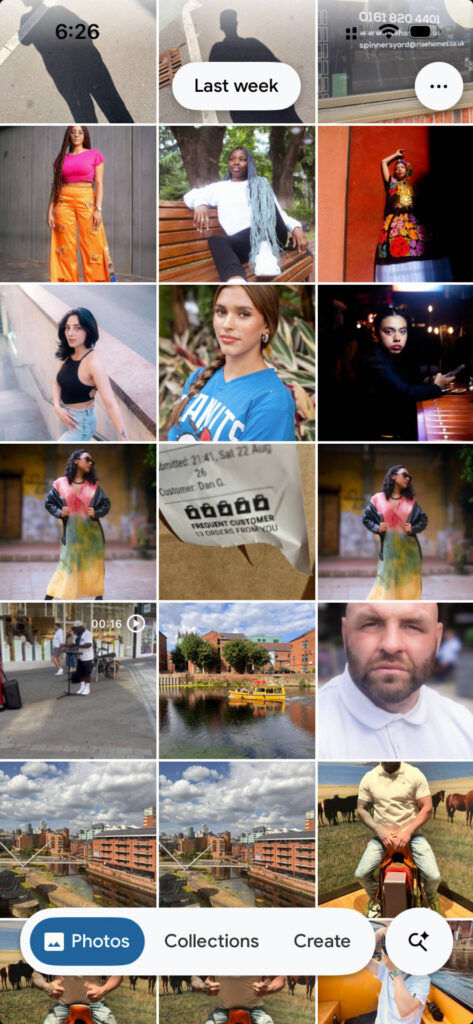
Google Photos for iOS.
If you just want a simple solution for image backup, you’ll be fine with both these offerings. However if you want an optimal user experience, I’d go with a different option like pCloud, Google Drive et al.
How to Choose Cloud Storage for Photos
While reading articles like this is a good first step, choosing the right cloud storage for photos largely comes from your personal experience. I’ve limited my selection to four so you have enough time to test them out yourself without being overloaded. Remember, all of them have either a free option/free trial so you can see if you like the general experience.
I also recommend taking some time to understand your needs. If you’re someone who doesn’t take lots of photos, then MEGA will likely be enough for you. If you’re big on taking photos, and use a dedicated camera, then you’ll need more storage space, and that’s where pCloud is the all round best option.
If you’re intending to use cloud storage to share images with your family, and need a user-friendly option that all generations can use, then Google Drive is a good bet. It has family plans as well, which you can spread across all members to drive down the cost for each individual.
Signing Off
After ten years of testing this stuff, the one lesson I keep coming back to is that backing up your photos isn’t optional. A dropped phone, a corrupted card, or a laptop that gives up on you can take years of memories with it in seconds, and most people only think about backups after that’s already happened. Cloud storage takes that risk off the table.
Out of everything I’ve tested for this article, pCloud is still what I’d point you toward first. The zero-knowledge encryption means I’m not just trusting a company’s promise, I actually own that privacy, and the lifetime plans mean I stopped paying a subscription just to keep my own work safe.
Editors note: This article was updated on August 26th, 2026. The article now includes latest pricing details, reviews of recent software updates and new entries into the selection.
Read our Affiliate Statement.
More reading: The Best Photo Editing Software for Beginners in 2026