
Capture One has long positioned itself as the go-to choice for professional editors, with many favouring its color grading tools and interface over its main rival, Lightroom. It was my main editor for several years, and after some time away, I spent the last 30 days putting the current version through its paces to find out if it still deserves that reputation – welcome to my Capture One review.
As a returning user, I brought both familiarity with the software and genuine curiosity about how much had changed. In this review I’ll cover the key features, share what I found during extended portrait and commercial editing sessions, and tell you whether it justifies its asking price.
Quick spoiler: I already consider Capture One to be amongst the best photo editing software in 2026.
How I Tested Capture One (Real-World Use)
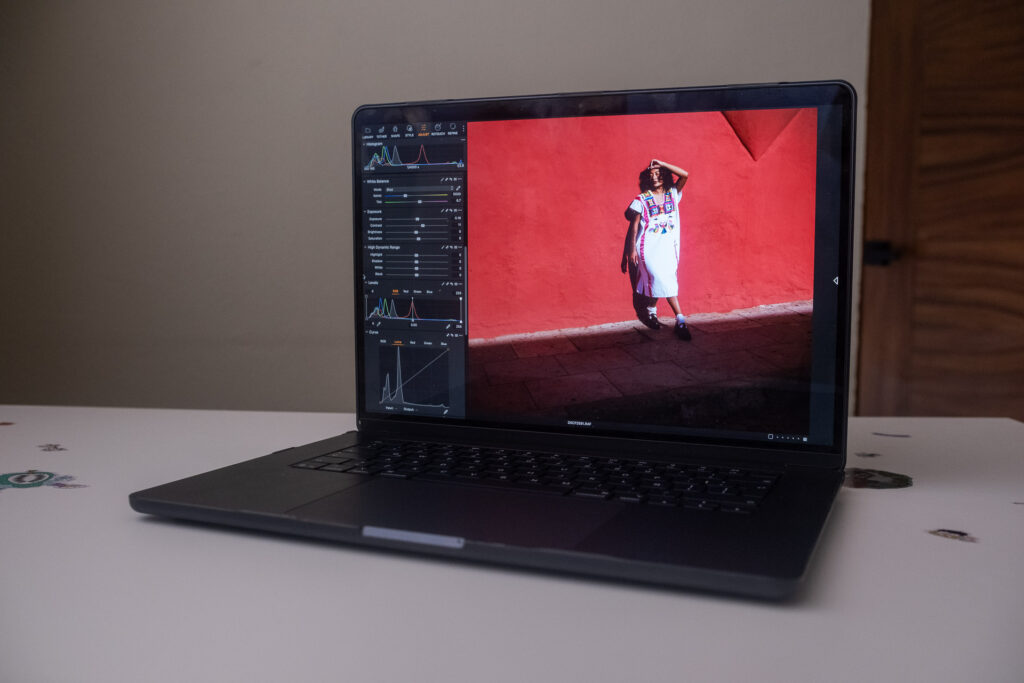
I purchased the current version of Capture One myself and tested it over the course of a month, helping me get the best idea of what it’s like to use day-to-day for professional workflows. All tests and real world usage was done on my Macbook Air M5 laptop, the latest offering from Apple’s Air line.
Pros & Cons: Capture One
Pros
- Best-in-class color grading tools
- AI-powered skin enhancement tools
- Fast, real-time tethering
Cons
- No built for beginners
- Below average culling tools
- Can get pricey
Capture One: Core Editing Tools
The fundamentals are where Capture One has always been strong, and that hasn’t changed. The sliders are precise and responsive, making exposure and contrast adjustments feel controlled rather than approximate. That level of accuracy matters when editing for print or commercial use, where small tonal shifts carry real consequences.
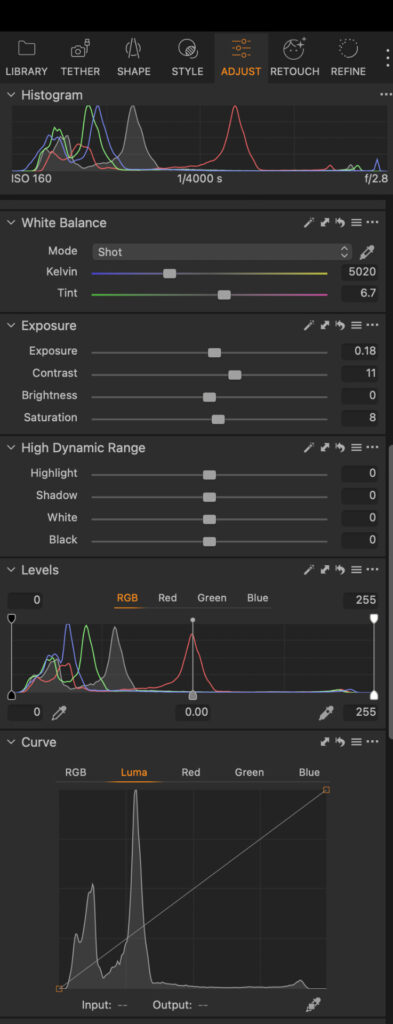
The tonal curve tools add another layer of control, and I found myself reaching for them regularly during commercial editing sessions. Tethering is also worth calling out. Shooting directly into Capture One during portrait sessions was seamless, and for studio photographers this alone justifies it as a serious professional tool.
Color grading remains the headline act. The tools go deeper than most competitors and reward the time you put into learning them. One minor omission I noticed was the lack of a dedicated vibrancy slider. Its absence was noticeable coming from other editors, as it offers something subtly different to saturation.
Photo culling is functional but limited. Capture One groups similar images together, which helps, but it stops well short of what dedicated culling tools offer. For most photographers, manual culling remains the preference, and I don’t think this will be a dealbreaker for the majority of users.
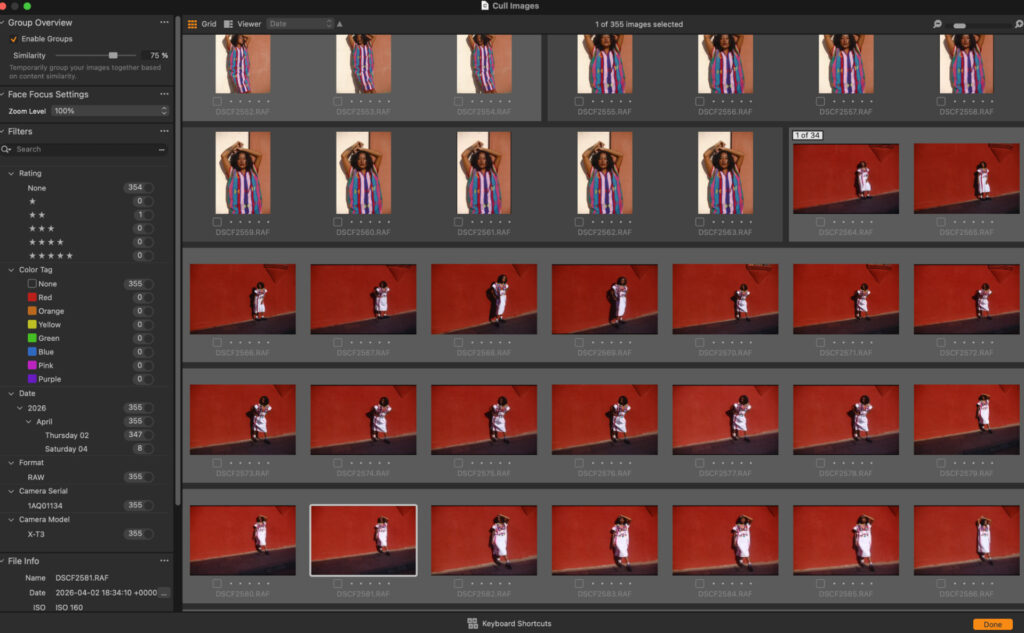
Capture One photo culling.
You may like: I Tested The Best Photo Culling Software (A Clear Winner in 2026)
Capture One: AI & Smart Features
Capture One has historically lagged behind competitors in AI and smart features, lacking subject-aware masking and AI-powered retouching tools that Lightroom and others shipped years earlier. It’s closing that gap quickly though.
One recently added feature is Match Look. You can drag and drop any image into Capture One and it will apply the same color grading, exposure adjustments and more to the image you’re currently editing. It’s most useful when borrowing the look of an image you haven’t edited yourself. If you’ve already edited the source image, creating a preset will give you a faster, more repeatable workflow.
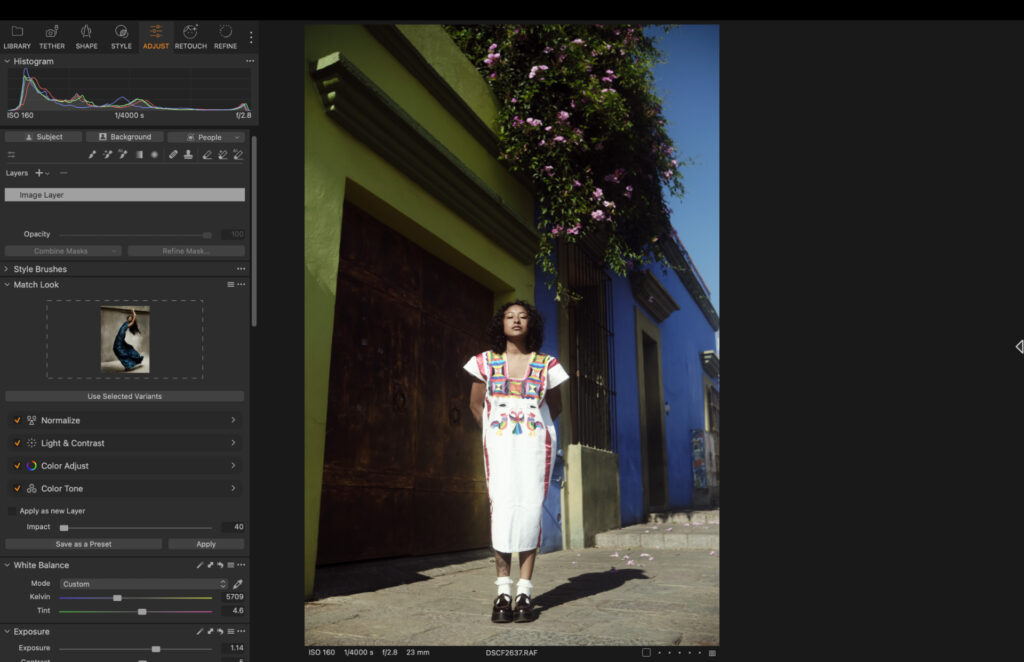
The Match Look tool works to good effect, but you’ll likely need to make some tweaks like I did.
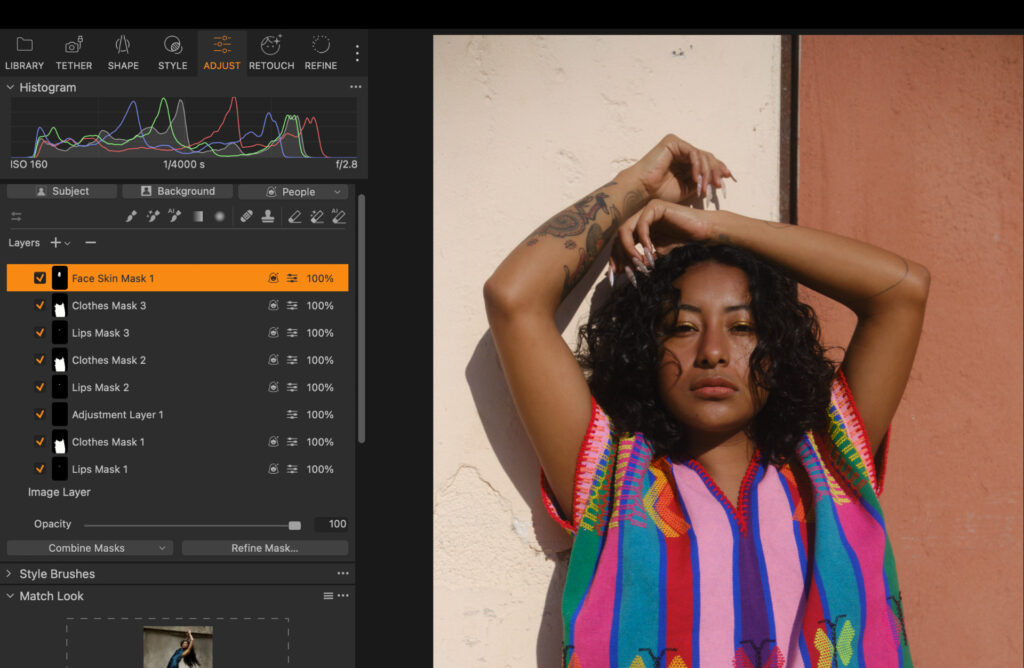
Masking features have become more granular across updates. Beyond selecting subjects and backgrounds, you can now isolate and edit specific elements such as eyes, lips, face, clothes and more. In my testing, Capture One sits between Lightroom and Aperty in this department. It offers more granular control than Lightroom, but falls short of the precision Aperty provides – you can learn more in my Aperty review.
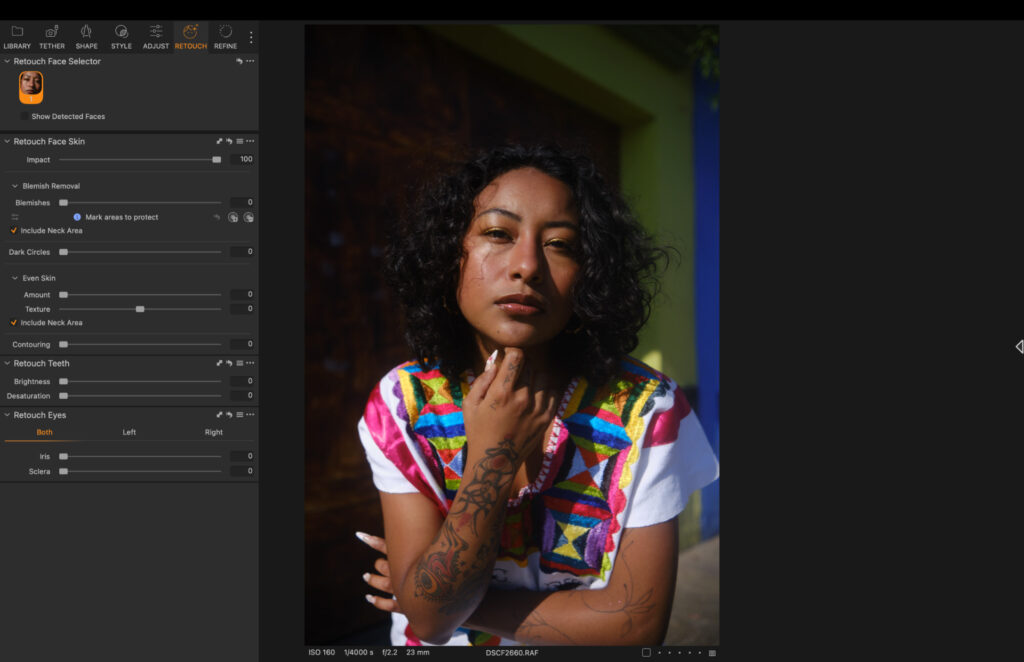
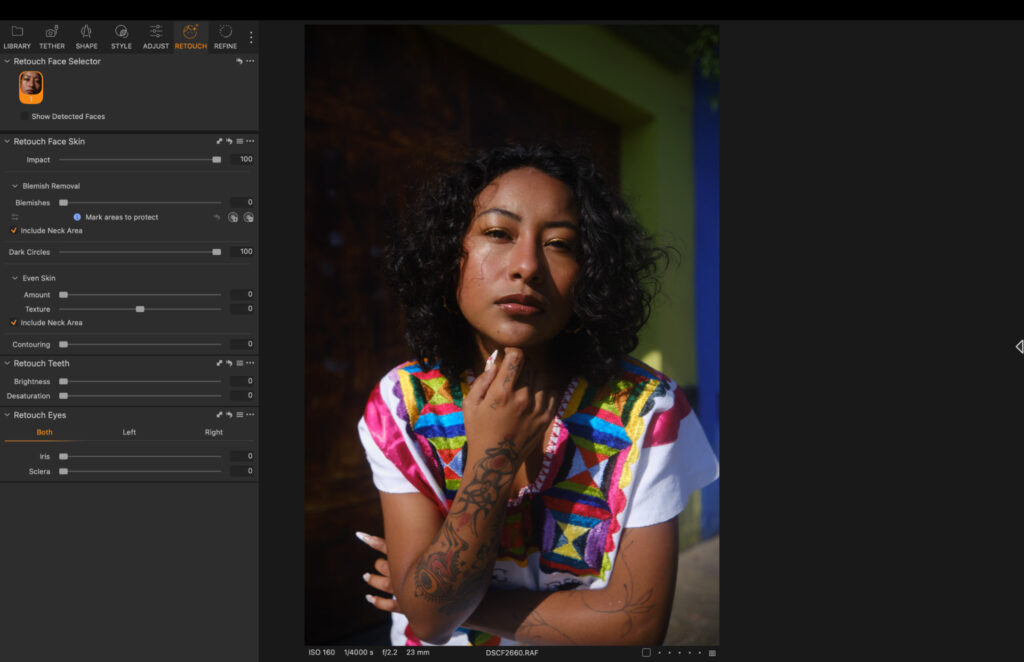
The Retouch tool is also relatively new. Built for portrait photographers, it lets you target specific areas of a subject’s skin and make slider-based adjustments rather than reaching for a brush. Skin softening, dark circle removal and eye enhancements are among the features, and all of them perform to great effect.
Before using dark circles removal tool…
After applying removal tool…
Presets, LUTs & Workflow Speed
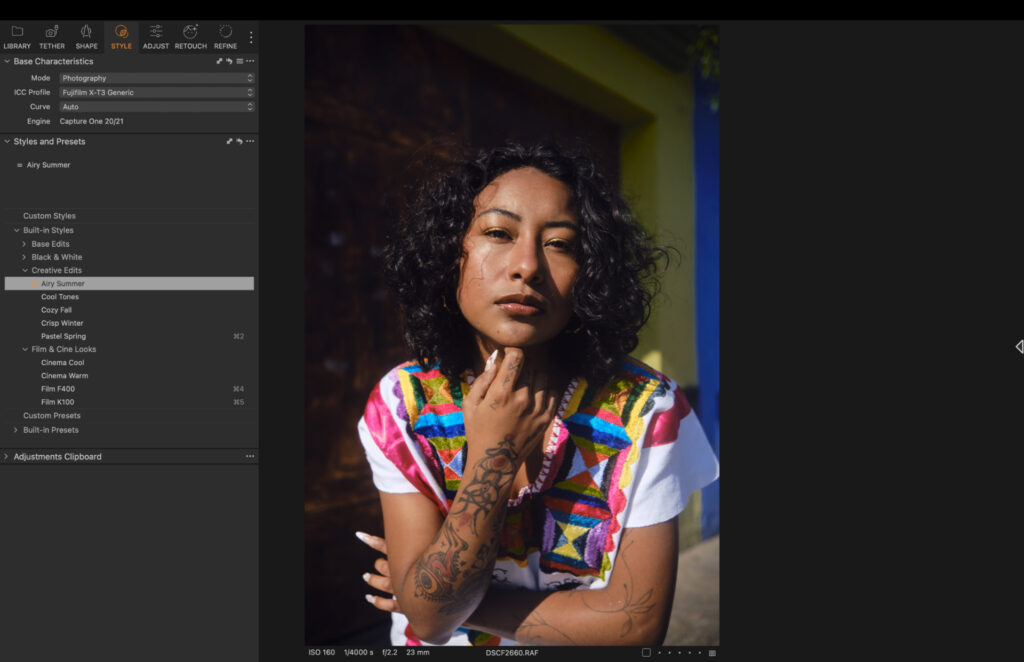
Edited using the Airy Summer preset.
Capture One’s preset library is smaller than Lightroom’s, and in my experience the quality doesn’t make up for the quantity. I found most of them over-processed, leaning too heavily on contrast and saturation in a way that created more work than it saved. The refinements needed to get them to a usable starting point largely defeated the purpose.
Where I’d point you instead is toward building your own. Creating custom presets in Capture One is straightforward, and for anyone editing at volume, it’s the fastest route to a consistent workflow. It’s how I approached it, and the difference in speed was immediately noticeable.
One notable limitation at the time of writing is the lack of native LUT support. For photographers who rely on LUTs as part of their color grading process, that’s worth factoring into your decision.
Capture One: My Real-World Experience
Coming back to Capture One after quite some time, the relearning curve was shorter than I expected. The interface is largely familiar, and within a few sessions I was moving through edits at a comfortable pace.
Tethering was one of the highlights. The connection was responsive and reliable, and unlike Lightroom, it worked just as well over Bluetooth as it did wired. For portrait and studio work, that flexibility makes a genuine difference to how freely you can move around a set.
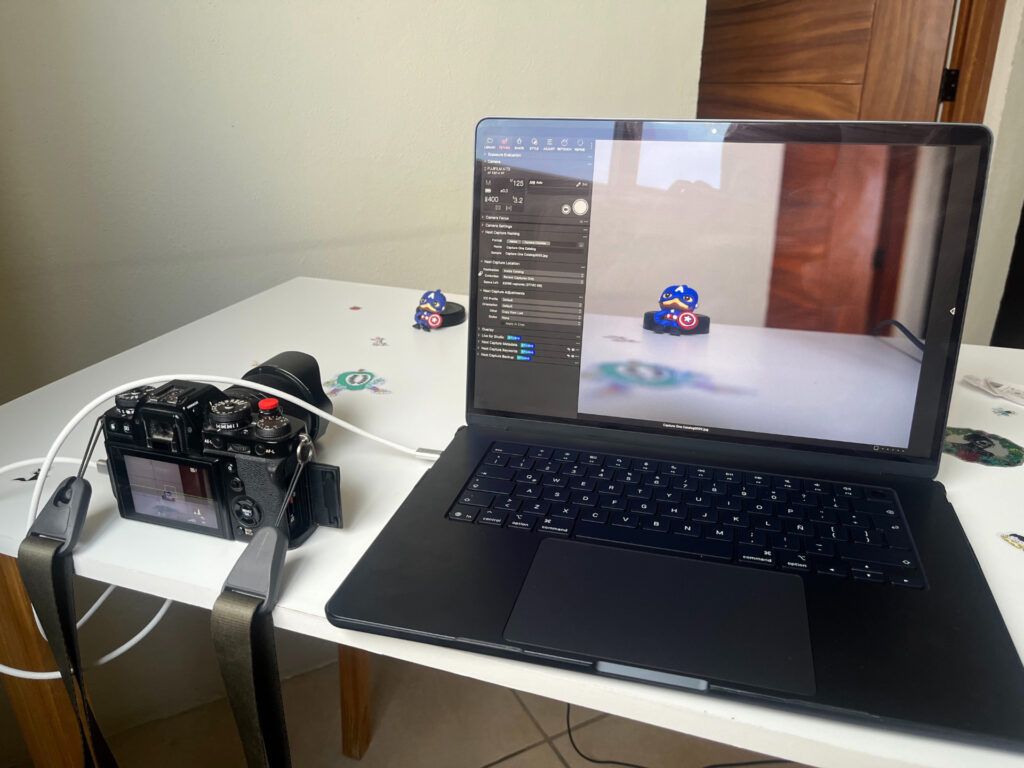
My tethering set up.
Full screen mode is a small but considered touch. Capture One automatically hides the feature menus when you enter it, giving you a clean, uninterrupted view of the frame. Hovering over any edge of the screen brings them back instantly. It sounds minor, but during long editing sessions I found it helped me evaluate images more honestly.
The color grading tools lived up to their reputation. Changes feel subtle and sensitive, which sounds like a small thing until you realise how much easier it makes achieving accuracy. There’s no fighting the software to pull back an overcorrection.
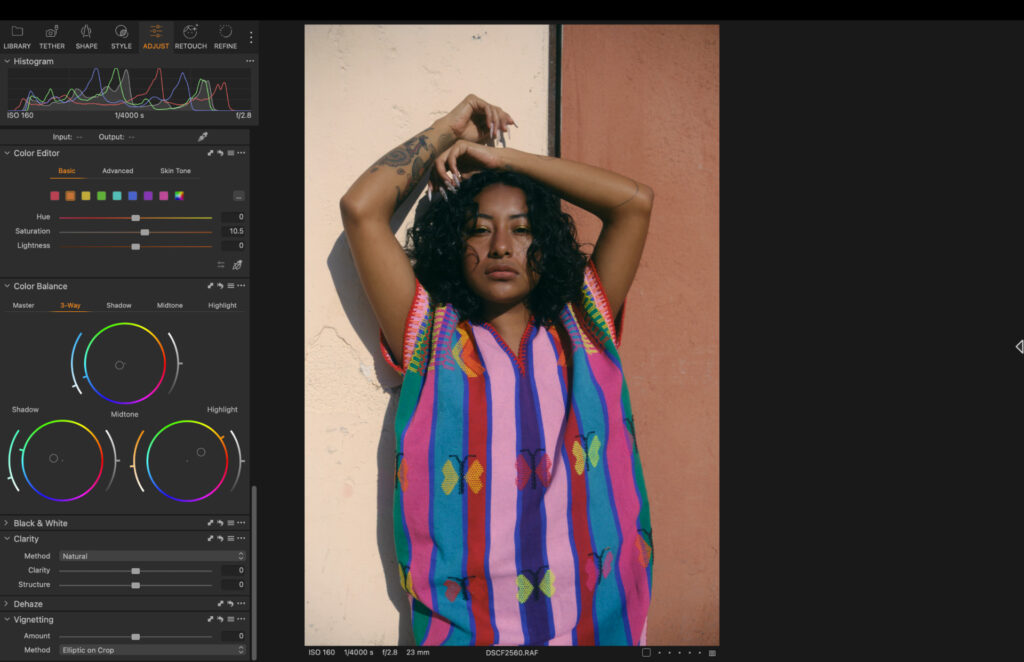
The masking tools were the standout for me. AI powered and genuinely precise, they opened up possibilities in how I approached a frame and made complex selections fast enough to change how I think about the editing process. The left hand menu has more categories than necessary, and tools like clarity, vignette and dehaze could reasonably sit together for faster access. It’s a minor frustration rather than a real obstacle.
Performance & Stability
I ran Capture One on an M5 MacBook Air, working with Fujifilm X-T3 RAW files at around 60MB each. The software handled them without hesitation. Loading was quick, zooming in and out was smooth, and during regular use I didn’t experience a single stall or need to force close the application.
I’ve also used it previously on an M1 MacBook Air, where it ran well enough, though noticeably less smooth and snappy than on the latest Apple silicon. If you’re on older hardware, expect capable rather than effortless performance.
Capture One: Pricing & Value
Capture One offers both subscription and perpetual licence options. The subscription comes in three tiers, while the perpetual licence gives you full ownership of the software for a one-time fee. It’s worth noting that as of June 2026, Capture One implemented a 6% price increase across all plans.
- Pro (Desktop only) –Yearly: $216 ($18 per month) Monthly: $28
- All-in-one (Mobile + Desktop) – Yearly: $296.04 ($24.67 per month) Monthly: $38
- Studio – $582 ($48.50 per month) Monthly: $63
- Perpetual Licence –$349 (Pro version)
For most professional photographers, the Pro annual plan at $18 per month is the sweet spot. Unless you’re editing on mobile regularly, the All-in-one tier offers little extra value, and the Studio plan is built for larger team environments rather than individual use. If you prefer to own your software outright, the perpetual licence is worth serious consideration.
Who Is Capture One Best For
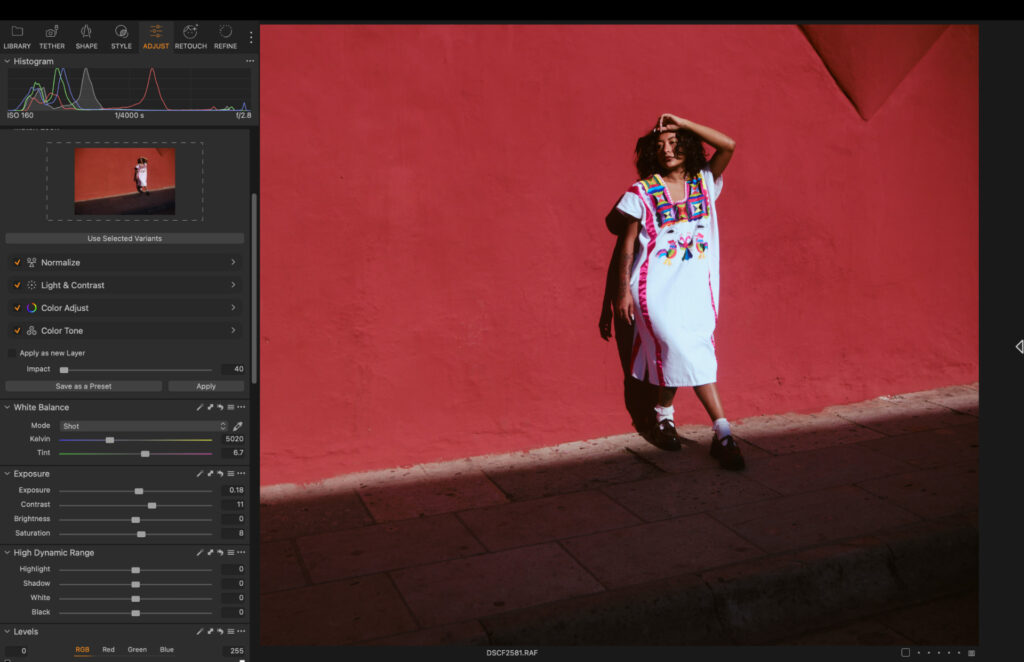
Capture One’s advanced tools, including real-time tethering, advanced color grading and its pricing structure, place this firmly in the professional category. Studio photographers working in portraits or still life will benefit most from the tethering and retouch tools, as both speed up and refine the shooting and editing workflow considerably.
For commercial and print photographers, the precision of the sliders is particularly valuable. Accuracy is non-negotiable in those disciplines, and Capture One delivers it.
It’s not built for beginners. If that’s you, I recommend checking out my selection of the best photo editing software for beginners.
Capture One vs Alternatives
Capture One’s main rival for professional photographers is Lightroom. Both offer similar core tools, including tethering, though Adobe limits this to wired connections only. Capture One supports Bluetooth.
In terms of real-world use, Lightroom is easier to get to grips with. Its interface makes navigation more intuitive, which makes it a strong option for intermediate users as well as professionals.
Where Capture One pulls ahead is smart features. Its AI masking is more precise, and unlike Lightroom, users can color grade specific elements of an image rather than the full frame. In practice, that means editing clothing color without touching skin tones, which is a significant advantage for portrait work.
Pricing is also worth considering. Lightroom is cheaper on both monthly and annual plans, with a maximum cost of $17.99 per month. However, it has no perpetual licence. If you want to pay once and own the software outright, Capture One is the only option.
You may like: Best Lightroom Alternatives in 2026
Capture One: Final Verdict
After testing Capture One, I have no hesitation saying it’s worth every penny. The color grading tools remain best in class, the AI masking genuinely changed how I approached editing portrait sessions, and the overall experience felt less like relearning software and more like picking up where I left off.
That said, my professional workflow remains a combination of Lightroom and Imagen, as they both really speed up professional workflows. Together they offer comparable tools while delivering a significantly faster culling and editing pipeline, something Capture One can’t quite match given its limited culling tools and slightly steeper learning curve.
If you’re moving up from a more beginner friendly editor because your work is getting more serious, or you’re simply ready for a change from your current professional tool, Capture One belongs in that conversation. The investment is justified, the depth is there, and once it clicks, it’s a genuinely impressive piece of software.
More reading: Best AI Photo Editor in 2026: Top Picks for Smarter, Faster Edits
Read our Affiliate Statement.