
The best Lightroom alternative is Luminar Neo, which offers powerful AI editing, a simpler interface, and a one-time purchase option instead of Adobe’s subscription. I’ve been testing photo editing software for over a decade, and it’s the one I recommend most to photographers ready to move on from Lightroom. Still, other alternatives may fit you better depending on whether you need advanced raw processing, catalog management, or a free tool.
I understand why you may want to dodge Lightroom. As good as it is, it can get rather expensive, especially when you consider there’s no option to purchase a perpetual licence. Some find it also struggles to process certain RAW files, and the general user interface design is a little dull for some.
With that, my selection of Lightroom alternatives ticks the boxes you want. Affordable services you only pay once to use, excellent editing features and modern design. There’s something for all experience levels too. From beginner to enthusiast, serious to pro. Let’s dive in…
Lightroom Alternatives Compared
| Software | Top Features | Best Price (2026) | Who’s It For? | AI Tools | Compatibility |
| Luminar Neo | Auto Object removal, Sky replacement, Relight, Precision adjustments, AI assistant | $159 (Perpetual) 👉 View Deal | Beginners, Enthusiasts, Content creators. | Yes | macOS, Windows, iOS, Android, ChromeOS |
| Imagen AI | AI-Powered Culling, AI editing tools, train AI your unique style, social media mangement | PAYG – $0.05 per image. 👉 Claim Free Edits | Intermediates, Proffesionals | Yes | macOS, Windows |
| Capture One | Laptop tethering, advanced masking tools, Match Look | $349 for a perpetual licence (yours to own forever). | Professionals | Yes | macOS, Windows, iOS, iPadOS |
| PhotoMator | Apple Photos integration, denoise tool, magical removal tool, selective color editing | $34.99 per year ($2.91 per month). | Enthusiasts | Yes | macOS, iOS, iPadOS |
| Polarr | Filters, color toning, LUTs, presets | $47.99 per year ($3.99 per month). | Beginners, basic users | No | macOS, Windows, iOS, Android, Web |
How I Test Lightroom Alternatives

I downloaded each of the software below onto my Macbook Air (M1). Some I already use on a regular basis, and the others I ran tests on for a minimum of two weeks. This lets me familiarize myself with the software. It also lets me get the best idea if each software is worth my recommendation, what’s working and what could be improved.
Related: A Photographer’s MacBook Air M5 Review: Skip the Pro?
Luminar Neo: The Best Lightroom Alternative in 2026
Key Benefit: Perfect balance of powerful manual controls (curves, color toning) and single-click AI features like Light Depth and Smart Search.
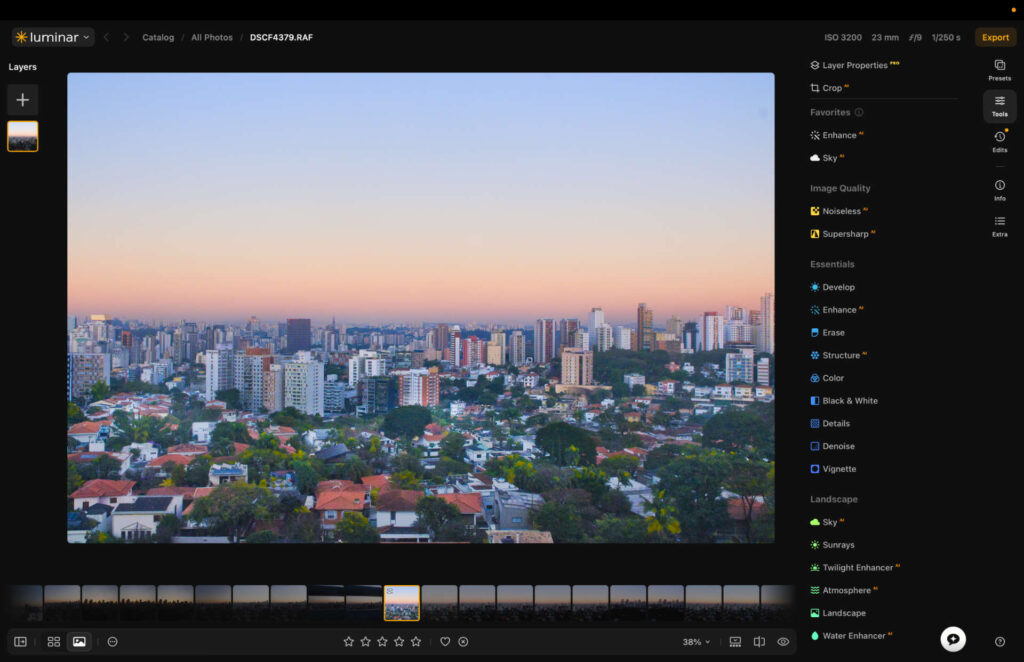
A lot has changed since my first Luminar Neo review, with the company adding several new features to the platform. Many of them revolve around AI functionality such as auto enhancements, upscaling tools to improve image quality and an AI assistant that takes your written instructions and then makes the edits for you.
If AI isn’t for you, the photo editing app has all the regular features you would want to control your edits. Exposure, contrast, curve tools et al are all available for you to fine tune your images. Color toning tools, plus presets and LUTs, are all packed into the software for those who enjoy being creative with their edits.
Luminar Neo: My Real World Experience
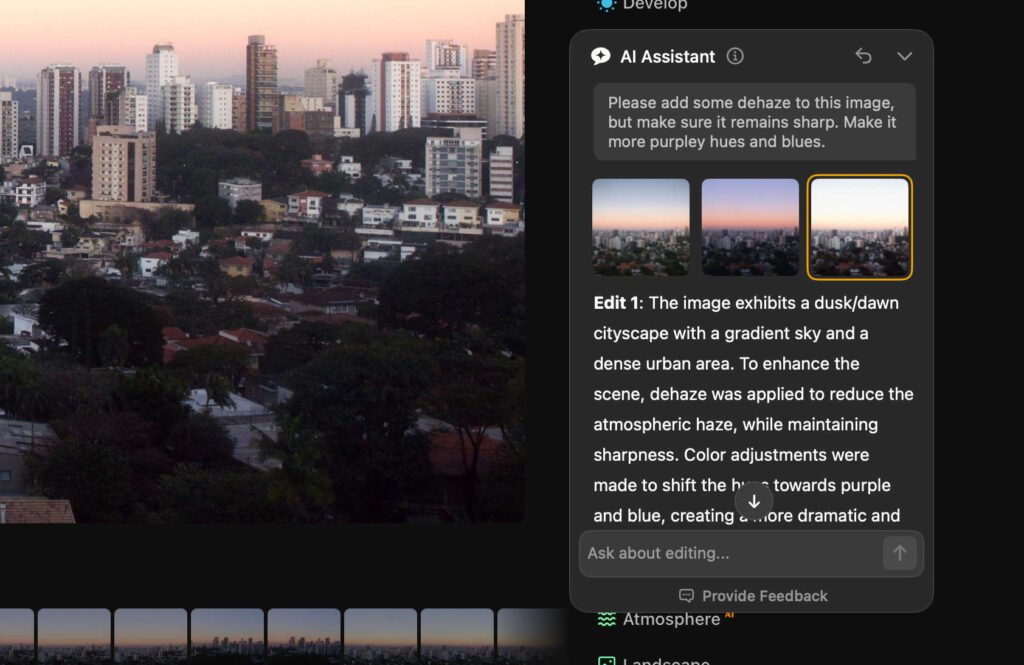
As someone who embraces certain elements of AI, I’m always excited to try new features that can make editing workflows faster and easier. The AI assistant was impressive. It was able to take my instructions and present three edits that match my request. This is ideal for those who don’t like messing around with sliders and prefer to type what they need.
When it comes to design, the desktop app is beautiful. And in August 2026, it had a redesign, with Luminar making its tools more compact and the whole software is now much easier to navigate. Images load quicker too and I noticed performance had become much smoother after the recent update.
The file management tools are basic, but functional. I can give images a star rating and then filter them in order of their rating. For quick access to my favorite images, I simply had to select the heart symbol.
In my recent testing, I also noticed excellent improvements to the removal tool. It was hit and miss in the past but it now removes selected objects with great accuracy, and for this I tip my hat to Luminar Neo.
How Much Does Luminar Neo Cost?
Luminar Neo has three pricing options, with each giving different access to apps and creative assets. Considering you only need to pay once for the software, it’s easily one of the most cost-effective Lightroom alternatives.
- Perpetual Desktop License – $129 (macOS & Windows)
- Cross-device Perpetual License – $159 (Desktop + mobile apps)
- Perpetual Max License – $199 (Desktop, mobile apps + creative library with extra presets, LUTs, and editing features)
Get Luminar Neo Promo code THEMFRAMES10 gets you an extra 10% discount.
Imagen AI: Best Lightroom Alternative for Culling & Workflows
Key Benefit: It actively learns your unique personal editing style and can perfectly batch-edit images 80% faster than Lightroom.
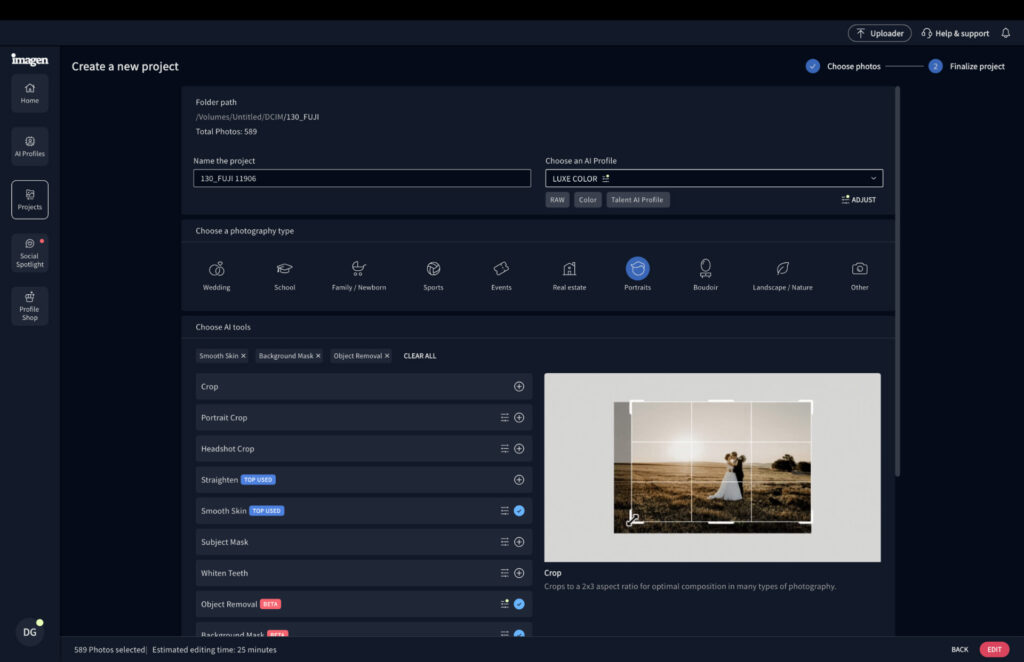
Strictly speaking, Imagen isn’t a standalone app and still requires some integration with Adobe’s editing software. That said, the AI-powered app is a great alternative for several of Lightroom’s core workflows, including image culling and fast, accurate editing of large batches of images.
Unlike some AI photo editors, Imagen doesn’t tell you how to edit, but rather follows your lead. You simply train the software by uploading files you’ve previously edited, helping it understand your unique style. It then intelligently applies your personal look to RAW files, cutting editing time significantly.
The culling capabilities go much deeper than what Lightroom currently offers. You can cull images to exact numbers and include blur, blink and kiss detection. It also uses its own judgment to sort images into absolute keepers, low-rated shots and the best standalone images.
If you’re not ready to build a personal AI editing profile, there are two other options. You can create a Lite version, which works more like a preset, or purchase a profile from another professional photographer via the Imagen marketplace.
Imagen AI: My Real World Experience
During testing, the main objective was simple: could Imagen genuinely speed up my workflow and reduce my editing workload?
To test it against Lightroom, I edited 300 images manually in Adobe’s app, then uploaded the same RAW files to Imagen. The result wasn’t close. Two hours later I was still in Lightroom, while Imagen had delivered all my edits in 20 minutes.
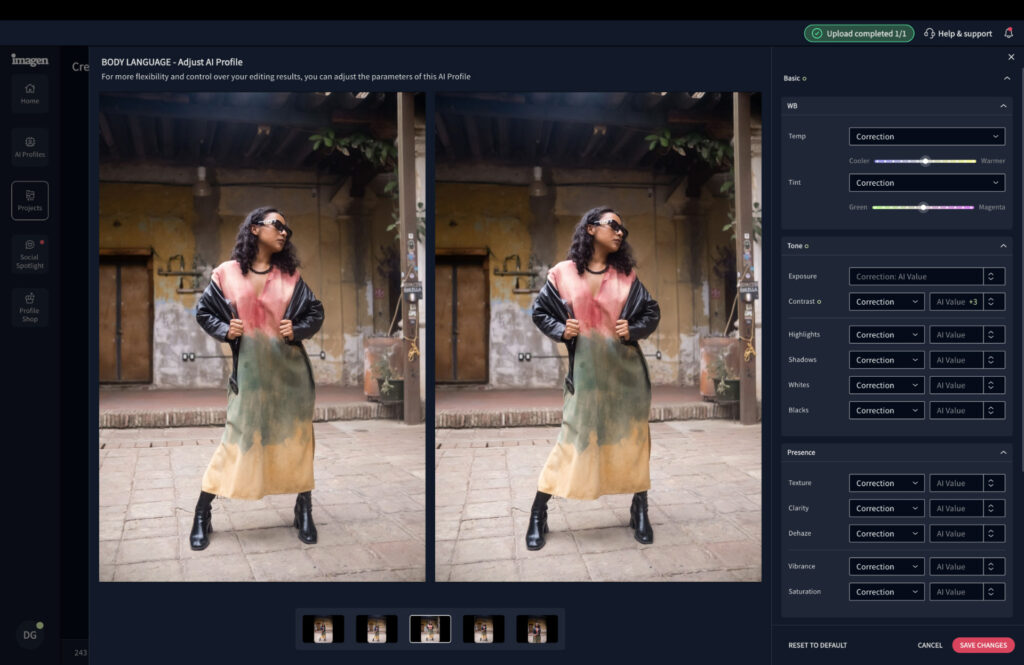
I wondered how this differed from editing a single image in Lightroom and syncing the look across the rest. The difference is that Imagen uses a dynamic editing process, fine tuning each image for different lighting situations and color environments. The result is far fewer manual corrections compared to Lightroom’s sync approach, which speeds up the process even further.
One area I’d like to see improved is the fine tuning tools. You can adjust everything, but instead of sliders, it uses numerical inputs controlled by up and down arrows. It’s a minor gripe, but responsive sliders are more intuitive and feel more natural to work with.
The culling tools outperformed Lightroom comfortably. Imagen aligned with my manual culling around 90% of the time, compared to roughly 60% with Lightroom, which left considerably more work to do after the fact.
On the technical side, the app runs smoothly and without lag. Once you’re familiar with the interface, it becomes a fast and largely effortless part of your workflow.
Related: I Tried Imagen AI for 90 Days: The Edits Shocked Me
How Much Does Imagen AI Cost?
Imagen offers several pricing options to suit different shooting volumes, including pay-as-you-go (PAYG) and an annual plan.
- PAYG – $0.05 per edited image
- Yearly: Limitless Use – $1548 ($129 per month)
For photographers who currently outsource their editing, PAYG is worth a close look. The 300 images I edited through Imagen would have cost just $15, and were delivered in under an hour. Compare that to the time and cost of sending the same batch to an external editor, and the value speaks for itself.
For high-volume shooters, the Limitless annual plan makes even more financial sense. Wedding photographers in particular stand to save a significant amount, both in editing costs and the time that can be redirected toward booking more work.
Capture One: Best Lightroom Alternative for Professionals
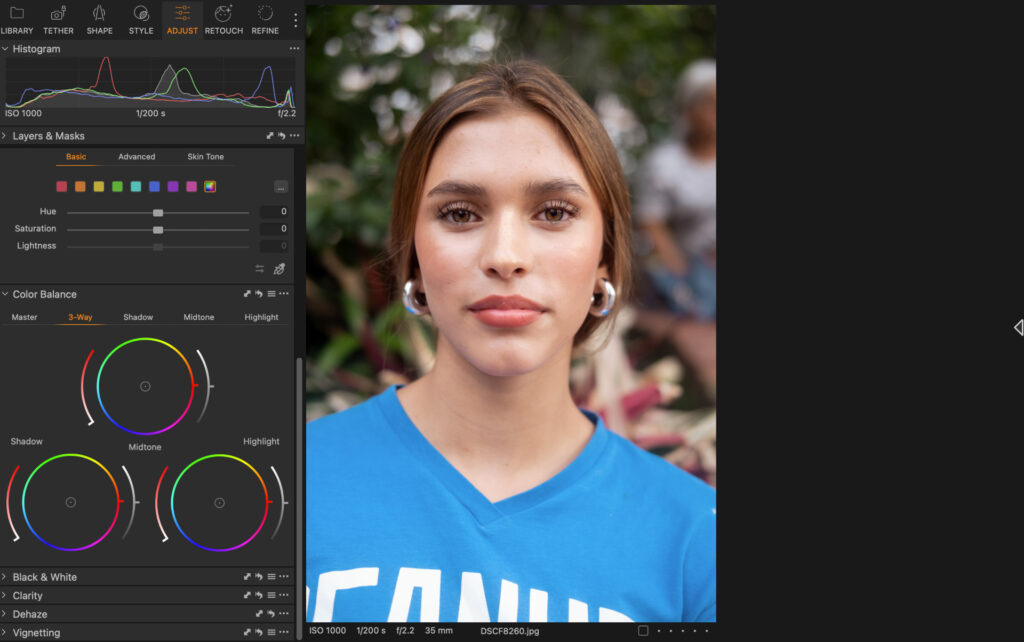
With features such as live tethering, accurate color editing and detailed file management, Capture One is certainly targeting professional photographers. It comes with powerful RAW processing for a range of camera models and gives you all the adjustment tools a pro would need to get the most from their images.
One cool (and useful) feature is the “Match Look” tool. Drop any image into this feature and Capture One analyses the tone and feel then applies it to the image you’re editing. There’s a new slider tool for skin editing that lets you refine blemishes, dark spots and texture with the need of masking.
Capture One doesn’t go heavy on AI, which I’m certain pros will like. It’s got everything one needs for complete control and is suited for portrait, editorial and commercial photographers.
Capture One: My Real World Experience
I must say Capture One’s layout is best-in-class. Although very much for professionals, the detail of the design makes it suitable for all experience levels. I like how we can collapse individual sections and only have open the tools and features we need. This makes navigation much more straightforward.
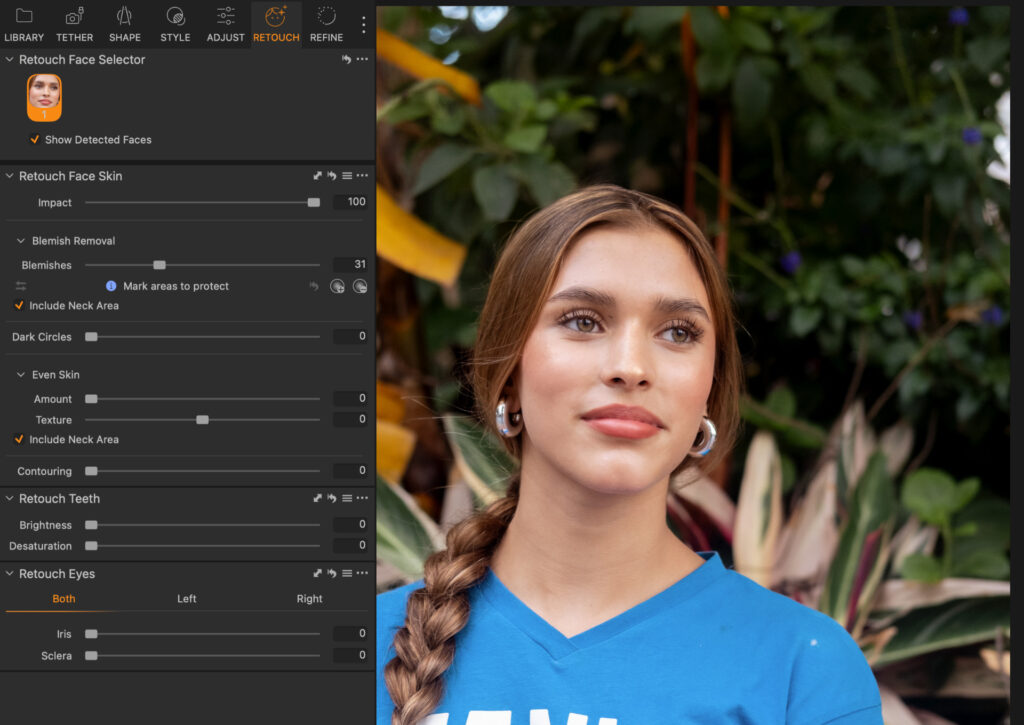
The software is very responsive. Large RAW files loaded in no time and I experienced zero lag or freezing when zooming in on images, or flicking from one photo to the next. Nor was there a delay in adjustments with changes happening in real time (poorer software can sometimes take seconds to apply changes).
I do have one or two issues with the layout. Tools like clarity, dehaze and vignetting all live in separate sections on their own. I think putting these in a single section will simplify and condense the layout, which would be an improvement in my opinion.
Related: Capture One Review: The Best Option for Professionals?
How Much Does Capture One Cost?
Capture One does offer a perpetual licence, but monthly and annual subscriptions are available. In June 2026, Capture One increased its pricing by 6% so these should be fixed for the foreseeable future. The perpetual licence is the most costly option in this selection of the best Lightroom alternatives, but again, it’s mainly targeting professional users.
- Pro (Desktop only) –Yearly: $216 ($18 per month) Monthly: $28
- All-in-one (Mobile + Desktop) – Yearly: $296.04 ($24.67 per month) Monthly: $38
- Studio – $582 ($48.50 per month) Monthly: $63
- Perpetual Licence –$349 (Pro version)
Photomator: Best Lightroom Alternative for Mac
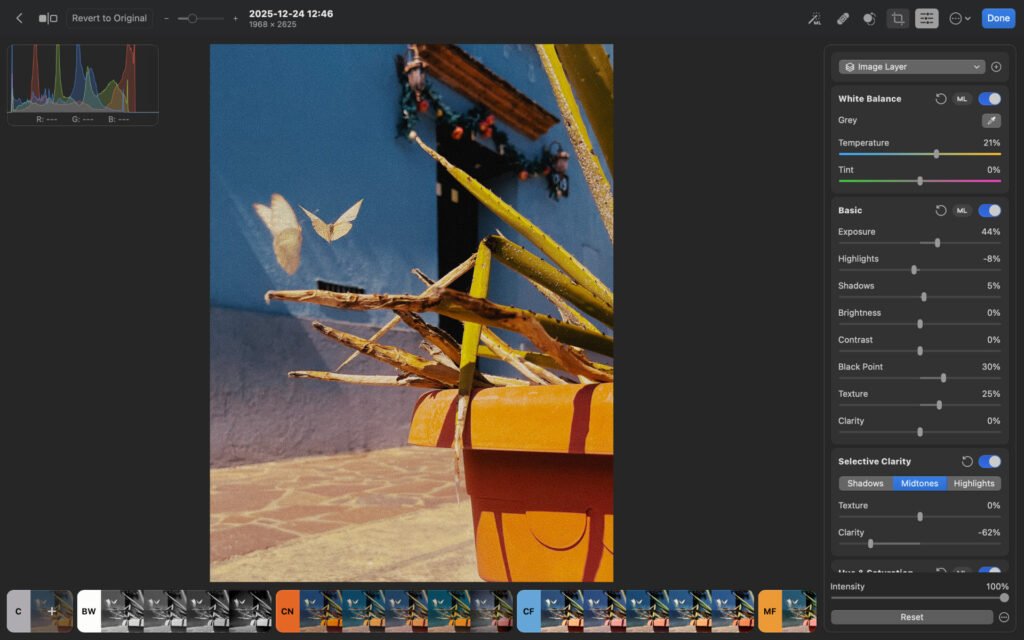
After a purchase in 2025, PhotoMator is now Apple’s own advanced photo editing tool. You can use it to edit RAW files from your camera or – as I prefer – to edit images directly from your iPhone.
On top of the basic editing functions it also has some more advanced features. You can select skies, subjects and backgrounds, plus use brush and gradient tools. This makes it much more advanced than Apple’s standard Photos editing app. There’s also a magic removal tool, which functions the same as you’d find on Luminar Neo and Lightroom.
There are plenty of presets and LUTs to choose from, and you can manipulate color tones, hues and saturation for more creative control.
PhotoMator: My Real World Experience
I really want to like PhotoMator. I find the design gorgeous and it plays into Apple’s design language perfectly. It has pretty much all the tools I look for to make edits, and the removal tools, denoise tools and auto enhance all work extremely well.
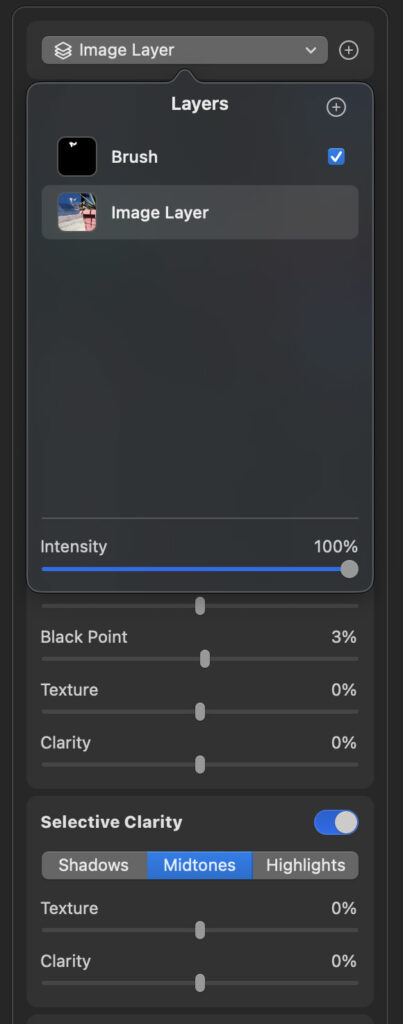
The problem is, however, it lags. I’d sometimes had to come in and out of editing a photo for changes to be visible, and loading new images was considerably slower than other software.
It syncs perfectly with my Photos app, which is why I prefer using it to edit my iPhone photography. I don’t need to transfer files and they’re there ready for me to edit. Edits also reflect instantly in the Photos app, and there’s an option to export them to a folder on my Mac which is convenient.
For 90% of photographers, there’s little you’ll miss when using PhotoMator (it lacks more pro tools like lens correction, Chromatic Aberration removal and advanced file management). However, it needs to improve those performance issues – which don’t always happen – if it wants to compete with the very best photo editing apps.
Related: Photomator Review (2026): Is Apple’s Photo Editor Actually Good?
How Much Does PhotoMator Cost?
PhotoMator is certainly a cheap photo editing software. There’s a very affordable yearly subscription, a monthly option and an option to buy a perpetual license.
- Yearly: $34.99
- Monthly: $7.99
- Lifetime: $119.99
Related: Best Photo Editing Software for Mac
Polarr: Best Free Lightroom Alternative
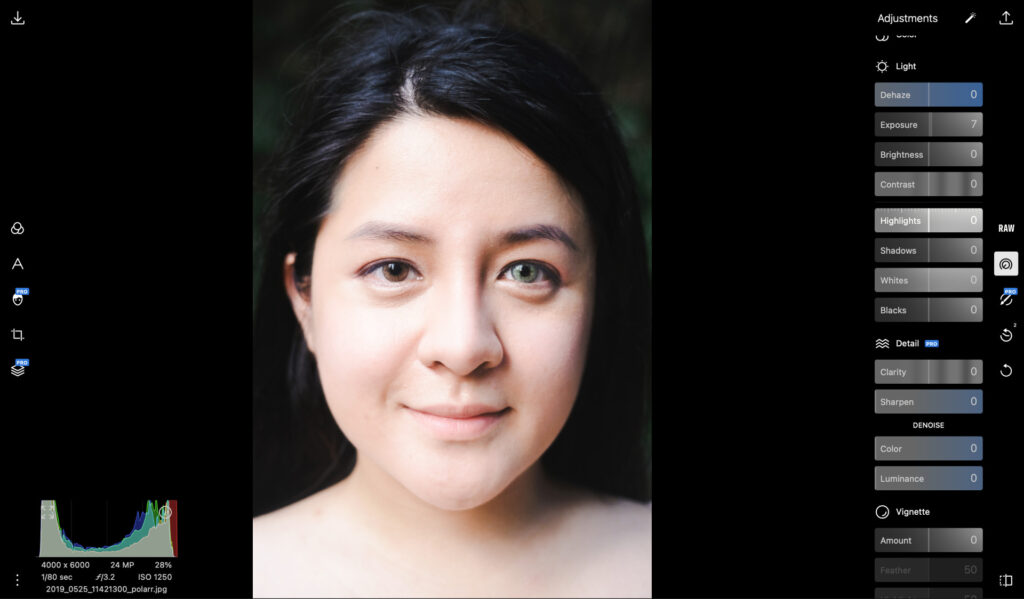
In my early days of photography, when finances were thin, I turned to Polarr to edit my photos. It has a completely free option which lets you make very light adjustments through presets, exposure, contrast, highlights and shadows. The color toning tool is also available on the free version, as are the cropping and vignette options.
Polarr can do more. RAW support is available, as are clarity, sharpening, HSL and curve tools. These are only active on the paid version, however, as are LUTs and spot removal. Free or paid, Polarr is very basic and perhaps best suited for beginners.
Polarr: My Real World Experience
Polarr’s limited feature set is somewhat of a blessing. It makes it very easy to grasp and jumping from one feature to the next takes little brain power. It’s not the easiest eye design, but it’s not bad either and performance is smooth.
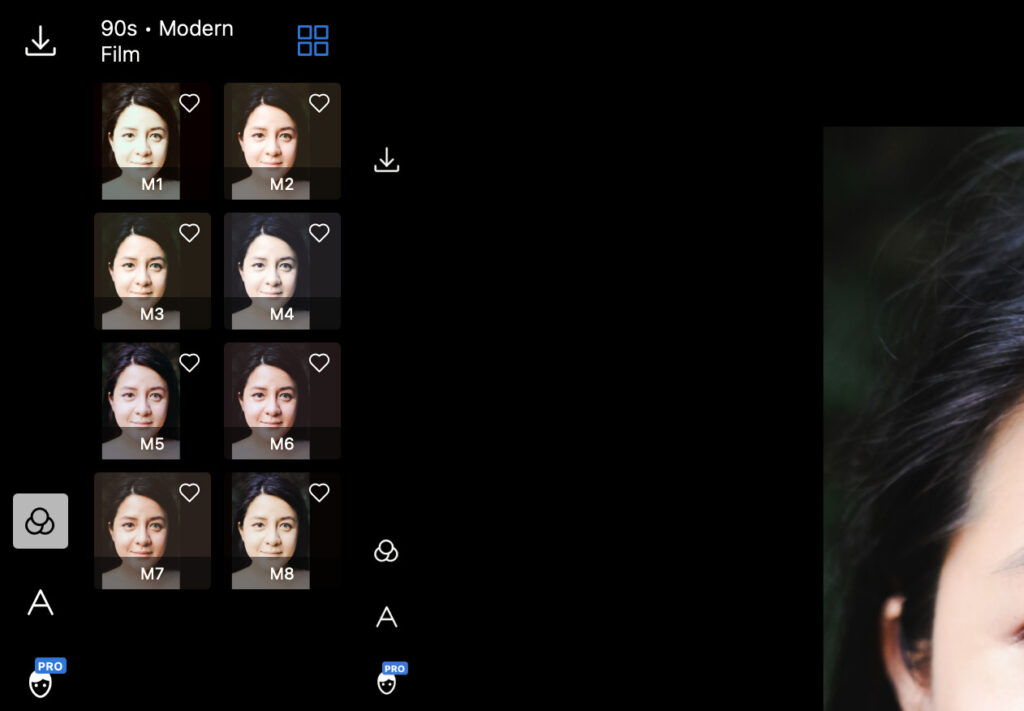
There’s nothing in the form of file management. What you upload stays in the order you uploaded each image, and useful tools like favoriting and staring images are certainly missed. Again this isn’t for power users or those looking for anything remotely advanced.
The adjustment tools work well and while changes are not as granular and accurate as more pro-level options, they do just fine for your basic edit. When using Polarr, I tend to use the presets more than anything, they’re cool, have a vintage look and seldom need tweaking in the adjustments bar.
How Much Does Polarr Cost?
The paid version of Polarr (Pro) is very cheap, and if you want those extra tools, you can get them without breaking the bank. Remember the standard version is totally free to use forever.
- Polarr Pro: Yearly: $47.99 ($3.99 per month) Monthly: $7.99
Related: Best Photo Editing Software for Beginners
How to Choose Your Lightroom Alternative
There is no perfect “one size fits all” editor. The right choice depends on how you shoot, how you like to work, and what you value most when editing. Before committing, think about what matters to you in real-world use, not just on a features list.
- Define your use case: Consider how you shoot and edit. Are you mainly working on quick social edits, client projects, hobby images or high volume workflows. Knowing your intention helps narrow your options instantly.
- Look for a balance of basic and advanced tools: Make sure you get reliable essentials like exposure, color and selective adjustments, while still having access to deeper controls when you need them. This balance keeps things simple without limiting creativity.
- Consider AI features as workflow boosters: Modern AI tools can significantly speed up repetitive edits like masking, object removal, sky selection and relighting. Think of AI as a way to work smarter, reduce time behind the screen and stay focused on the creative part.
- Be honest about usability: A beautiful interface and logical layout make a big difference. If a tool feels intuitive and enjoyable to use, you are far more likely to actually stick with it and get better results.
- Check long term cost: Subscription vs lifetime licence matters. Look closely at what you pay, what you actually get in return and how often you realistically upgrade your software. Value is not only price, it is how much you get out of it.
All of the services I recommend have either a free trial or money back guarantee. I recommend giving them a test drive before making a long-term commitment.
Signing Off
Finding the right Lightroom alternative comes down to how you edit, what features genuinely help you and how much you want to pay in the long run.
All of the options above are a good idea, but after years of testing and using different platforms, the standout choice for most photographers remains Luminar Neo. It blends usability, creative control and powerful AI tools better than anything else, while letting you own the software outright.
Sign up today and start editing with something you will actually enjoy using. Remember to use promo code THEMFRAMES10 for an extra 10% discount.
More reading: Luminar Neo vs Lightroom: Honest Comparison Before You Decide
Updated 5th August 2026: This article has been updated to show screenshots of Luminar Neo’s new user interface and to comment on performance improvements. New pricing increases also updated.
If you purchase a product using the links, I may get a small kick back. This helps me run the site and I thank you advance.