
Adobe is constantly evolving its Lightroom software. What was once a desktop only app, is now also a cloud-based powerhouse. To achieve this, Adobe released two versions of Lightroom, and while they share common features, they’re also very different. To help you understand, I’ve put together this clear and concise Lightroom vs Lightroom Classic guide.
In this guide, I won’t just compare features on paper. I’ll also share my real-world experience of using both on a daily basis, and explain which version of Lightroom is best suited to different types of photographers. I’ll say upfront that both versions are excellent and comfortably belong on any list of the best photo editing software.
I should note that the official counterpart to Lightroom Classic is Lightroom CC. However, when you download the app, it’s simply labelled Lightroom, so for the duration of this guide I’ll separate them simply between Lightroom and Lightroom Classic.
Also, if by the end of this guide you decide neither version is right for you, be sure to check out my selection of the best Lightroom alternative.
Lightroom vs Lightroom Classic: At a Glance
| Feature / Capability | Lightroom | Lightroom Classic |
| Desktop (macOS & Windows) | Yes | Yes |
| Mobile apps (iOS & Android) | Yes | No |
| Web-based editing | Yes | No |
| Cloud-based storage | Yes | No |
| Local file storage | Yes | Yes |
| Cross-device syncing | Yes | No |
| Advanced file & folder management | No | Yes |
| Rename folders | No | Yes |
| Professional export controls | Yes | Yes |
| Simplified, modern interface | Yes | No |
| Precision editing controls | Yes | Yes |
| Presets support | Yes | Yes |
| AI masking tools | Yes | Yes |
| AI object & people removal | Yes | Yes |
| Lens Blur (AI bokeh) | Yes | Yes |
| Assisted culling | Yes | Ues |
| Best for beginners | Yes | No |
| Best for professionals | No | Yes |
Lightroom vs Lightroom Classic: Differences & Similarities
Below I will break down and cover the main differences and similarities in terms of features and compatibility.
Compatibility
One of the biggest differences between the two versions is how and where you can use them.
Lightroom Classic is desktop-only and available on Windows and macOS. Lightroom, on the other hand, is cross-platform and available on desktop, mobile (iOS and Android), ChromeOS, and even via a web browser.

Lightroom Classic on macOS.
The limitation with Lightroom Classic is that it only works with files stored locally on your computer or on connected drives. Lightroom imports images directly to the cloud, allowing you to edit the same photo across multiple devices. In real-world use, this means you could start an edit on your Mac and continue it later on your iPad without missing a beat.
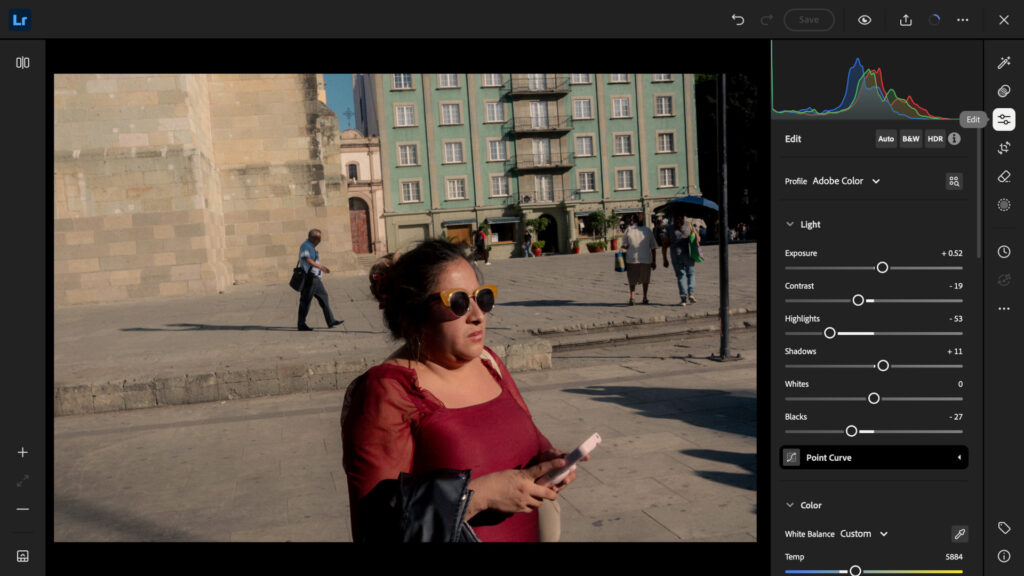
Lightroom web app.
With Lightroom Classic, you can import as many images as your internal or external drives allow. Lightroom includes 1TB of cloud storage, which is generous even if you shoot in RAW.
Because files live in the cloud, Lightroom also reduces reliance on local disk space, which can help with overall system performance. In recent years, Adobe made it possible to interact with files locally on the cloud-based version of Lightroom.
In theory, Lightroom could double as cloud storage for your photo library, but it’s not ideal if storage alone is your priority.
If you’re looking for a dedicated solution, I recommend checking out my guide to the best cloud storage for photographers.
User Interface
Both versions have distinct user interfaces, but since Lightroom Classic is desktop-only, I’ll compare the desktop experiences for clarity.
Lightroom features a modern, streamlined interface with a strong focus on simplicity. Lightroom Classic, by comparison, looks more dated, with muted colors and a noticeably busier layout. While you can collapse panels in both, Lightroom still provides more screen real estate for your images, something I personally value.
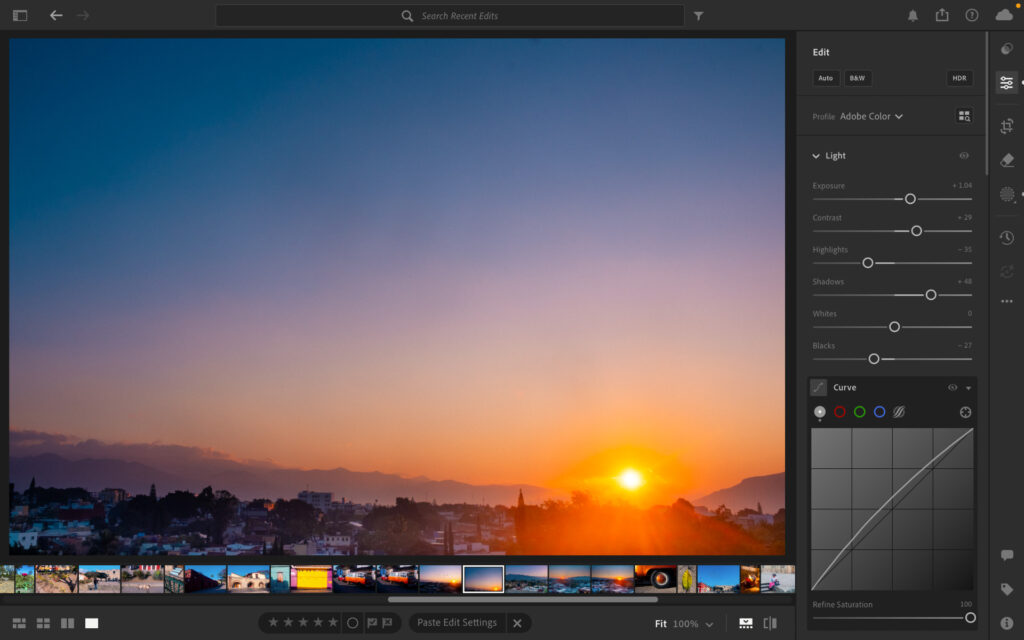
Lightroom on macOS.
That said, Lightroom Classic’s interface feels more “professional” in intent. Despite its lack of visual polish, it resembles software like Capture One, which is clearly designed for precision-driven, professional workflows. Lightroom feels more approachable and clearly targets enthusiasts and newer editors.
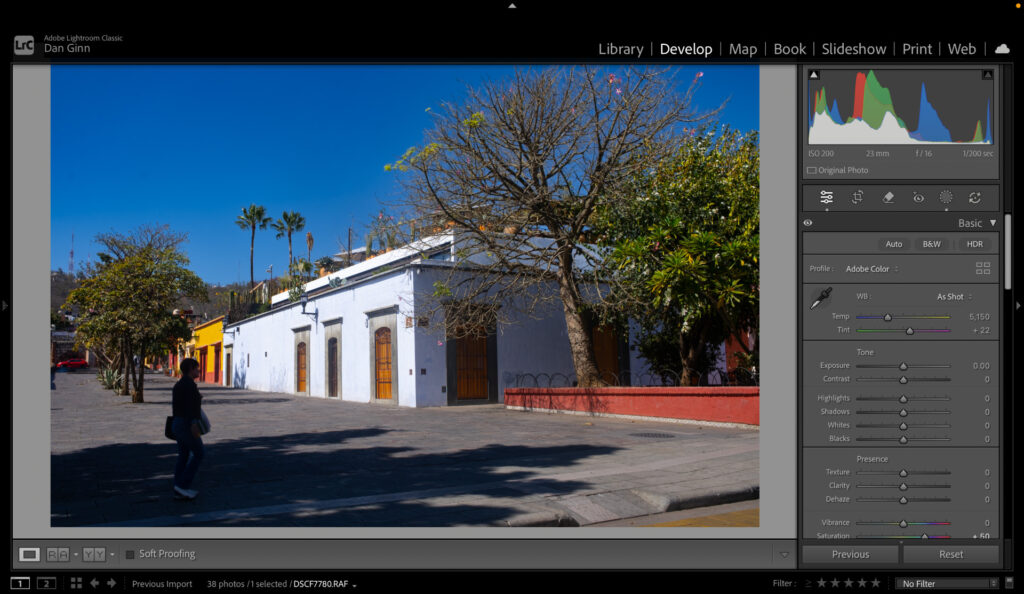
Lightroom Classic interface.
File Management
When importing files, both versions automatically organise images by date. Lightroom Classic allows you to rename folders, while Lightroom does not, a small detail that makes a big difference for professionals managing large archives.
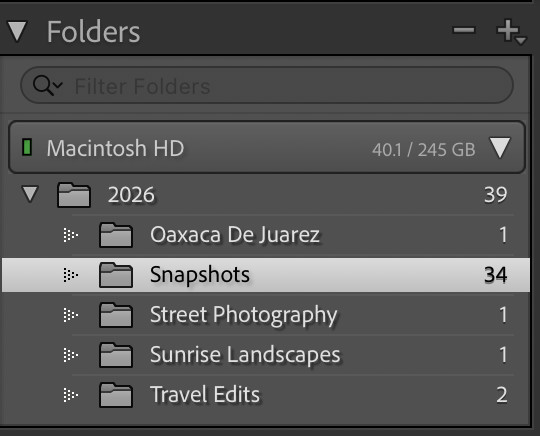
Lightroom Classic Folders
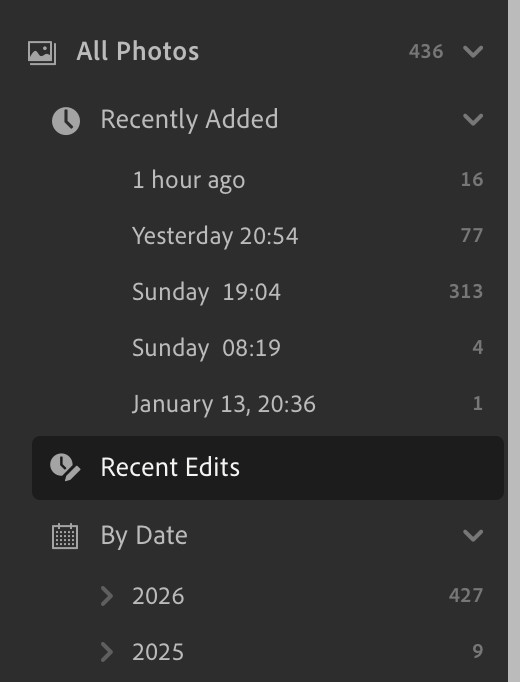
Lightroom folder management.
Both platforms support standard image ranking, including star ratings and filtering. Exporting is possible in both, but the workflows differ. Lightroom Classic presents export options in a single pop-up box, while Lightroom splits them across multiple tabs.
Both versions allow exports with or without metadata, support watermarks, and include Content Credentials, which help verify that an image is authentic and not generated by AI.
Editing Tools
In terms of core editing tools, Lightroom and Lightroom Classic are largely identical. Global adjustments such as exposure, contrast, sharpness, color grading, HSL, and curves are all present in both.
Lens correction tools are equally capable. Both versions can remove chromatic aberration, apply lens profiles, and correct distortion.

Lightroom Classic masking tools.
Masking tools are also shared across platforms, including gradients, radial masks, sky selection, subject selection, and brush-based local adjustments. In practice, the difference lies less in what tools are available and more in how precise and accessible they feel – something I’ll touch on later.
Presets are plentiful in both versions, covering genres like portrait, landscape, and travel. I found Lightroom Classic’s presets to be more subtle, while Lightroom’s presets tend to apply more noticeable changes out of the box.
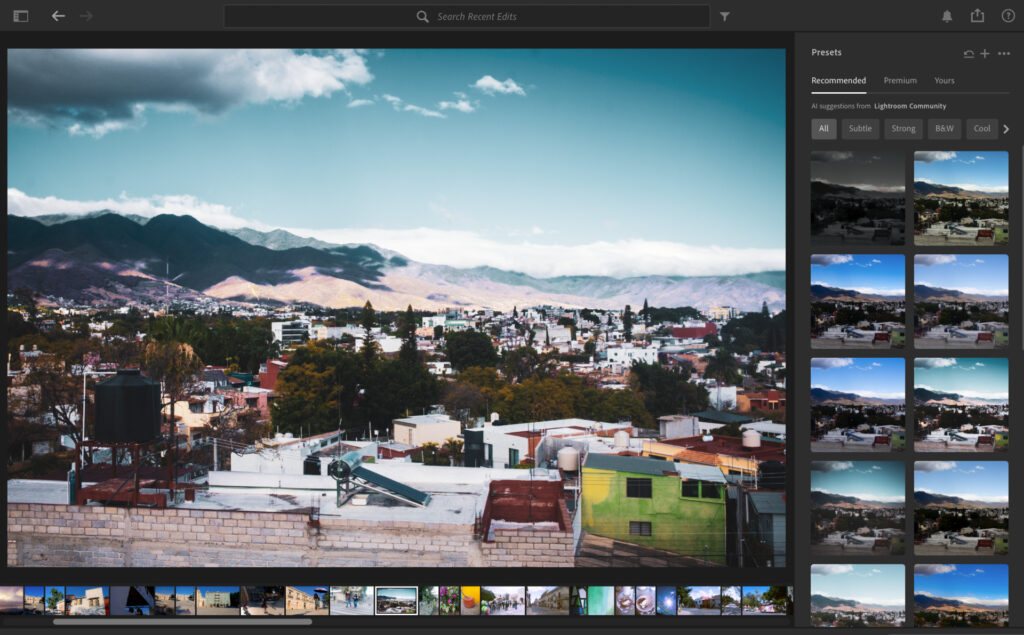
Lightroom presets.
AI Tools
Both versions include a growing suite of AI-powered tools designed to speed up workflows.
You can remove objects, people, dust, and reflections by simply highlighting an area and clicking subtract. Adding subjects works just as easily. Results are generally strong, though not always perfect.
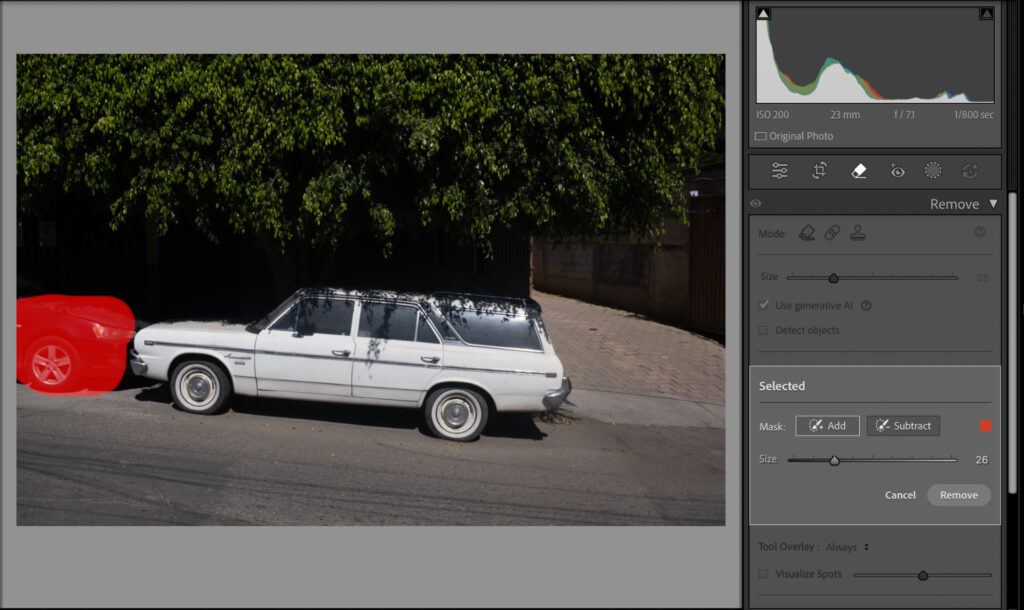
Lens Blur is available in both versions, allowing you to simulate background blur. While it doesn’t replace true optical bokeh, the results are convincing enough that most viewers wouldn’t notice without close inspection.
Assisted culling is also available in both. You can define rules — such as open eyes or subject focus — and Lightroom automatically filters out images that don’t meet your criteria. It’s a genuinely useful tool when dealing with large image batches.
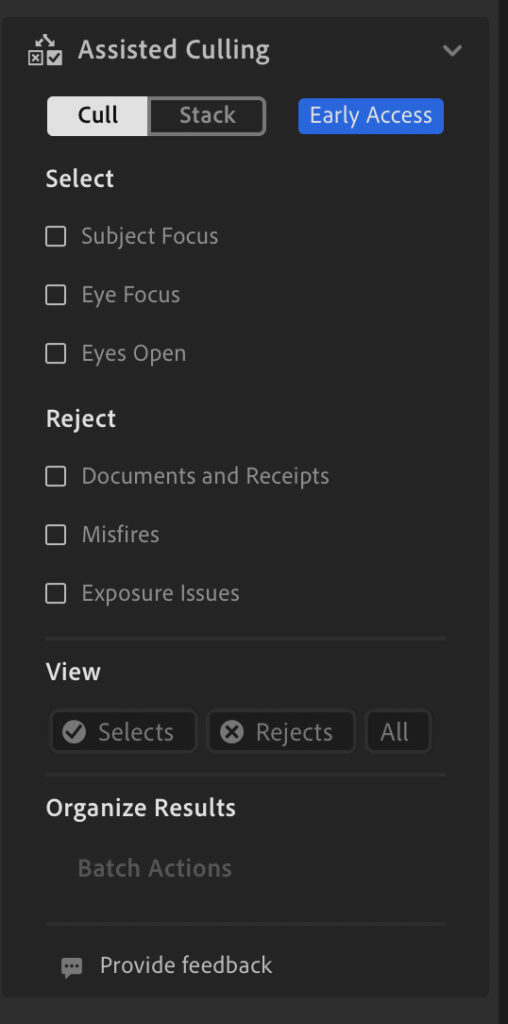
Lightroom assisted culling.
Related: Best AI Photo Editor
Lightroom vs Lightroom Classic: My Real World Experience
To give this comparison proper context, I tested and used both versions extensively on my MacBook Air M1.
Lightroom Classic
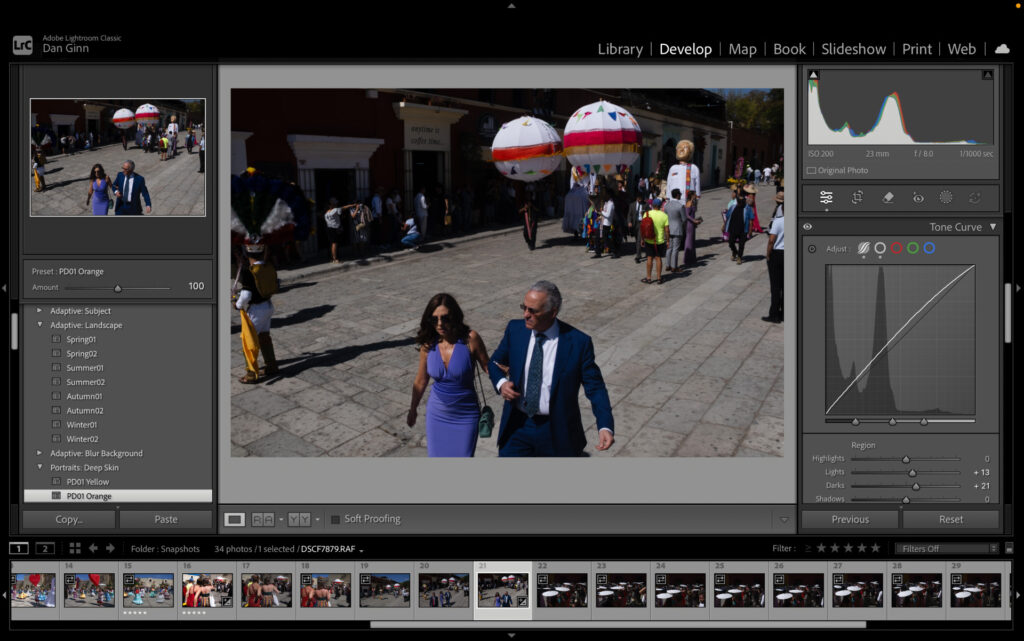
For my taste, Lightroom Classic feels overly cluttered. A little more spacing between panels would greatly improve navigation. Performance on my five-year-old laptop was inconsistent, particularly with larger files, and I occasionally experienced sluggishness.
That said, slider precision is excellent. Adjustments feel controlled and natural, producing realistic results without pushing images into an over-processed look.
AI performance was generally good, though object removal occasionally produced strange results, such as introducing subjects instead of removing them. Assisted culling worked as expected.
Lightroom CC
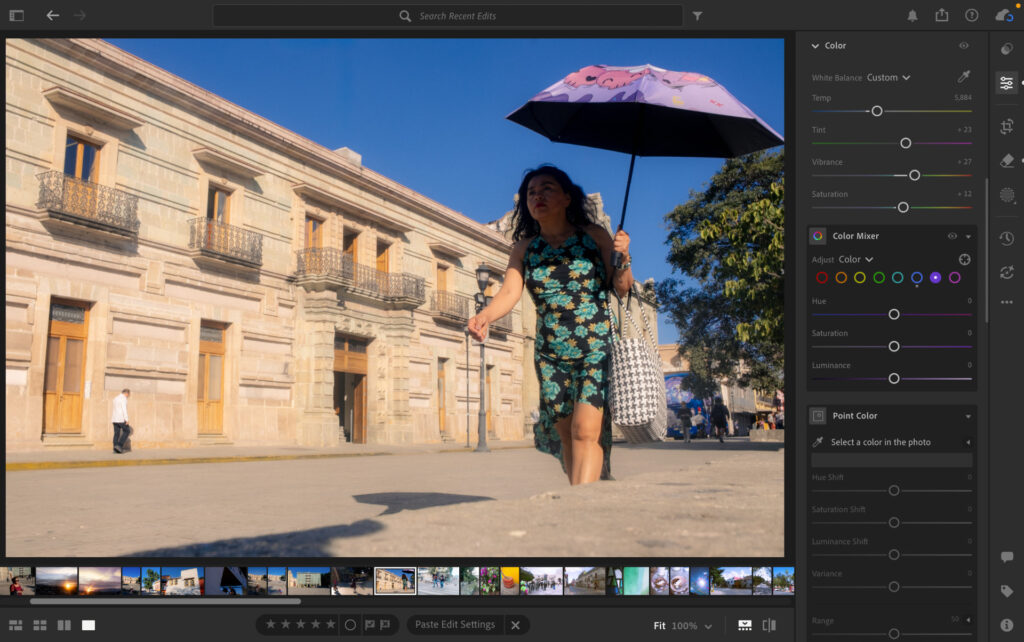
I really enjoy using Lightroom. While it’s not as visually striking as Luminar Neo, it aligns well with modern design standards. Tools are clearly laid out, making navigation intuitive and fast.
Performance was smooth throughout my testing, with very few slowdowns or crashes. Sliders are accurate, though they don’t feel quite as refined as those in Lightroom Classic — something professional users may notice. AI tools performed on par with Classic.
Lightroom vs Lightroom Classic: Which Is for You?
If cross-platform editing is important, for example, switching between a laptop and tablet, Lightroom is the obvious choice. It’s also more beginner-friendly thanks to its clean interface and simplified workflow.
Lightroom Classic is better suited to photographers who prefer local storage and traditional file management. Its interface and precision tools will appeal more to professionals, particularly those working on higher-spec machines where performance limitations are less noticeable.
How Much Does Lightroom Cost?
There’s no difference in pricing. A Creative Cloud subscription includes both Lightroom CC and Lightroom Classic.
- Month-to-month: $17.99
- Monthly (annual commitment): $11.99
- Yearly: $119.88
You’re not choosing based on price, you’re choosing based on workflow.
Best Lightroom Alternative
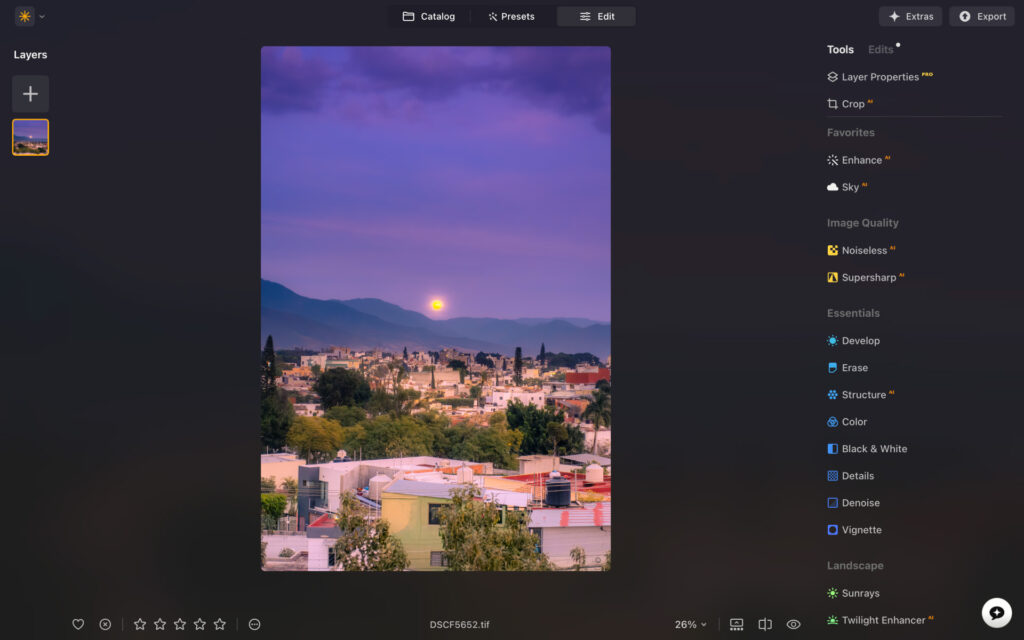
Luminar Neo on macOS.
If neither version of Lightroom suits your needs or budget, I can confidently recommend Luminar Neo. It performs exceptionally well, offers powerful AI tools, and includes all the adjustment features needed for high-end editing. Its design is also among the best available.
One major advantage is pricing. Instead of a subscription, Luminar Neo offers a perpetual licence, with the standard version costing up to $179, which potentially saves you thousands over time.
You can read my full Luminar Neo review to learn more, or visit the website directly.
Signing Off
It’s probably clear by now that my personal preference is Lightroom over Lightroom Classic. It fits my workflow better and performs more consistently on my hardware. That said, the best way to decide is to try both yourself. Adobe offers a seven-day free trial, and I highly recommend making the most of it.
Whichever version you choose, both Lightroom CC and Lightroom Classic are powerful tools capable of transforming your images. And ultimately, that’s the most important part of editing – getting the very best out of your work.
More reading: Luminar Neo vs Lightroom
Read our Affiliate Statement.