Imagen AI Just Got a Huge Update, And It’s Available to Everyone

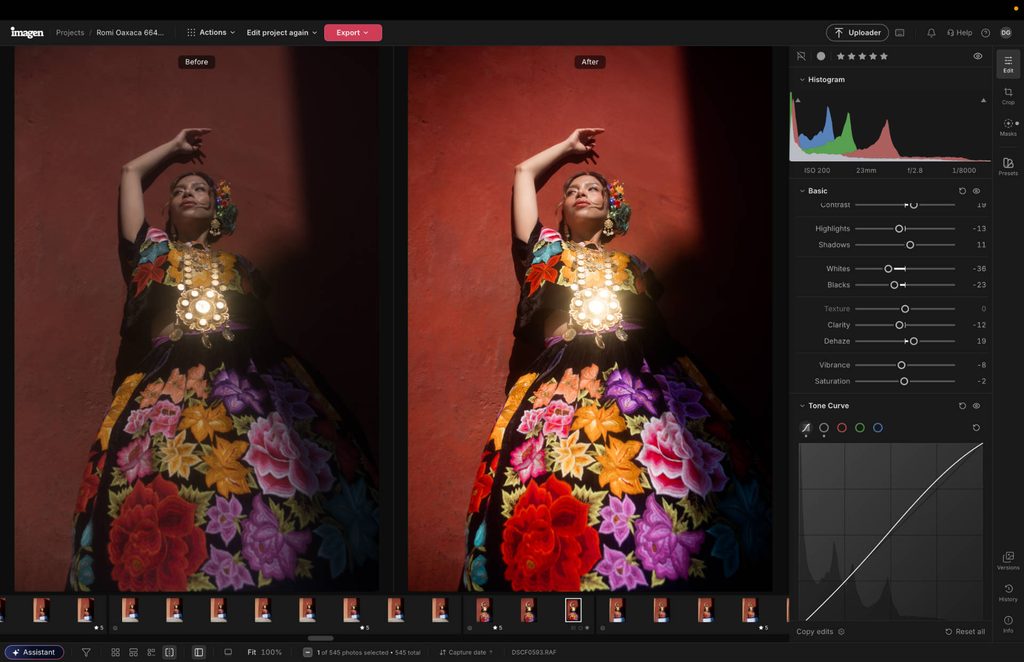
Imagen has had a busy few months. After a long run of previews, the latest version of the popular photo editing software is now available to all users, and you can get your first month for just $5.
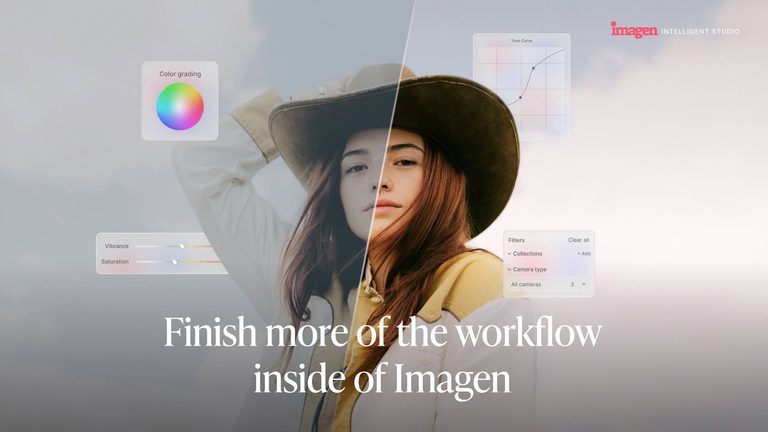
I’ve been using the latest version of Imagen for a couple of months now, and to say it’s improved leaps and bounds is an understatement. The new Intelligent Studio brings culling and editing together in one place, and gives you total control over standard adjustments, masking, and color grading.
There are also performance improvements, with faster imports and exports, plus smooth file management that makes scrolling through images feel effortless.
For me, though, the standout feature is the new built-in Assistant. It takes plain-text prompts and follows your lead on a range of photo editing tasks.
Let’s dive into exactly what all these new features can do, and look at everything else that’s new in Imagen’s Intelligent Studio.
Video
You can also watch this video to my full Imagen AI workflow in action with the new studio features.
Full Native Editor
In previous versions of Imagen, photographers had to rely heavily on Adobe Lightroom or Photoshop to make adjustments to their images.
The workflow went like this:
- Import images from an Adobe Lightroom catalog.
- Apply your unique AI profile inside Imagen AI to edit on your behalf.
- Return to Adobe to make manual adjustments and export.
With the new native editor, my reliance on Adobe has dropped considerably, and that’s something many Imagen users (myself included) have been excited to see for quite some time.
In the latest version you can now import images directly from your hardware source into Imagen, without opening an Adobe app. If you need to make adjustments after applying your AI profile, you have access to a full editing panel.
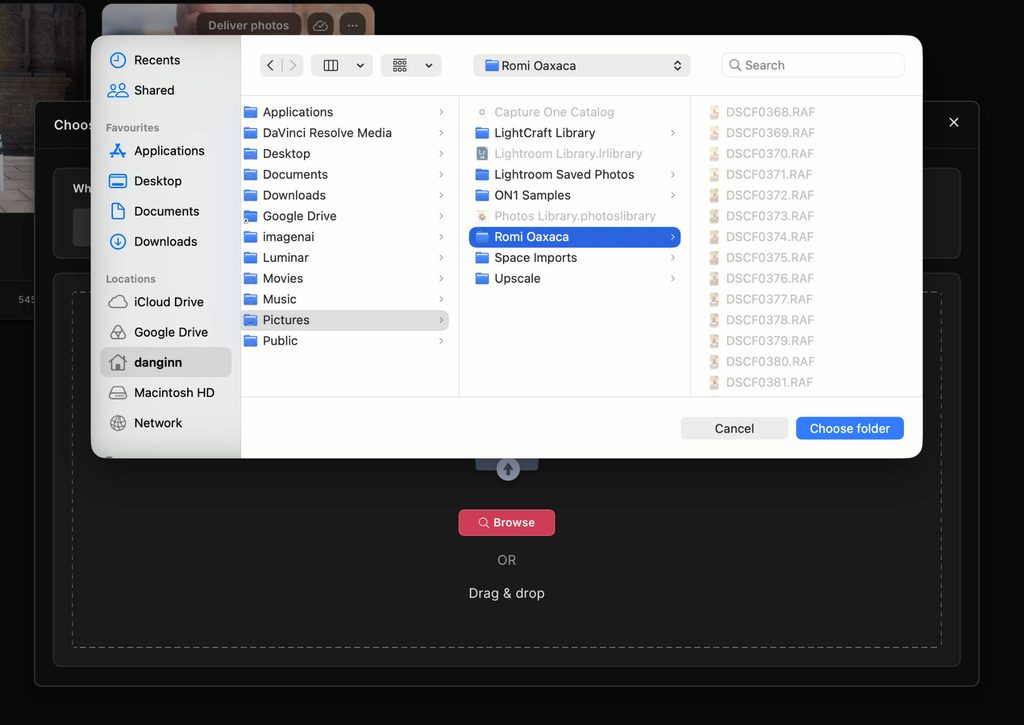
Imagen’s AI tools also plug straight into Studio, and you choose which ones to use when you set up a project. AI Composition handles crop, straighten, portrait crop and headshot crop, AI Masking creates subject and background masks, and AI Retouch smooths skin and whitens teeth.
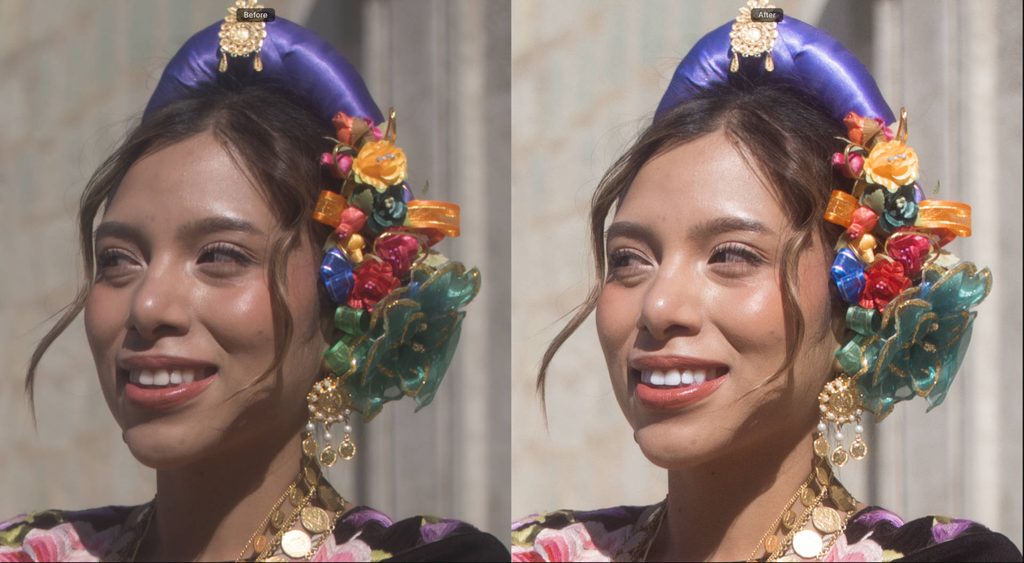
Before and after teeth whitening and skin smoothing.
This update very much puts Imagen on a par with other leading photo editing software, and the layout and keyboard shortcuts will feel familiar to anyone coming from Lightroom. Here’s what you can do in the editor:
- Make basic adjustments to exposure, contrast, sharpness, clarity, and dehaze.
- Adjust vibrancy and saturation, edit in a color grading panel, and use a full HSL tool and tone curve.
- Apply manual lens correction.
- Apply vignette and film grain to your images.
- Crop to a range of aspect ratios.
- Use a brush, linear, and gradient tool.
- Create presets.
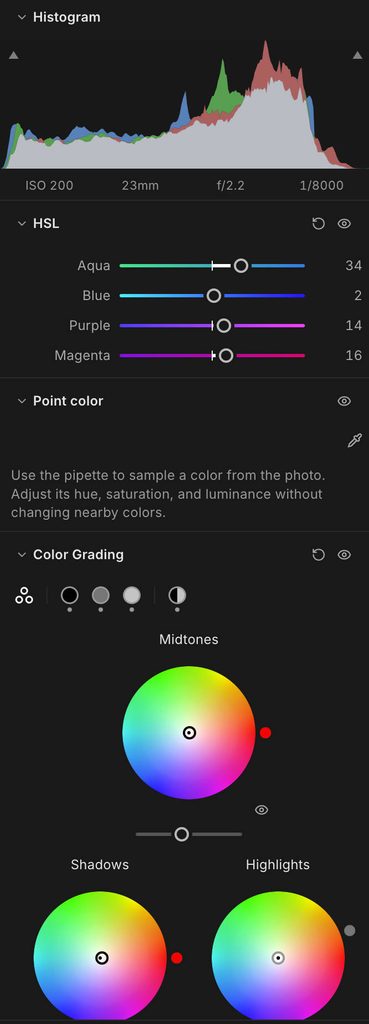
My take: Because of the level of accuracy, I seldom have to do manual edits after applying my AI profile inside Imagen. But having the ability to have full control is a welcome addition, as it means I spend less time going between Lightroom and Imagen.
In fact, since my AI profile is already trained, I no longer use Lightroom and manage all my professional shoots from start to finish directly inside Imagen, which has been a breath of fresh air.
Assistant
Imagen’s Assistant is built for photographers who want a more hands-off workflow. Rather than tweaking sliders, filtering images and applying adjustments manually, you can simply ask the Assistant in plain words and it will do the work on your behalf. You can do this either by typing your prompt or by using the built-in voice-to-text button.
I asked the Assistant to filter all images that include shadows, increase the contrast by 10 points, shift to a cooler white balance, increase the vibrancy and color grade with blue shadows, purple midtones and turquoise highlights. Within less than a minute this was all complete.
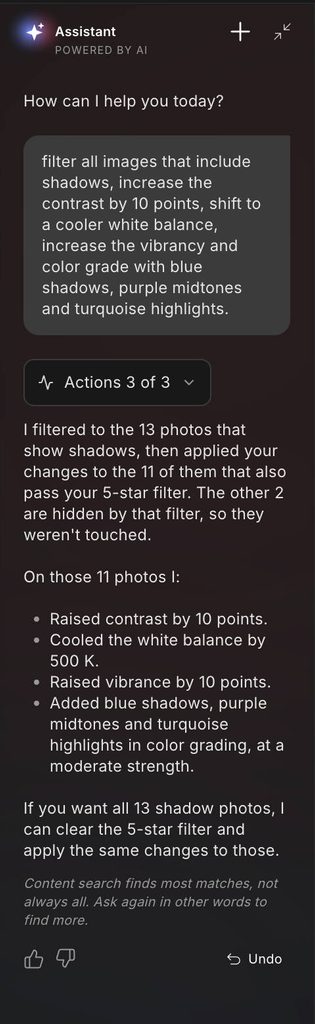
You can see a before and after here…
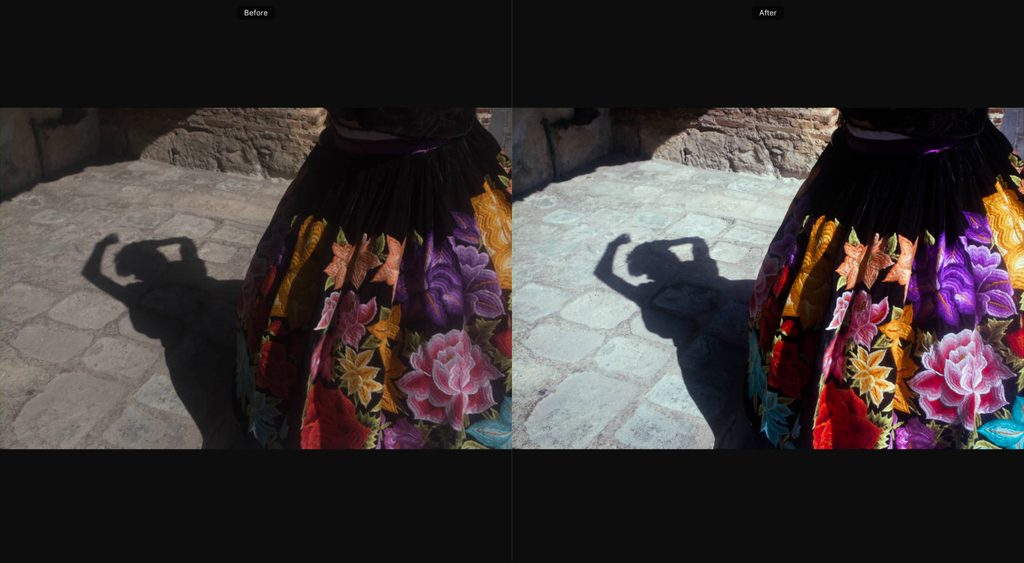
What’s great about the Assistant is that it doesn’t generate or change any pixels in your shot. Instead, it works inside the editing panel, moving the same sliders you would and following your instructions. This keeps edits non-destructive, allowing you to revert any changes if you wish to make further edits later.
Beyond editing, the Assistant can also find, cull and organize photos. The Assistant reads each photo’s details, such as lens, camera, ISO and capture time, along with any stars, flags and color labels you’ve added. That means you can ask it to make all your 85mm shots black and white, copy an edit to every photo of the bride, or create a collection for each hour of an event.
The Assistant doesn’t do everything just yet. For now, masks, crops around a person, exports and AI Profile changes are still done by hand.
I’m told that future updates the Assistant will have memory, and I will update you on how that functions in real-world use once it’s live.
More reading: 3 Best AI Photo Editing Software for Professional Workflows in 2026
Culling and AI Filters
Imagen’s culling now lives inside the same Studio as the editor. You can cull by hand, or let Imagen take the first pass by picking the best shot from every scene or culling down to an exact number.
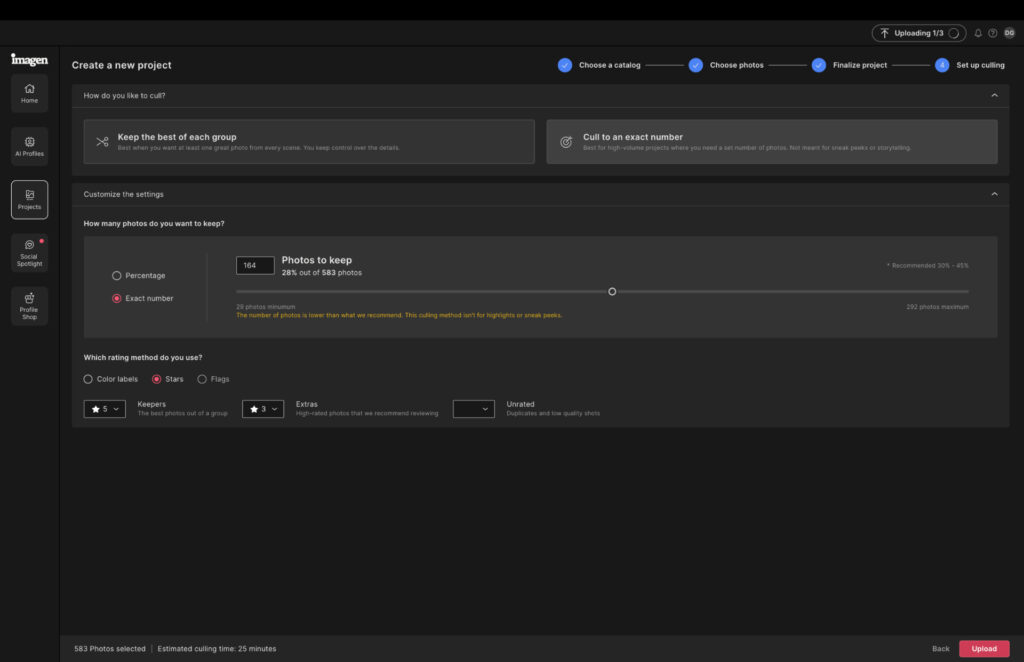
Culling runs in the background while your photos upload, and you can cull again without re-uploading. Closed-eye and out-of-focus markers make the misses easier to spot.
AI Filters take this a step further by surfacing photos based on visual cues, like closed eyes or blur, with no manual tagging needed. Every user also gets two more free culling trials to try it out.
Lightroom Still Works
Lightroom is now part of the Imagen workflow rather than a requirement. If you still like to finish your edits there, your AI Profile edits and AI tools carry straight over to your Lightroom catalog.
Pricing
Imagen’s pricing hasn’t changed with this update, and there are two plans for individual photographers:
- Pay-as-you-go: From $0.05 per photo, with a $7 monthly minimum. AI tools, such as crop, subject mask and smooth skin, cost an extra $0.01 per photo each.
- Limitless: $129 per month billed annually, or $165 billed monthly, with all editing, retouching, AI tools and AI culling included.
As part of Imagen’s Black Friday offer, your first month costs just $5.
Signing Off
Imagen has grown from a handy companion to Lightroom into a full editing studio in its own right. The native editor lets me take a shoot from import to export without opening Adobe, and the Assistant takes a chore off my plate whenever I need batch tweaks.
Voice control and Assistant memory are still on the way, and they’re the features I’m most looking forward to. As it stands, though, this is the most complete version of Imagen I’ve used.
If you edit large shoots regularly, there’s nothing to lose in seeing how it fits your own workflow, especially with your first month at just $5.
More reading: Imagen AI Review: I Tried It For 90 Days and the Edits Shocked Me