
I’m always hunting for editing apps that are both exciting and have room to grow. Such platforms tend to be disruptors that challenge the best photo editing software for the top spot. Radiant Photo 2 is the latest software to come my way and the headline is I’m extremely bullish on what it has to offer – I’ll outline why in this full Radiant Photo 2 review.
Led by world-renowned travel photographer Elia Locardi, Radiant Photo 2 is a photo editing app that wants to do most of the work for you. It’s available for macOS and Windows, and there are also apps for Google Play and the App Store.
The front end concept is simple. You import your RAW files – it universally supports RAW formats from almost all major camera brands – and the software analyzes the frame, understands the subject, and then applies what it feels are the right adjustments for the shot. I was actually impressed with the results on first use, but there was one issue I faced, I’ll go into both points in further detail as we get into the review.
Scene Detection
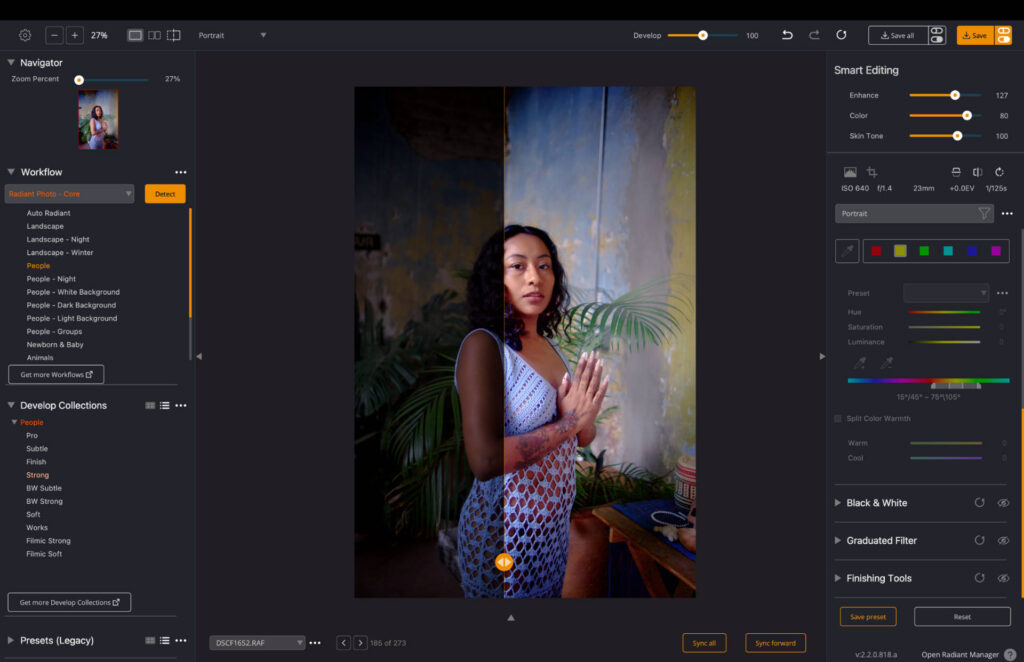
Scene detection is Radiant Photo’s headline feature. Using AI (artificial intelligence) the software can detect if your image is either a portrait or a landscape image (or any other type) and then apply settings to suit the frame.
It’s not minor adjustments either. I was pleasantly surprised by how the software handled color-grading, face smoothing and sharpening. All of it felt natural and not overbearing. Tonal adjustments were equally effective and the app was able to bring a flat shot to life without me lifting a finger.
As good as the feature is, there is one limitation. After uploading RAW files, it applies the same settings to all of them. If there are changes in light or environment throughout your shoot, then this will impact the final outcome and applying the same preset to all frames will lead to more manual editing. Other AI-powered software like Imagen AI use dynamic editing, resulting in different tweaks to each image, rather than a one size fits all.
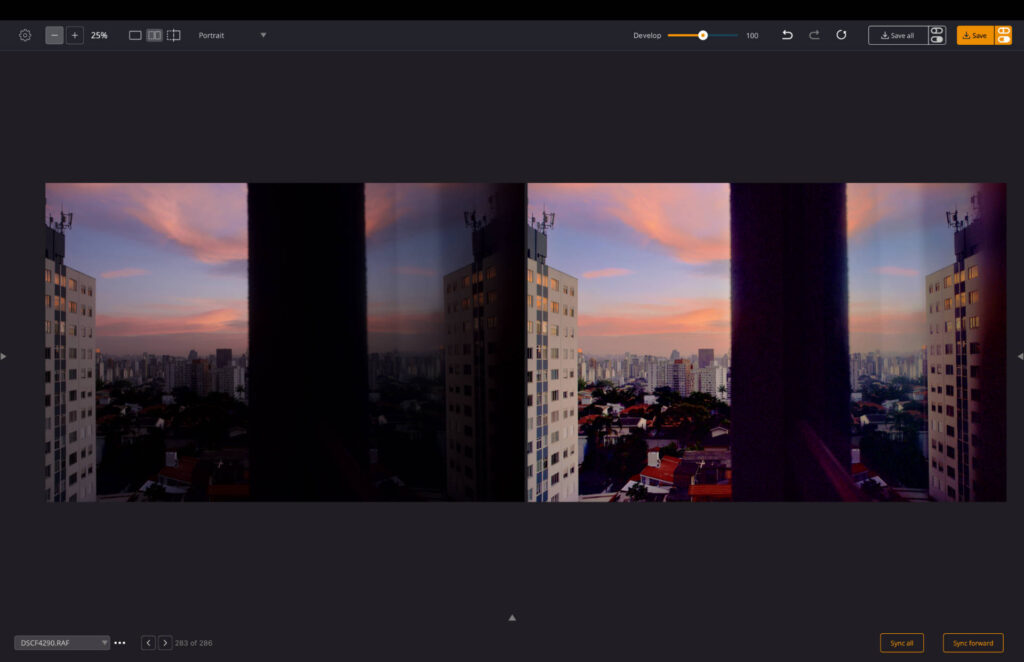
A before and after of a cityscape shot edited using scene detection.
I like that you can make manual tweaks to the initial edit, and once it’s refined you can save it as a preset to use in the future. Having used the app and dug into the knowledgebase, it seems you can’t turn off Scene Detection, meaning there’s no way to start an edit completely from scratch – I’d certainly welcome this option in the future.
Other Features
Radiant Photo isn’t just a one-trick pony. In fact, it has a lot of useful features which makes it an attractive option to photo editors. The Graduated Filter – although not a unique feature – is implemented really well. For portraits it serves as a way to add some vignette, but it looks extremely natural and you can control it so it gives more power to your subject.
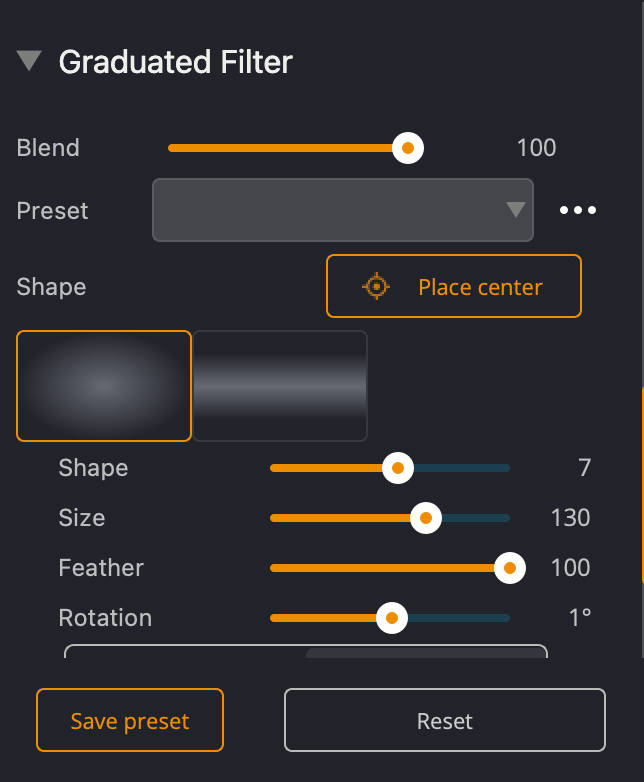
Graduated Filter panel.
The app opts for a different approach to color grading. There’s no HSL tool, nor can you manually color grade your highlights, midtones, and shadows. Instead, the color grading menu offers a range of presets for you to choose from.
You have many options and I really like what’s available. They feel professional rather than tailored to beginners looking for a basic upgrade to their shot. You do have some control too, as you can tweak saturation, strength and contrast. The odd one was a little overprocessed, but as I say most of them are doing the right thing.
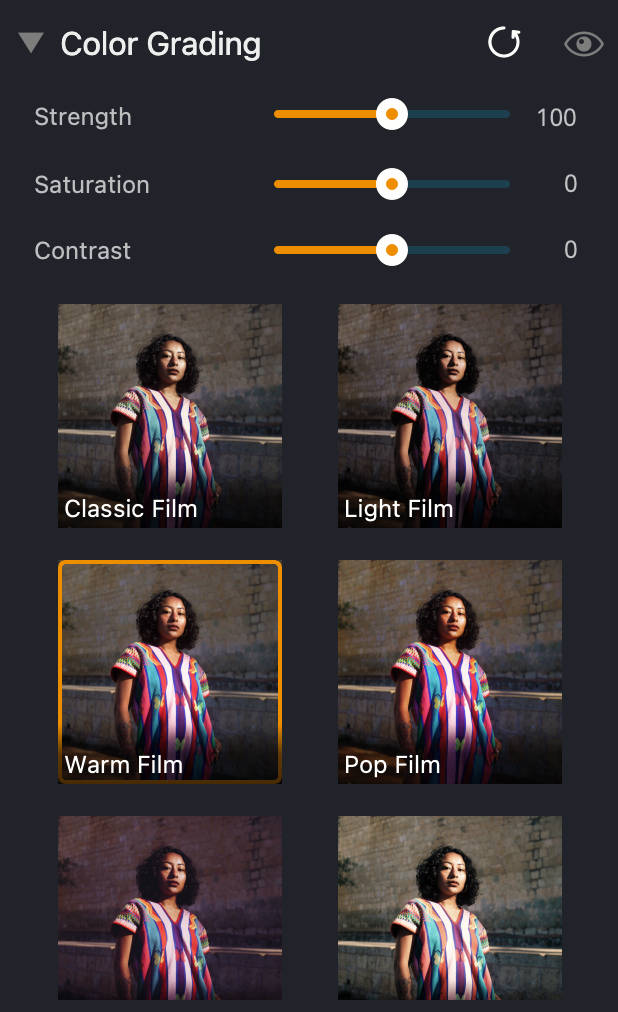
Color grading panel.
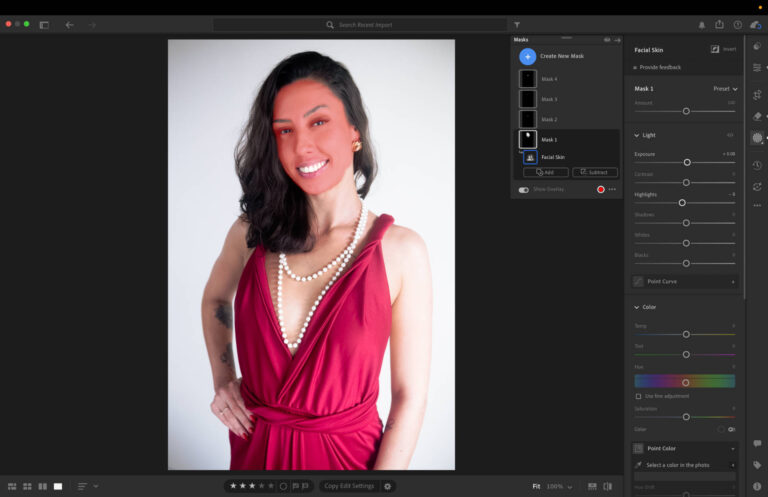
Masking tools are available, though not in the traditional sense. You don’t use a brush; instead, there are different categories, mainly for portraiture. You can select the face, eyes and skin and then make your adjustments accordingly such as sharpening, enhancing and smoothing. For the eyes, you can enlarge them and add catch lights, to me these felt more like a gimmick than a useful tool.
Another great feature is the Tone tool. It uses a color gradient bar, going from light to dark. You simply click through the bar until you find the right tonal range for your subject. This is very useful for speed and also for those learning color grading for different skin types. If you don’t want to do it manually, you can use automated toning instead.
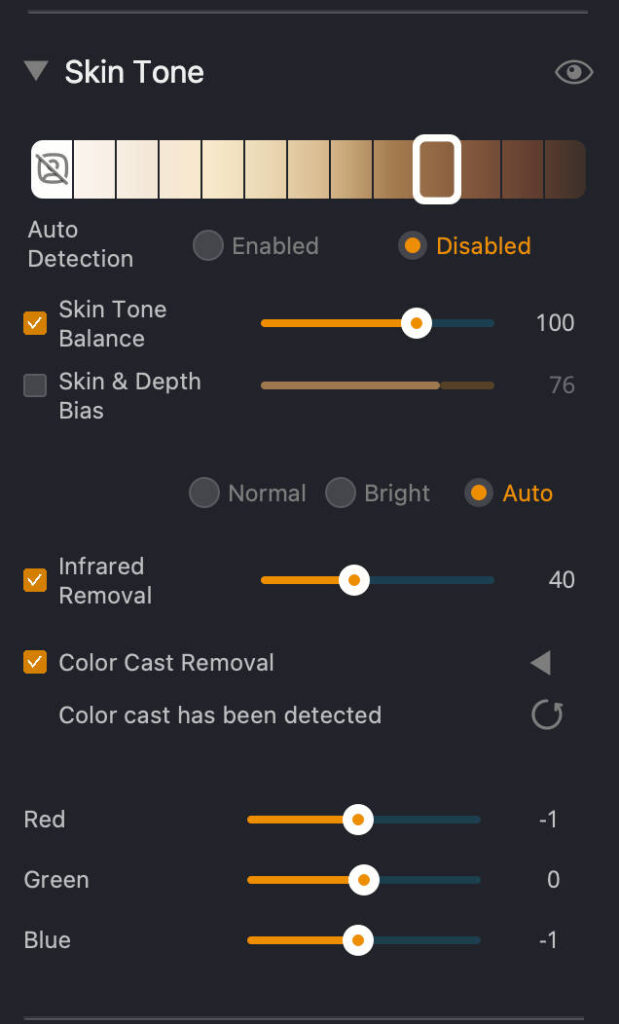
Once the foundation of your edit is in place, all the usual suspects are there to refine the shot. Global exposure, vibrancy, contrast and more round out the final menu.
File Management
File management is certainly an area of improvement for the photo editing app. There are no culling tools, like the ability to favorite an image or rate it between one and five. You can’t create folders to separate your projects either. Instead, you import your images, work on the project, export them, remove them, and add new images for future shoots. Naturally that also means there’s no smart search either, like you find on Luminar Neo and Lightroom.
Exporting files is straightforward and you can export as JPEG, TIFF and PNG. You can export in full quality or reduce JPEG quality if you need smaller files and only intend to post on social media. Resizing options are available too, as are a range of naming formats for your files.
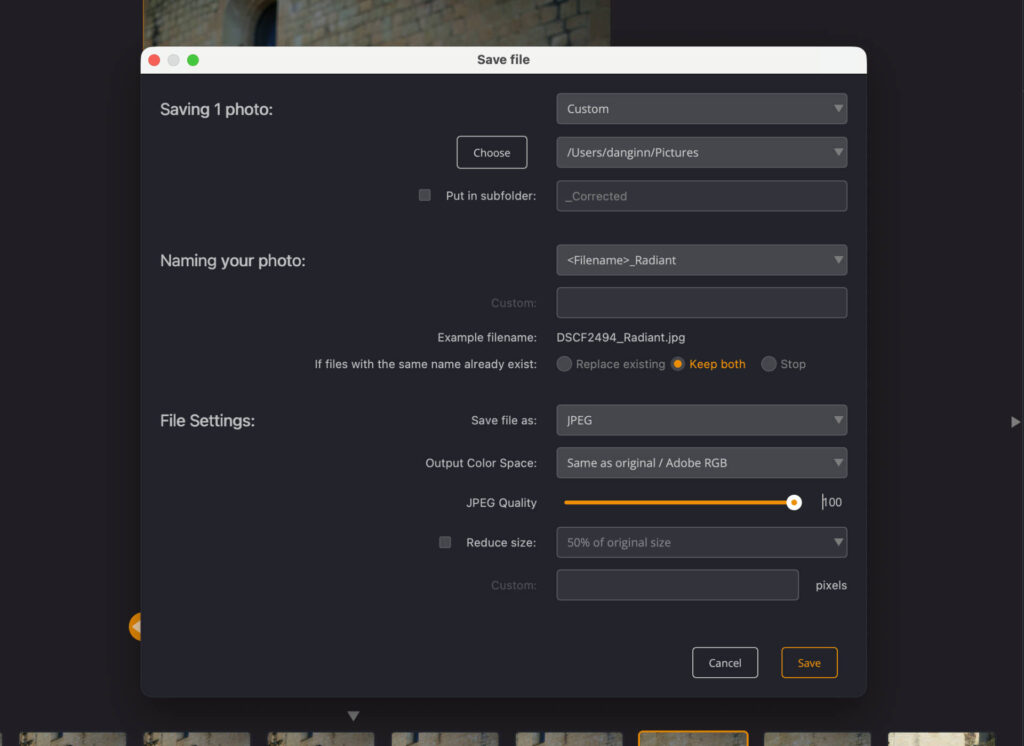
Depending on your workflow, I wouldn’t say the file management – or lack thereof – makes Radiant Photo 2 a dead end, but it needs to improve if the software really wants to challenge higher-end photo editors.
Design & Ease of Use
Those who read my reviews know that the design of an app is very important to me. I’ll say the design team at Radiant has done a remarkably good job here. The charcoal backdrop and orange-colored sliders offer an elegant and professional look. Spacing of the tools and features is perfect, with nothing feeling too compact or overbearing.
The software is very easy to use, and moving through presets and features feels smooth, I was never left feeling lost about where to find a feature. You can toggle tools on and off and close drop-down menus to create a look that’s suitable for your photo editing workflow.
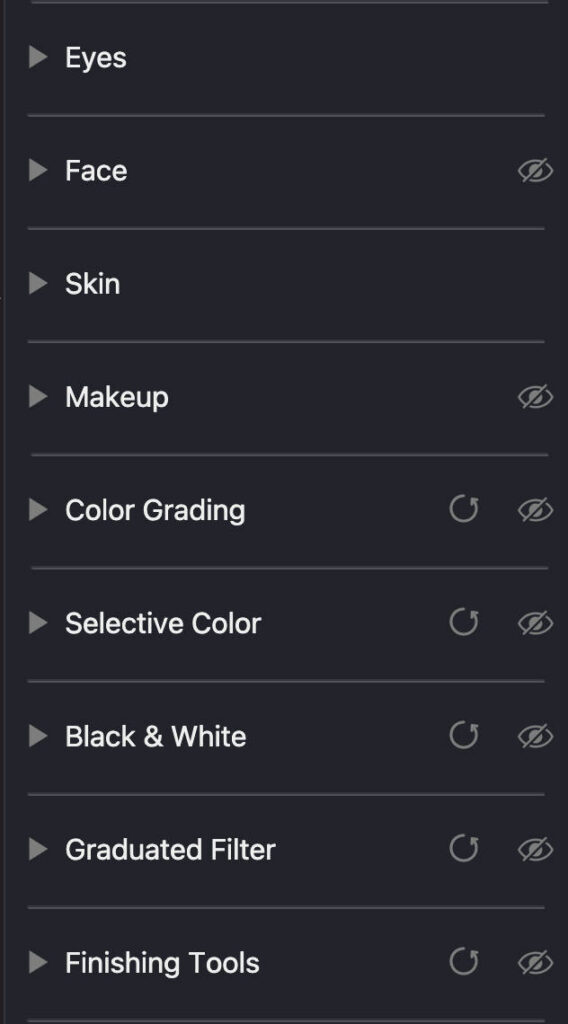
Selecting an eye symbol activates an editing panel.
Because everything is done with sliders, Radiant Photo 2 is also suitable for beginners, a hallmark of how good a tool actually is. You simply need to experiment with the sliders, see what impact they make and find your ideal look and feel.
Performance
I tested the software on my MacBook Air M5, and for the most part it ran just fine. Sliders were responsive and changes happened in real time. Importing large batches did cause one shutdown out of ten imports of the same batch of 250 RAW files, but the other nine times it handled the import without any issues.
How Much Does Radiant Photo 2 Cost?
Radiant Photo 2 offers a perpetual license, meaning you only need to pay for it once and it’s yours to own forever. It’s very reasonably priced, coming in around the same cost as Photomator and Luminar Neo (both starting at $119), two other excellent programs offering one-time purchases.
- Radiant Photo 2 Plugin: $129
- Radiant Photo 2 Standalone: $129
- Radiant Photo 2 Bundle (Plugins/Standalone): $159
There’s a 30-day free trial so you can test it for yourself.
Who Is Radiant Photo 2 For?
After testing the app extensively, I believe it’s for photographers of all experience levels. Its ease of use makes it ideal for beginners, and its powerful editing features make it ideal for those who take photography seriously.
If you’re hands off and happy to let an app do most of the legwork, then you’ll love Radiant Photo 2. It’s not hyperbole when I say it’s insane how good it is at editing your image on your behalf. And you can make those manual tweaks if you need to.
However, if you need full control and have a professional workflow, maybe Radiant isn’t for you. Something like Capture One or Lightroom will suit you. That said, I still think it’s worth giving it a try, if you can adapt, perhaps it will suit your needs too.
Signing Off
Putting everything together and considering its value for money, I have no issues recommending Radiant Photo 2 to photographers looking for something fresh and different. Its features are certainly not a fad, and it can do some serious work on your behalf. I’ll certainly recommend it when people ask my thoughts on the best current photo editing apps.
You can learn more by visiting the Radiant Photo 2 website.
More reading: I Tested Dozens of Portrait Editing Apps: Why These 5 Are Worth It