
Capture One leads my list of the best portrait editing apps, thanks to its precise skin tone tools, advanced color grading, and excellent tethering for studio work. As a portrait photographer, I’ve tried all the leading options, and it’s the one I rely on most. Still, four other apps also stand out, and one of them may suit you better depending on whether you need fast AI retouching, mobile editing, or a lower price.
The best options offer tools that target specific elements in the shot, like the skin, the eyes and the body. They also offer best-in-class color-grading tools for perfect skin tones and looks that match the brief.
My selection targets all experience levels, while ensuring there’s professional-level software for photographers making a living from their portraiture. As well as features, I also test usability and factor pricing into my selection.
Before we jump in, if you’re not shooting portraits but still need an app, check out my selection of the best photo editing software.
Best Portrait Editing Apps at a Glance
| Software | Best For | Top Portrait Feature | Price From |
| Capture One | Professional photographers | Face masking + live tethering | $18/mo on annual billing. |
| Imagen AI | Heavy batch workloads | AI profile that learns your style | $129/mo on annual billing. |
| Lightroom | All levels | Accurate AI masking tools | $11.99/mo |
| Aperty | Portrait specialists | Built-for-portrait tools + reshape | $14/mo on annual billing. |
| Affinity Photo | Budget-conscious editors | Manual masking tools | Free |
Capture One: Best Portrait Editing App for Professionals
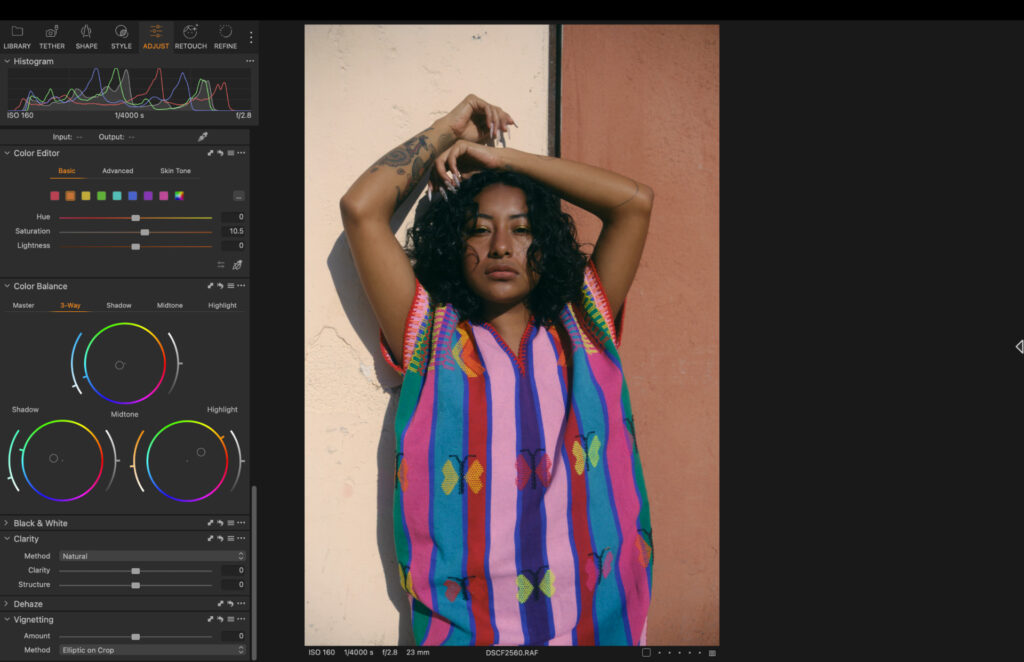
Capture One has long been the go-to option for professional photographers, and when it comes to portraits specifically, the reasons are clear. The color grading tools are among the most precise available, with accuracy that holds up consistently across a wide range of skin tones. For portrait work, that matters more than almost anything else.
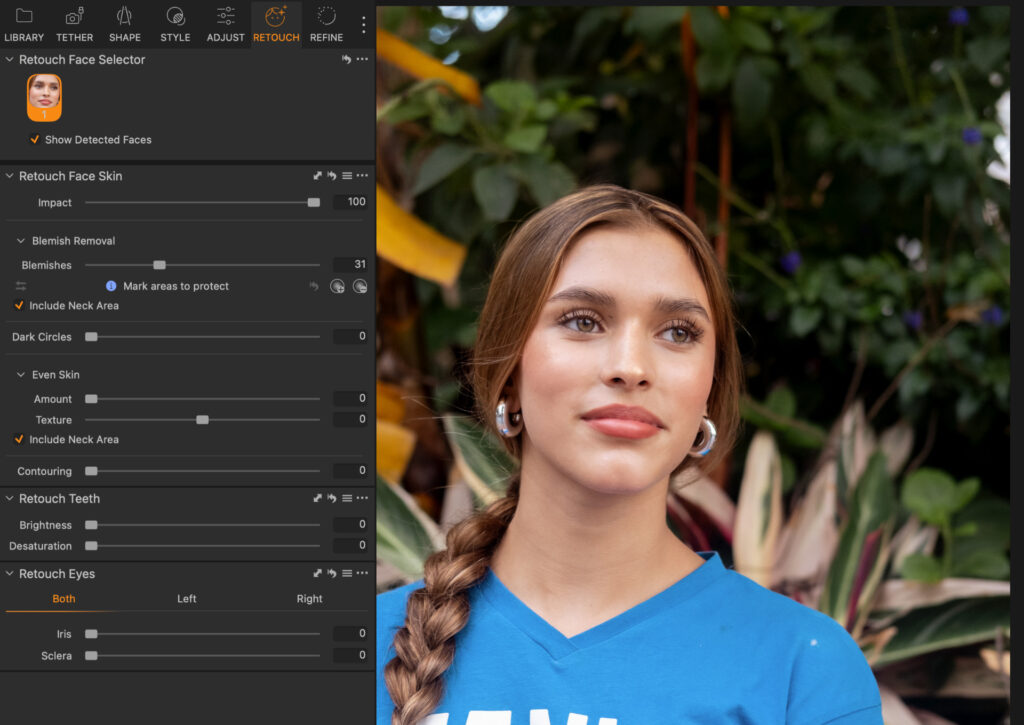
The most notable recent addition is an AI-powered face masking tool. It lets you isolate and edit specific elements of a face separately, including skin, eyes, lips and dark circles. Being able to target dark circles as a standalone mask is something I haven’t seen handled this cleanly anywhere else.
Capture One also supports live tethering via both wired and Bluetooth connection, so you can review shots on a larger screen in real time during a shoot. Lightroom offers tethering too, but only wired. The Bluetooth option in Capture One gives you more flexibility on location and is genuinely useful when shooting without a fixed cable setup.
Capture One: My Real World Experience
The layout is built for professionals and makes no real attempt to simplify itself for newcomers. That’s not a criticism, but it is worth knowing before you dive in. There’s more on screen than you need for most edits, and it can take a while to find your rhythm.
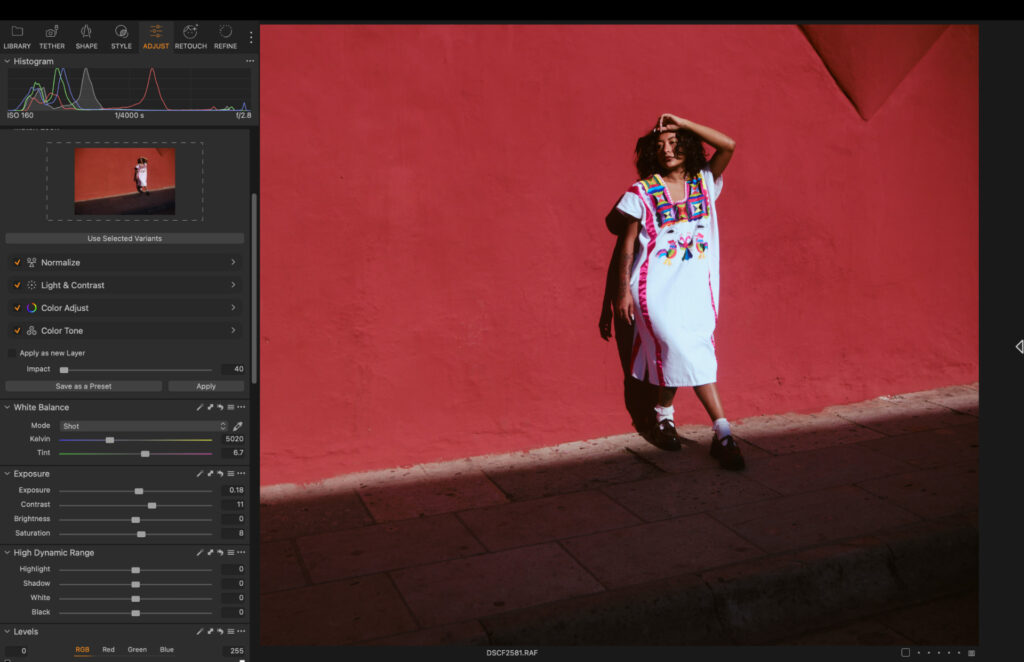
Once you’re settled in, the tools are excellent. The AI face masking performed well in my testing, with clean selections that didn’t require much manual correction. Skin editing in particular felt precise without being destructive.
RAW processing was fast throughout. I dropped in a batch of high-resolution portrait files and the performance on the M5 was smooth, with no lag when zooming in or switching between tools. Tethering via Bluetooth also worked reliably, with a quick and consistent connection.
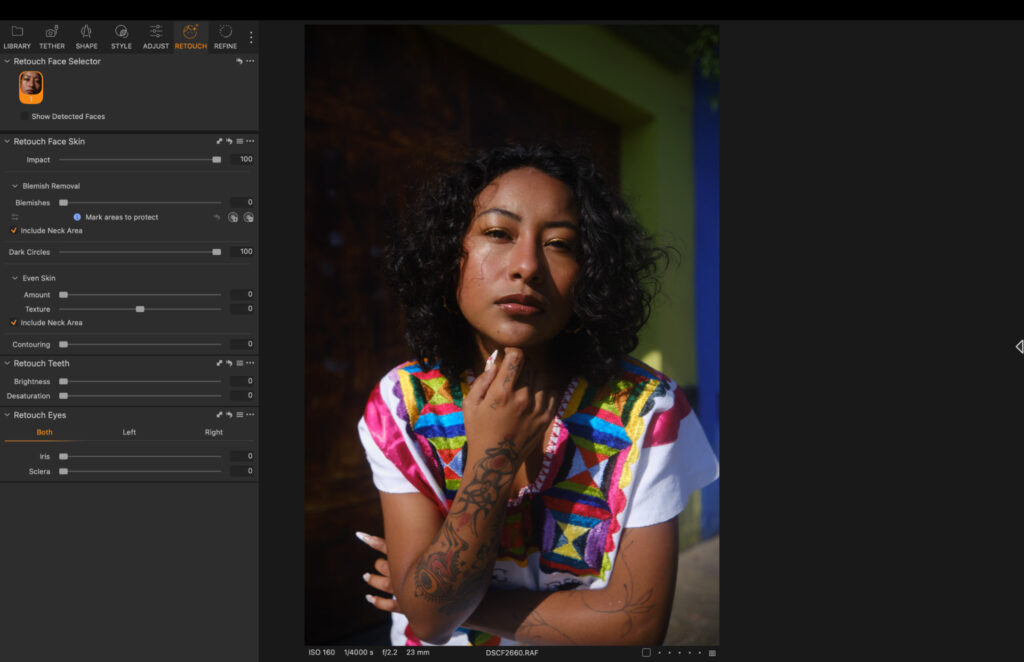
If I had one note on the layout, it could be a little more compact. But that’s a minor point on an otherwise strong platform.
Related: Capture One Review: The Best Option for Professionals?
How Much Does Capture One Cost?
Capture One offers monthly and annual subscription options, plus a one-time perpetual license.
- Pro (Desktop only): Yearly: $216 ($18 per month) Monthly: $28
- All-in-one (Mobile + Desktop): Yearly: $296.04 ($24.67 per month) Monthly: $38
- Studio: $582 ($48.50 per month) Monthly: $63
- Perpetual Licence: $349 (Pro version)
Imagen AI: Best AI Portrait Editing App
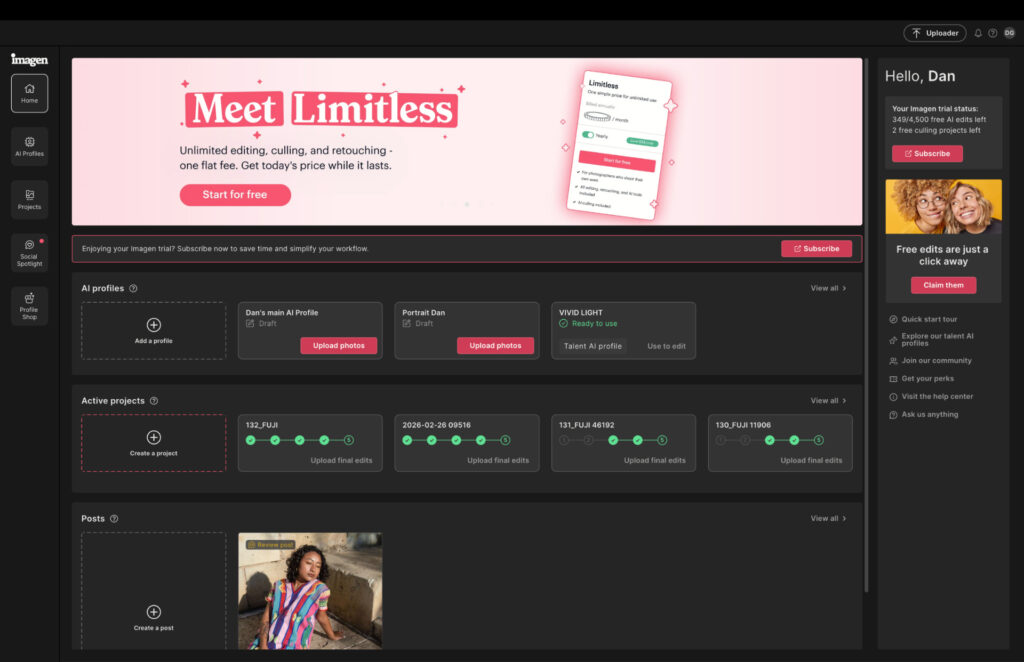
Imagen AI works differently from every other tool in this list. It doesn’t replace your editing software. Instead, it sits alongside Adobe software and handles the editing on your behalf, using an AI profile built from your own previously edited images.
The core idea is straightforward. Upload a set of images you’ve already edited, and Imagen learns from them to build a profile that reflects your personal style. From that point, you hand it a batch of new images and it applies color grading, standard adjustments and masking with results that are meant to look like you did the work yourself.
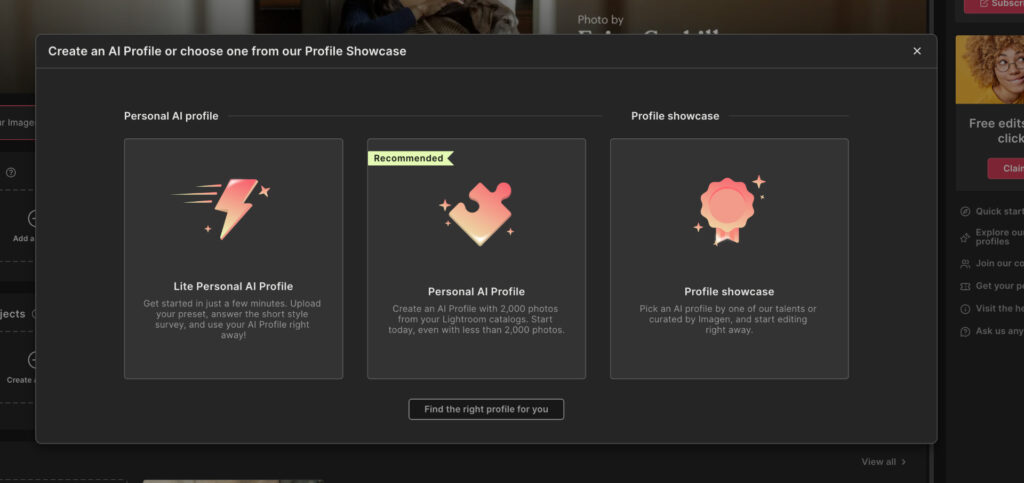
For portrait photographers dealing with large volumes of work, whether wedding, commercial or event photography, that’s a significant proposition.
Imagen AI: My Real World Experience
I uploaded around 2,000 previously edited images to build my profile and then put Imagen to work on a new batch of portrait shots. The results were accurate in a way I didn’t fully expect. The edits felt consistent with my usual approach, and in most cases I only needed minor tweaks before the images were ready to export.
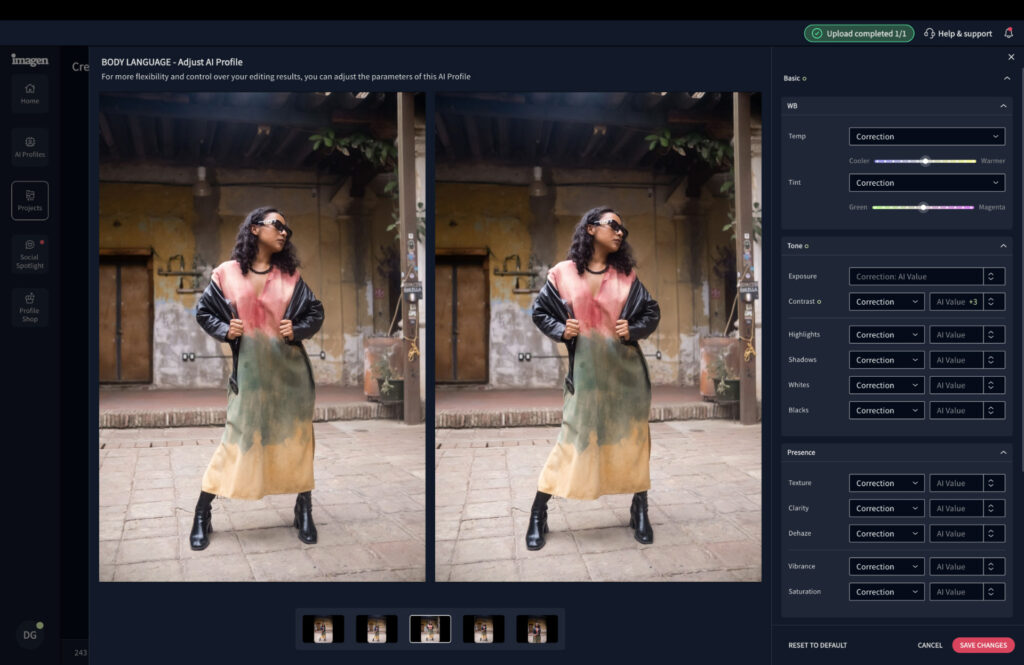
Across the full batch, Imagen cut the time I would have spent editing manually in Lightroom by around 80 percent – everything was finished inside 30 minutes. For anyone running a high-volume portrait business, that kind of time saving is difficult to ignore.
The main limitation is that it’s not a fully independent app. It requires Adobe integration, so if you’re not already in the Lightroom ecosystem, it’s less relevant. But for those who are, and who edit portraits at scale, it’s one of the most genuinely useful tools I’ve tested.
Related: I Tried Imagen AI for 90 Days: The Edits Shocked Me
How Much Does Imagen AI Cost?
Imagen AI uses both a PAYG (pay as you go) and subscription model. PAYG pricing is based on the number of images you edit, so it scales with your workload, and the subscription gives you unlimited usage of its tools.
- PAYG: $0.05 per edit.
- Limitless: $129/mo on an annual subscription.
Lightroom: Best AI Masking for Portrait Editing
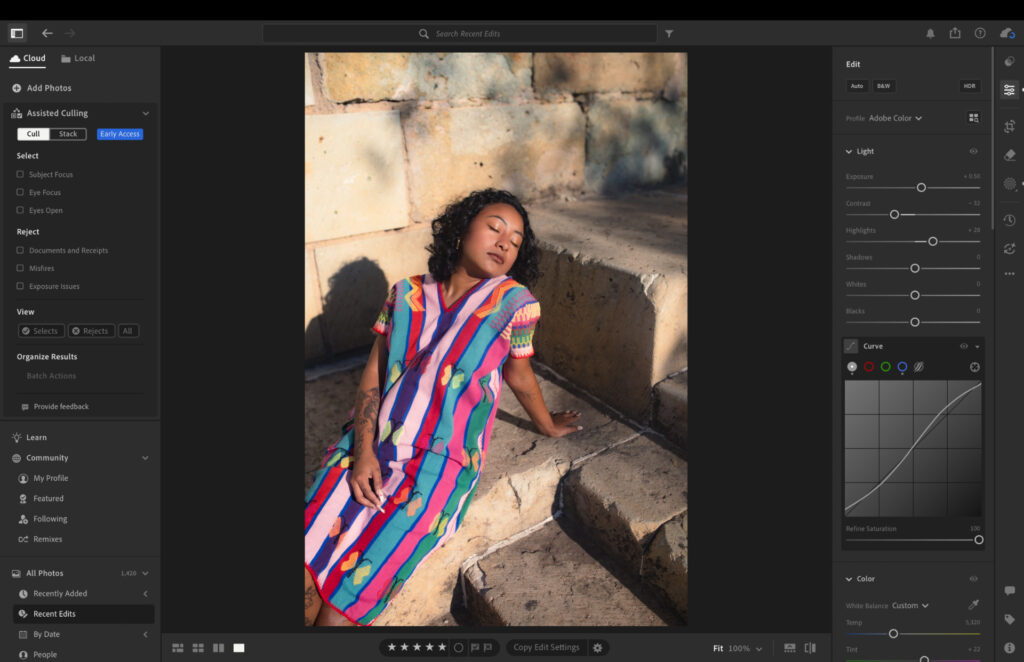
Lightroom is the most widely used editing platform for a reason. It covers everything from basic adjustments to advanced masking, and the workflow across desktop and mobile is about as smooth as it gets. For portrait work specifically, the masking tools are the standout feature.
The AI-powered masking goes deeper than anything else I tested. You can target specific areas of a portrait with precision, isolating face, eyes, hair, clothes, body skin and lips as separate masks. That level of control lets you make very refined adjustments without impacting the rest of the frame.
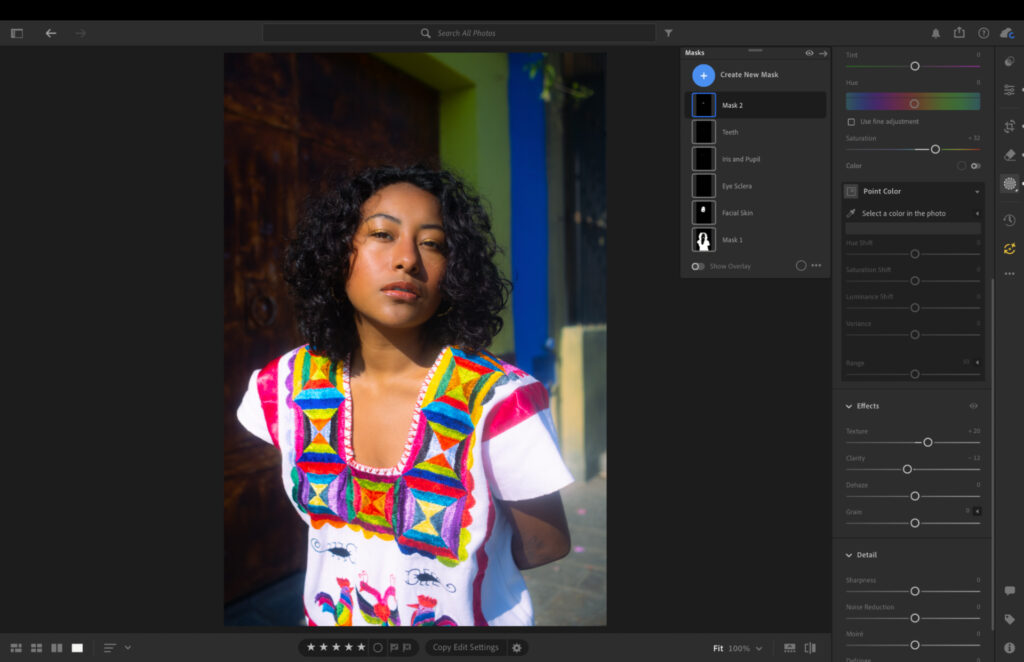
Tethering is available in Lightroom, though only via a wired connection. It works well, but if flexibility on location matters to you, Capture One’s Bluetooth option is the better choice.
Artificial bokeh is also available, allowing you add softer backgrounds to make your subjects pop – while other apps look super artificial, I found Lightroom to offer the most realistic results, though nothing beats in-lens bokeh.
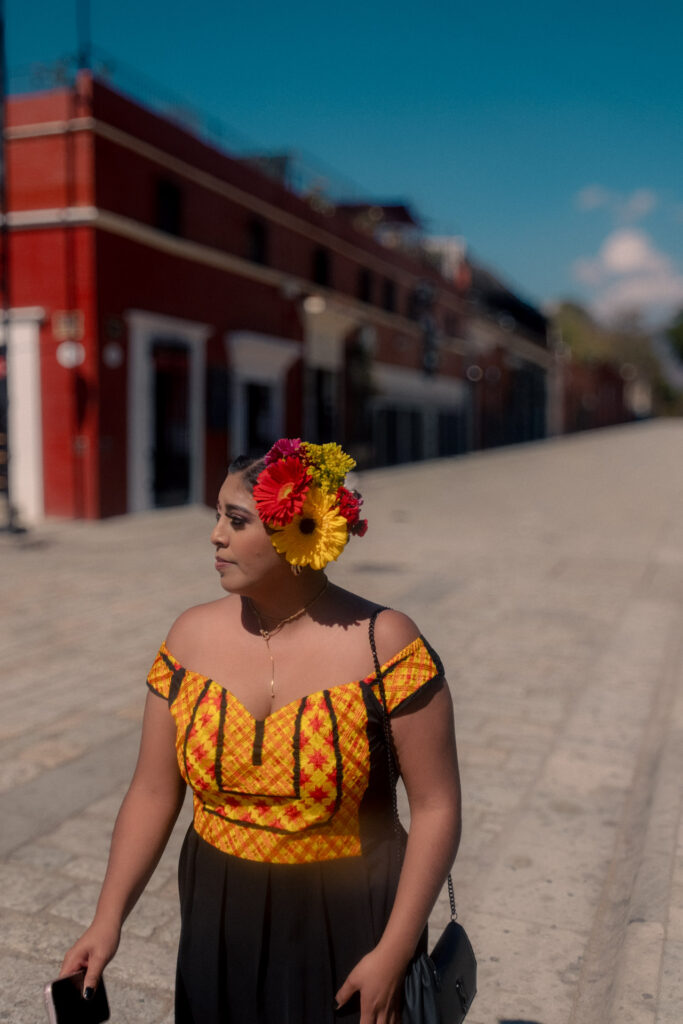
Creating and managing presets is also straightforward in Lightroom. The process is simple enough that most users pick it up quickly, and sorting and organizing your presets is easy to maintain over time.
Lightroom: My Real World Experience
The AI masking tools are superb and the accuracy held up consistently through my portrait testing. Selecting a subject’s skin or eyes as isolated masks and making targeted adjustments made a real difference to how quickly I could get through a session.
The removal tool is also the best on the market. Unwanted objects and background distractions were handled cleanly without needing to jump into Photoshop to finish the job.
Before removing tree.
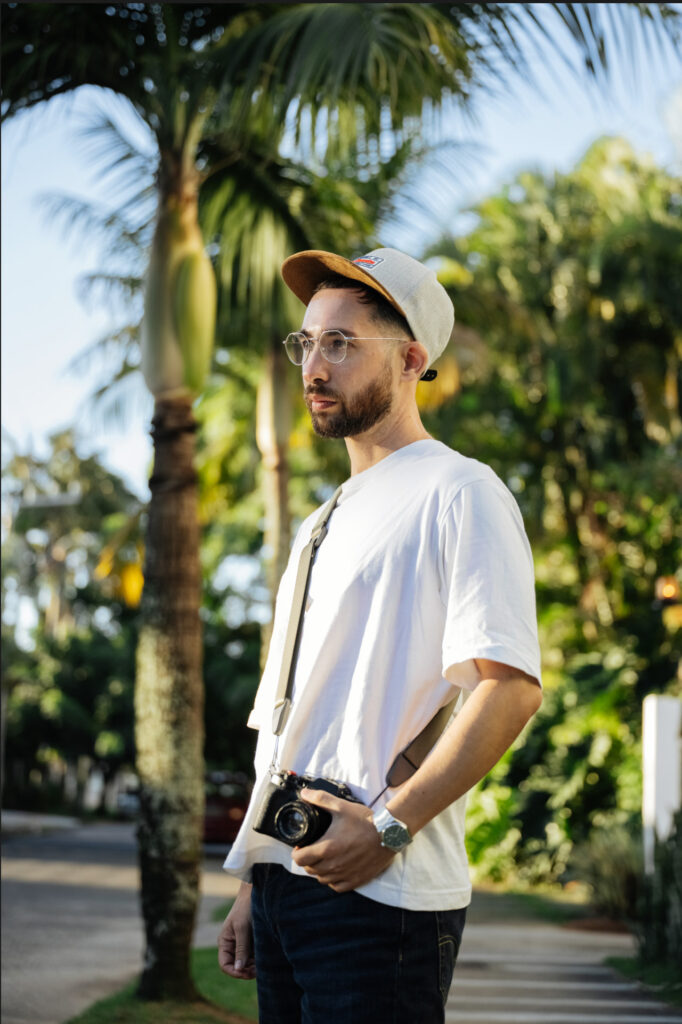
After using AI removal tool.
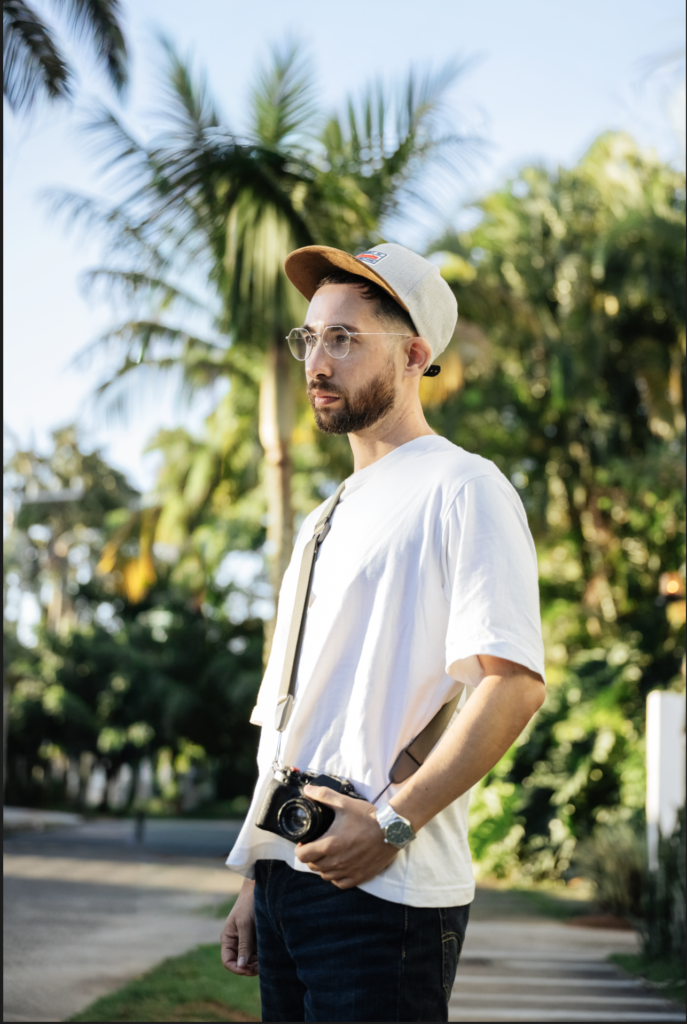
Batch editing is easy to manage and the layout is minimal enough to work for photographers at any experience level. It’s not the most visually exciting interface, but it’s fast, logical and gets out of the way when you need it to.
Related: Lightroom vs Lightroom Classic: My 2026 Real-World Verdict
How Much Does Lightroom Cost?
Lightroom is subscription only, with no perpetual license option.
- Monthly: $17.99
- Monthly with annual commitment: $11.99
- Yearly: $119.88
Aperty: Best Dedicated Portrait Editing App
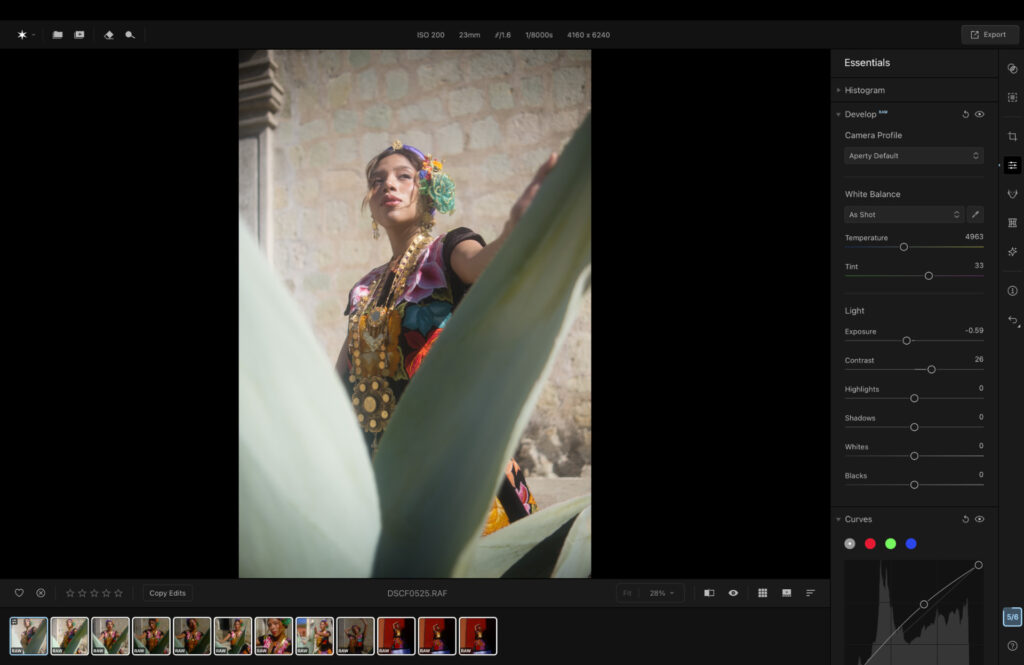
Aperty is the only tool in this list built specifically for portrait photography. While the others are general-purpose editors with strong portrait capabilities, Aperty starts from the assumption that portraits are the entire point.
The masking tools cover blemish removal, lip enhancement and eye enhancement, all designed with portrait editing in mind. There’s also a reshape toolkit that lets you adjust facial structure, body proportions and individual features such as the nose, eyes and brows.
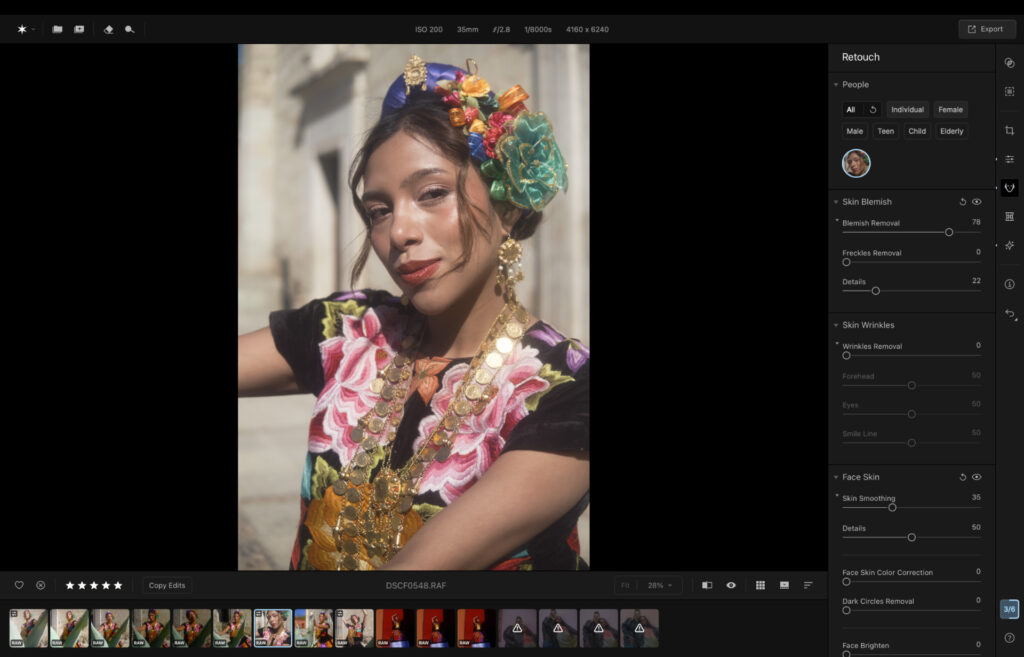
The preset library is built around portrait styles and skin tones, which makes it easier to establish a consistent look across a set of images without starting from scratch each time.
Aperty: My Real World Experience
The masking tools work well and the accuracy was solid in my testing. Blemish removal was clean and removed small spots from the face. The targeted adjustments for eyes and lips produced good results without a lot of manual effort, allowing me to add more brightness and color to both.
Before blemish removal.
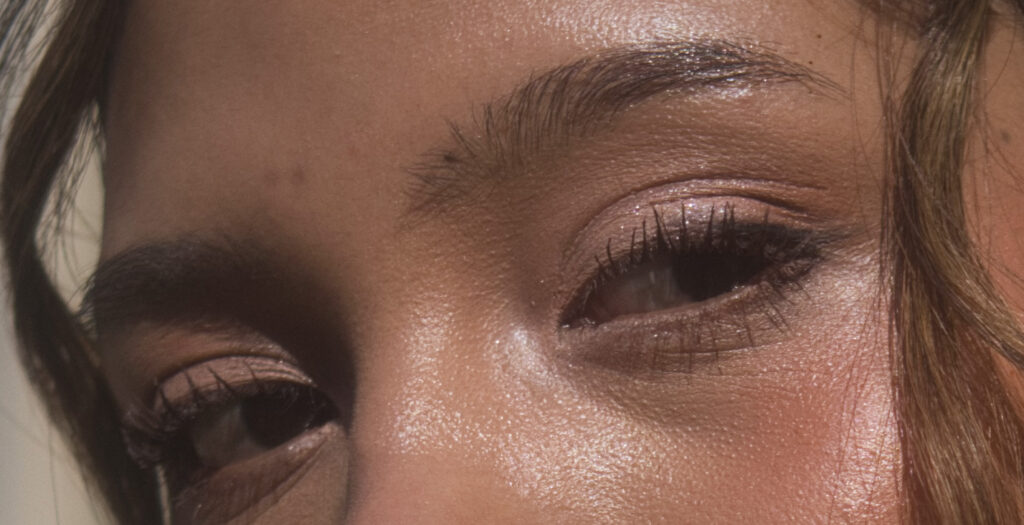
After blemish removal.
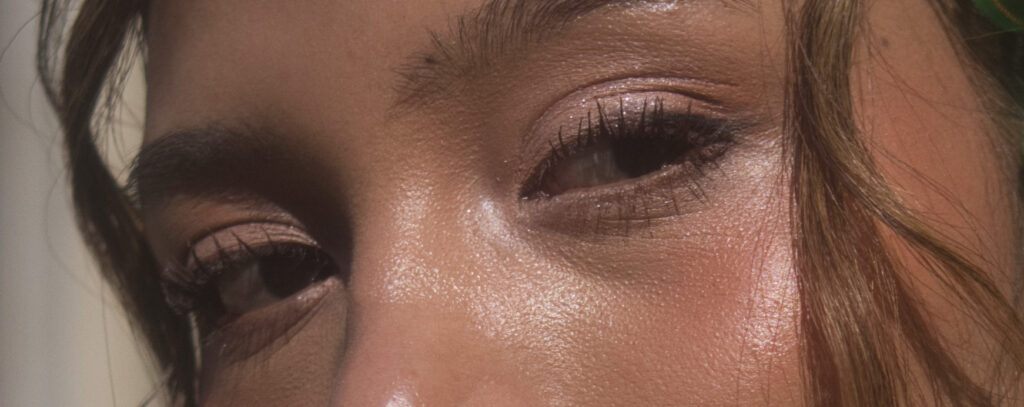
The removal tool is functional but slightly less efficient than Lightroom’s. It took more brush strokes to get a clean result on some objects, which adds time during a busy editing session.
The reshape tools will be useful for photographers whose work calls for that kind of adjustment. It’s not something I tend to use personally, but the feature set is there and it works as advertised. The software is accessible enough for all experience levels, which is worth noting for anyone coming to portrait editing without a lot of prior experience.
Using reshape tool in real time.
Related: Aperty Review: Is This AI Portrait Editor Worth the Switch?
How Much Does Aperty Cost?
Aperty offers three payment options: monthly, yearly and life time. There are constant discounts available on all three.
- Monthly: $14.99 for the first month ($24.99 per month thereafter)
- Annual: $169.00 for the first year ($219.00 per year thereafter)
- Lifetime Plan: $259.00 one-time purchase (discounted from the standard $299.00 price).
Affinity Photo: Best Free Option for Portrait Editing
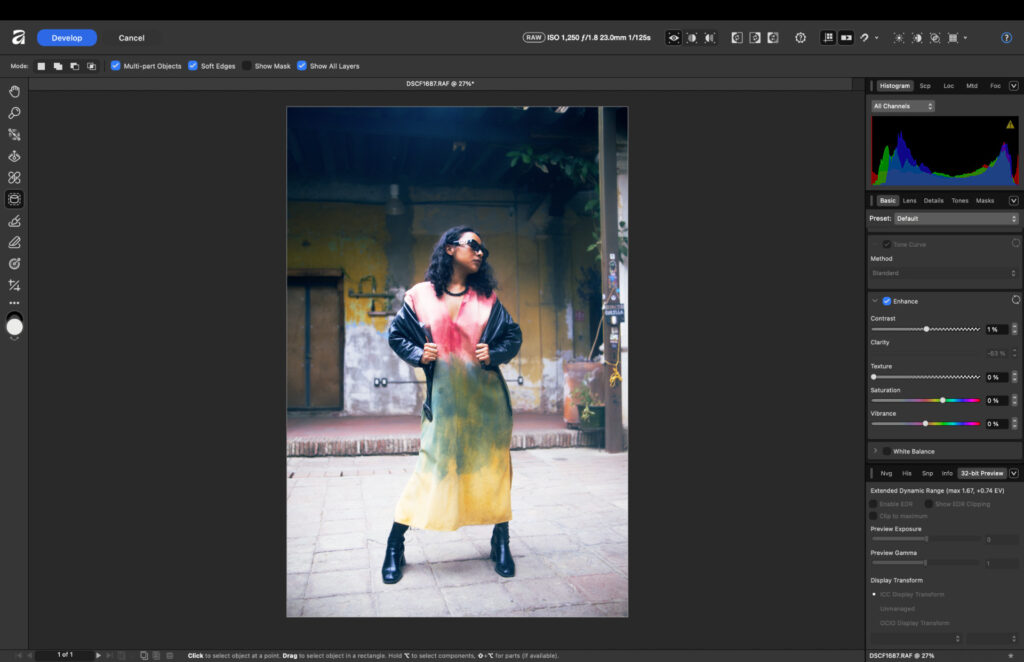
Following Canva’s acquisition of Serif, Affinity Photo is now free to download and use with no subscription required, making it a no-cost alternative to Photoshop.
For portrait work, it covers the core bases. Manual masking tools, color grading, curve tools and noise reduction are all present, giving you enough to produce a solid edit without spending anything.
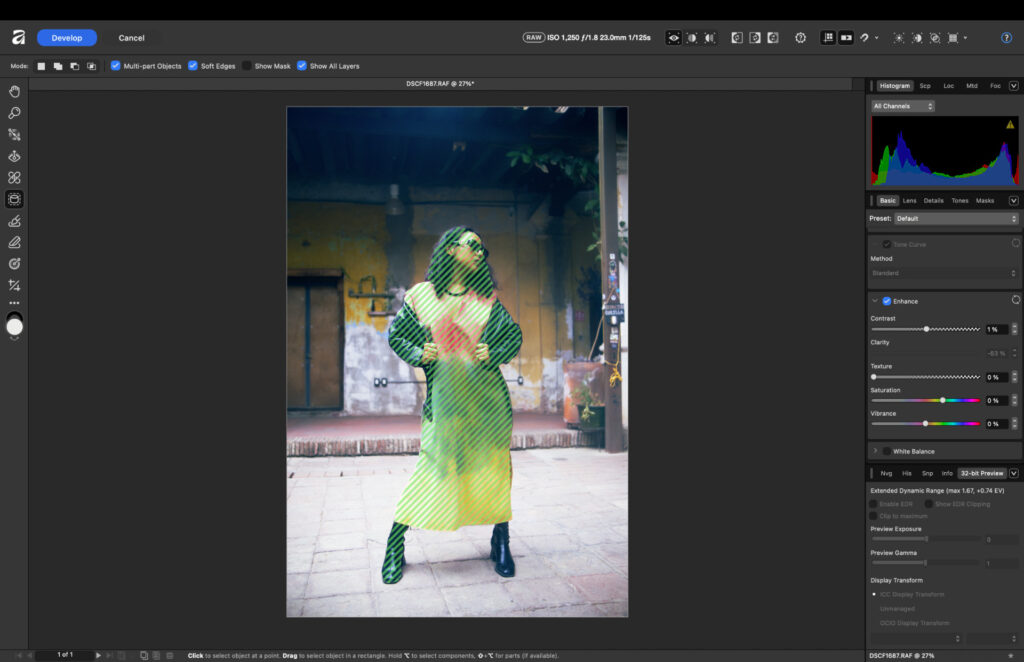
It also has masking tools powered by machine learning, however there not as refined as Lightroom or Capture One. For example, you can mask specific objects such as a person, or a background, but you can’t target eyes, lips and other body parts.
Affinity Photo: My Real World Experience
The layout will feel familiar if you’ve spent time in Photoshop. That makes the learning curve shorter for experienced editors, but it also means this is better suited to photographers with a few years of editing behind them rather than those just starting out.
I wasn’t overly impressed with how it handled my Fujifilm RAW files, there was a weird haze right out of the gate. Adjustments worked, but they didn’t feel as precise as the other platforms in this list.
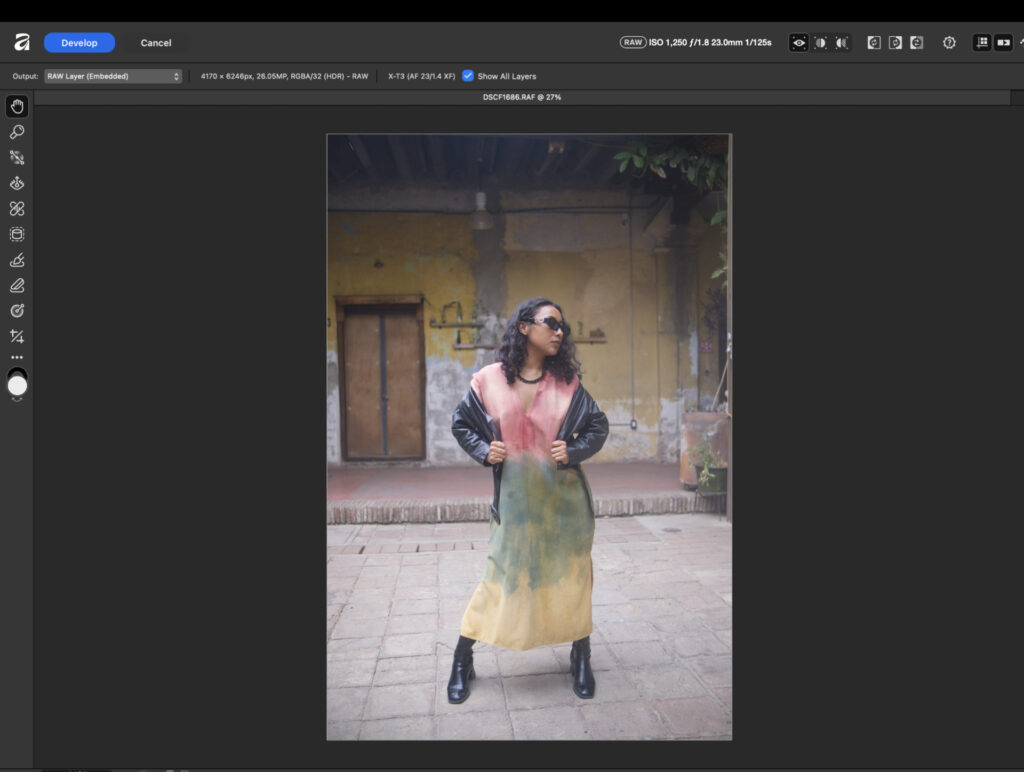
Unedited RAW file.
That said, you can still get a strong result out of it, and for photographers who don’t want to spend anything, it’s a genuinely solid option. The price point alone makes it worth knowing about.
How Much Does Affinity Photo Cost?
Affinity Photo is completely free to download and use. No subscription, no one-time fee.
How I Tested
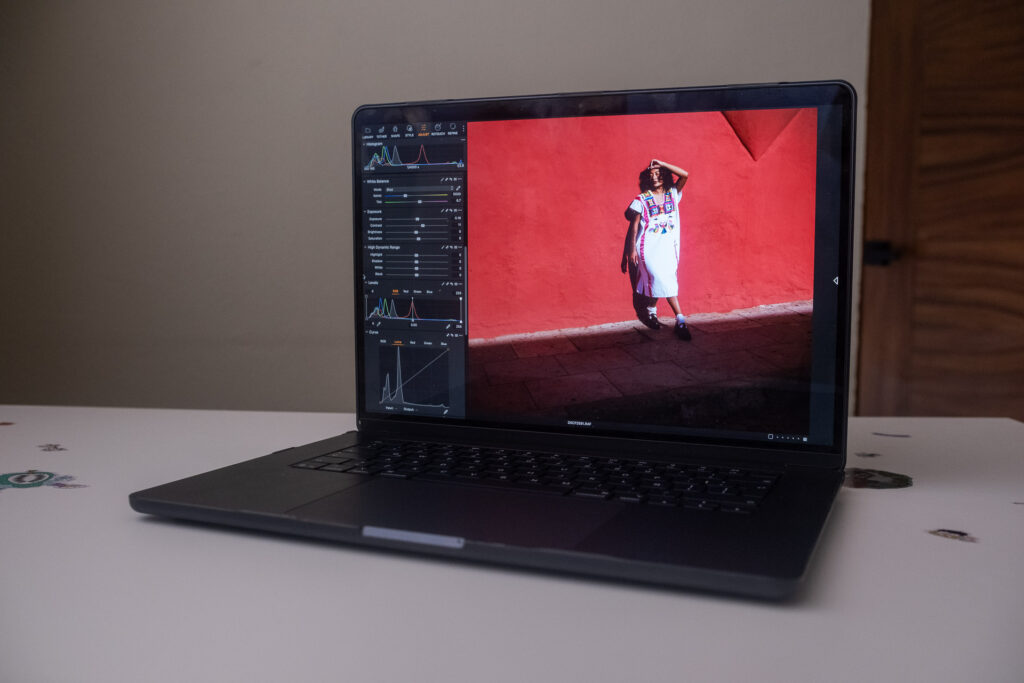
I tested each platform on a MacBook Air M5. For each tool, I worked through a set of portrait editing tasks: skin tone correction, targeted masking, blemish removal, and batch processing. I also looked at how quickly each platform processed RAW files and how much control you get over the final result.
Signing Off
For portrait photography specifically, the right choice depends on how you work and what slows you down most.
If you shoot professionally and want the most accurate color and masking tools available, Capture One is the strongest all-round option. If you edit large volumes of images and want to cut your time in Lightroom significantly, Imagen AI is worth serious consideration. And if you’re already in the Lightroom ecosystem and want best-in-class AI masking without adding another app, Lightroom delivers it.
Aperty sits in a useful niche for photographers who want a tool built entirely around portrait work. Affinity Photo is of course for those looking for completely free option.
Which of these tools do you use for portrait editing? Let me know in the comments.
More reading: Stop Using the Wrong Photo Editor (How to Find The Right One)
If you purchase a product using the links, I may get a small kick back. This helps me run the site and I thank you advance.