
In the ON1 vs Luminar Neo matchup, I detail why Luminar Neo is the better choice for photographers who want fast, AI-driven edits, while ON1 Photo RAW suits those who want an all-in-one tool with deeper raw processing and file management.
Having reviewed both over years of testing, I’ve found they share plenty of similarities. Below, I break down exactly where they differ and which type of photographer each one serves best.
Both companies have made some large commitments in recent 2026 updates. ON1 said its core vision right now is improving tools and features that already exist, as well as making performance faster and more reliable. Luminar Neo, on the other hand, went through a rebrand, dropping the “Neo” and giving its user interface a new compact appearance.
Both of them remain in my selection of the best photo editing software, and since I started using them they’ve only improved on what they offer. This means it isn’t a fight for which is best, but rather, which is right for you.
Looking at features, usability, performance and costs, you’ll be able to better understand which of these two powerhouses you should use to edit your images. If you’re coming from Lightroom, I can already tell you they’re amongst the best Lightroom alternatives.
ON1 vs Luminar Neo at a Glance
| Category | ON1 Photo RAW | Luminar Neo |
|---|---|---|
| Standout Feature | Denoise & sharpening | Sky replacement |
| AI Features | Sky replacement, generative erase, AI denoise & sharpening | Sky replacement, generative erase, AI Assistant |
| Starting Price | $99.99 | $129 |
| Money-Back Guarantee | 30 days | 14 days |
| Best For | Experienced photographers wanting a complete toolkit | Beginners, enthusiasts and content creators |
Video Version
AI Tools
As is the trend in 2026, both ON1 Photo RAW and Luminar come with their own set of AI tools for fast, advanced image editing. Most of them crossover, but implementation isn’t always the same. I’ll break them down further.
Sky Replacement
Luminar offers three times more sky options than ON1 Photo RAW. I also think Luminar’s look much better on first click, and most of them don’t require much manual adjustments. However, both give you granular controls, letting you adjust positioning, clarity and other elements to make the sky perfect for your shot.
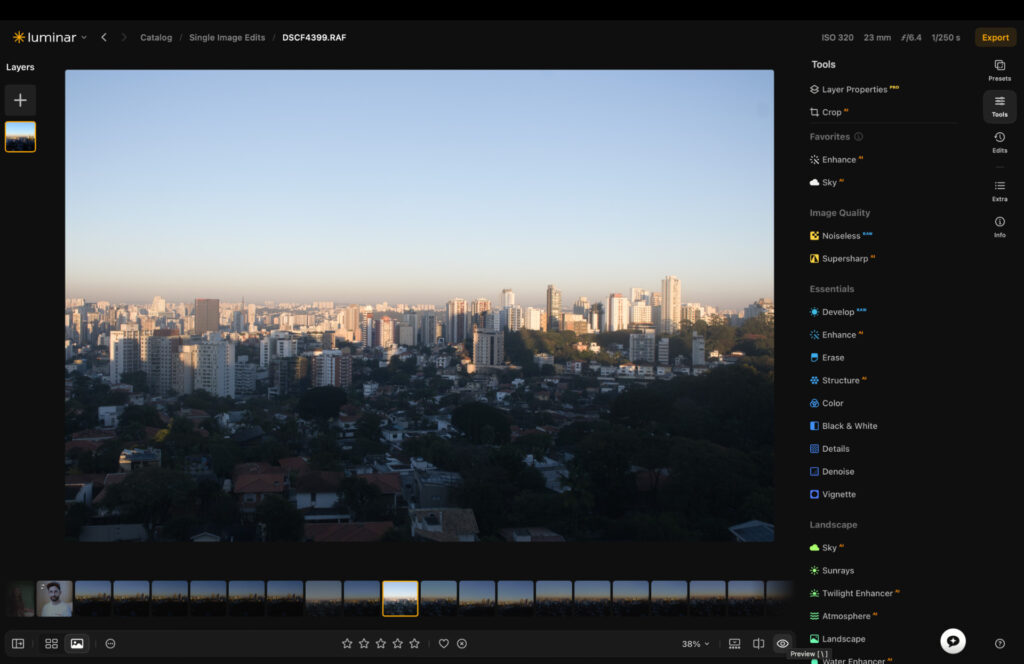
Original RAW file in Luminar
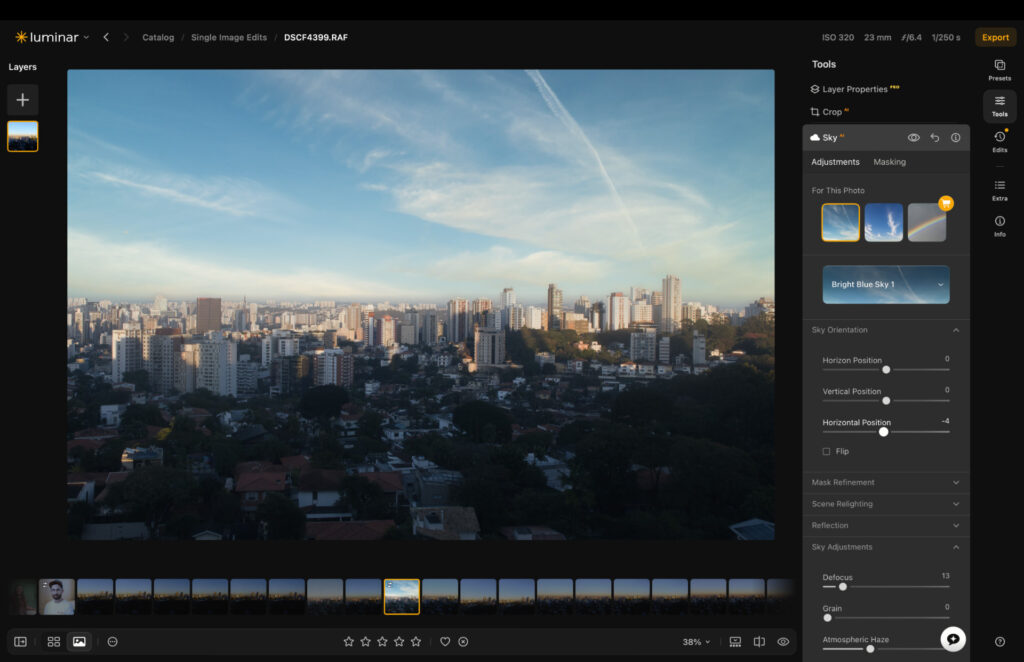
Luminar analyzes the photo and tell you the best sky for the frame.
Interestingly, I think ON1 skies look more natural after making adjustments, with the refinements feeling very granular. Luminar’s are still strong, but some sky adjustment tools can quickly make it feel overly processed.
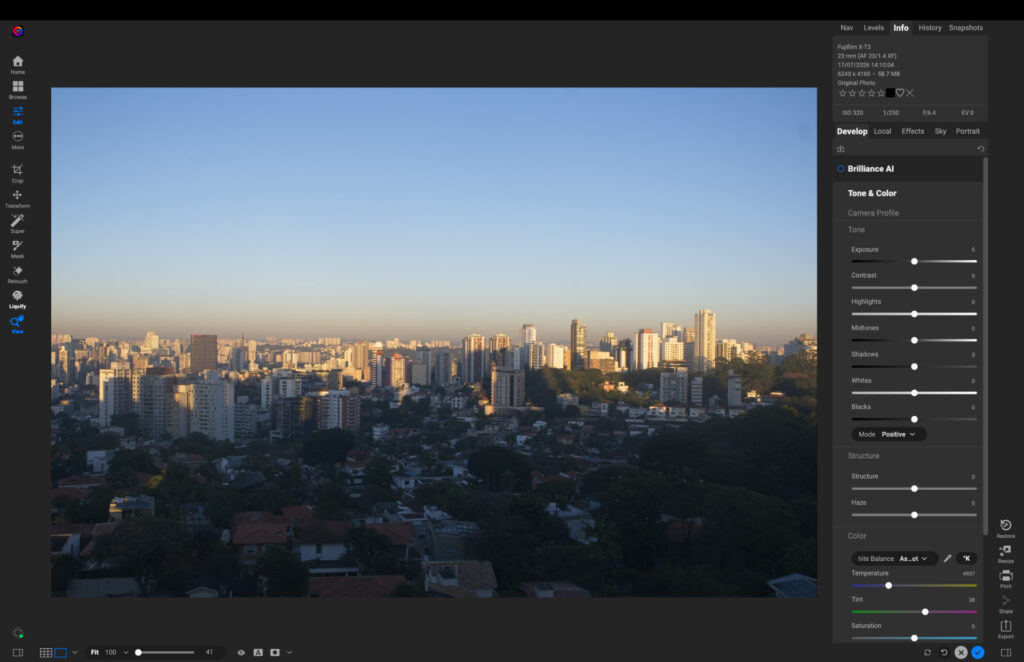
Original RAW file in ON1 Photo RAW
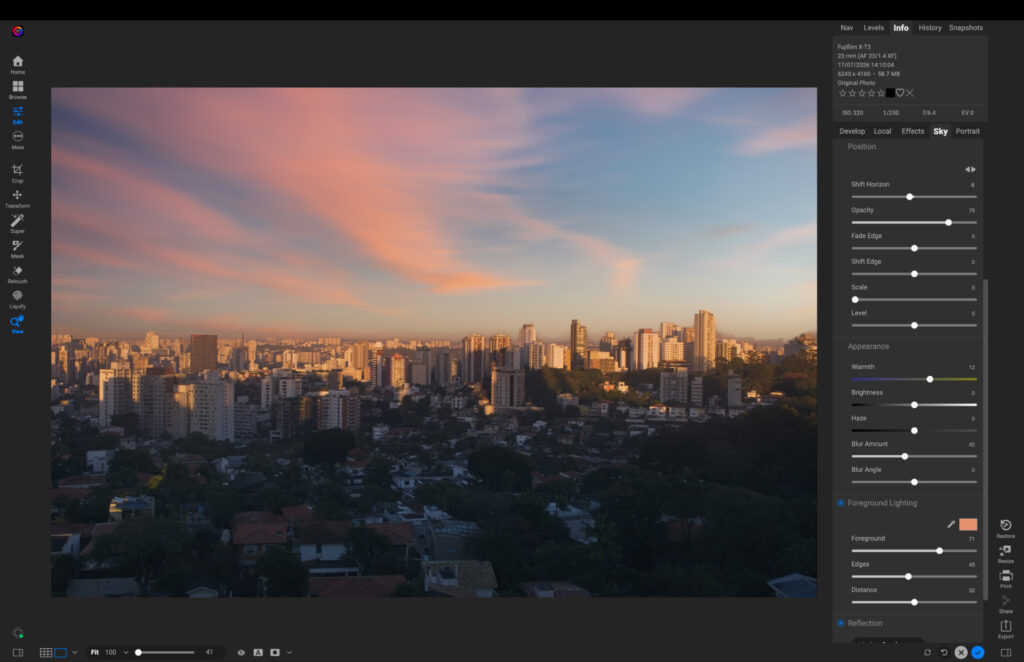
Sky replacement applied.
This one comes down to whether you want something that’s strong in a click, or something you can give further edge with some of your time and manual labor.
Generative Erase
Both tools use generative AI to help you remove unwanted objects from a frame. I’ll be honest, I’m not overly a fan of either of them. When testing, I noticed both ON1 and Luminar would remove objects, but you could see the outline of your brush stroke rather than a smooth blend into the area where I used the tool.

Original RAW with objects in background.

Objects removed using Luminar.

Objects removed using ON1.
ON1’s navigation was awkward. I had to click back into the tool after each removal, whereas Luminar kept the feature active, allowing for a much smoother workflow. If you’re looking at these as potential Lightroom alternatives for generative AI removal tools, then I’d recommend sticking with what you have.
Luminar does have another removal tool inside the edits side bar, which they tell me isn’t powered by AI. Interestingly, it’s much more accurate and natural looking compared to generative erase, but still not on a par with the capabilities of Lightroom.
AI Denoise & Sharpening
In my ON1 Photo RAW review I described its sharpening tools as some of the best I’ve tested. Editing a cityscape photo, I noticed how much clearer the buildings in the shot were, without looking over-processed. Luminar does an excellent job here too, though I noticed a little bit of noise creep into the frame, which I balanced out by using the Denoise tool.
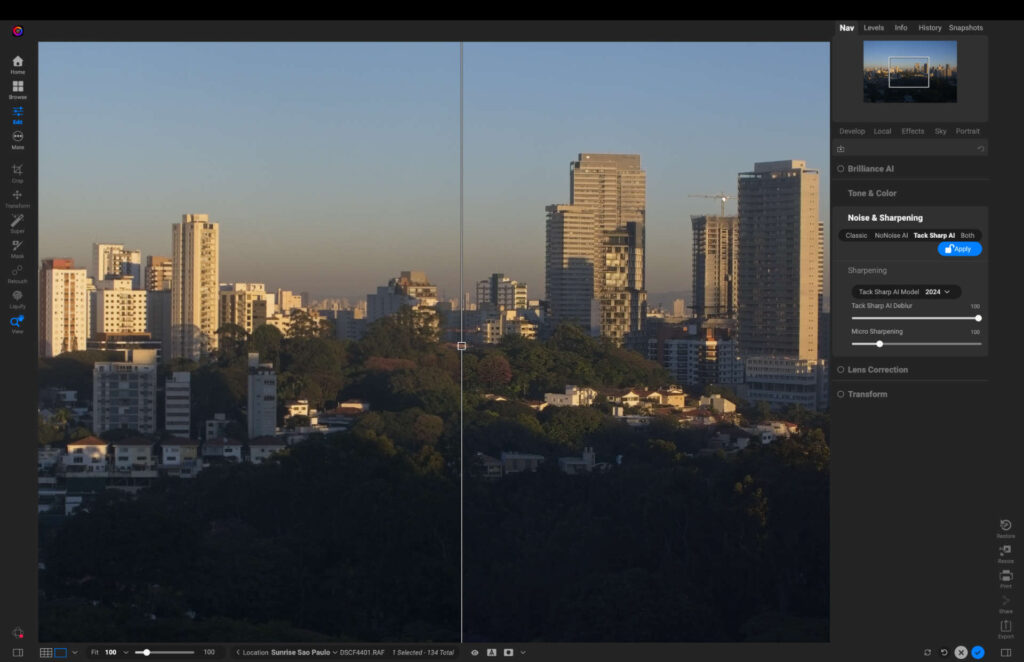
ON1 AI sharpening tool
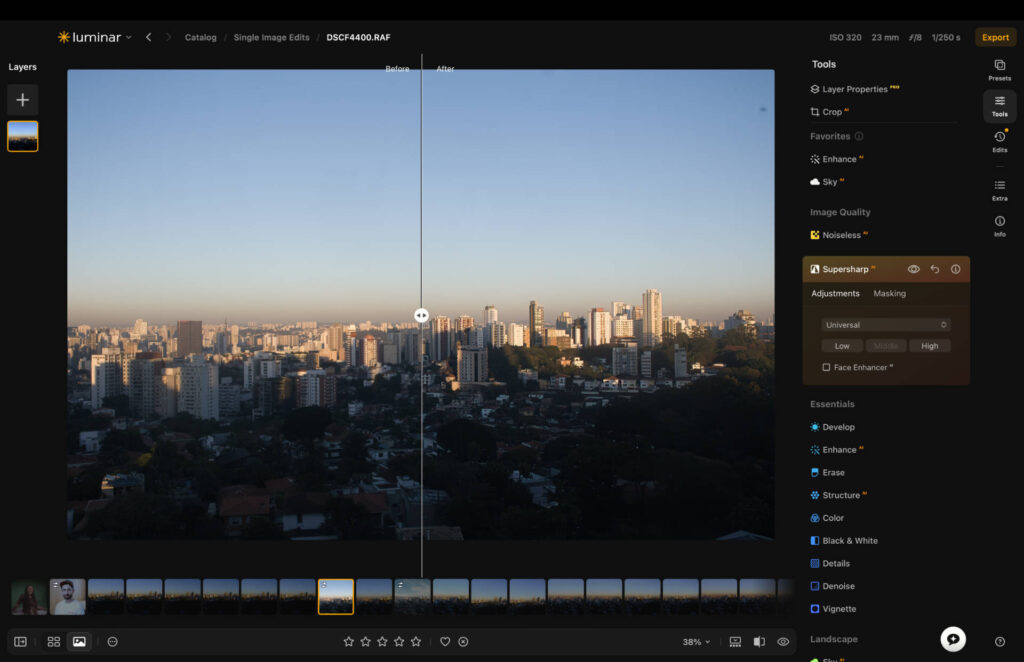
Luminar Supersharp AI
The Denoise tools are also similar in quality, but I think ON1 takes the edge here too. It produces slightly more natural looking results, which really stand out more when shooting something like portraits. Luminar’s is good, but I’d use it mainly for landscapes and other wide-angle shots.

Original Fujifilm X-T3 RAW file. Shot at ISO 12800.

ON1 NoNoise AI applied.

Luminar Noiseless AI applied.
AI Assistant
Luminar is the only software of the two to offer a prompt-based AI assistant, so there’s no direct comparison. It works by describing what type of edit you would like. However, this isn’t for advanced photo editing, rather small adjustments to color grading, exposure and sharpness. It can serve as a good starting point, but expect to still make manual adjustments after the AI does its thing.
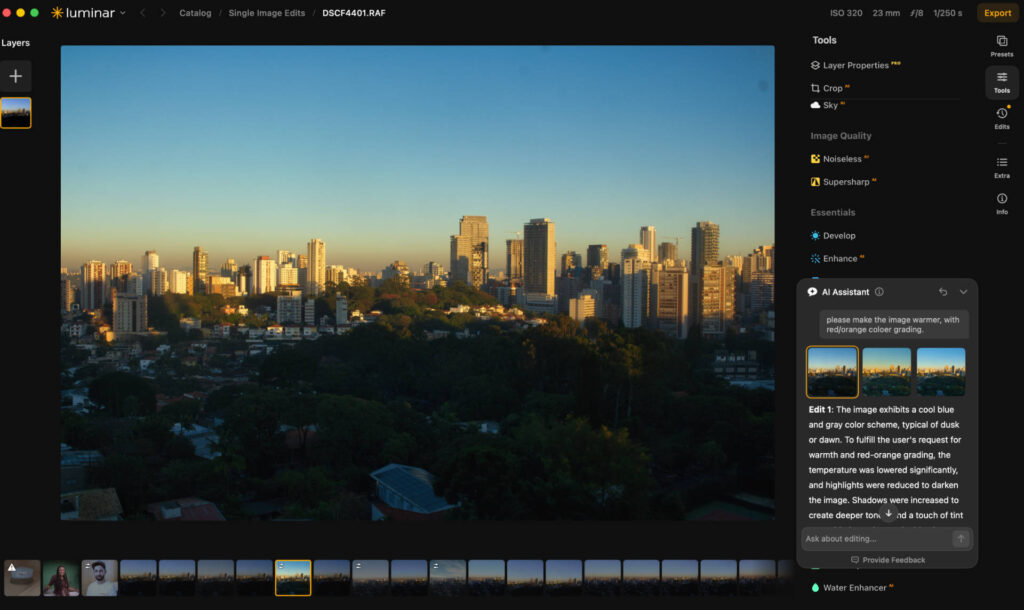
You access the AI assistant via the chat symbol in the bottom right hand corner.
Core Editing & Masking Tools
Away from AI, both editors give you everything you’d expect for a manual edit. Exposure, contrast, highlights and shadows all respond well to sliders in both apps, with curves available if you want finer tonal control. Color work is equally strong on both sides, with HSL adjustments and split toning letting you shape mood without going overboard.
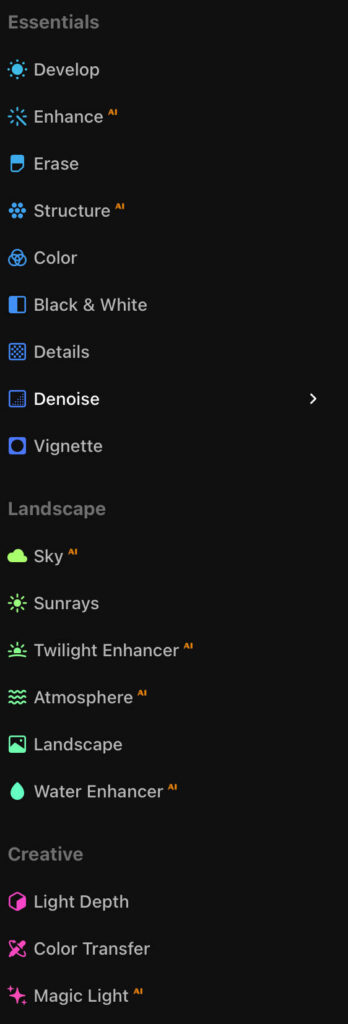
Luminar editing panel.
If you’re looking for the best in color-grading performance, check out my Capture One review to learn why its a market leader.
Masking is where the two properly part ways. Luminar keeps things simple with gradient and brush masking plus subject selection, and it’s fast to pick up. ON1 goes deeper, closer to how older versions of Photoshop handled layers, and while that gives you more control, I found myself needing the knowledge base more than once to work out how to apply an adjustment locally rather than globally.
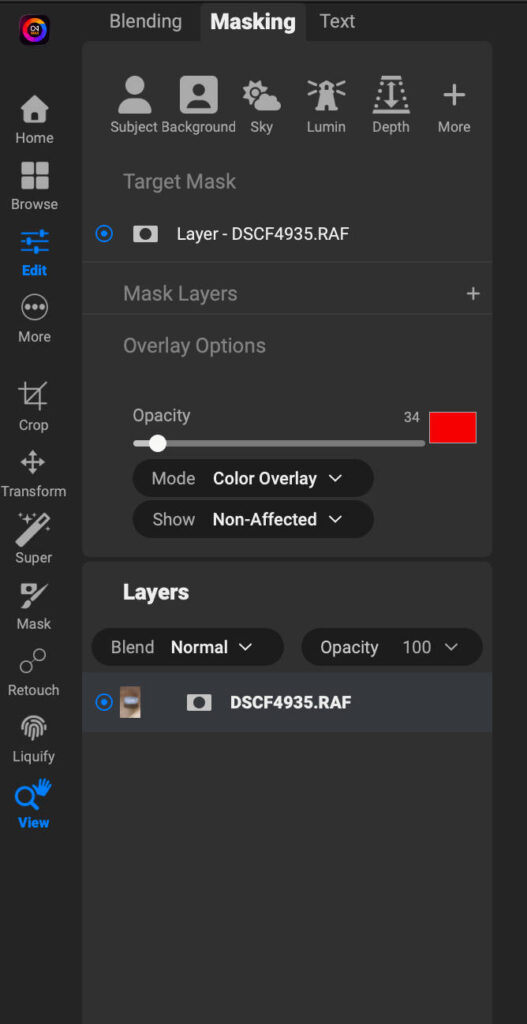
ON1 masking panel.
If you want speed and don’t mind less precision, Luminar wins here. If you’re happy spending a bit more time to get exact control, ON1 has the edge.
Organization & File Management
This is an area ON1 takes seriously in a way Luminar doesn’t quite match. ON1 lets you point it straight at a folder on your drive with no import step, and its AI keywording and Smart Organize tools make culling large shoots genuinely faster. There’s also cataloged folder support if you want database-style searching, plus cloud sync options depending on your plan.
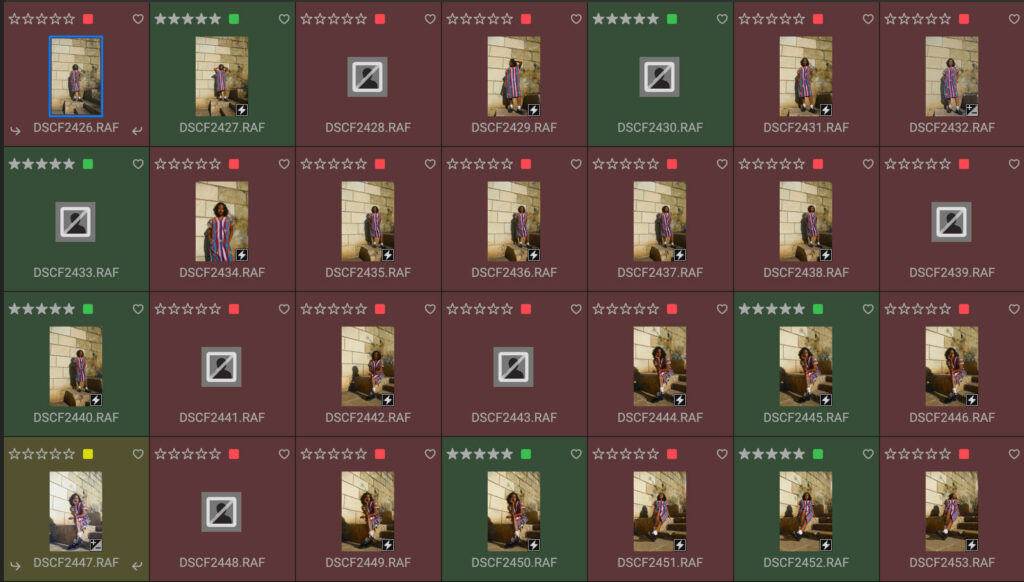
ON1 file management and culling.
Luminar’s Smart Search covers similar ground, letting you search by what’s actually in an image rather than the filename, and I found it accurate in testing. It’s a lighter touch though, without the dedicated culling tools ON1 offers. For anyone shooting large volumes and needing to sort through them fast, ON1 is the stronger choice.

Luminar Smart Search when searching term “multicolored dress”.
User Interface (UI)
Luminar underwent a slight redesign in summer 2026, and what was already a beautiful user interface got even better. It offers a very simple layout, with all of its tools living in a compact left-hand menu. The design also remains amongst the best, combining dark backgrounds with vibrant menus for an enjoyable user experience.
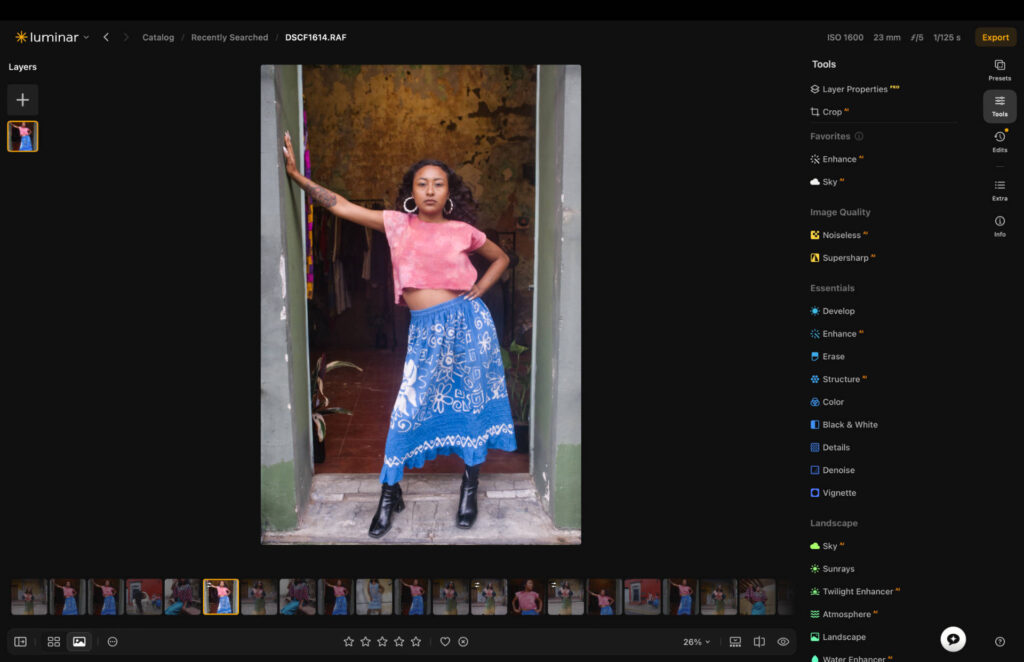
Luminar full UI.
ON1 Photo RAW adopts a more clinical approach. Tool placement is logical, and the design remains muted and modest. The left menu is far less compact in comparison to Luminar, but you can close it if you want your image to take up more real estate on your screen.
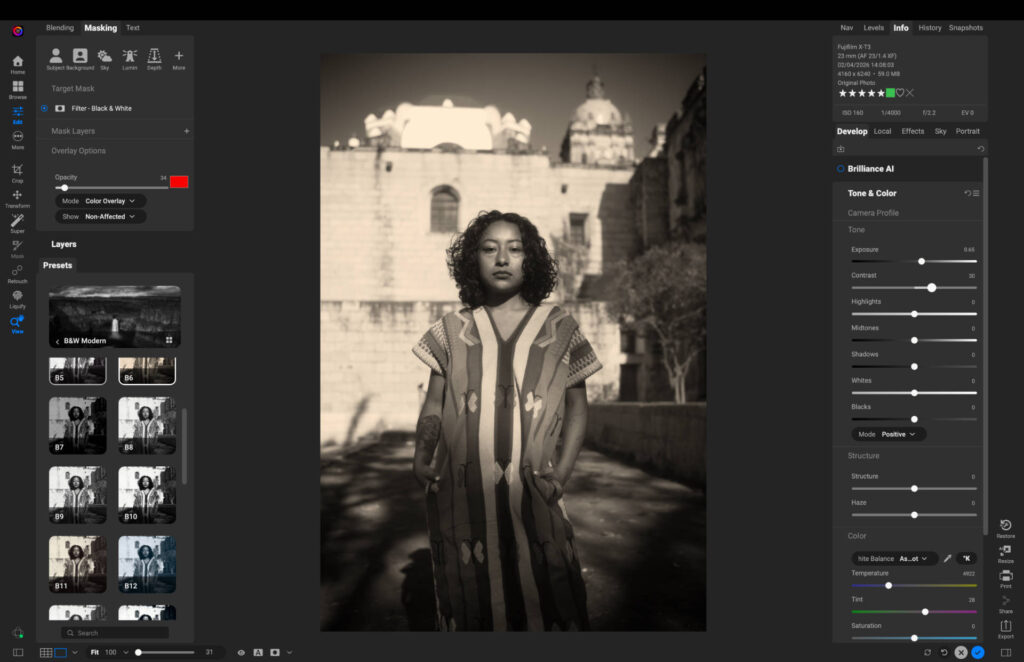
ON1 full UI.
In my opinion, Luminar does a better job with navigation, and this is why it remains one of the best for new users. It’s clear where tools live, and their sub-menus are clearly labeled so you can find a specific tool that’s initially hidden away. When using ON1, I had to pay a couple of visits to the knowledge base to find certain features, not the end of the world but not as fluid as Luminar.
Another way Luminar takes the edge in terms of the UI is its informational tools. Every feature has an “i” next to it, and if you select it, a drop-down tab will open explaining what the feature is and how you can use it.
Performance
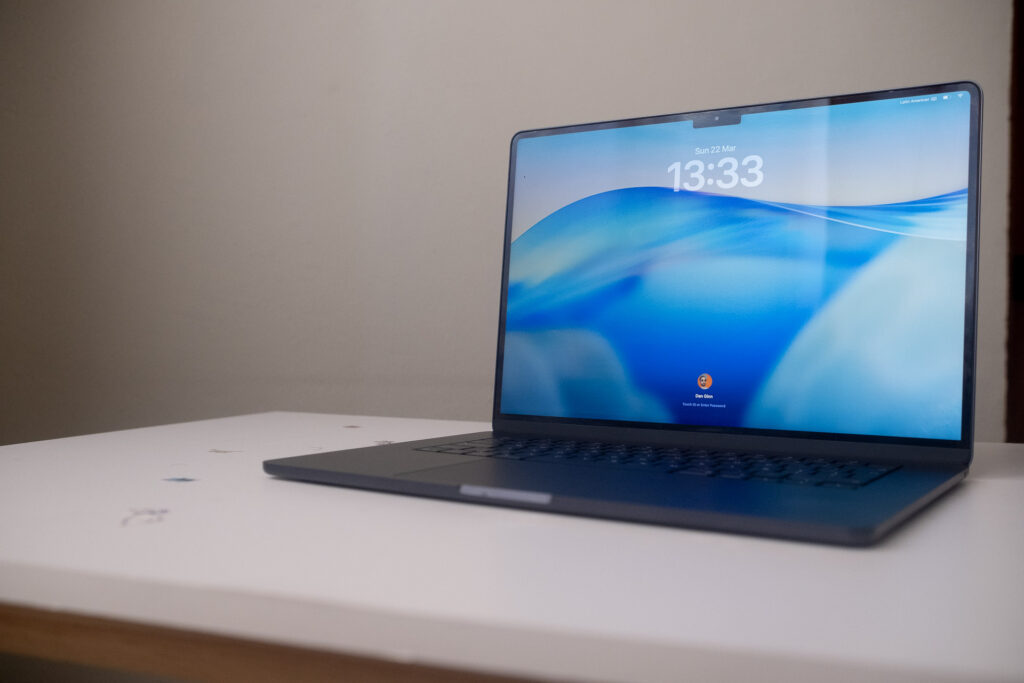
I used my Macbook Air M5 for recent testing.
I’ve tested both pieces of software on old and new laptops. Luminar runs smoother than ON1 on both my six-year-old M1 MacBook Air and my recently purchased M5 MacBook Air, which came out in March 2026. ON1 became pretty unusable on my older laptop, but it’s much better on the latest version of the MacBook Air.
I found Luminar processes AI adjustments much quicker, and is more reliable than ON1 when running through different images and tools. Both handle zooming in and out on a frame with the same level of fluidity.
Luminar rarely meets the multi-colored wheel of doom, but ON1 does. I’ve also had to force close ON1 on a handful of occasions, which I don’t with Luminar.
I’ll note, I’m very much zooming in on the quirks of performance here. Using each software daily over a period of time offers an overall good performance experience, but Luminar certainly does better in this department.
Cost
Luminar keeps things simple with three perpetual tiers, and I remain a fan of not being tied into a subscription.
- Perpetual Desktop License: $129 (macOS and Windows)
- Cross-Device Perpetual License: $159 (desktop plus mobile apps)
- Perpetual Max License: $199 (desktop, mobile apps, and an expanded library of presets, LUTs and advanced tools)
There’s a 30-day money-back guarantee if you want to try it risk-free.
ON1 gives you more flexibility, with the choice of buying outright or spreading the cost.
Perpetual (own it forever):
- Photo RAW 2026: $99.99 (standalone app, 2 computers)
- Photo RAW MAX: $169.99 (standalone plus Photoshop, Lightroom, Capture One and Affinity plugins, 3 computers, 200GB cloud sync)
Subscription (always the latest version):
- Photo RAW MAX: $89.99/year (all updates, 200GB cloud sync)
- Photo Studio: $179.99/year (every ON1 app, 1TB cloud sync, 5 computers)
Upgrading a perpetual license to the next major version usually runs around $79.99. ON1 also discounts often, so it’s worth checking for a live sale before paying full price. There’s a free trial and a 30-day money-back guarantee if you want to test it first.
On price alone, ON1’s entry tier is cheaper, but Luminar’s simpler three-tier structure makes it easier to know exactly what you’re paying for upfront.
Who Are They Best Suited For?
Luminar is built for beginners and enthusiasts. If you’re learning the ropes of digital editing, sharing to social media, or creating content, the simple layout and one-click AI tools make it an easy fit. I wouldn’t point a working professional here though. The output and flexibility fall short of what paid work demands, and I’d send that crowd to Lightroom or Capture One instead.
If you’re new to photo editing, check out my selection of the best photo editing software for beginners.
ON1 sits at the other end. It’s not the place to start as an absolute beginner, but for photographers who already have some experience and want to go deeper, it delivers. Portrait shooters in particular get a lot out of it, along with anyone who wants AI keywording, layers, noise reduction and RAW editing all in one app rather than juggling several.
Tethered shooting is on board too, though currently limited to Canon and Nikon, which makes ON1 a genuinely affordable alternative to Capture One for professionals shooting those systems.
Signing Off
Both of these are strong photo editors, and neither is a wrong choice. It really comes down to what kind of editing experience you want and how much time you’re willing to put in.
If you want something fun, fast and forgiving, with striking results in a click or two, Luminar is the one to go for. If you want a complete, professional-grade toolkit with deeper file management and more control over every edit, ON1 Photo RAW is the stronger pick.
Both offer perpetual licenses if owning your software matters to you, and both let you try before you commit. There’s nothing to lose in seeing how each one fits your own workflow, so take advantage of Luminar’s 30-day money-back guarantee on both and find out for yourself.
More reading: Lightroom vs Imagen AI: One Totally Improved My Workflow