
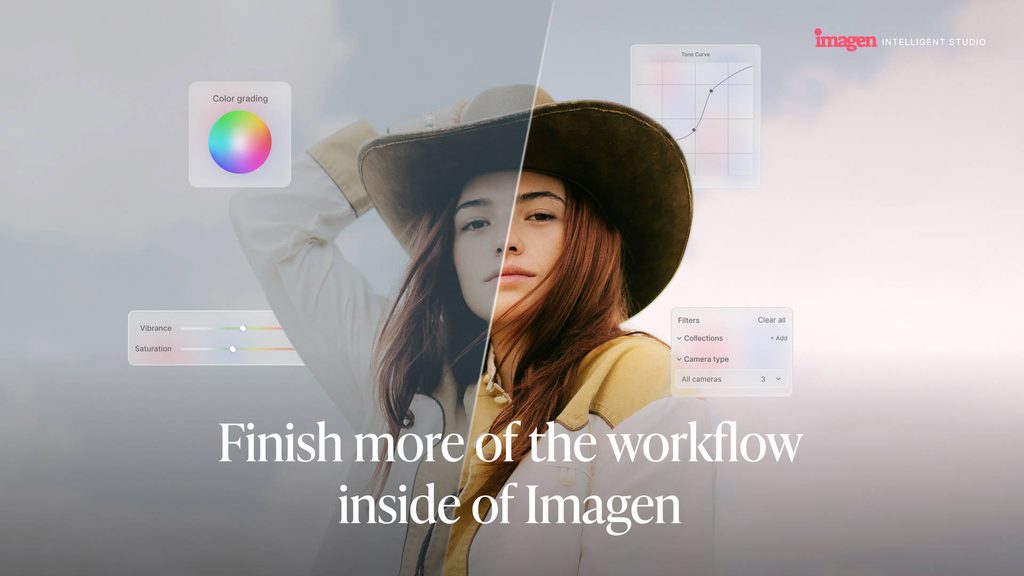
Professional photo editing software Imagen is entering a new era, introducing Imagen Studio. As the company rolls out its latest version of the software, it’s evolving into an advanced intelligent studio for professional photographers. It’s early days, but from what I’ve seen so far, I’m optimistic it will give many photographers the experience they’ve long been asking for.
Until now, Imagen relied heavily on Adobe Lightroom, Photoshop or Camera Raw at every point of your workflow. With the latest version of the software, photographers can now handle a majority of their work inside Imagen, making photographers less dependent on Adobe’s platforms.
Here’s what’s changing over the coming months, plus the tools I’m most excited about, as Imagen becomes an even more advanced AI-powered post production solution.
Editor’s note: All the new features below are in beta and are being gradually rolled out to users. I tested them on a MacBook Air M5, and I’ll keep testing and updating my Imagen review to show you how well they’re working.
New to Imagen?
If you’re new to Imagen, here’s a quick overview of what it does and why I’ve made it part of my professional workflow. The app is designed for busy photographers who shoot in large batches and want faster turnarounds and consistent quality for their clients.
It learns your editing style from .XMP files you’ve previously created in Adobe’s editing apps, then handles future editing sessions on your behalf.
As outlined in my Imagen vs Lightroom comparison guide, my real-world tests showed much quicker results with Imagen. A batch of 200 images was edited and exported in under 15 minutes in Imagen, compared to two hours of manual editing in Lightroom.
Built-in Editor
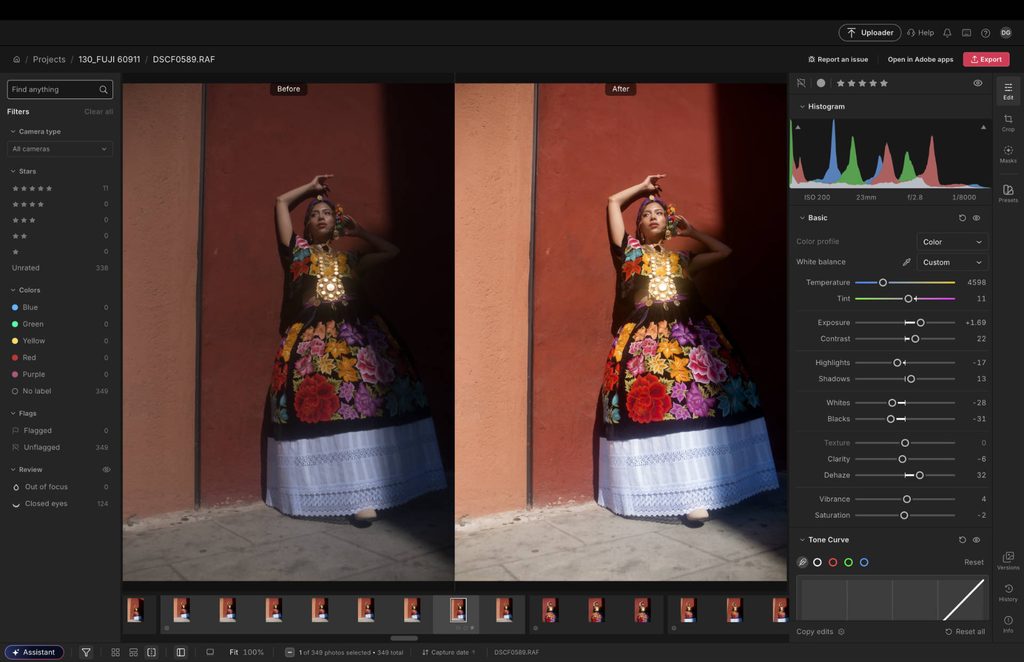
Imagen is adding a fully integrated RAW and JPEG editor to its platform, so you can now handle most of your editing inside the app. There’s a traditional right-hand panel with a range of tools and sliders to refine your initial edit.
In its current form, the editor covers color grading, tone curve adjustments, standard light editing and lens correction. A range of presets is also available, and you can add your own.
Manual masking tools are also available, giving the photographers the option to use a brush, plus gradient and linear masks. Imagen says more AI-generated masks are also in the pipeline.Separately from the editor, Imagen’s AI editing can still handle retouching like skin smoothing and blemish removal across your batch when you apply your AI Profile.
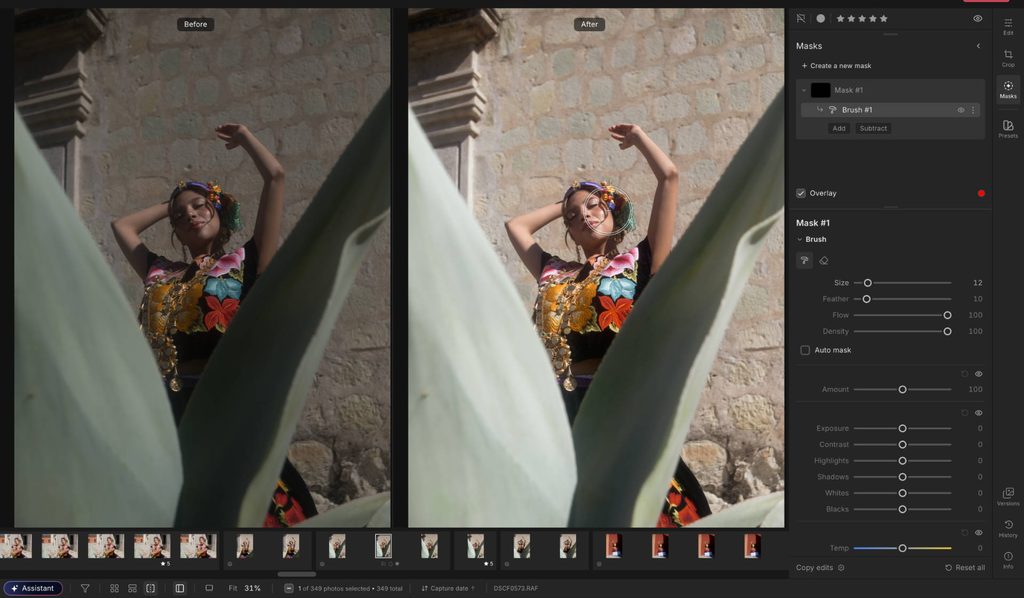
My first impressions: The editor covers most of the fundamentals, and on my MacBook Air M5 the sliders responded in real time with no noticeable lag. Scrolling through large batches of photos was smooth, and I especially liked the color accuracy of the grading tools.
A Personal Assistant
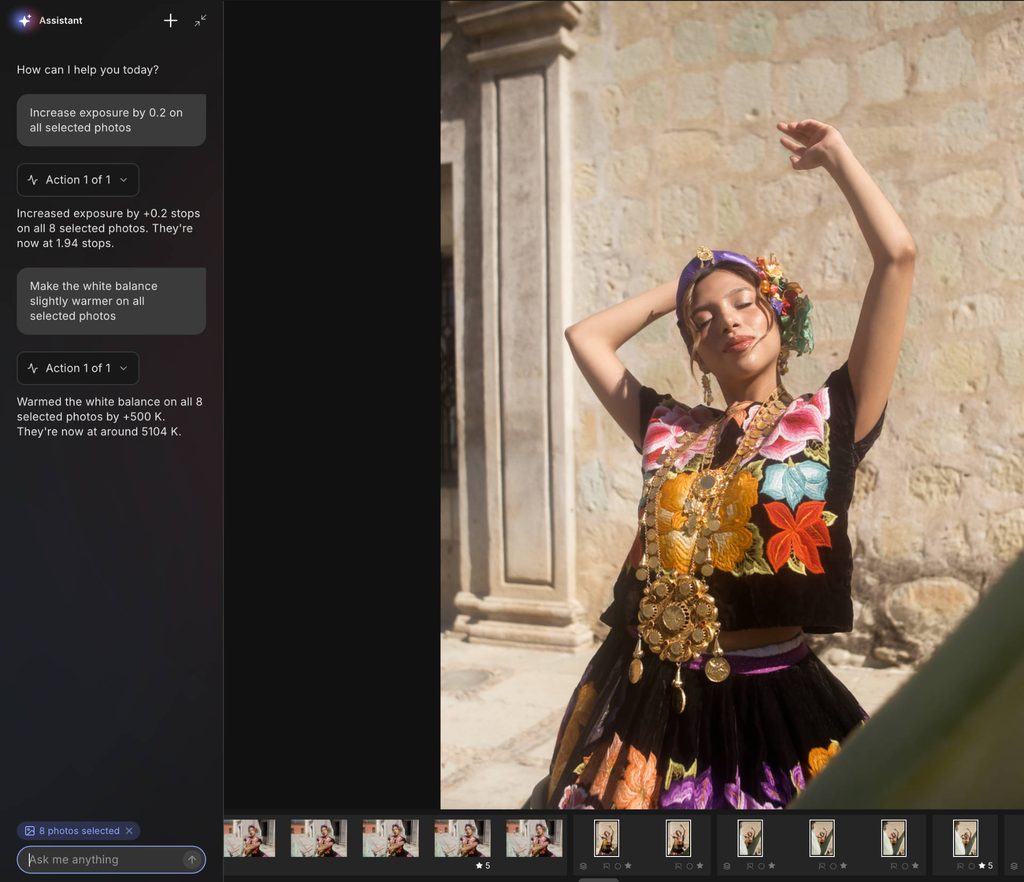
Another new feature in Studio is what Imagen calls Assistant, which carries out tasks from written prompts. It can make both global and localized adjustments, and it’s especially useful for finding specific images and applying changes to a single photo or a selected group.
For example, you can ask the Assistant to show all images shot in direct sunlight, reduce the exposure, then apply that change to every relevant photo. It reads your photos’ metadata, such as lens, camera, ISO and capture time, along with any stars, flags or color labels you’ve added. It can also recognize what’s in a scene, like whether a bride is in the shot.
My first impressions: The Assistant handled my prompts well, but search wasn’t always accurate, which is expected in a beta version. It’s there when you want it and stays out of the way when you don’t, and it takes a lot of menial tasks off your plate.
AI Filters
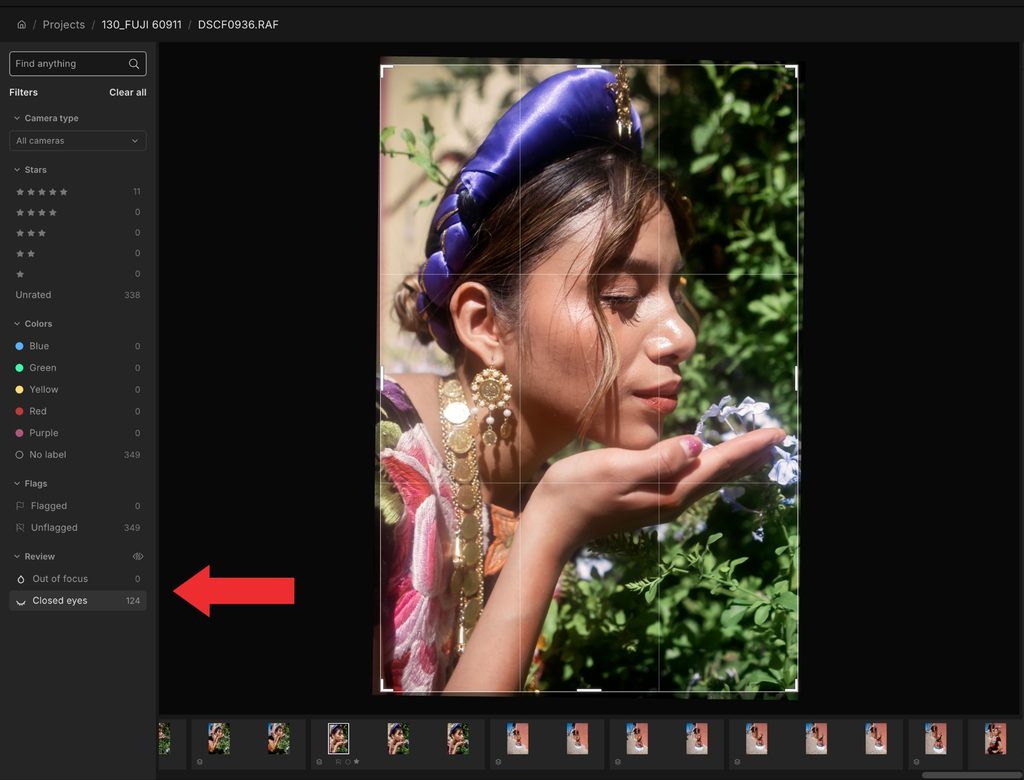
Imagen Studio also includes AI filters to help organize images. Once you’ve uploaded a shoot, it analyzes your photos and isolates any it considers potentially low quality. In the current beta, the tool only flags images that are out of focus or where the subject’s eyes are closed. These are grouped into their own tab, where you can review and edit them if you wish.
My first impressions: The tool did exactly what it says on the tin, catching every image where my subject was out of focus or had their eyes closed. Keep in mind that it has no way of knowing when closed eyes are a creative choice, as they were in my test shoot, so check this tab to make sure you don’t lose any keepers.
What Else to Expect from Imagen Studio
Think of this version of Imagen Studio as the first building block, with the company committed to developing the platform further.
Imagen Studio can already support much more of a photographer’s workflow than before, though some tools are still on the way. Granular masking tools and manual retouch sliders are still to come, localized edits made by the Assistant can’t yet be exported to Lightroom, and you’ll need an Adobe edit history to build an AI Profile in the first place.
My contacts at Imagen tell me the development team is working on several tools, including voice interaction, assistant memory, retouch sliders, and the ability to add AI Profiles and other tools in real time. We can also expect improvements to existing features, such as faster and more accurate culling. I’ll keep you updated as these roll out and once I’ve tested them.
Signing Off
This new era for Imagen is still in its early stages, but my first impressions are very promising, and I’m keen to see how it develops.
Imagen will still integrate with Lightroom, so you can use both side by side if that’s your preferred workflow. But for photographers looking to cut down the number of apps they edit with, the early signs suggest Imagen Studio will help, as it gradually becomes a more advanced post-production platform.
Imagen Studio is gradually being rolled out – join the waiting list to get your copy.
More reading: Best Photography Podcasts in 2026: 7 Worth Your Time