Best Photo Editing Software for Mac (2026 Guide & Reviews)

Luminar is the best photo editing software for Mac. It’s affordable, stable and has plenty of tools that can make editing fun and your final shot captivating. There are some other options that I also like to use on my Mac, and I’m sharing the best six options I’ve tested throughout my 10 years of being an Apple user.
When selecting the best photo editing software for Mac, I take a few key points into consideration. I look at how well they run on Apple silicon, including aged laptops from the M1 era. I test to see if the tools available are overhyped or if they can actually add value to your edit. And, I also look at design, usability, and stress test the performance.
This selection ensures that all Mac users will leave with an option to edit their images. From the big names in the photo editing space, right through to those looking for a free photo editing software for Mac.
If you’re actually looking for an app to suit any operating system, check out my choice of the best photo editing software for all users.
Best Photo Editing Software for Mac Compared
| Software | Best For | Best Feature I Tested | Price (checked Nov 2026) | Also on iPhone/iPad |
|---|---|---|---|---|
| Luminar | Best overall for Mac | Light Depth tool | $129 to $199 one-time | Yes |
| Imagen AI | High-volume editing | Automated editing in my own style | $0.05 per image or $129/mo | No |
| Photomator | Best value | Accurate color grading | $119.99 lifetime or $7.99/mo | Yes |
| Lightroom | Cross-platform editing | Single-click precise masking | From $11.99/mo | Yes |
| Apple Photos | Free, built in | Object removal | Free | Yes |
| Affinity | Best free | Easy-to-use Develop tools | Free | iPad only |
Luminar: Best Photo Editing Software for Mac
Pros:
- Beautiful user interface
- Works well on older M1 MacBooks
- Fun, creative tools that actually work
Cons:
- Struggles with large batches of images
- Object removal is inconsistent
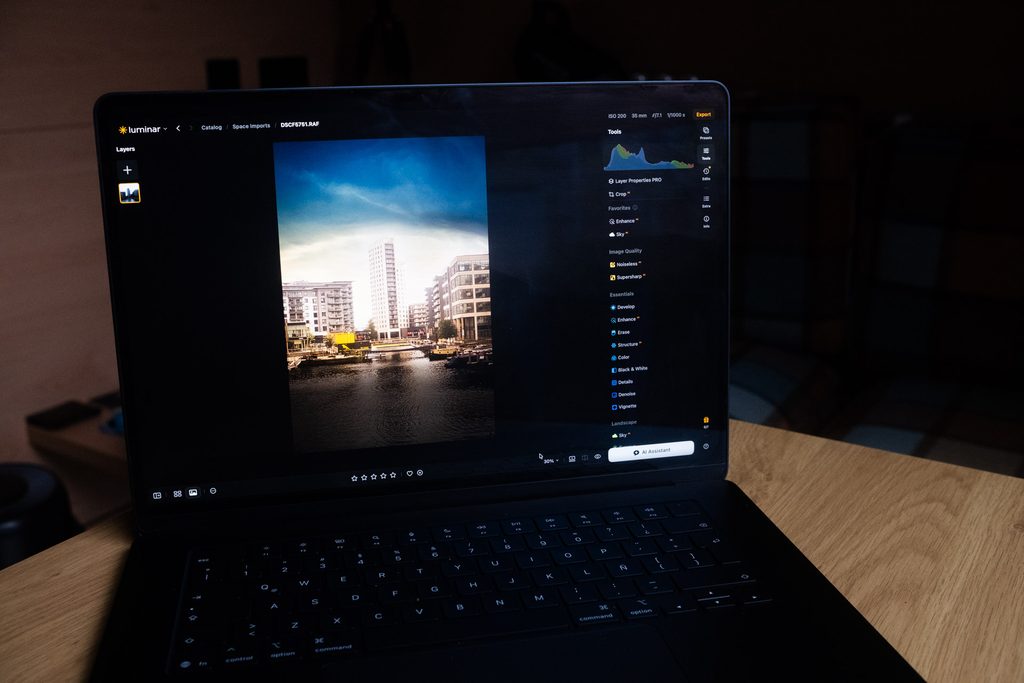
- Who it’s for: Content creators looking for a well designed app to make creative edits.
- Skip it if: You’re a professional photographer looking for strong DAM tools
- Price: $129-$199 (One time fee).
I’ve chosen Luminar because it leans into creativity. Tools like Light Depth and Sky Replacement help you tweak your lighting and add creative skies, turning a flat image into something more vibrant and dynamic.
Luminar is also an excellent choice for cross-platform editing. I can start editing a photo on my iPhone, and pick up where I left off on my MacBook. Edits are also non-destructive, which helps me walk back any edits and return to the original RAW file should I want to start again.
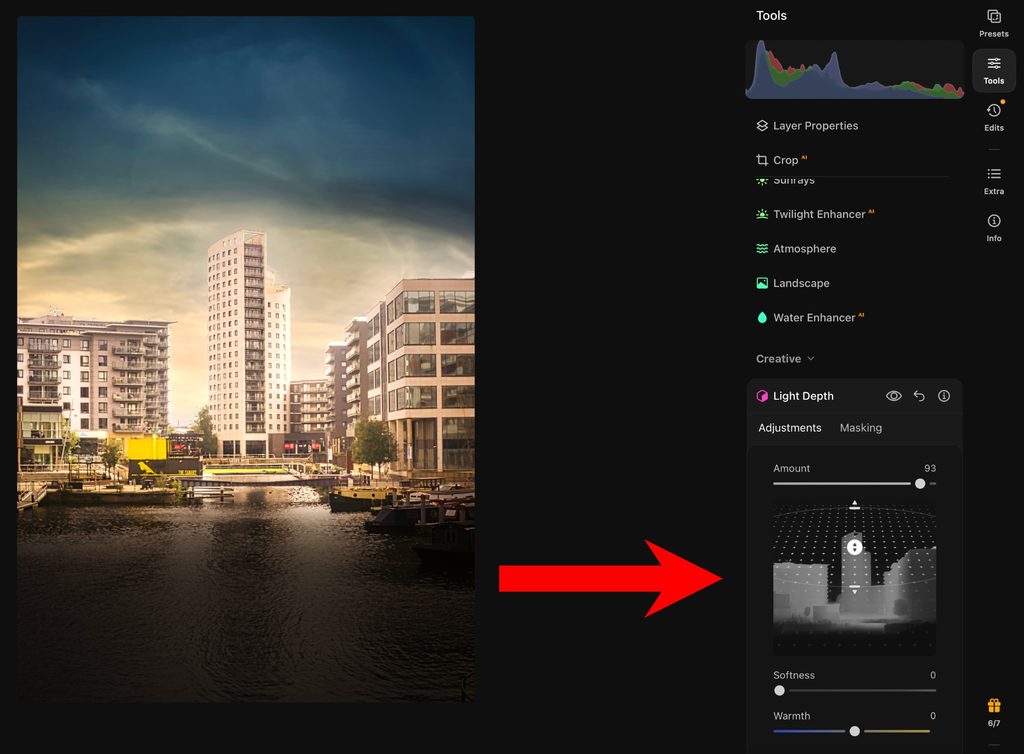
I adjusted the light in the right hand panel to readjust where the light dropped on the building.
Luminar: My Real-World Experience
Design language is key for Apple users, and Luminar clearly understands that. The user interface is vibrant, and finds a good balance between serious photo editor and creative looking workspace. I found navigation was very easy, and going from one tool to the next caused no problems at all.
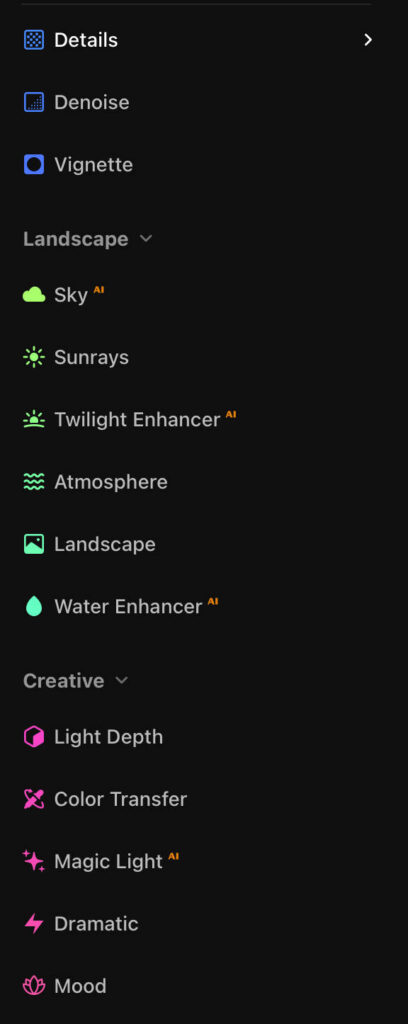
Luminar editing panel is vibrant and very easy on the eye.
Actions that require a lot of computer power, like Sky Replacement, and AI Denoise ran very smoothly, and when exporting heavily edited images I didn’t experience any lag or dreaded shut downs.
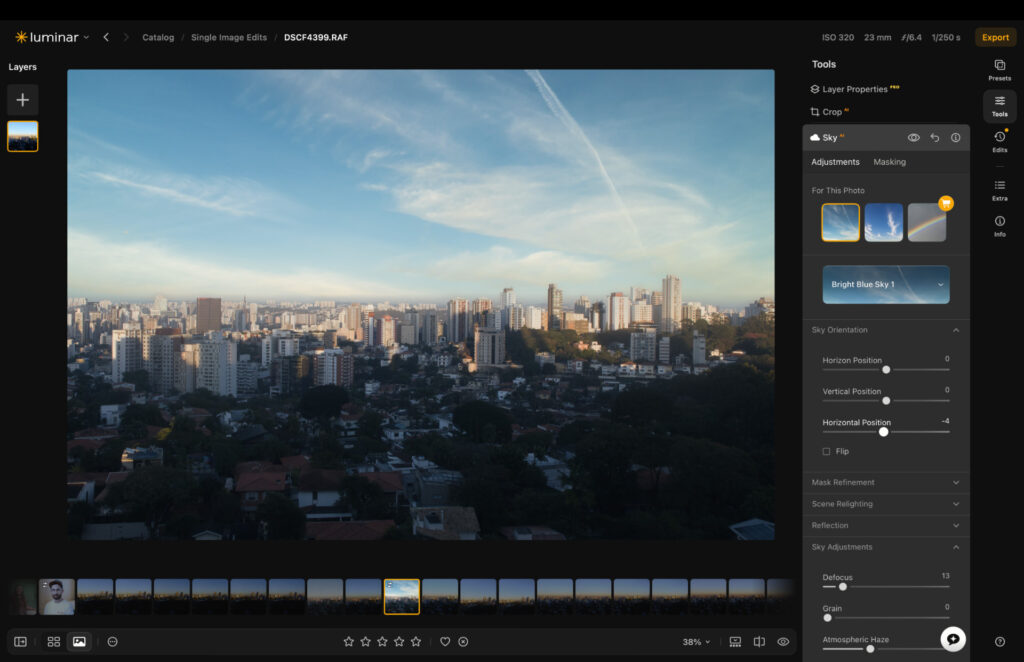
There are a couple of areas of improvement. The first is for large batches of images. I imported 500 Fujifilm RAW files (around 60MB each) and it took a considerable amount of time to load them up, with file previews being inconsistent. Once they’re loaded, things improve, and you can go through images with relative ease. But pros with strong workflows will need to look elsewhere.
After one hour of editing, the question of whether Luminar was able to help me create a captivating frame was answered, and it was a resounding yes. All of the tools serve a purpose and I was very happy with my final edit – so much so I decided to print it, which as of fall 2026, I can now order directly inside the Luminar app.
Original RAW file

Final edit

More reading: Honest Long-Term Luminar Review: Read Before You Buy
How Much Does Luminar Cost?
Luminar offers great value for long term ownership, and there are three options available.
- Desktop – $129
- Desktop/Mobile – $159
- MAX – $199 (Desktop, mobile and bonus creative tools and features).
The desktop only option is a good starting point if you prefer to edit solely on Mac.
You can get 10% off using code: THEMFRAMES10
Imagen AI: Best for High-Volume Editing on Mac
Pros:
- Automated editing without losing your style
- Much quicker client delivery times
- Cheaper than hiring a photo editor
Cons:
- Training your profile can take time
- Minor navigation bumps
- Who it’s for: High-volume photographers looking to spend less time editing and deliver shoots to clients quicker.
- Skip it if: You’re not running a photography business.
- Price: $129/mo (on annual billing).
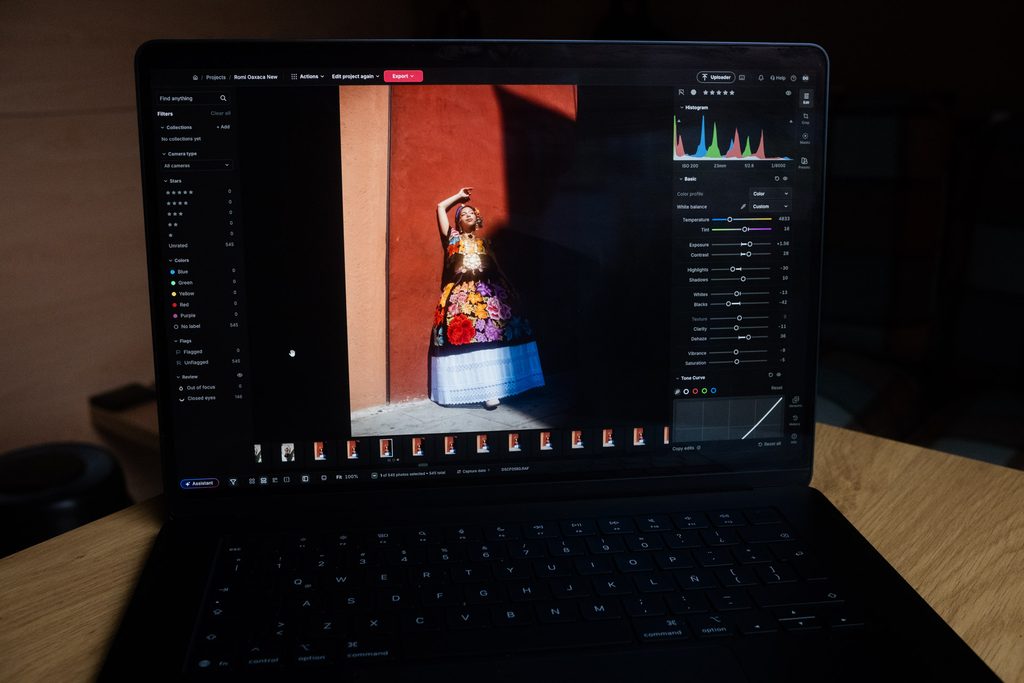
Imagen has been a total game changer for me and my professional portrait photography. I no longer have to spend hours staring at my screen, and I can deliver to my clients with fast turnarounds. The way it works is simple. Give Imagen access to your previously edited images, let it learn your style, and then simply select your editing profile for future edits.
Imagen’s editing is dynamic too, so it doesn’t work like a preset. Instead, it applies the correct adjustments to each frame, rather than a one-size-fits-all edit. And, with the recent update, you can now make any manual adjustments directly inside Imagen studio, which gives you access to light, color, masking tools and more.
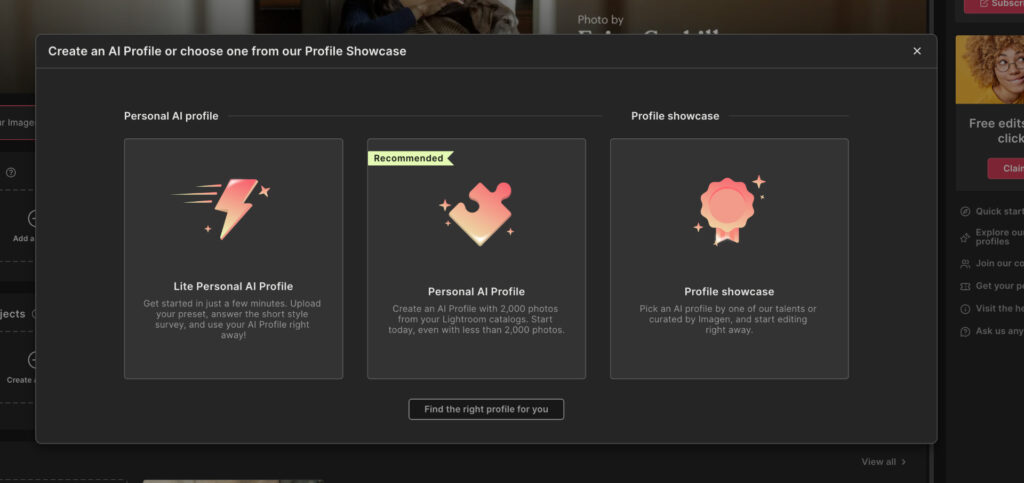
You have three options when setting up Imagen, setting up a Personal AI profile will give you the most accurate results.
Imagen AI: My Real-World Experience
I downloaded Imagen onto my Mac, and to give you an idea of what it can do, I timed edits inside Imagen, alongside manually editing in Lightroom. In Imagen, I had 185 images edited and exported, ready to deliver within 30 minutes. In Lightroom, I still hadn’t finished editing after a two hour session.
The new studio features work very well. And, scrolling through large batches of RAW files was extremely smooth, giving me the best experience out of all the software in this article.
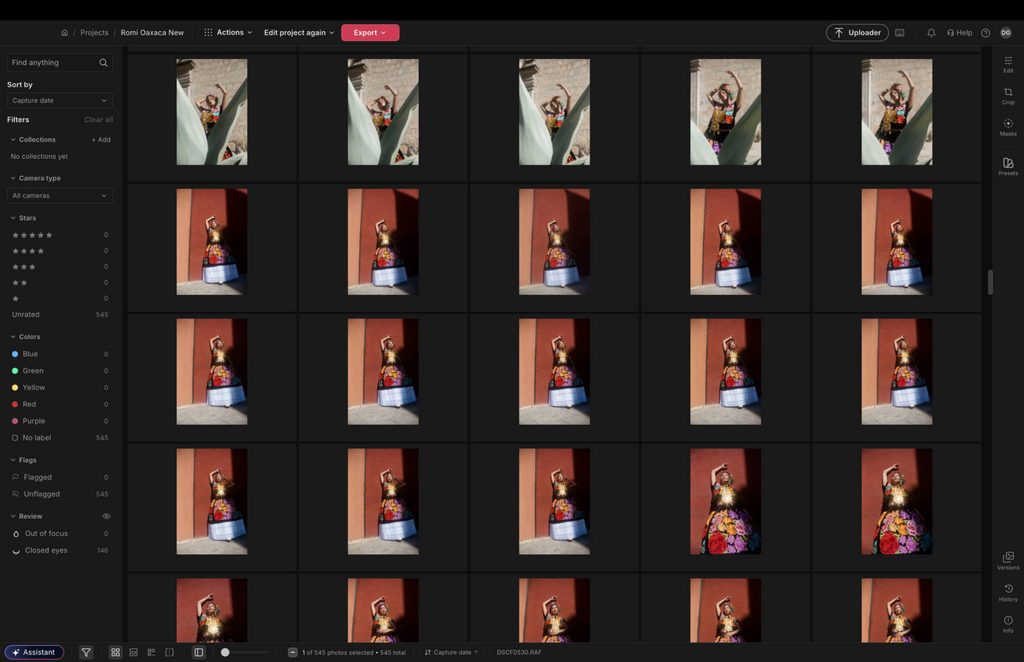
I found Grid view have me the best overlook of the shots from my session.
There’s also an assistant which I found useful for batch editing select groups of images. For example, if I want some vignette added to only a few frames, but don’t want to adjust anything else, I can ask the assistant to do it on my behalf, and I enjoyed accurate results.
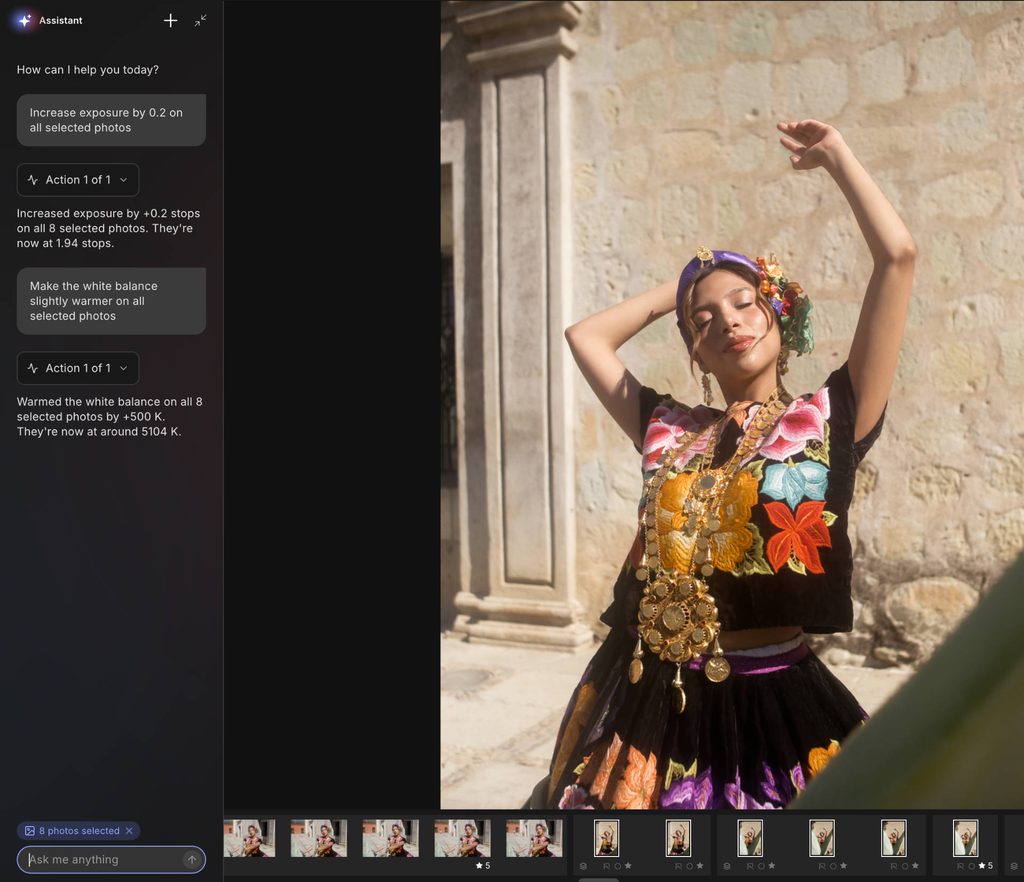
Your assistant makes non-destructive edits as per your request.
There’s one crease I’d like to see ironed out. When selecting your profile, you get a preview of your edits, and you can adjust them before Imagen does its thing. That’s great. But, if you make manual adjustments before the edits, you can only do so with pointed arrows, not sliders, and you need to refresh the shot after each adjustment to see its impact.
I’ve now been using Imagen consistently for almost a year. And it ensures I get more bookings, and keep clients happy. Imagen has drastically shaved down my editing times and it keeps my style consistent, with no risk of editing fatigue.
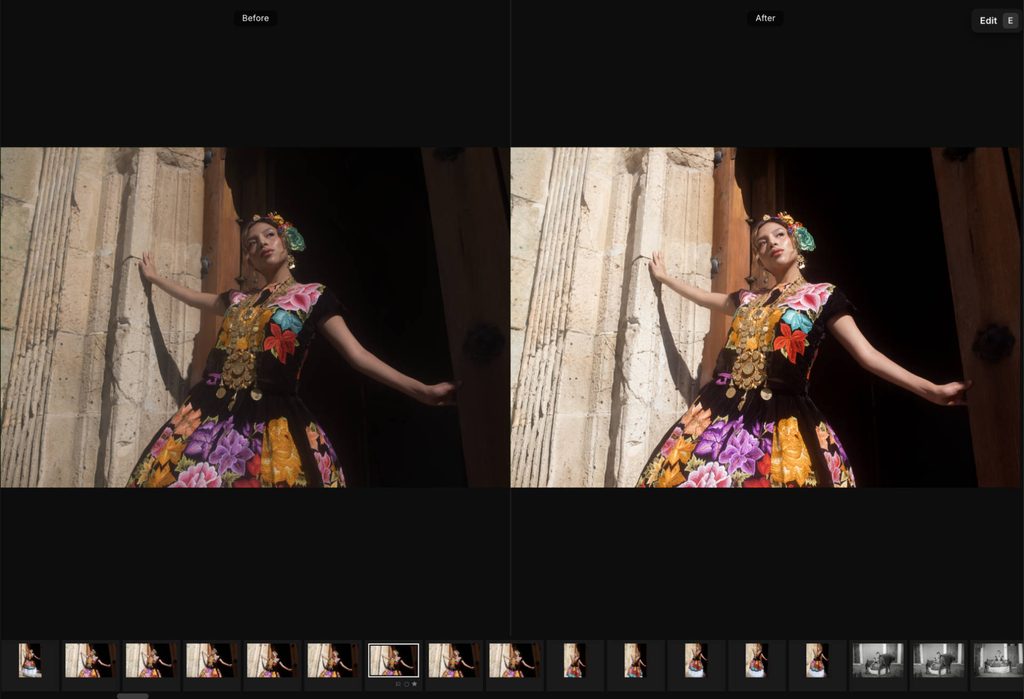
A before and after of an image edited with Imagen using my personal AI profile.
More reading: Imagen AI Review: I Tried It For 90 Days and the Edits Shocked Me
How Much Does Imagen AI Cost?
Imagen has two pricing options, Pay-As-You-Go or a subscription.
- PAYG – $0.05 per edit (only pay for what you export).
- Limitless – $129/mo (paid annually). $165/mo (month-to-month).
If you’re a semi-professional then PAYG may be a good starting point. Full time pros, especially those working in high-season genres like weddings will be best placed on the Limitless plan.
Photomator: Best Value Photo Editor for Mac
Pros:
- Excellent masking tools
- Great for color grading
- Affordable one time payment
Cons:
- Lacks regular updates
- Navigation could be better
- Only available on Apple devices
- Who it’s for: Apple users looking for an affordable perpetual license and an Apple owned software.
- Skip it if: You want regular updates with the latest features, or may leave the Apple ecosystem.
- Price: $119.99 (One time fee, monthly and yearly also available).
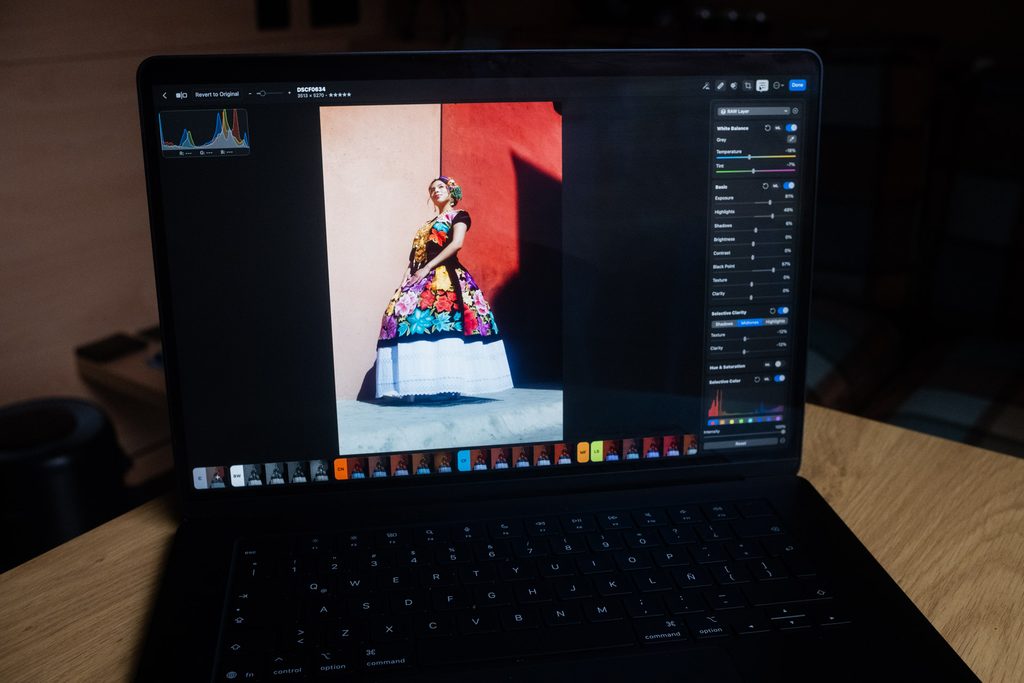
Photomator is the cheapest photo editing software for Mac in this article, however, it’s still a very capable photo editor which I really enjoy using. I personally enjoy color grading with Photomator, whether that’s through using one of the presets, or using the manual controls to get the colors precisely how I want them.
Photomator also syncs well with Apple Photos. So, if I feel like editing an image shot on my iPhone 13, I can access my photos stream inside Photomator and start editing. For a more professional workflow, I like that I can import directly through files and folders, keeping my Photos stream separate and untouched.
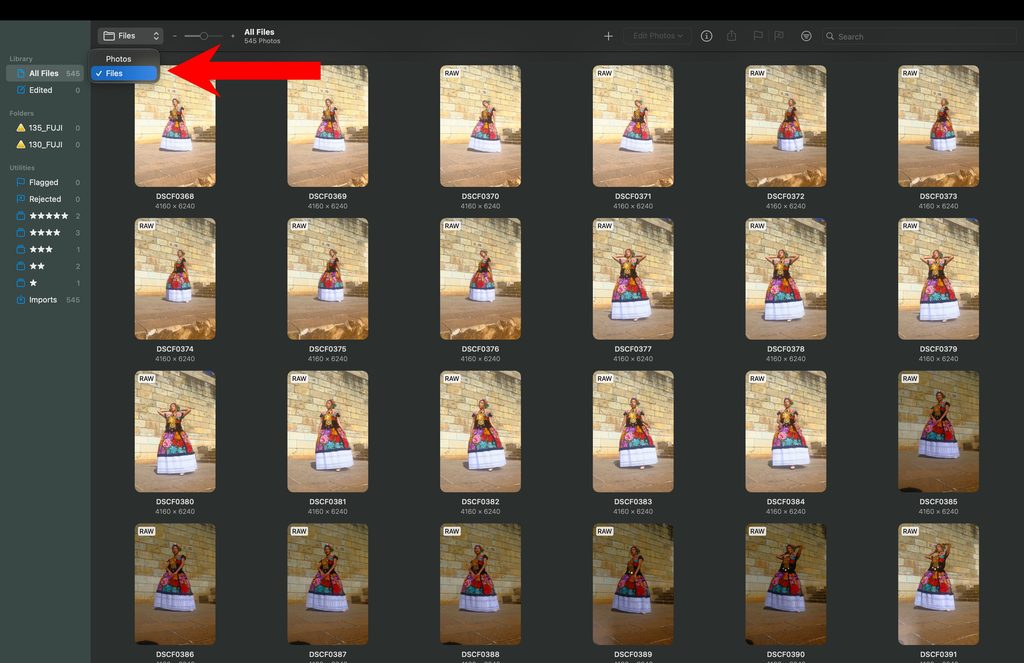
Your can navigate between Photos and Files in the top menu on the left hand side.
Photomator: My Real-World Experience
I really like how Photomator processes my RAW files, offering a pretty neutral look to help me get started with my edit. I did see some slight Denoise applied automatically, which personally I was fine with – just don’t expect the file to be as RAW as on the likes of Lightroom.
The software design is beautiful. It’s not overcramped with menus and features, and gives a lot of breathing space between tools and your image so you can really get into a focused editing workflow. I like that I can easily toggle different features on and off, creating an interface that best suits my editing needs.
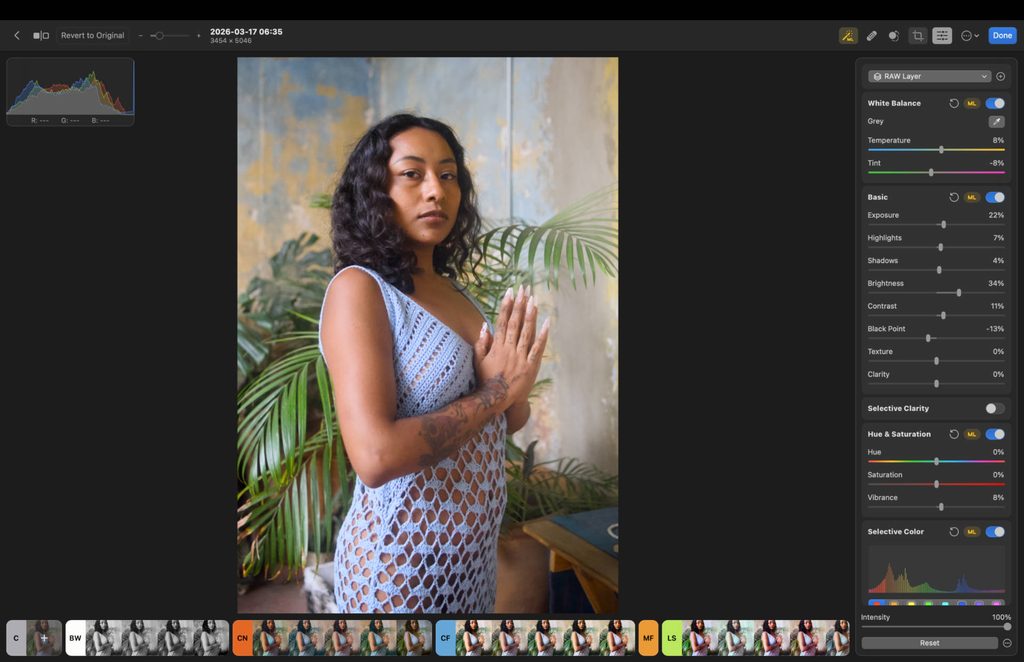
Masking tools, color grading and machine learning features like object removal all worked very well and with no hurdles. On the whole, Photomator’s performance is reliable and handles heavy tasks like large exports with ease.
There was one minor workflow hiccup. Photomator doesn’t let you flick through images once you’re in the editing room. Instead you have to save the image, come out of the editing room, back into the file management page and open the next image. A small detail, but a frustrating one for those of us who prefer fluidity when editing.
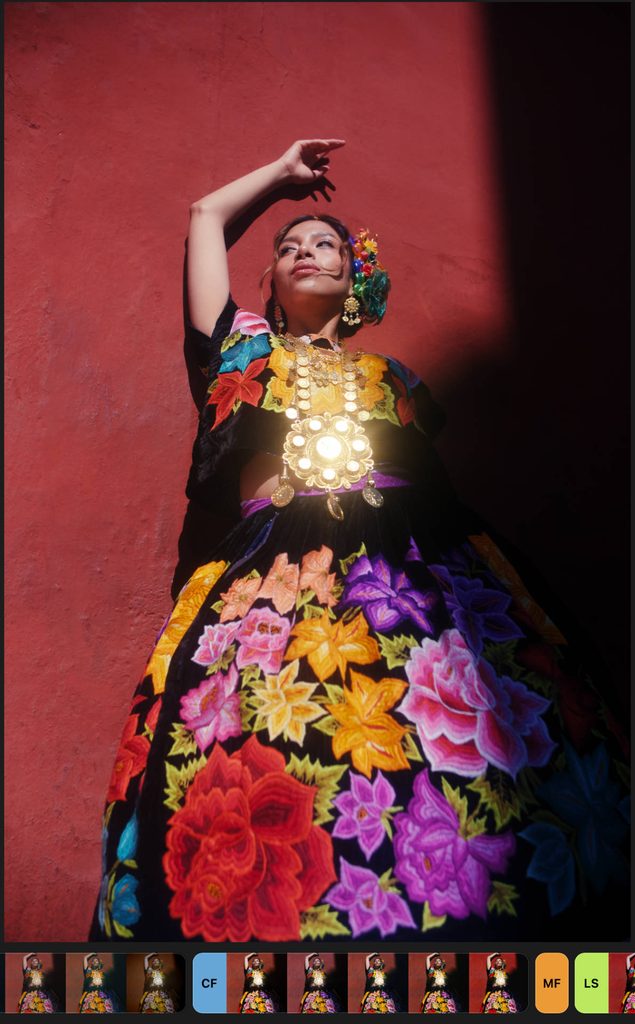
If it wasn’t for those file management issues and also the lack of regular updates, I’d be all in on Photomator. As you can see below, it’s a more than capable RAW processor and post production app for Mac.
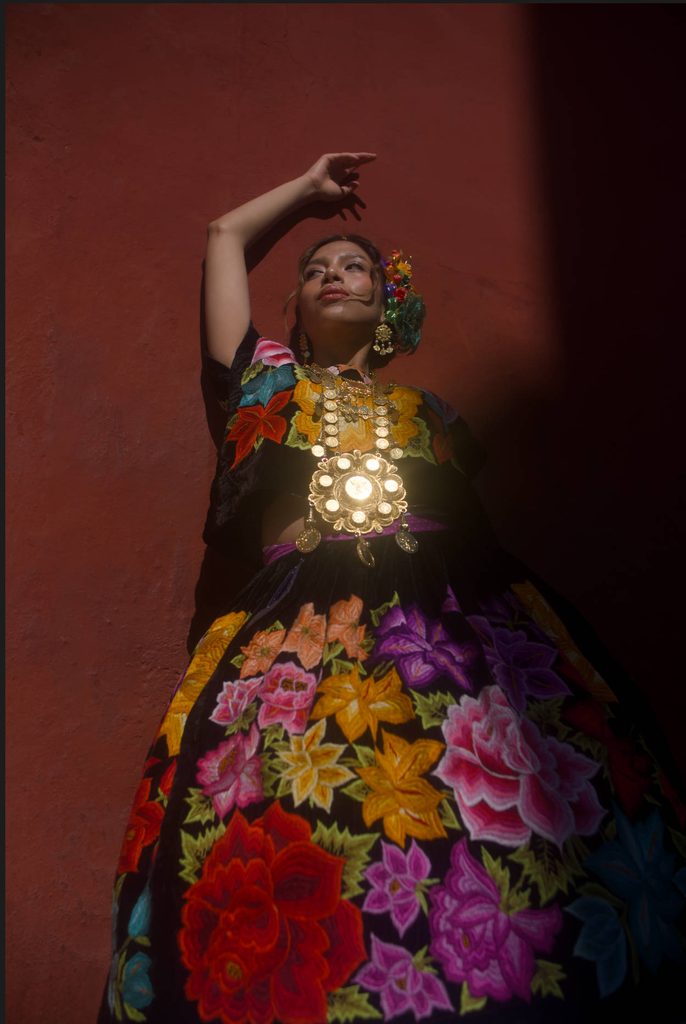
Original RAW file
Final edit
More reading: Photomator Review (2026): Is Apple’s Photo Editor Actually Good?
How Much Does Photomator Cost?
Photomator has three pricing options, catering to different types of budgets.
- Perpetual License – $119.99
- Monthly – $7.99
- Yearly – $34.99
The best value is through the perpetual license, and it’s extremely affordable considering what you get in return.
Lightroom: Best for Cross-Platform Editing
Pros:
- Very stable app with good performance
- Best-in-class masking tools
- Fast sync speeds across Mac and iOS
Cons:
- Requires a monthly subscription
- Dull user interface
- Who it’s for: All experience levels who enjoy cross platform editing.
- Skip it if: You don’t want to constantly rent your software
- Price: From $11.99/mo
Adobe Lightroom offers the best cross-platform editing experience available. Starting an edit on my Mac and switching to a mobile device is seamless, and unlike other options, there is no delay in waiting for my edits to import on a different device.
Lightroom is also a good option for those on older Intel MacBooks, where Apple’s native object removal isn’t available in the Photos app. That’s because Lightroom, in my opinion, offers the best object removal on the market, along with accurate masking tools, plus a range of presets and color grading features.
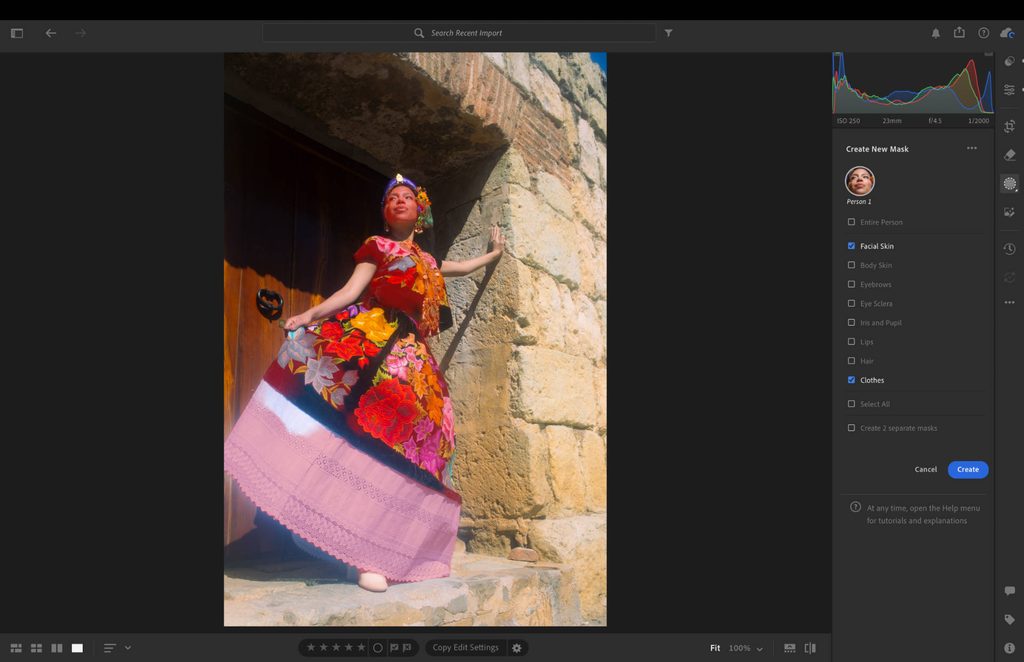
Lightroom’s selection options allow for the most accurate masking capabilities.
Lightroom: My Real-World Experience
For me, there’s very little that Lightroom does wrong. I find it much more stable than other photo editing software, including Adobe’s desktop only app, Lightroom Classic. (To learn more on those differences check out my Lightroom vs Lightroom Classic guide).
The design is a little bit dull for my tastes, and won’t win over Apple users who love modern, vibrant minimalism. But, it functions very well and it’s less cluttered than other options, making it easy to switch from one tool to the next.
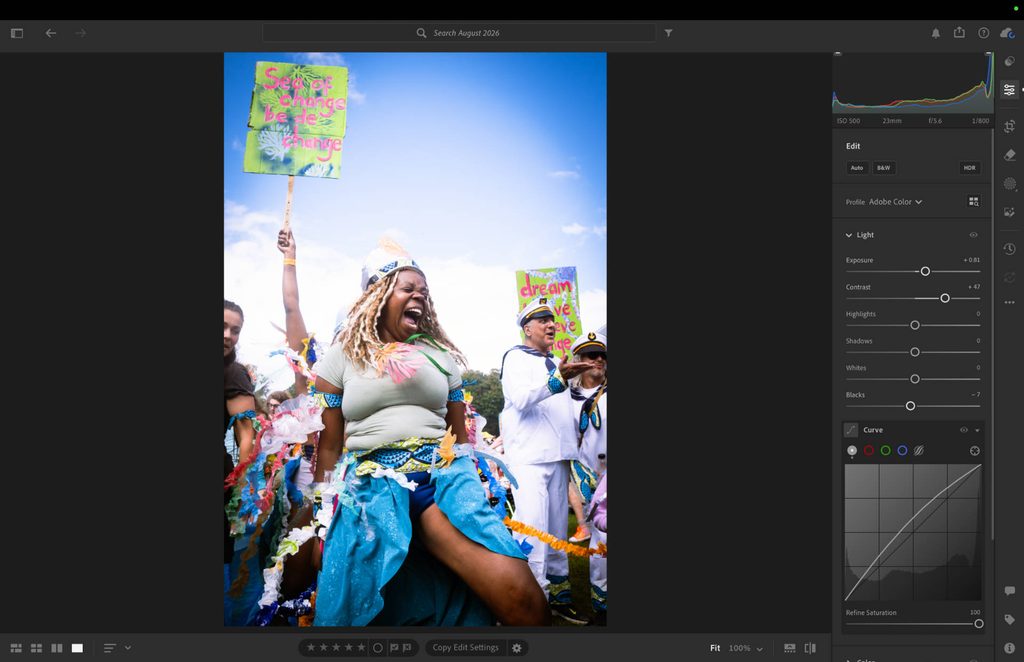
Lightroom is unlikely to win awards for eye-catching design.
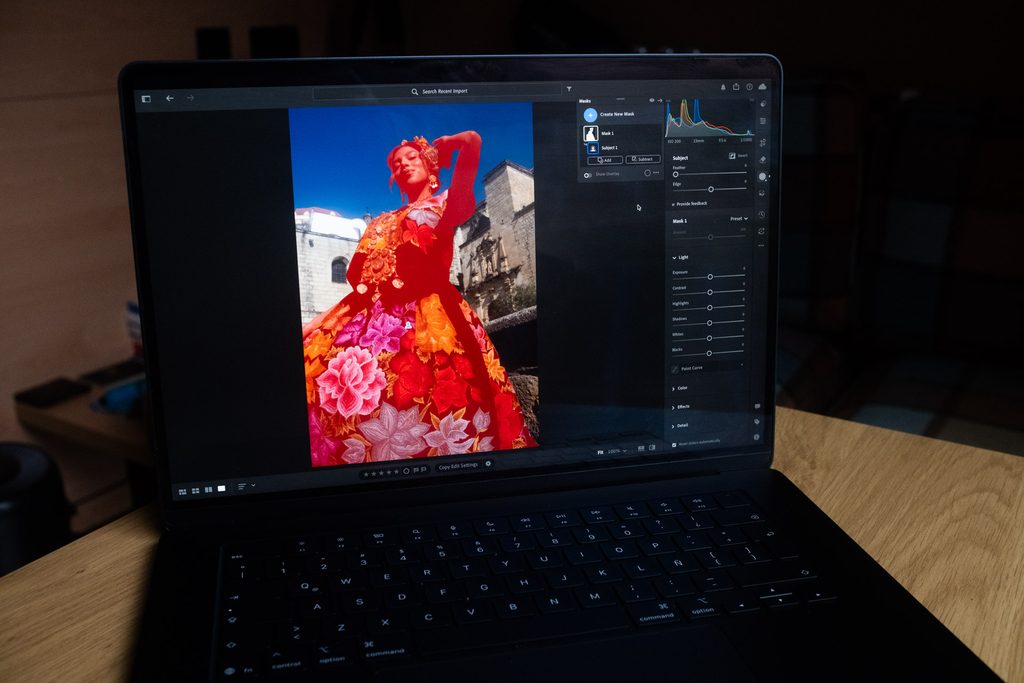
Portrait photographers will no doubt like the masking tools. Beyond full subject selection, you can select specific parts of your subject, from the eyes to the clothing. I use it for my project shoots and it has been a game changer when it comes to speeding up my professional workflow.
One feature I really like when it comes to exports is the Recent Edits tab. This helps you access all your final edits quickly, and you simply need to select all and export.
Original RAW file

Final edit

How Much Does Lightroom Cost?
The downside to using Lightroom is there’s no option to own the software, meaning you’re gonna be tied into a subscription. That’s one of the main reasons why a lot of my readers are looking for the best Lightroom alternative.
- Month-to-month – $17.99
- Monthly (12 month commitment) – $11.99
- Yearly – $119.88
Yearly offers the best value, and you can get a free trial before committing.
Apple Photos: Best Free Built-In Editor
Pros:
- Free native Apple app
- Object removal (Apple silicon Macs only)
- Integrated curve tool available
Cons:
- No masking tools
- Limited color grading tools
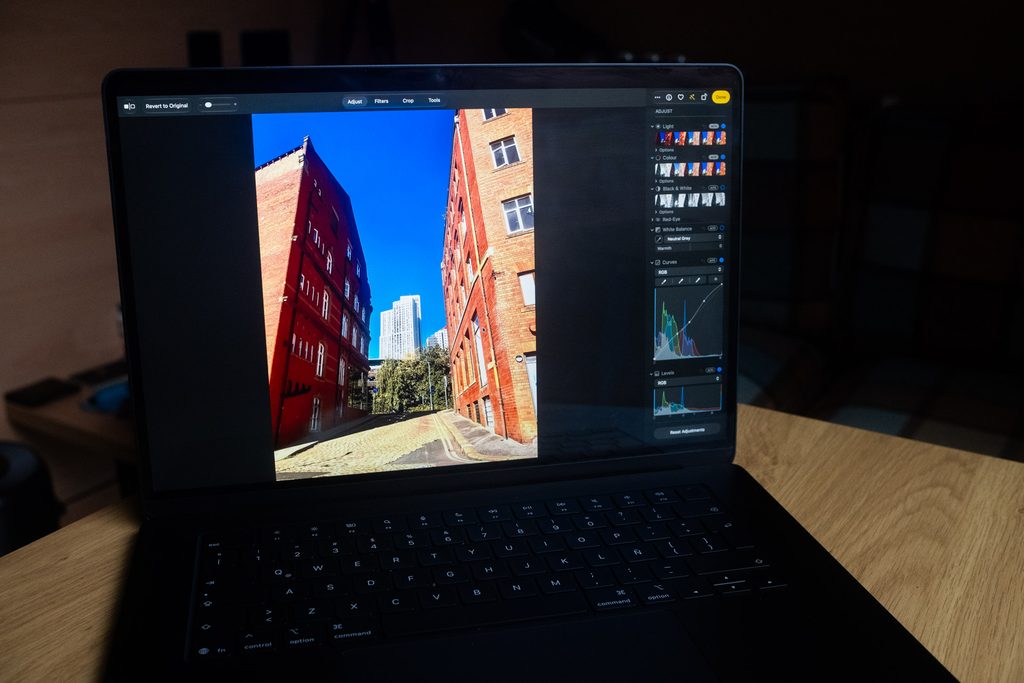
- Who it’s for: Smartphone photographers looking for a free native tool to edit images.
- Skip it if: You want a powerful RAW processor and advanced masking features.
- Price: Free
If you’re a smartphone photographer looking for a free tool, then the Apple’s Photos app is ready and waiting for you. Apple Photos isn’t as feature-filled as other options, but still comes with solid editing features like a curve tool, HSL sliders and some noise reduction.
This app isn’t for experienced photographers using a dedicated camera and shooting RAW. Apple Photos can edit RAW files, but with Optimize Mac Storage turned on, you’ll see JPEG previews until the full RAW downloads, and the tools offer far less control than a dedicated RAW processor.
I’d say Apple Photos is great for those who love taking vacation or weekend photos on their iPhone and want a bigger screen to edit them on.
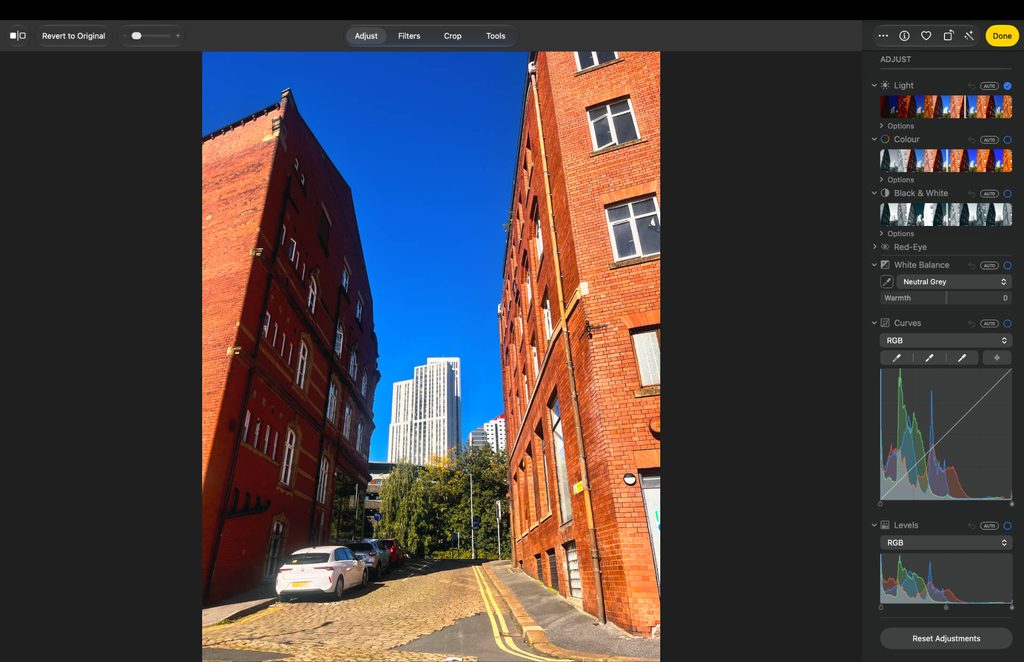
Apple Photos editing user interface keeps things simple.
Apple Photos: My Real-World Experience
The first thing I have to talk about is Object Removal. Because, bizarrely, Apple Photos did a better job of removing cars than Apple’s Photomator. I removed three cars and to the naked eye, without zooming in, I challenge anyone to notice – top marks here.
Before applying object removal

After car removal

The design is pretty basic, but I have few complaints. One thing that took time getting used to were the Light and Color sliders. They actually have the image squeezed into the slider in the background, showing you what impact your adjustments will have on the image. I’ve never seen this before and it was slightly confusing, but once I was familiar with it, it was actually a refreshing new take on this feature.
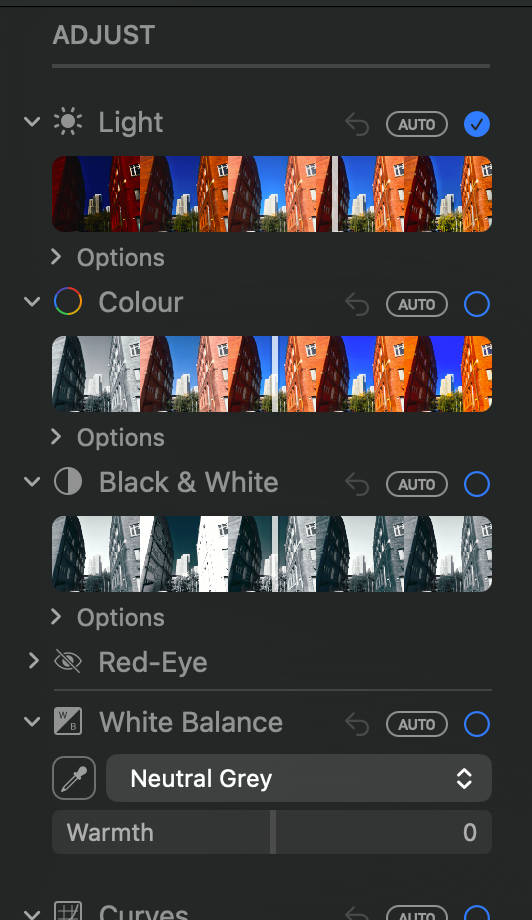
There are no traditional color grading tools, but there are HSL sliders. Oddly, Apple has omitted the ability to tweak orange colors in a frame. I’d also say the sliders are very sensitive. The slightest adjustment had a significant impact on the edit, which I’m personally not a fan of. But, for a free native app, one shouldn’t expect anything on a par with pro tools for color grading.
Exporting is simple too. You can export a finished edit through File > Export, or just save it and the edit shows up straight away in your Photos stream. Edits are non-destructive, so even after you’re done, you can revert to the original in case you want to re-edit at a later date.
Original file

Final edit
How Much Does Apple Photos Cost?
Apple Photos is completely free and is preinstalled on your MacBook computer.
Affinity: Best Free Photo Editor for Mac
Pros:
- Completely free
- Photoshop-like masking and layers
- Accurate color grading
Cons:
- Requires a third party DAM
- Poor masking management
- Who it’s for: Photographers looking for powerful free layers and masking tools for advanced photo editing.
- Skip it if: You want good file management features and smooth workflows.
- Price: Free
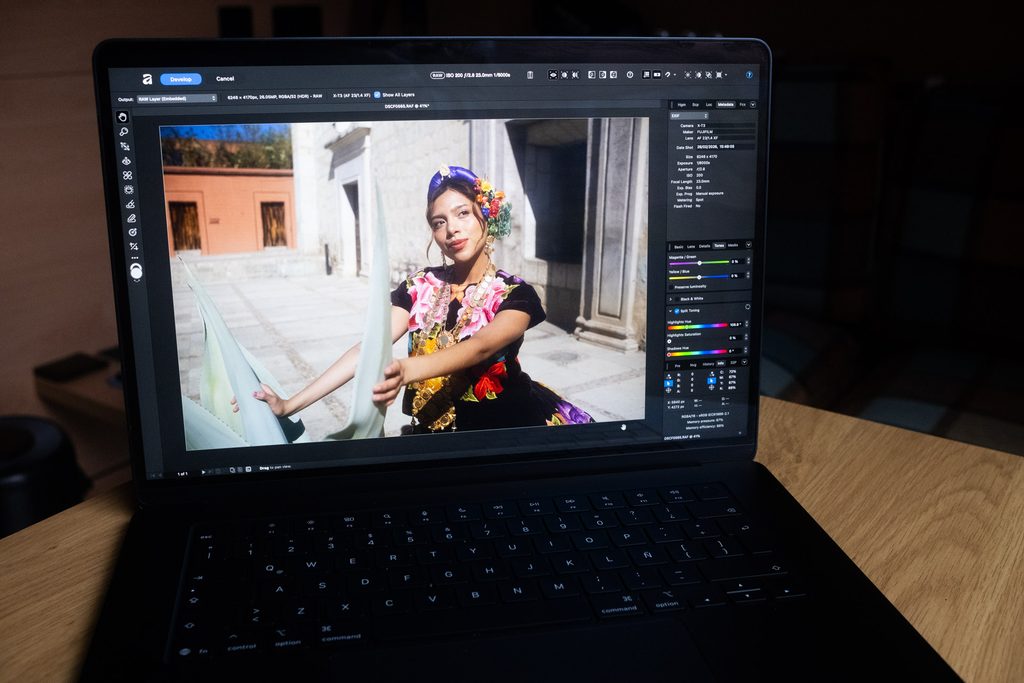
I’m positioning Affinity as the alternative to Apple Photos for those who need advanced tools but still need a free option. That’s because Affinity is packed with masking tools and layers, from precision brush tools, gradient tools and the ability to overlay multiple images inside a single project. Think of it as Photoshop, but without the continuous price tag.
Affinity’s Develop module is easy to use, but the app becomes overly complicated once you move into its other areas. My advice is to stick with the simpler masking tools, like blemish removal, rather than the advanced ones. I’m also a fan of the split toning tools for color grading, which I feel Affinity handles with great accuracy.
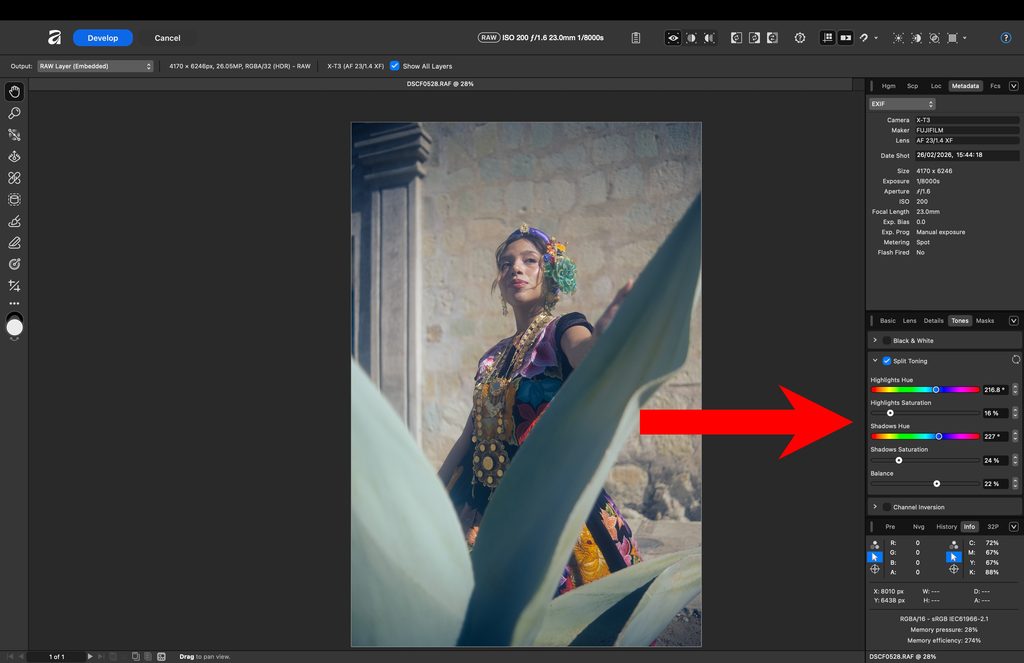
You’ll need to toggle on tools, including split toning, so they become active and usable.
Affinity: My Real-World Experience
Affinity ran smoothly on my MacBook Air M5. Adjustments showed up instantly as I worked, even on detailed edits with several masks stacked.
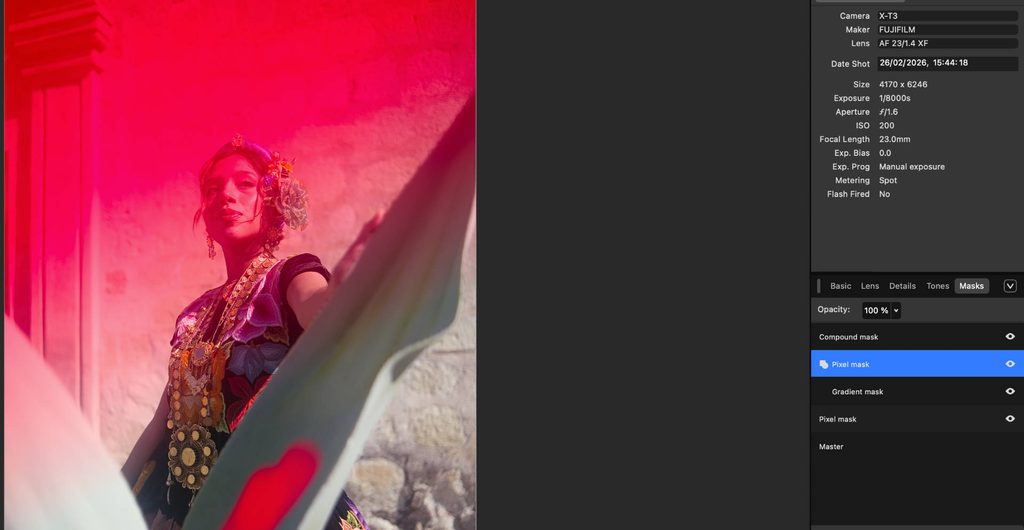
Edits stayed true to the original frame, and I could target small areas, like a face or a patch of sky, without the adjustment spilling over. My only gripe is that you can’t rename masks, which makes detailed edits harder to navigate.
Where Affinity falls short on Mac is workflow. There’s no file management, and you can only import and export one image at a time, so the app can’t replace Photos or Lightroom for organizing your library.
My workaround was Adobe Bridge, a free file browser, which let me pick shots and send them to Affinity. The workaround does the job, but it’s slow if you’re editing more than a handful of shots.
My advice is to organize and make quick edits in Apple Photos, then open your best frames in Affinity to take them further. Work that way, and you get a capable editor for free.
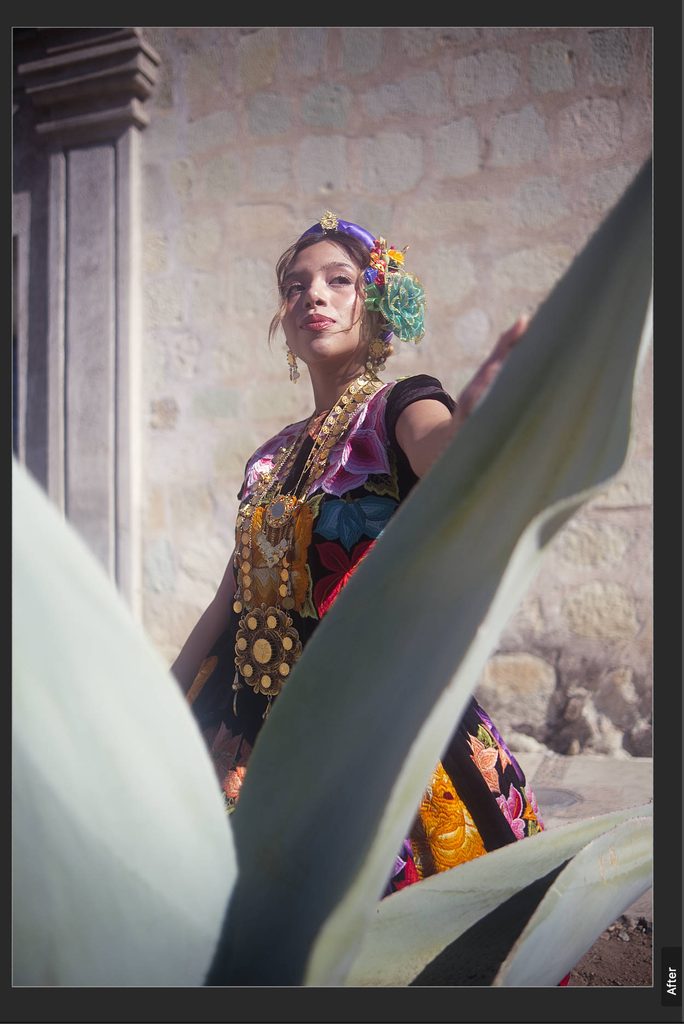
Original RAW file
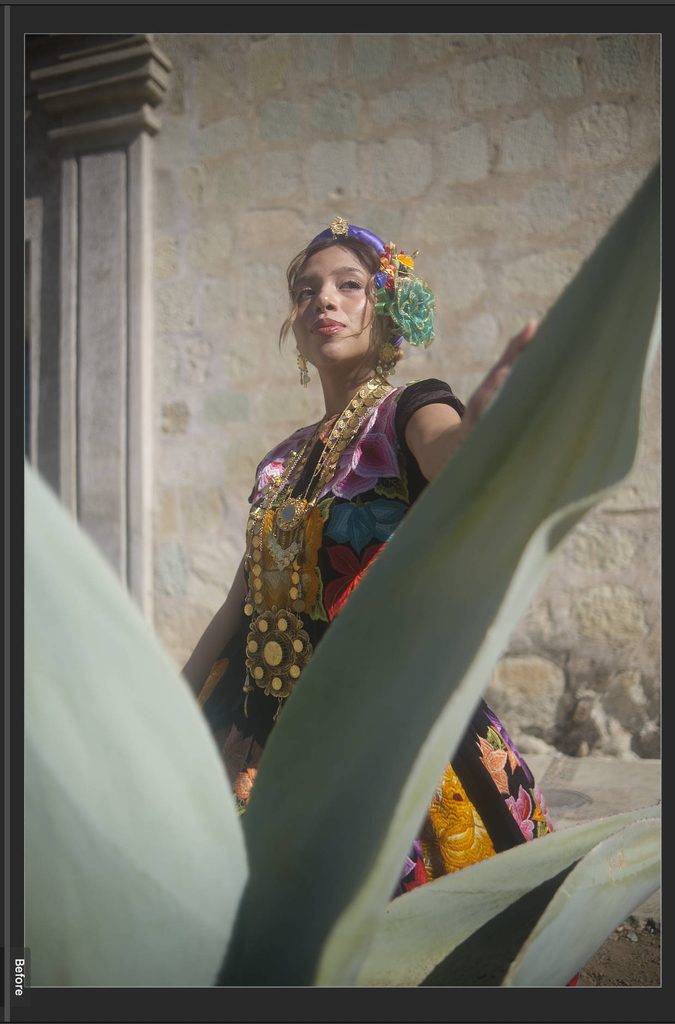
Final edit
How Much Does Affinity Cost?
Affinity is free to all users.
Also Considered
- Pixelmator Pro: Apple’s flagship editor for photography and design. Pixelmator Pro has excellent masking tools, but it costs money and isn’t much better than Affinity, which is free, for pixel-level edits, advanced masking and layers.
- ON1 Photo RAW: A very competent photo editing app for Mac. Good for AI-powered tasks and file management. However, in recent updates I’ve experienced too many forced closures for it to rank in the main selection.
How I Test Photo Editing Software for Mac
Below is an overview of testing methodology.
Hardware
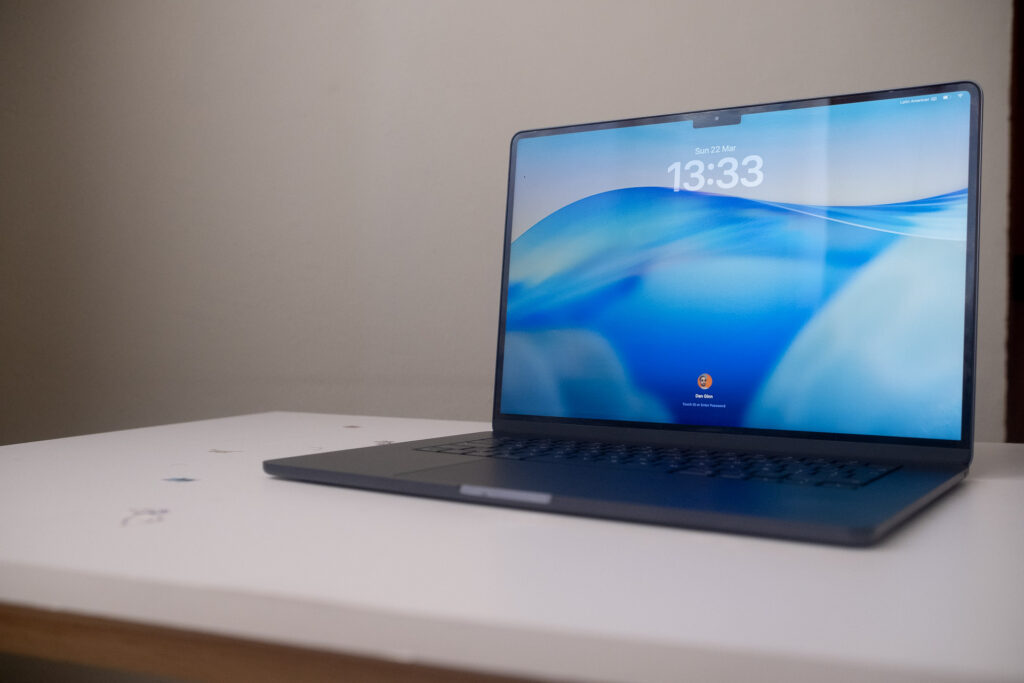
- MacBook Air M1 (2020), base model with 8GB RAM.
- MacBook Air M5, 16GB RAM, 512GB storage space.
- iPhone 13, 4GB RAM, A15 Bionic Chip, 128GB storage space.
More reading: My MacBook Air M5 Review
How Long I Used Each Tool
- I test and use new photo editing software, or updates to software I’ve already tested for a minimum of 30 days. This gives me the best idea of how well they work for workflows and stability.
FAQ
What is the best free photo editor for Mac?
The best free photo editor for Mac is either the stock Photos app or Affinity, depending on your needs. For quick, basic edits of images made on your iPhone, the Photos app can do what you need. For more complex tasks like pixel editing, Affinity is a competent free editing app.
Does Mac come with a photo editor?
Yes, but it’s basic. The Apple Photos app has a native photo editor installed. You can use it for object removal, light and color adjustments, plus noise reduction and HSL editing. Masking tools and advanced color grading are not available.
Is Lightroom good on Mac?
Yes, Lightroom works very well on Mac computers. It’s stable, doesn’t have unexpected shutdowns and works smoothly, even for heavy editing tasks.
Do I need a MacBook Pro for photo editing?
Although a MacBook Pro gives the best user experience, it’s not essential. I’ve used software on a five-year-old MacBook Air (M1), and I currently use the MacBook Air M5, both of them are capable of running photo editing software without issues. The screens are not as bright, but for most photographers, that won’t be a problem.
Signing Off
That’s a wrap for my selection of the best photo editing software for Mac. I hope you find the right tools for your workflow and needs. As stated, I think Luminar is the app that will please most users, especially because of its design and powerful tools.
Though, it may not be for everyone and I recommend you experiment with different tools either through the free options or those offering free trials. Once you’ve found the photo editor that suits you, you can make a commitment to purchasing it.
If you’re happy with Luminar, you can sign up here – remember use code THEMFRAMES10 for an extra 10% discount.
More reading: Photomator vs Lightroom: Can Apple’s Rising Star Beat Adobe?
Updated November 9th, 2026: Fully rewritten after retesting every app on a MacBook Air M5 and a base-model MacBook Air M1. Added export times, a “Best Feature I Tested” comparison, and pros and cons for each app. Added Apple Photos and Affinity as free options, moved ON1 Photo RAW and Pixelmator Pro to Also Considered, and updated all pricing.
If you purchase a product using the links, I may get a small kick back. This helps me run the site and I thank you advance.