
The best photo editing software for beginners is Luminar Neo, thanks to its clean layout, one-click AI tools, and gentle learning curve. I’ve been testing photo editing apps for over 10 years, and it’s the one I’d hand to anyone just starting out. That said, other beginner-friendly options may suit you better depending on whether you edit on your phone, want a free tool, or plan to grow into pro software later.
To help you begin your editing journey with confidence, I’m sharing what I believe are the three best photo editing software options for beginners in 2026. These are programs designed to improve your photos quickly, without burying you in advanced features you don’t yet need.
During your search, you may have come across powerful tools like Capture One or RawTherapee. While both are amongst the best photo editing software, they’re built with professionals in mind and can be overkill for beginners.
My top picks focus on:
- Simple, intuitive layouts that are easy to navigate
- Essential editing tools to enhance your images
- AI-powered features that speed up the editing process
- Advanced controls you can grow into as your skills develop
My overall best option also offers excellent value for money, so you don’t need to worry about overpaying early in your photography journey.
Who This Guide Is For
- First-time photo editors
- Casual photographers shooting JPEG or RAW
- Anyone who wants good results without steep learning curves
Best Options Comparison
| Software | Best For | Ease of Use | Best AI Tools | RAW Support | Pricing Model | My Verdict |
| Luminar Neo | Best overall for beginners | ⭐⭐⭐⭐⭐ | Sky replacement, object removal, AI assistant | Yes | One-time purchase | The easiest and most enjoyable way to learn photo editing without feeling limited. |
| Adobe Lightroom (CC) | Precision editing & presets | ⭐⭐⭐⭐☆ | AI removal, noise reduction, AI bokeh | Yes | Subscription | Extremely powerful, but long-term cost and less “fun” hold it back for beginners. |
| Polarr | Free, basic photo editing | ⭐⭐⭐⭐⭐ | Minimal | No (Free plan) | Free / Paid upgrade | Great for learning the basics, but you’ll outgrow it quickly. |
Best Photo Editing Software for Beginners: At Glance
To avoid that familiar spiral of option anxiety, I’ve intentionally kept this list short. After years of testing beginner-friendly editing apps, these are the three tools I’d actually recommend starting with. Each one works across desktop and mobile, and they’re also compatible with ChromeOS.
Luminar Neo
This is the most beginner-friendly experience I’ve tested. The layout feels modern and inviting, performance is fast, and the AI tools genuinely help rather than confuse you. I’ll share real-world examples below to explain why it’s my top overall pick.
Users get the protection of a 30-day money-back guarantee when they sign up for Luminar Neo. Use promo code THEMFRAMES20 for an extra 20% discount.
Adobe Lightroom
Lightroom offers precise editing controls and a huge library of presets, making it a strong option once you understand the basics. However, its pricing structure is often the biggest sticking point for beginners, and I’ll explain why that matters.
Polarr
If you want to experiment without spending anything, Polarr is a solid place to start. It keeps things extremely simple, but there’s a limitation with the free plan that may quickly frustrate some photographers.
Video
How I Test The Best Photo Editing Software for Beginners
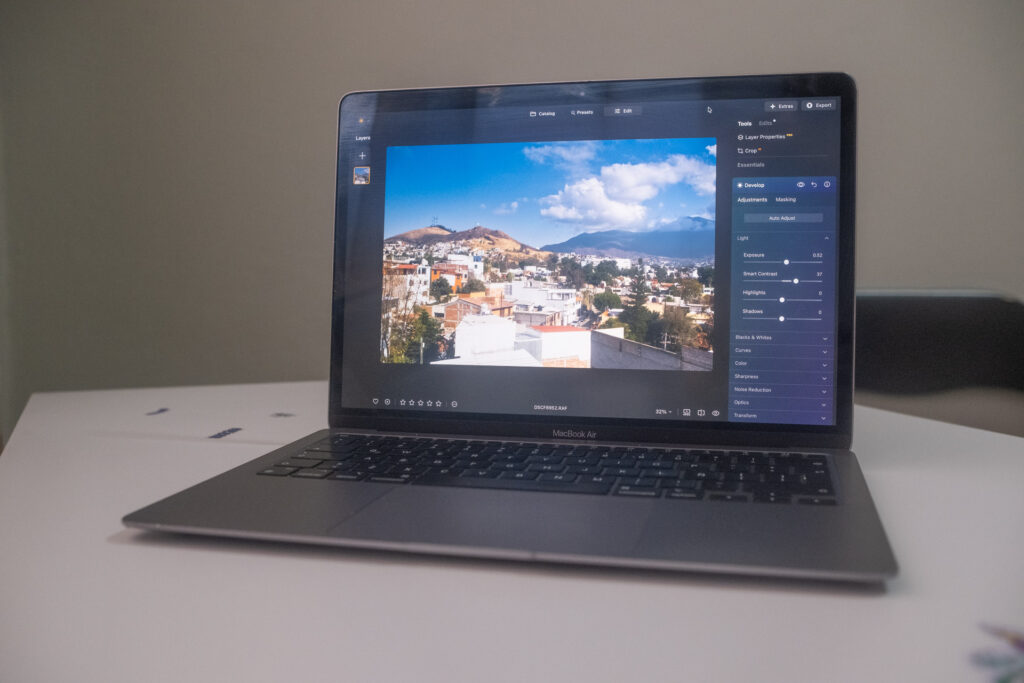
My M1 Macbook Air I use for testing software.
I tested each software on my five year old Macbook Air (M1) Laptop. They all work well, so you don’t need to rush out and buy the latest laptop to start photo editing. I’ve been using each of them for multiple years and they all fit into my workflow. I tested them again recently as software like Luminar Neo and Lightroom released new features going into 2026.
Related: A Photographer’s MacBook Air M5 Review: Skip the Pro?
Luminar Neo: The Best Photo Editing Software for Beginners in 2026
Key feature: Detailed guidance to help you use the tools and improve your editing abilities.
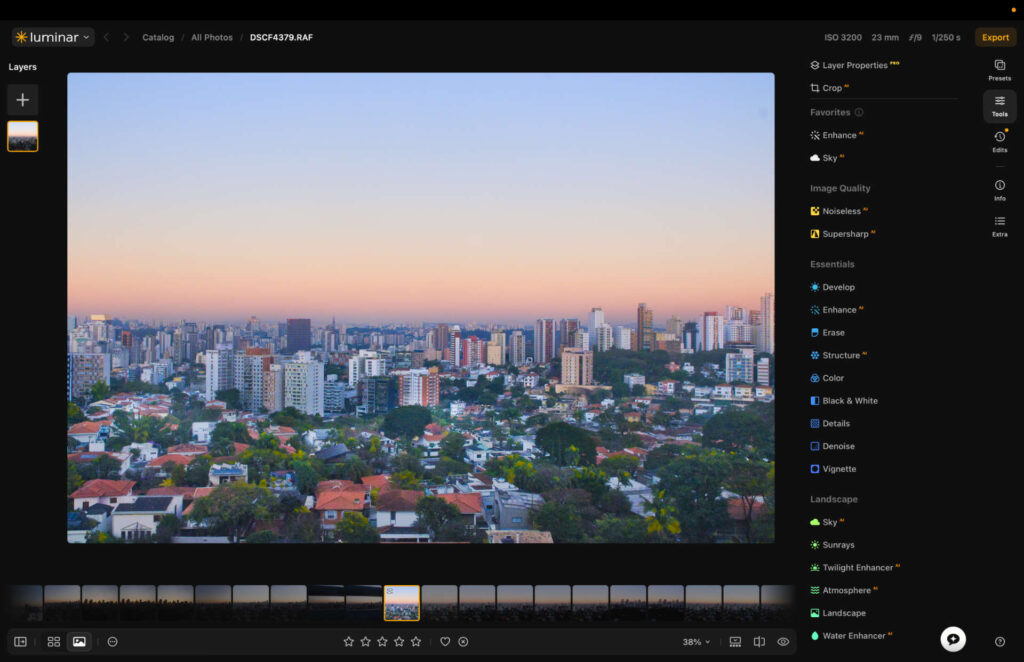
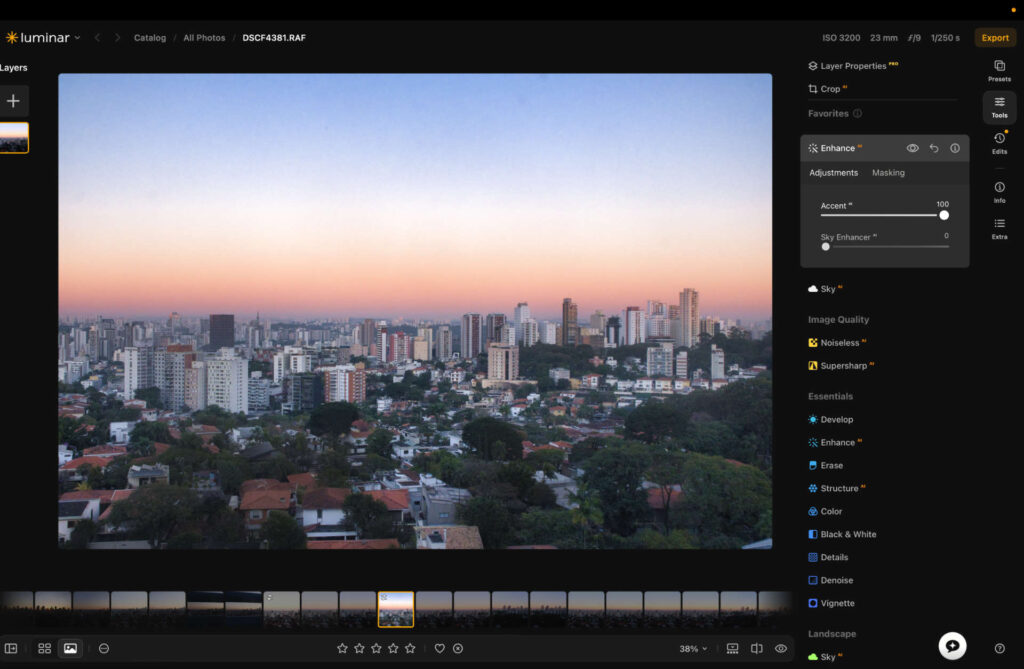
Luminar Neo user interface.
Luminar Neo strikes the ideal balance between simplicity and power. It delivers fast, great-looking results without overwhelming you, while still helping you understand how photo editing actually works.
The Auto Enhance tool improves color, contrast, and tonal range using a single slider, making it easy to improve an image without diving into technical controls.
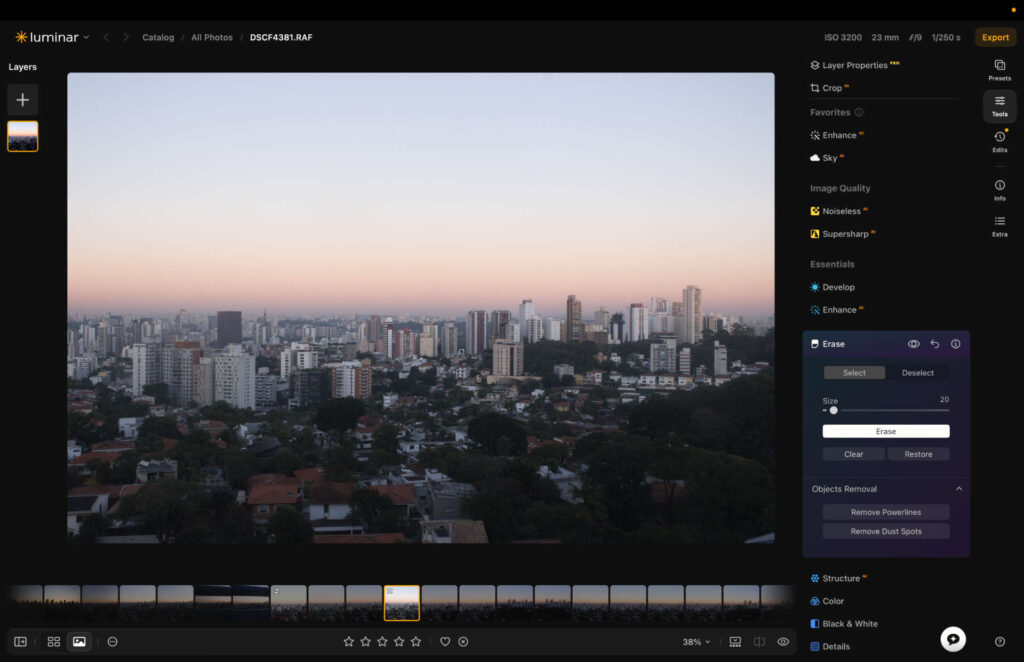
Unedited RAW file
Edited using AI enhance slider.
Alongside this, Luminar Neo offers a strong selection of one-click presets, from cinematic styles to subtle film-inspired looks, letting you experiment and develop your own editing taste.
Where Luminar Neo really pulls ahead is its use of AI tools. You can replace skies, remove distractions, and enhance sharpness in seconds. The AI Assistant goes a step further, allowing you to describe how you want the image to look and applying the edits automatically, often with impressively natural results.
Luminar Neo: My real-world experience
One of the main reasons I recommend Luminar Neo to beginners is because of how well it guides you through its software. Each tool has an information symbol next to it, and hovering over it explains exactly what that tool does and how to use it. It’s a great way to learn while you’re editing, rather than having to go into separate tutorials.
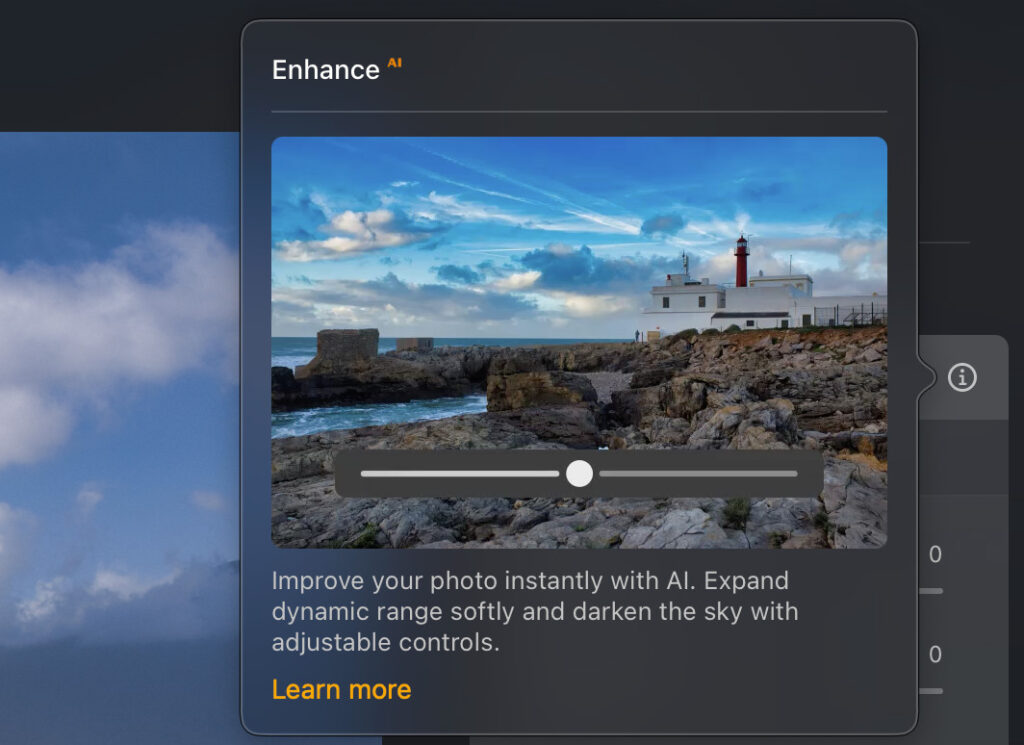
Luminar Neo is best in class for guiding its users through the software.
The layout is perfect. I like the multicolored categories because it makes it much quicker to find specific tools. Edits happen in real time, performance is snappy (even on my old MacBook Air) and the AI features quickly add more power to the frame.
In July 2026, Luminar launched an improved design. Before many features were spread over different pages. But, now they’re all compact into the right hand menu, allowing you switch between tool without losing site of your image. It’s certainly improved and for me enhanced an already positive user experience.
How Much Does Luminar Neo Cost?
I like Luminar Neo because it doesn’t lock you into a subscription. You pay once and own the software, which keeps costs low over time.
- Perpetual Desktop License – $129 (macOS & Windows)
- Cross-Device Perpetual License – $159 (Desktop + mobile apps)
- Perpetual Max License – $199 (Desktop, mobile apps + extra presets and tools)
If you’re just starting out, the Desktop or Cross-Device license is more than enough. The Max plan adds extras, but it’s not necessary for learning the fundamentals.
Sign up for Luminar Neo. Use promo code THEMFRAMES10 for an extra 10% discount.
Related: Honest Long-Term Luminar Neo Review: Read Before You Buy
Lightroom: Best for Precision AI Editing
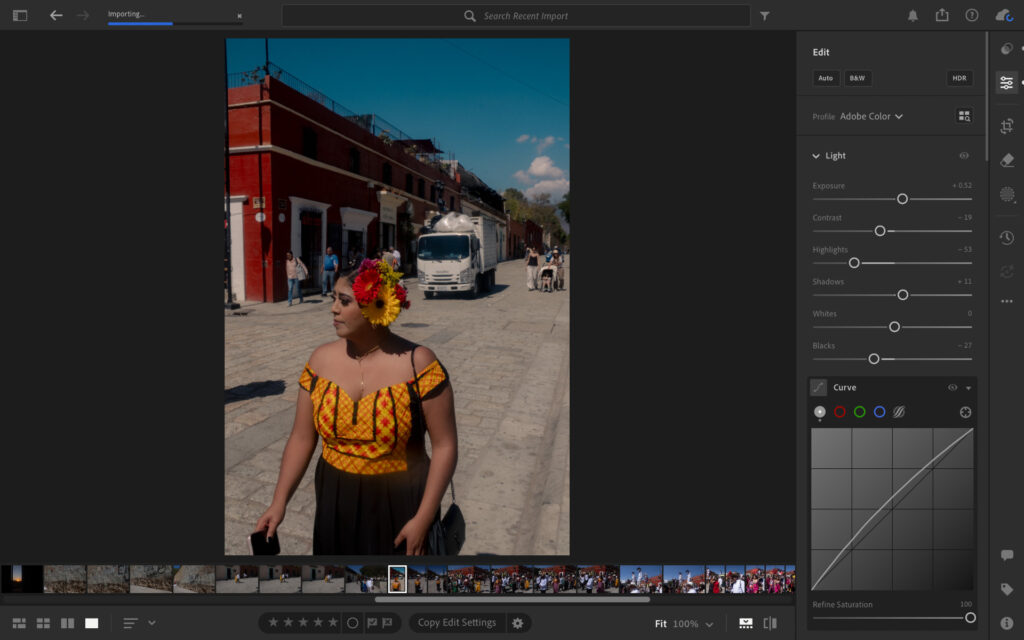
Lightroom doesn’t offer the widest range of AI tools, but the ones it does have are genuinely best in class. From my experience, this makes it a strong option if you want professional-looking results without needing to understand every technical detail.
The AI removal tool is impressively accurate, even around complex edges, and the preset library feels carefully built rather than rushed. I regularly use Lightroom presets as a starting point, and you can easily create your own once you begin developing a style.

Before using the AI removal tools

Lightroom AI detected the people in the photo and I removed them in a single click. I used the brush tool to quickly remove the truck.
Despite being professional software, I’ve always found Lightroom approachable. Tools aren’t dumped on you all at once, and the layout makes it easy to understand what each slider does as you go.
Lightroom: My Real-World Experience
What stands out to me most about Lightroom is precision. When I adjust color, exposure, clarity, or contrast, the changes feel controlled and natural rather than overcooked. The noise reduction tool is one of the best I’ve tested, removing grain while keeping images looking realistic.
Performance has also been excellent in my workflow. Large RAW files load quickly, and AI features like AI Bokeh and Generative Subject edits apply clean, believable changes. That said, while Lightroom is easy to use, I don’t find it as enjoyable as Luminar Neo. Luminar feels more dynamic and creative, which I think matters when you’re just starting out.

Adding lens blue aka AI bokeh, I was able to make my subject pop.
It’s also worth noting that Lightroom comes in two versions: Lightroom (CC) and Lightroom Classic. I strongly recommend beginners use Lightroom CC, as it’s more streamlined and designed for everyday photographers rather than professionals.
Learn more in my Lightroom CC vs Lightroom Classic guide.
How Much Does Lightroom Cost?
The main drawback for me is pricing. Lightroom requires a subscription, which means committing to ongoing payments. The upside is you always have access to the latest version of the software from an industry leader.
- Month-to-month – $17.99
- Monthly (annual commitment) – $11.99
- Yearly – $119.88
$11.99 per month isn’t unreasonable, but over the long term, the cost adds up significantly. That’s something I think beginners should factor in early, before locking themselves into a subscription.
Polarr: Best Free Photo Editing Software for Beginners

Polarr is about as simple as photo editing gets, which is exactly why I recommend it to beginners who want to learn the basics without spending money. It covers the essentials — exposure, contrast, saturation, highlights, and shadows — and that’s enough to understand how editing actually works.
The preset selection is decent, with plenty to choose from, but unlike Lightroom, you can’t create your own. That limits how far you can grow with it, but for quick edits, it does the job.
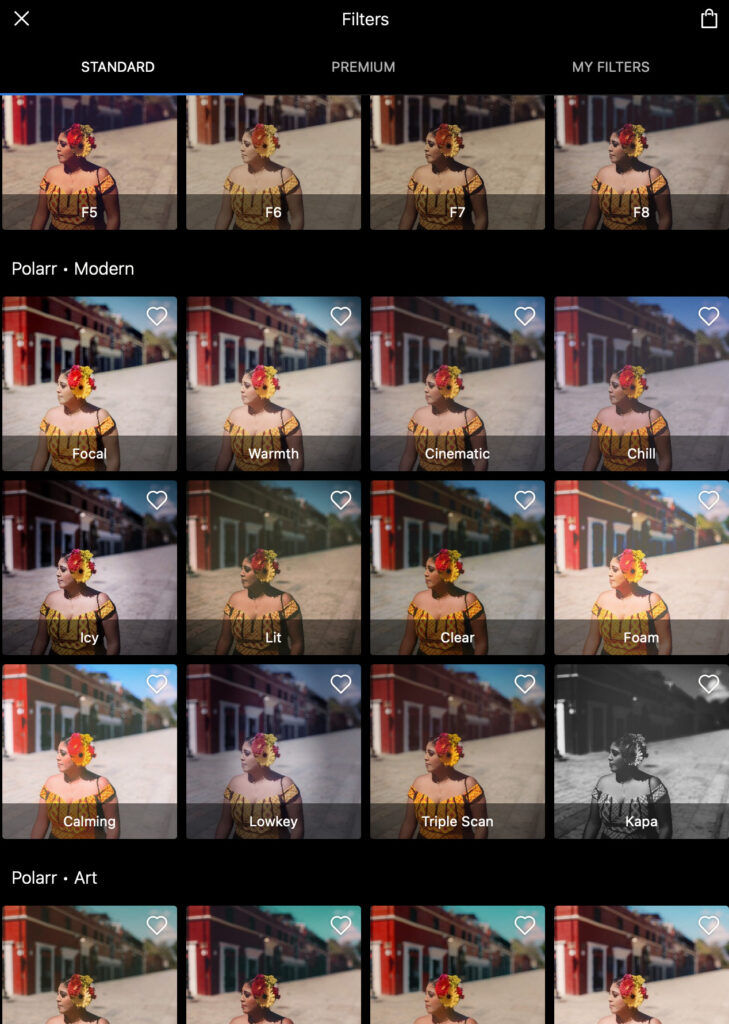
Polarr has plenty of free and paid preset options.
The free version only supports JPEG files. That’s fine early on, but once you start shooting RAW, you’ll quickly outgrow it. Polarr also lacks advanced AI tools, so I only recommend it if your goal is light, straightforward adjustments rather than creative or corrective edits.
Polarr: My Real-World Experience
What I like most about Polarr is how little thinking it requires. I never needed guidance or tutorials because everything is obvious, and the layout makes sense instantly. That simplicity makes it ideal for learning the fundamentals.
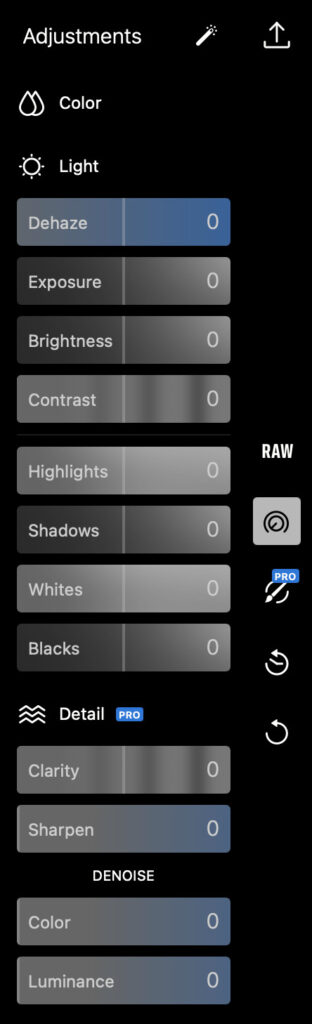
The adjustments panel is basic and you can grasp it quickly.
I’ve used Polarr on both a Chromebook and a MacBook, and performance was consistently smooth on both. Some presets definitely push things too far, and they’re not as refined as what you’ll find in Luminar Neo or Lightroom. That said, there are a few genuinely good ones, and enough variety to help you experiment and develop an eye for what works.
How Much Does Polarr Cost?
Polarr has a free version, but the paid plan unlocks RAW editing and additional tools like sharpening and masking.
- Monthly – $7.99
- Yearly – $47.99
At that price, it’s reasonable, but once you’re paying, I think most beginners will be better served stepping up to a more powerful editor that grows with them.
Singing Off
That’s my selection of the best software to use when starting out in photo editing. If you want the best overall and one you’ll never need to switch from, then Luminar Neo remains my best choice for most beginners.
All of them have either a free trial, free version or money-back guarantee so you can try them out before making a long term commitment. This is ultimately the best way to find out which photo editing software is the best for you.
Sign up for Luminar Neo. Remember to use promo code THEMFRAMES10 for an extra 10% discount.
More reading: 14 Photography Portfolio Examples To Unleash Your Creativity
Updated 6th August 2026: This article has been updated to show screenshots of Luminar Neo’s new user interface and to comment on performance improvements. New pricing increases also updated.
If you purchase a product using the links, I may get a small kick back. This helps me run the site and I thank you advance.