

I’ve tested more photo editing software than I care to count, and choosing between them is genuinely hard. Reading reviews of the best photo editing software is a good starting point, but it’s only part of the picture.
The right choice also comes down to your shooting style, your experience level, and your budget, and that takes a little more digging. Here’s how to find yours.
Match the software to your experience level
This is the first question I’d ask anyone starting out. The wrong software for your level doesn’t just slow you down, it can put you off editing altogether.
Beginners who jump straight into Capture One or DxO PhotoLab tend to feel buried under options they don’t yet need. On the other side, experienced photographers who settle for Polarr or Canva’s editing tools will quickly hit a ceiling.
If you’re newer to editing, Luminar Neo and Polarr are well-suited starting points. If you’ve built up some experience and want more control, Lightroom, Capture One, and ON1 are worth your time.
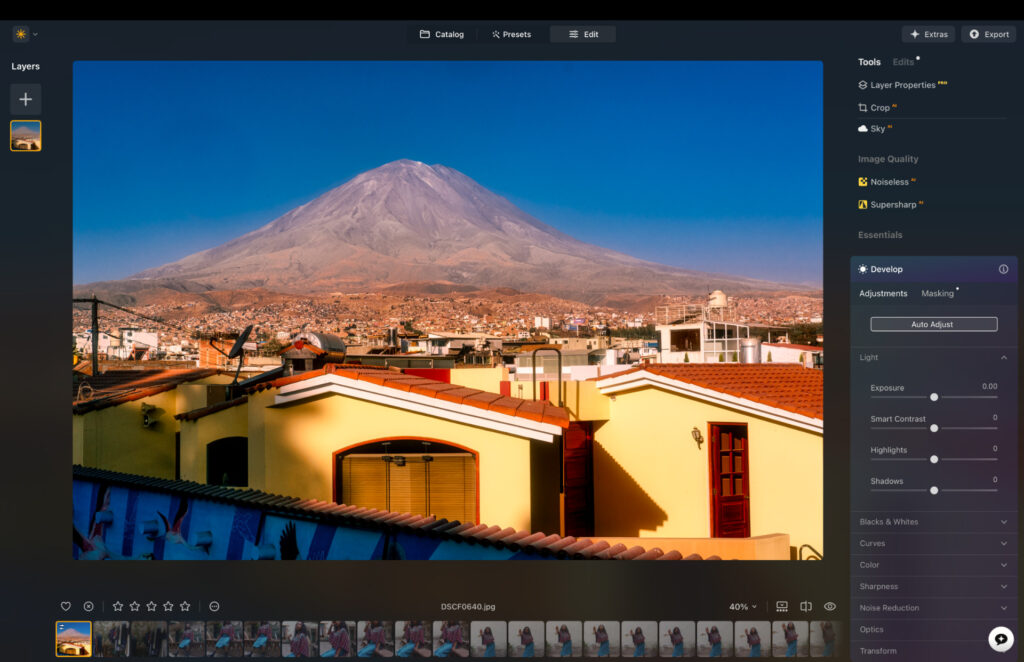
Luminar Neo.
Related: Best Photo Editing Software for Beginners
Think about your workflow, not just your devices
It’s worth stepping back and thinking about how you actually edit, not just where. Do you start culling on your phone and finish on your laptop? Do you share work with a client or collaborator mid-process?
If you need to move between devices without losing progress, desktop-only software like Lightroom Classic won’t serve you well. You’ll want a cloud-based option that keeps everything in sync.
Adobe Lightroom, formerly known as Lightroom CC, is the most established cloud-based option and pairs seamlessly with its mobile app for cross-device editing. Luminar Neo also now offers cross-platform cloud sync between desktop and mobile, with seamless transitions between devices.
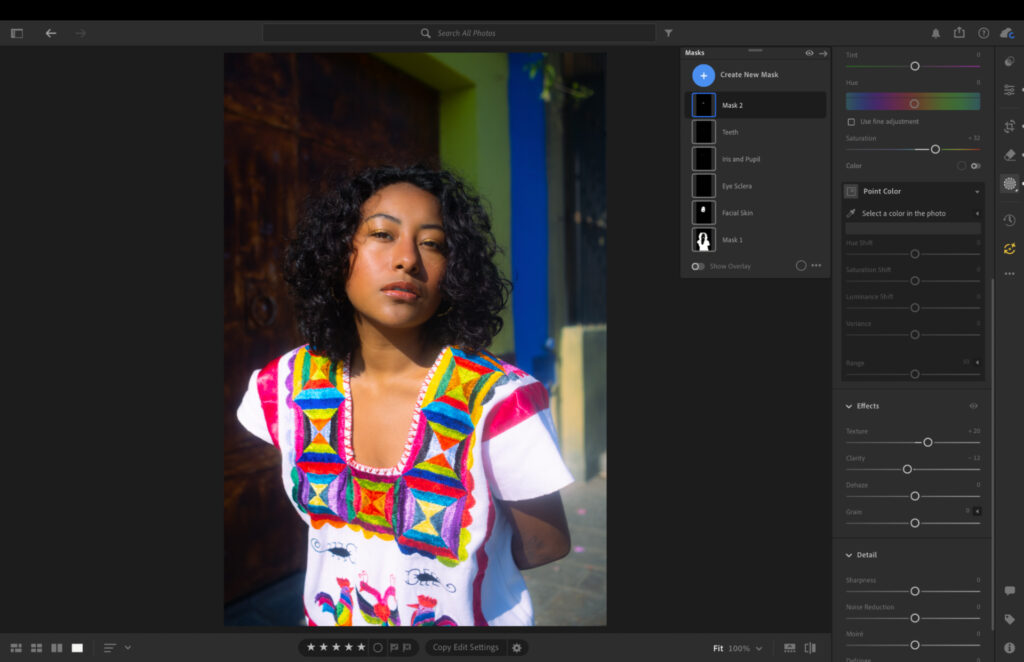
Lightroom CC.
But if you edit in one place and export from there, this may not factor into your decision at all.
Related: Lightroom vs Lightroom Classic: My 2026 Real-World Verdict
Does your camera shoot RAW?
If you shoot RAW, compatibility matters more than most people realize. Every RAW format is proprietary, and software has to be updated specifically for each new camera model, which means even well-regarded apps can fall behind.
Photomator, for example, relies on Apple’s RAW engine, which has patchy support for certain brands and models; newer OM System cameras have at times been missing from Apple’s RAW compatibility list entirely.
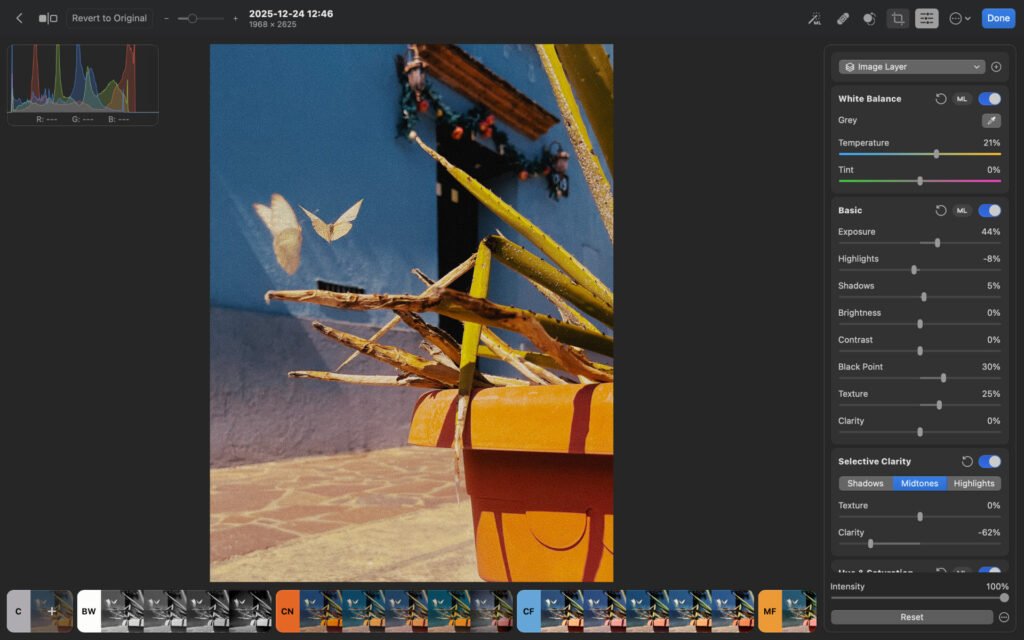
Photomator.
Leica shooters run into similar issues, DxO PhotoLab has historically been unable to open certain Leica DNG files, and Capture One has supported some Leica models without having the correct color profiles in place.
Before committing to any software, check that it supports your specific camera model. I’ve seen photographers fall in love with a free trial only to find their files aren’t handled properly in the paid version.
If broad RAW compatibility across camera brands is a priority, Lightroom and DxO PhotoLab are consistently rated among the strongest performers for RAW processing quality and lens correction.
Lightweight or full-featured?
This is a question about preference and purpose, not just skill level. Some photographers want a fast, clean editing experience built around strong presets and a simple interface.
Snapseed and Photomator are good examples of tools that do exactly that, without asking much of you. Others need precise, layered control, advanced masking, and the ability to composite images.
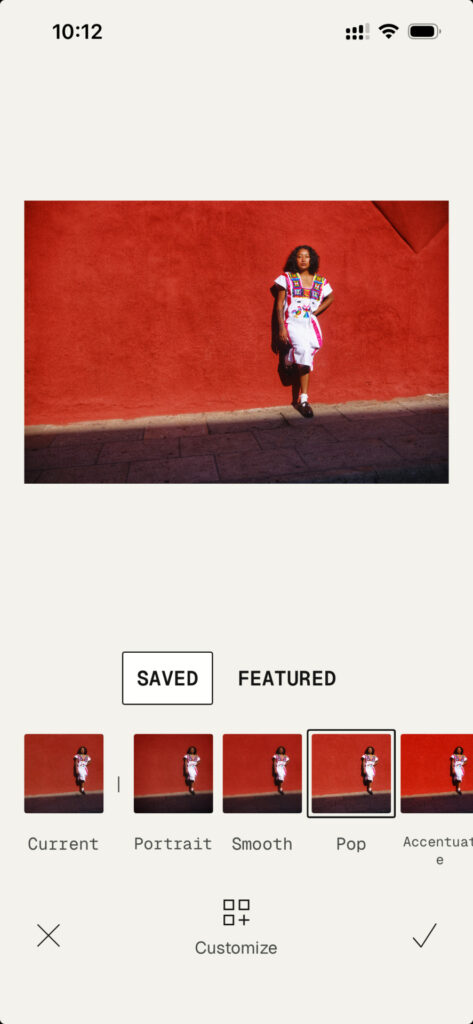
Snapseed.
For that, Photoshop and Affinity Photo are the natural territory. Knowing which type of editor you actually want to be will save you a lot of time.
Are you ready for AI photo editing?
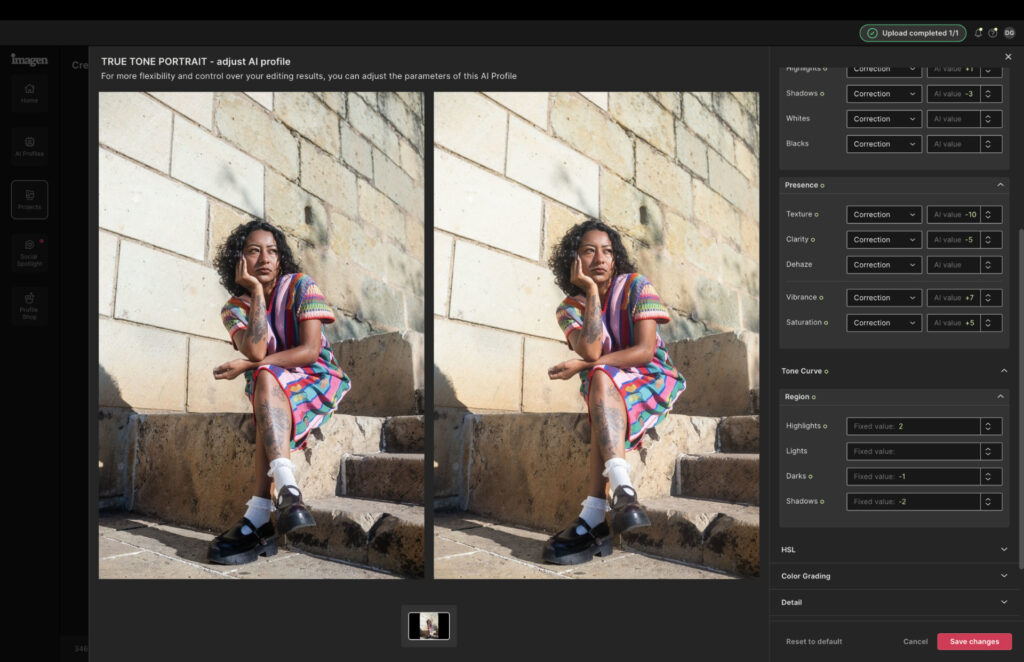
Imagen AI.
Most photo editors now have AI features bolted on to some degree, but a newer category of tools takes a fundamentally different approach.
Imagen and Narrative Select don’t just apply AI adjustments, they learn your personal editing style and apply it to entire batches of images on your behalf, which can mean a serious reduction in the hours you spend in front of a screen.
If you’re willing to put in the time to train the software on how you edit, it’s worth factoring these tools into your search.
Related: I Tried Imagen AI for 90 Days: The Edits Shocked Me
What’s your budget?

RawTherapee.
Budget shapes the decision more than most guides admit. On the free end, Affinity Photo is now fully free following Canva’s acquisition of Serif, with the complete professional toolset available at no cost, including RAW processing, advanced masking, and layer support, with only AI-powered features locked behind a paid Canva subscription.
RawTherapee and Darktable are also free, though both have steeper learning curves and suit more experienced editors.
For perpetual licenses, a one-time purchase with no ongoing subscription, Capture One, ON1, and Photomator are the main options worth looking at.
If a subscription doesn’t bother you, Lightroom’s monthly plan is the industry standard and hard to argue with for most workflows.
Get hands on before you commit
Reading reviews, watching YouTube tutorials, and working through comparisons is all genuinely useful preparation.
But I’d always say the same thing: nothing tells you more than using the software yourself. Pretty much every photo editor on the market offers a free trial, and I’d encourage you to take full advantage of that before spending a penny.
What feels intuitive to one photographer can feel awkward to another, and you won’t know until you’re actually in there editing your own images.
More reading: Incredible Image of Earth Reminds Us of Photography’s Power