
Lightroom continues to be a market leader in photo editing software, however, in 2026 it has to compete with new, compelling options. Imagen AI is a software that is making waves in the space, especially as it promises much more efficient workflows for professional photographers. To look at how both apps compare, I decided to create a Lightroom vs Imagen AI head-to-head.
I’ve been using Lightroom for over a decade, and I’ve been testing Imagen AI daily for close to six months. While I consider both of them to be amongst the best photo editing software, they’re certainly not the same.
Lightroom is more of a hands-on software that can appeal to a wide range of experience levels. On the contrary, Imagen AI is more hands-off, designed to help speed up workflows and help professional photographers deliver shoots quicker, without sacrificing their personal editing style.
Before I dive deeper into what’s on offer, there’s one caveat I should mention. While Lightroom is a fully independent software, Imagen AI isn’t. You’ll still require an Adobe subscription to either Lightroom, Photoshop or Camera RAW.
With that in mind, my Imagen AI vs Lightroom head-to-head won’t be telling you to purchase one or the other, but rather which one to use in certain circumstances to get the best out of your professional workflow.
If you’re just a beginner, you can skip this guide and head over to my selection of the best photo editing software for beginners instead.
Editor’s note: Imagen AI is a sponsor of Them Frames. To ensure fully unbiased coverage, all my testing was carried out prior to our partnership agreement.
Comparison Table
| Imagen AI | Lightroom | |
|---|---|---|
| Editing time | ~15 minutes (200 RAW files) | 2–3 hours (200 RAW files) |
| Culling tools | ★★★★☆ | ★★★☆☆ |
| Fully Independent app | Requires Lightroom, Photoshop or Camera RAW | Yes |
| Compatibility | Desktop only | Desktop and mobile |
| Best for | Professional photographers with high-volume shoots (events, weddings, commercial) | Hobbyists, semi-pros, and anyone who enjoys hands-on editing |
Pros & Cons of Lightroom
Pros
- Very easy to use software
- Excellent AI tools
- Good range of presets
Cons
- Time consuming workflow
- Limited culling tools
Pros & Cons of Imagen AI
Pros
- Accurate AI-powered photo editing
- Fast, time saving workflows
- Advanced culling tools
Cons
- Requires Third-Party App
- Slight learning curve
How Lightroom Works
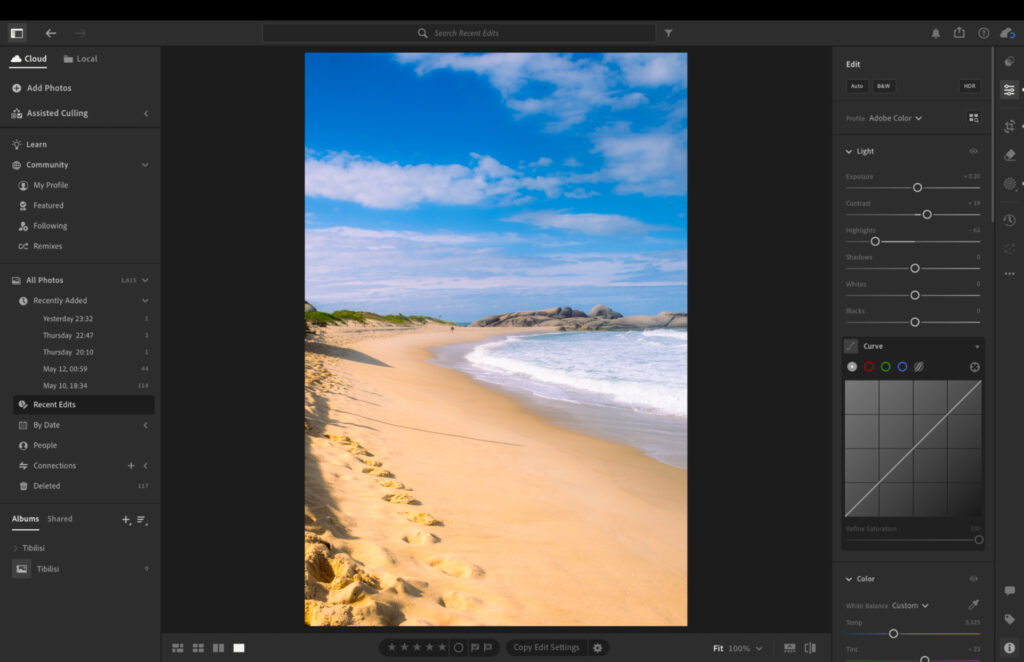
Lightroom user interface.
Lightroom offers two variants of its software: Lightroom CC and Lightroom Classic, with CC built to work across desktop and mobile and Classic functioning on desktop only. You can find a full explanation of their similarities and differences in my Lightroom CC vs Lightroom Classic guide.
Lightroom works in a traditional way: you import your images into the software and then you manually make your adjustments. You can do this on a case by case basis, making different adjustments to a set of frames, or you can use presets to set the foundation of your edit and make manual tweaks if needed.
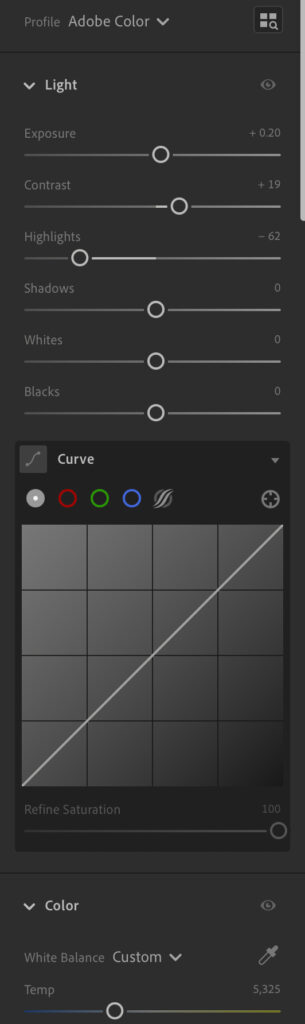
Right-hand editing panel.
The user interface – which most other competitors mimic – offers a standard design. Most of your tools exist in the right hand panel, including the masking tools so you can make local adjustments to different parts of your frame.
After you’ve edited each image manually, which you’ll need to do if your shoot involves different lighting conditions, you simply batch export your shots and deliver them to your client within the agreed time frames.
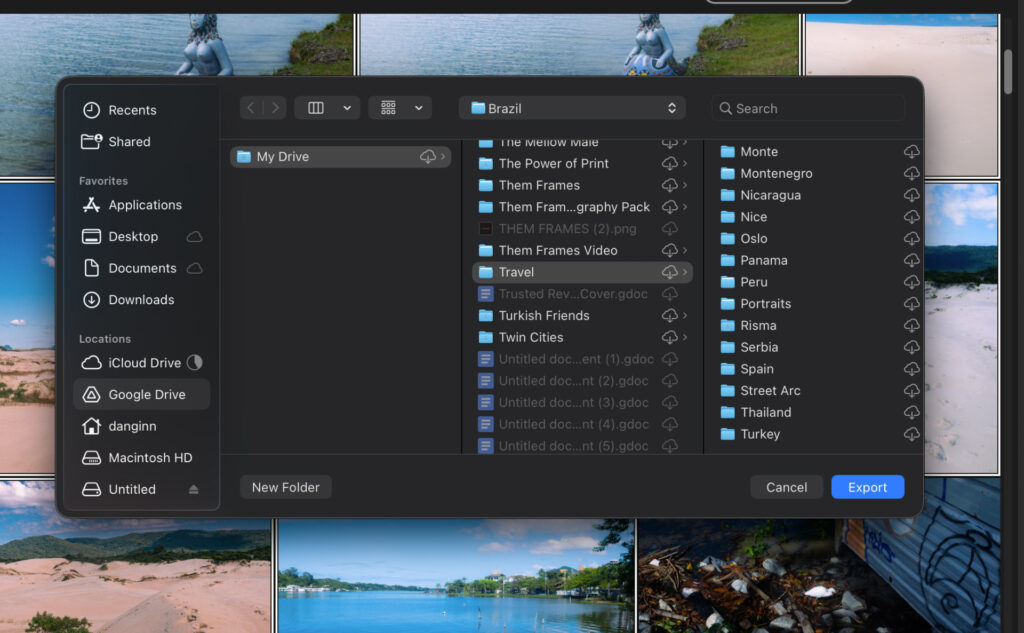
Lightroom batch export.
How Imagen AI Works
Imagen AI is a software that’s built to understand exactly how you edit your frames. Think of it as your assistant – which requires training to grasp your unique style – that can then do all future editing on your behalf.
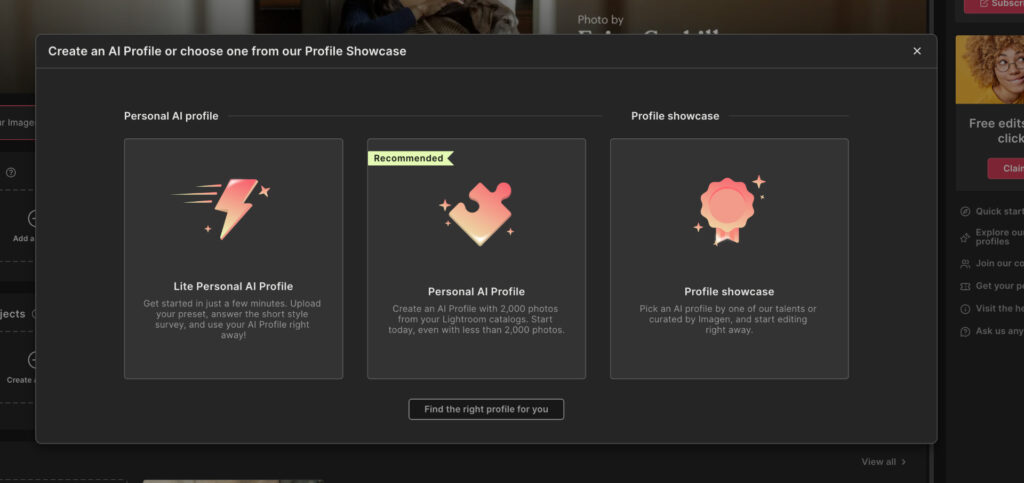
Imagen AI profile training.
Training Imagen is simple. You integrate it with Lightroom so you can upload images you’ve previously edited on past shoots. It requires 2,000 images to learn your approach, ideally across different environments and lighting conditions.
Once training is complete, you can upload RAW files from a future shoot, select your AI profile and then instead of doing manual editing, Imagen will do the work for you. This isn’t a case of simply slapping a preset on your files. The reason you need a variety of styles when training Imagen is so it can apply dynamic editing to each of your images from a shoot.
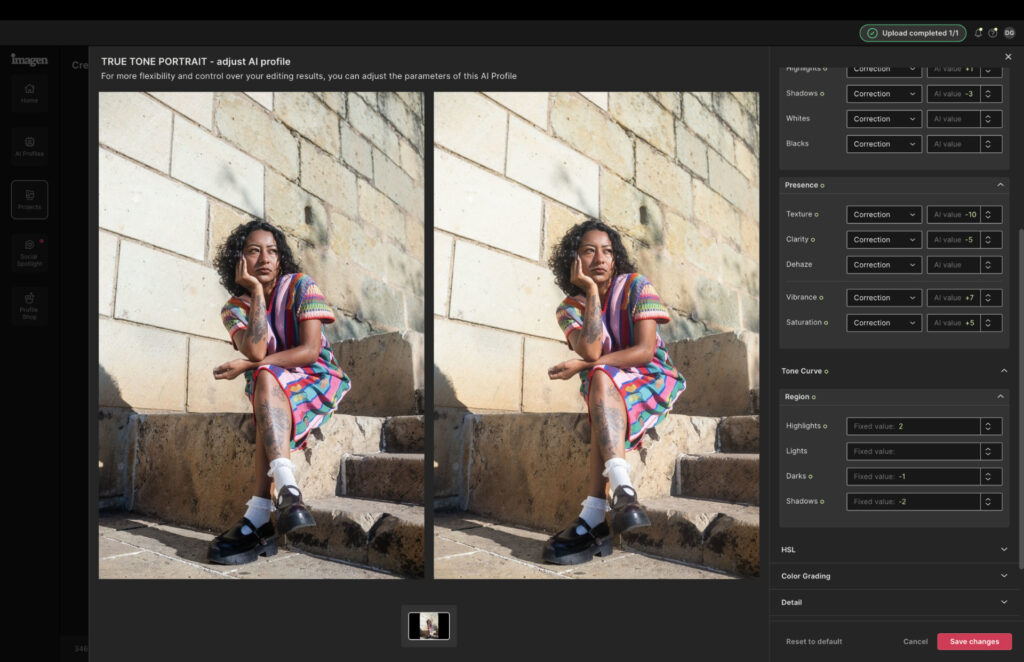
Manual adjustments inside Imagen.
You can make manual tweaks prior to Imagen getting to work, or you can make tweaks after the software completes the project, though you’ll need to do this in an Adobe app.
Real-World Workflows Compared
The best way for me to understand the benefits of adding Imagen to my workflow was to do some timed, real world testing.
First, to give you a peek behind the scenes, I’m not someone who overly enjoys the editing process. I, like many other professional photographers, much prefer creating the photographs. Of course, clients have their needs and deadlines, and to meet them the editing process can often feel overwhelming and draining.
My approach to testing Imagen was to see if it could not only speed up the process but also give me the results I want, so I don’t have to spend as much time staring at a screen as I do with Lightroom.
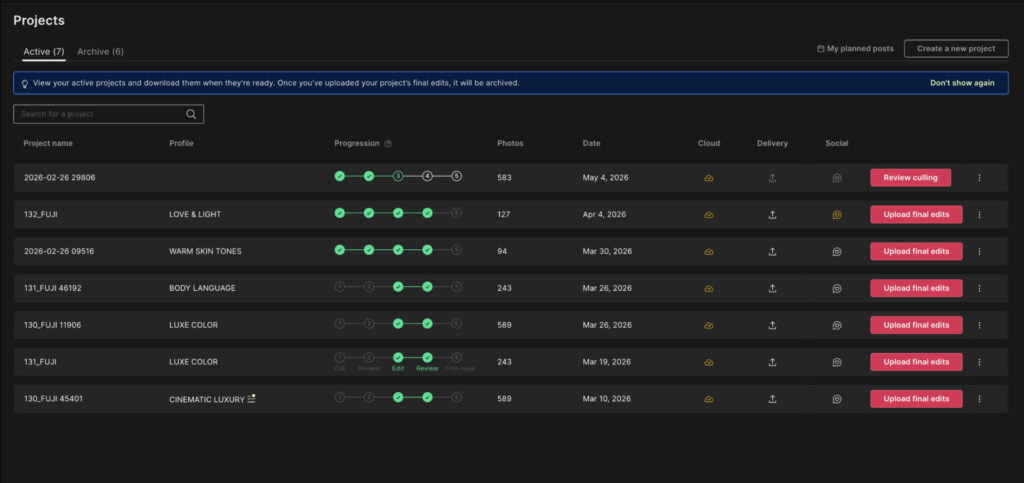
You can walk away from your computers while Imagen applies your edits.
I uploaded 200 RAW files from a recent fashion shoot I did for a clothing brand. I did manual editing in Lightroom, and let my AI profile work its magic in Imagen. My session included standard adjustments, color grading and some masking adjustments to the skin and eyes of my subject.
Imagen took around 15 minutes to complete the edits, and sent me an email notification so I knew I could return to my computer. My fully manual workflow in Lightroom took between two to three hours to complete.
But fast times are meaningless if the results are not up to par. Below is a side comparison of my manual edit in Lightroom, and the edit that Imagen was able to create after training the software to essentially perform like me.

Imagen final edit.

Lightroom manual edit.
As you can see the edits are pretty much identical. I did find Imagen overdid the skin smoothing, so I had to make some manual adjustments in Lightroom after the fact. But this was light work and still much quicker than my fully manual workflow.
AI-Powered Image Culling
Both Lightroom and Imagen offer features that aim to shave off the time it takes to manually go through photographs and pick your best shots. Lightroom’s AI-powered image culling was only added recently and functions differently to Imagen.
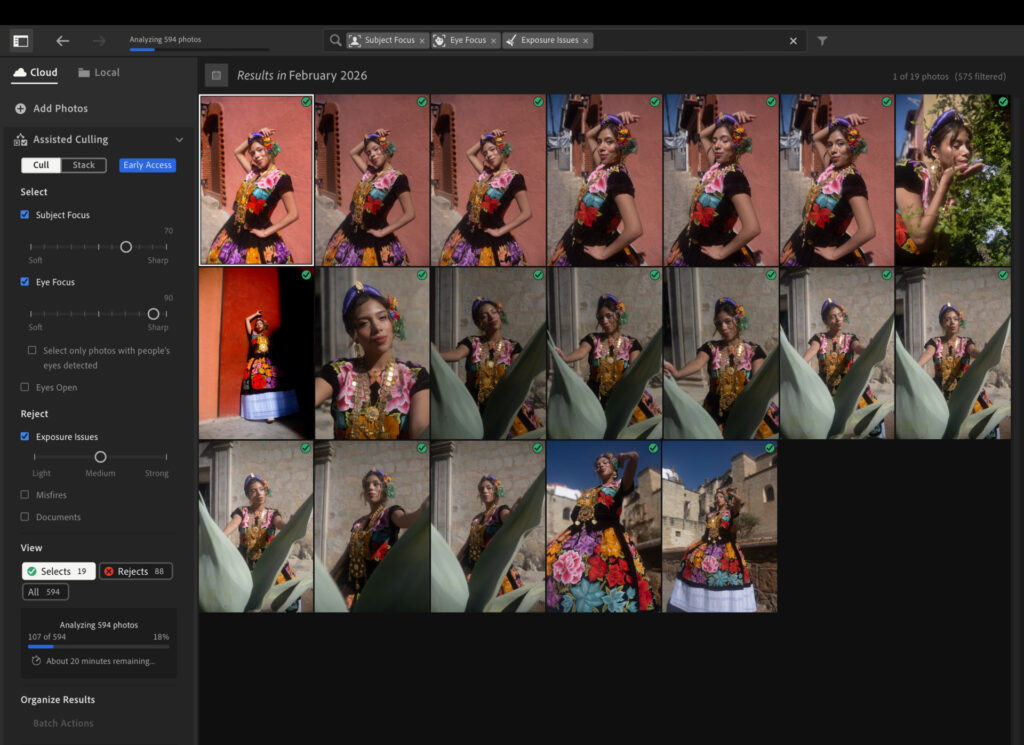
Lightroom culling tools.
In Lightroom you can program it to remove images where the subject’s eyes are out of focus. Using a slider, you can choose how out of focus images should be for Lightroom to disregard them. It takes a bit of trial and error to pinpoint how Lightroom interprets focus in relation to its sliders, and personally this wasn’t a workflow I found to be helpful.
You can also exclude poor exposures and misfires, like taking a shot without a flash functioning correctly.
Imagen offers a more hands-on approach. It analyses your images and makes a decision on which it feels are your best shots, ranking them with the classic star rating approach, one through five. You can program it to cull down to a specific number of images, although it will also select some extras outside the agreed number which it feels deserve your attention.
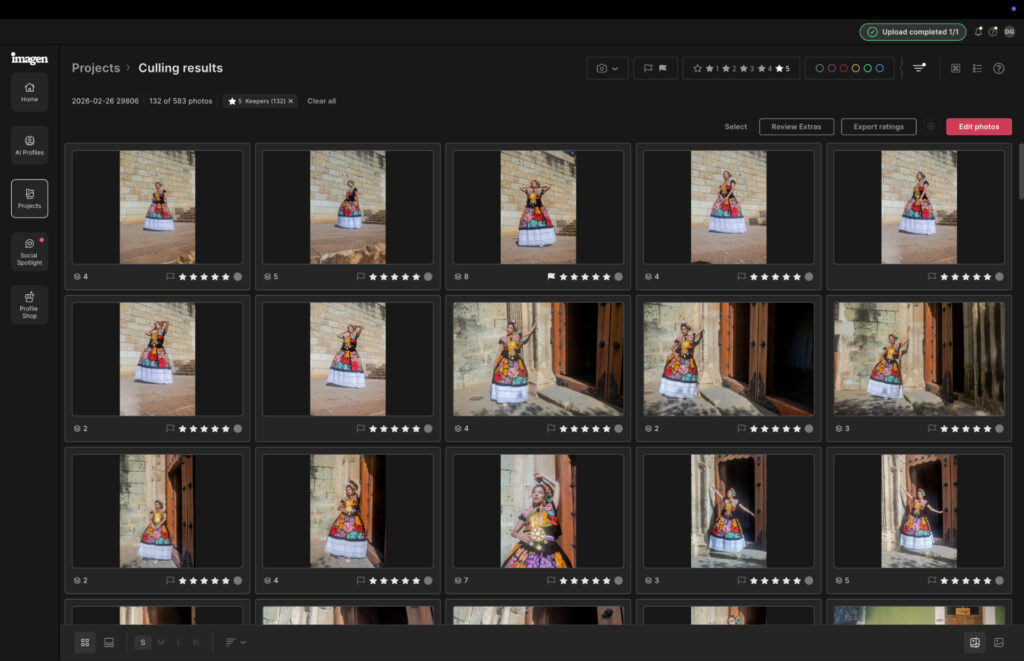
Imagen culling tools.
My own culling was around 90% in line with Imagen’s, and 70% in line with Lightroom’s. But, and this is a big but, as a professional photographer there’s no world where I would not go through each of the images I shot. I need full, 100% control over this process as creative interpretation can differ regardless of whether a shot is technically good or not.
Related: I Tested The Best Photo Culling Software (A Clear Winner in 2026)
Who Should Stick With Lightroom?
If you’re a hobbyist or working up to semi-professional, then Lightroom on its own is all you will need. If you’re also someone who genuinely enjoys the editing process and doesn’t have to constantly edit large batches of images within very tight deadlines, then Lightroom will be enough and there’s no need to pay extra for another software.
Who Should Use Imagen AI?
Imagen AI is for professional photographers already taking regular bookings and working in high batch environments such as events, weddings, portraiture and commercial photography. You’re either struggling to keep up with current demand, or finding it hard to scale due to the time it takes to edit your images and deliver them to your clients.
I’d also consider Imagen if you’re already outsourcing your editing workflows to professional photo editors. With high-level editors charging up to $150 per hour, investing in Imagen could save you thousands of dollars across the course of a working year – Imagen’s Limitless plan costs $1548 per year and gives you unlimited use of its tools.
Related: I Tried Imagen AI for 90 Days: The Edits Shocked Me
The Verdict
Most of my comparisons end with me suggesting one software over another. Until Imagen finds a way to become fully independent, which I hope it does, I can’t do that. If you match the criteria of who I believe will get the best out of Imagen, then you should test it for yourself, as nothing beats your personal real-world experience.
Imagen offers a Limitless plan which gives you truly unlimited usage, which costs $129 per month on annual billing. There’s a free trial available so you can try it risk free with credits available to test its editing and culling tools. Sign up to Imagen AI here.
More reading: Luminar Neo vs Photomator: After Testing Both, My Pick Is Clear
All images in this article are screenshots from my real world tests.
This article contains affiliate links. If you buy through them, we may earn a commission at no extra cost to you. Read our Affiliate Statement.