
The best photo editing apps help you get more from your smartphone photography, especially now that phones like the iPhone 17 Pro and Xiaomi 17 Ultra can produce genuinely impressive images. If you’re shooting on your phone, the right app can make the difference between a good photo and a great one.
In this guide, I’m sharing my picks for the best photo editing apps available on iOS and Android in 2026.
Editors note: Last updated July 28th 2026: Following a new round of hands-on testing with the latest iOS 26 and Android 16 software builds, this guide has been fully updated to reflect the newest AI-driven features and performance benchmarks for 2026.
Most of the best photo editing software for desktop now offer powerful mobile versions, meaning you can access serious editing tools directly from your phone. I’ve been testing these apps for years, and my selections cover different experience levels, editing styles, and budgets.
How I Tested the Best Photo Editing Apps
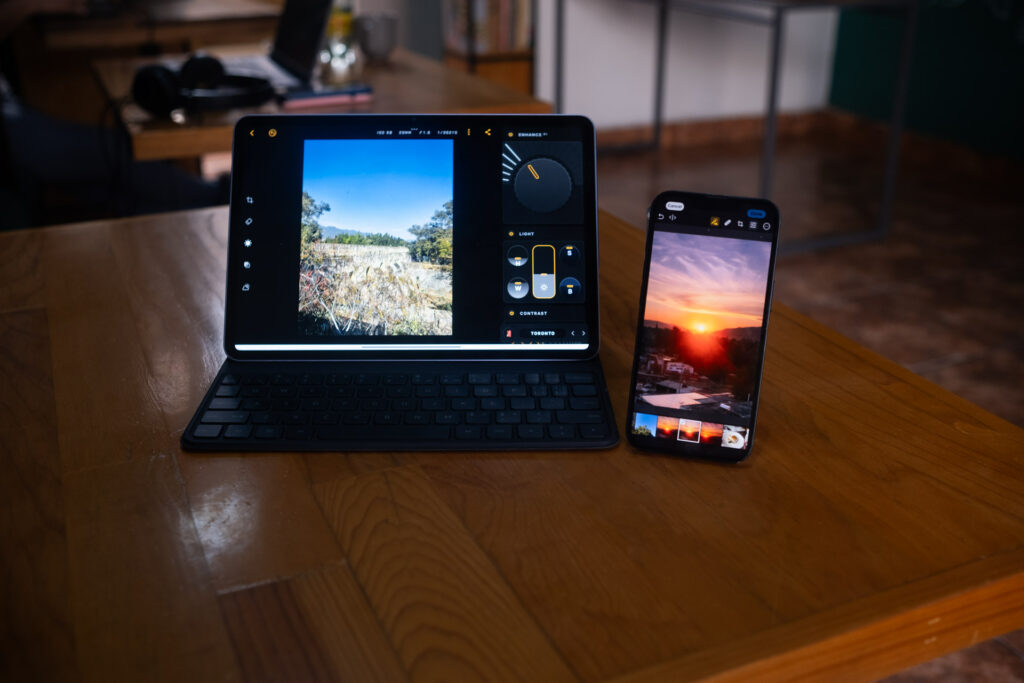
My Xiaomi Pad 7 & iPhone 13.
I tested all iOS apps using my iPhone 13, shooting and editing images on the same device. For Android, I used a Xiaomi Pad 7 to test apps built for the Android ecosystem. All photos were captured on a smartphone, as most people searching for photo editing apps are editing images they’ve taken on their phone.
Best Photo Editing Apps: At a Glance
There’s no shortage of photo editing apps available, but many either feel too basic or overly complex. I’ve narrowed this guide down to the very best options based on how they actually feel to use. Below is a quick snapshot of what each app does best, with deeper real-world testing further down.
Luminar Neo: Best Photo Editing App in 2026
Why: A creative, enjoyable editor that balances AI speed with hands-on control.
Pro: AI tools deliver quick results without killing creative freedom.
Con: Some tools feel like fluff rather than useful for the overall edit.
Use promo code THEMFRAMES10 to get a discount. Sign up.
Photomator: Best Photo Editing App for iOS
Why: A smooth, iPhone-first editor that fits naturally into Apple’s ecosystem.
Pro: Fast, responsive performance with a clean, intuitive interface.
Con: Limited flexibility beyond Apple devices.
VSCO: Best Photo Editing App for Android
Why: A style-driven app built around presets and visual mood.
Pro: High-quality presets make it easy to achieve consistent looks.
Con: Ads on the free version.
Lightroom: Best Photo Editing App for Professionals
Why: A precision editor for photographers who know exactly how they want to edit.
Pro: Deep, deliberate controls that support consistent results.
Con: The Android user experience has a few user bugs you don’t find on iOS.
Polarr: Best Free Photo Editing App
Why: A simple, accessible editor for learning the basics of photo editing.
Pro: The free version offers enough control to make meaningful improvements.
Con: Advanced features locked behind paywall.
Comparison Table
| App | Best For | Platform | Price (Starting) | Key Standout Feature |
| Luminar Neo | Overall best | iOS/Android | $49.99 (Lifetime) | AI-powered Sky & Light Relighting |
| Photomator | Apple users | iOS | $34.99 (Yearly) | Deep Apple Ecosystem integration |
| Vsco | Android users | iOS/Android | Free / $29.99 (Yearly) | Film-inspired presets & Community hub |
| Lightroom | Professionals | iOS/Android | $11.99/mo (Annual commitment) | Pro-grade Precision & Desktop Sync |
| Polarr | Beginners | iOS/Android | Free (Ads) | Built-in interactive editing tutorials |
Luminar Neo: The Best Photo Editing App Overall
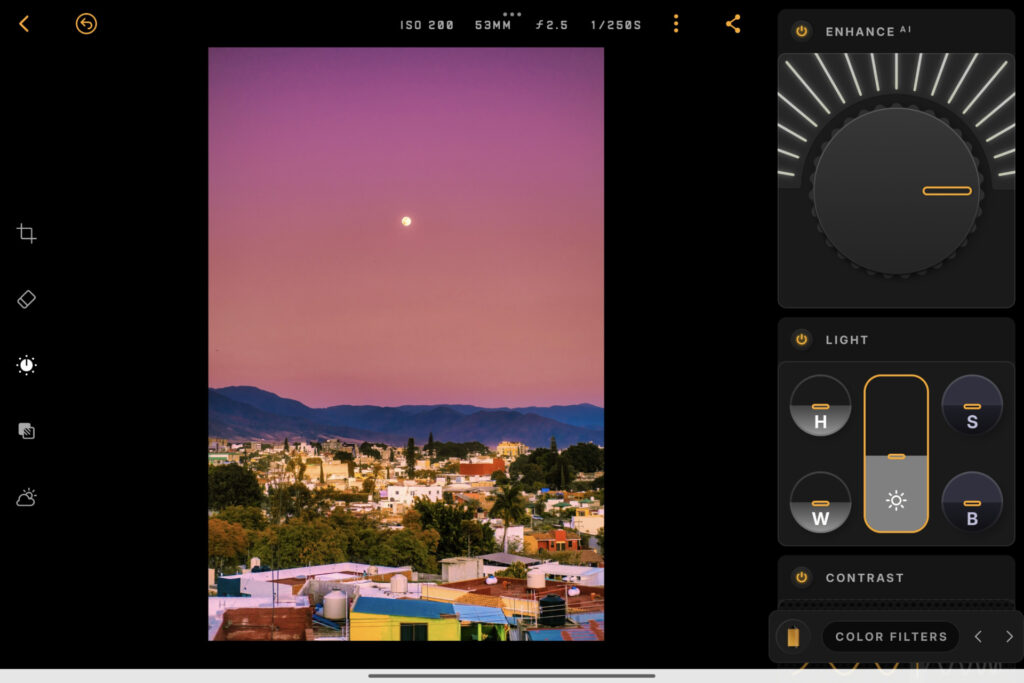
Luminar Neo’s layout is certainly unique.
Luminar Neo takes a different approach to photo editing. Instead of relying on traditional sliders, it uses touch-based controls, grids, and haptic feedback, which makes editing feel physical rather than technical. You can genuinely feel changes as you make them, and that alone is why it’s my overall choice.
Where Luminar Neo really shines is creativity. The film-inspired filters are excellent and deliver classic looks without feeling gimmicky. There are also standard presets and the option to save your own, but the real appeal is how well Luminar balances manual editing with AI-powered tools. Features like sky replacement, object removal, and light repositioning are built for experimentation, not just correction.
Importantly, the fundamentals aren’t missing. Core adjustment tools are all present, along with a curve editor for finer control over tones and color.
My favorite feature: The Enhance tool can do much of the leg work for me and serve as a great foundation for my edit.
Luminar Neo: My Real-World Experience
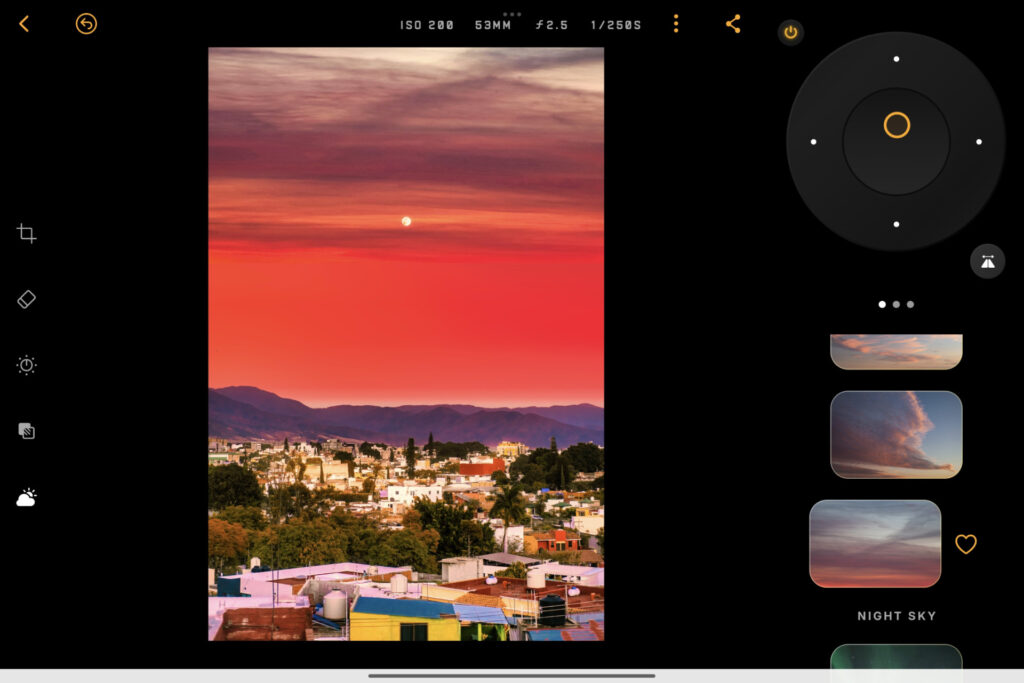
The sky replacement tool offers some very creative results.
It took me about a day to adjust to Luminar Neo’s layout. Once it clicked, it became the most enjoyable photo editing app I tested. Tools like Sky Replacement and Relight felt genuinely freeing and encouraged me to experiment in ways other apps don’t.
Some controls, such as the grid-based saturation tool, take longer to grasp and could be simplified. That said, performance was strong on both iOS and Android, and AI features like object removal worked with impressive accuracy.
Read my Luminar Neo review for a deeper understanding over its tools and features.
Watch my Luminar Neo app workflow…
How Much Does Luminar Neo Cost?
Luminar Neo (also called Luminar Mobile) offers three pricing options. The lifetime plan provides the best long-term value, though future updates may not be included.
- Lifetime: $49.99 (one-time payment)
- Annual: $29.99
- Weekly: $6.99
Sign up for Luminar Neo (use code THEMFRAMES10).
Photomator: The Best Photo Editing App for iOS
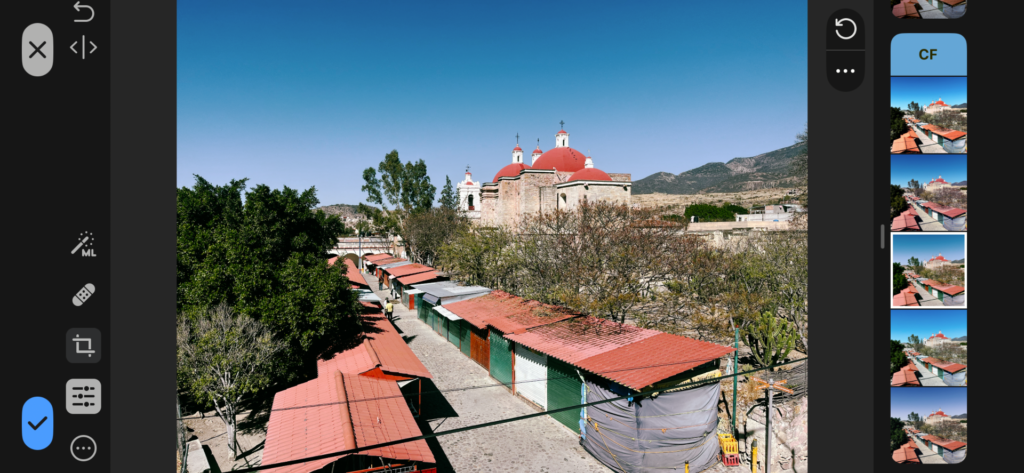
Photomator on my iPhone 13.
Photomator (formerly Pixelmator) is an Apple-only photo editor for iOS, iPadOS, and macOS. I mainly use it on my iPhone when I want more control than the standard Photos app allows. It supports RAW files, includes a histogram, and offers solid exposure and color grading tools that go well beyond basic mobile editing.
It’s capable of handling camera files too, not just smartphone photos. Masking tools are accurate, the AI removal brush works reliably, and the included presets and LUTs are genuinely useful rather than gimmicky.
My favorite feature: I really like Photomator’s LUTs, they offer a range of tonal effects and often require little tweaks in the manual controls.
Photomator: My Real World Experience
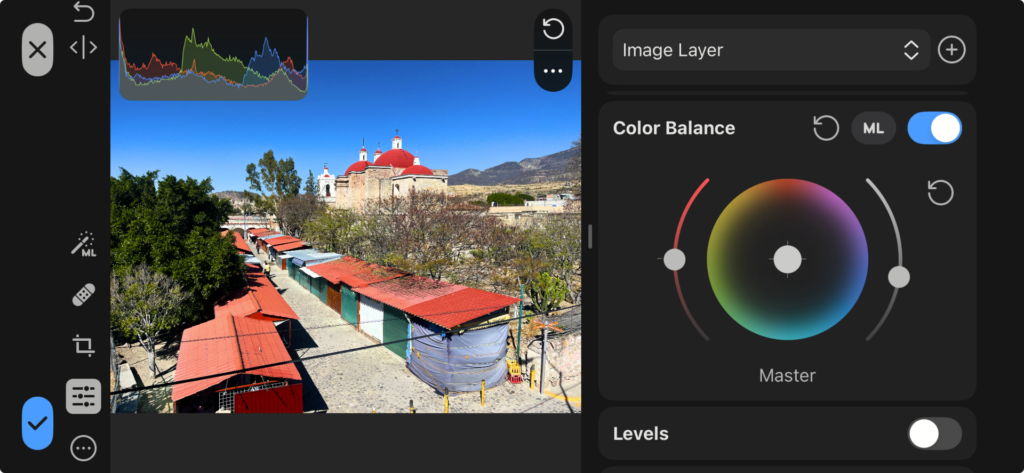
You can toggle tools on and off to refine your user experience.
I had a positive experience with Photomator, but there are a couple of pain points. It struggled with RAW files from my Fujifilm camera, both on iPhone and Mac. I also found that images I imported also went into my Photos app which makes navigation a little clunky.
For editing smartphone images it works perfectly, smoothly and is fast. The masking tools are accurate, as is the removal tool. I found I had to push adjustment sliders a little higher than other apps to get my desired look, but it was still accurate and I was able to get the edit I wanted with Photomator.
If you’re looking for editing tools for macOS, see which software I tested and reccomend as the best photo editing software for Mac.
Related: Photomator Review (2026): Is Apple’s Photo Editor Actually Good?
How Much Does Photomator Cost?
Photomator is available on the App store and is surprisingly affordable (considering it’s Apple owned) and has three payment options.
- Yearly – $34.99
- Monthly – $7.99
- Lifetime – $119.99}
Vsco: The Best Photo Editing App for Android
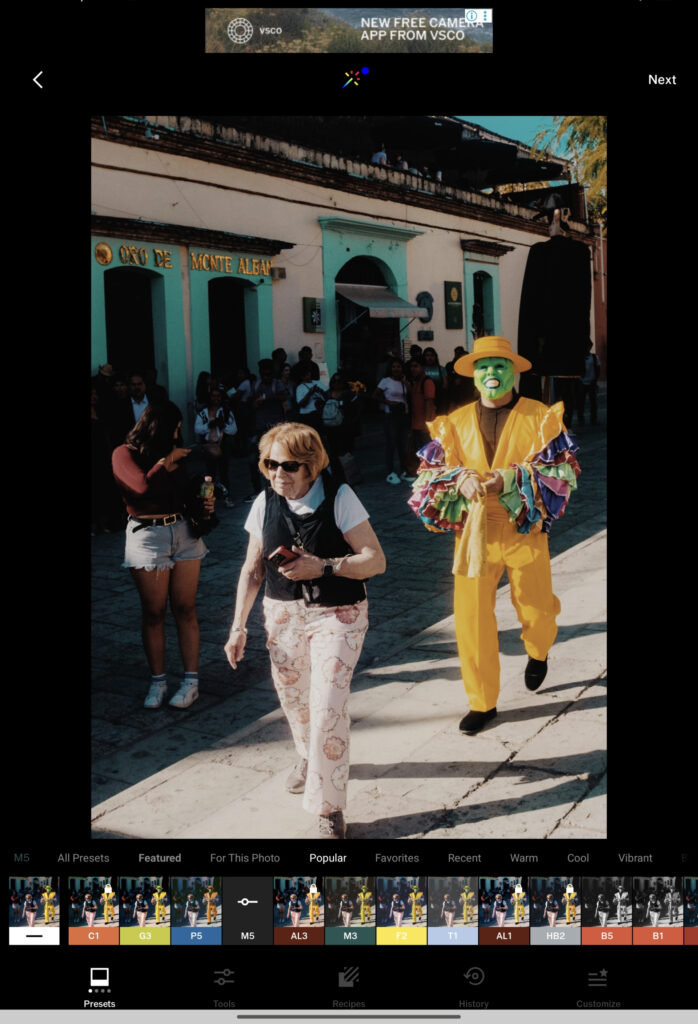
Presets are on the free version, but the best are behind a paywall.
VSCO is best suited to photographers who prefer preset-driven editing over manual control. Its preset library is deep and well curated, covering everything from landscapes to portraits, and you can save your own “recipes” for consistency. Basic adjustments like exposure, contrast, cropping, and sharpening are available, but many advanced tools and most presets sit behind the paid plan.
Manual controls are limited compared to other editors, but VSCO’s strength lies in speed, aesthetic consistency, and its Spaces feature, which adds a genuine sense of community for sharing work with other photographers.
My favorite feature: I really like that Vsco can analyze my photo and present what it thinks is the most suitable presets. It reduced selection anxiety.
Vsco: My Real World Experience
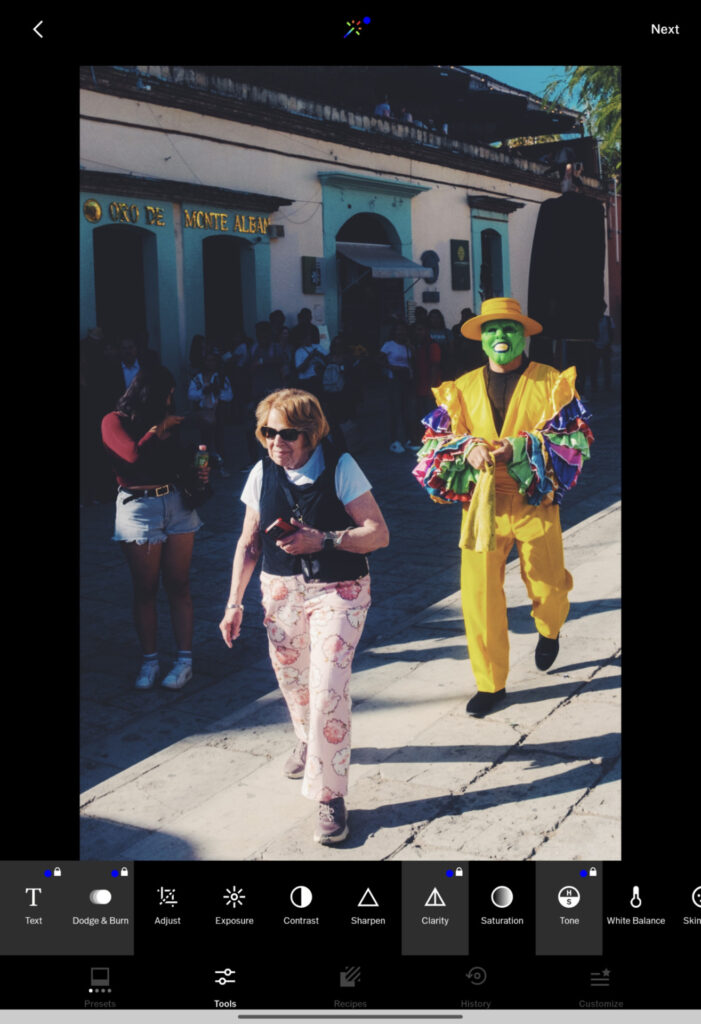
The adjustment tools work well if you want to modify your preset.
I used Vsco on my Xiaomi Pad 7. Navigation was a little clunky and it was easy to learn how to jump in and out of the editing tools. Once I became familiar with the app it was much easier. It’s not fully optimized for tablet either, so I recommend this mainly for Android smartphone users.
I found the preset selection to be diverse and useful. The Black & White options particularly stood out to me and provided a vintage and classic look for my edit. I spent some time using the adjustment tools and they were precise enough, but not on the same level as the options above.
How Much Does Vsco Cost?
Vsco does have a free plan but most features are behind a paywell. Thankfully the paid options are pretty affordable.
- Starter: Free
- Plus: $7.99 (monthly). $29.99 (Yearly)
- Pro: $12.99 monthly. $59.99 (Yearly)
Lightroom: The Best Photo Editing App for Professionals
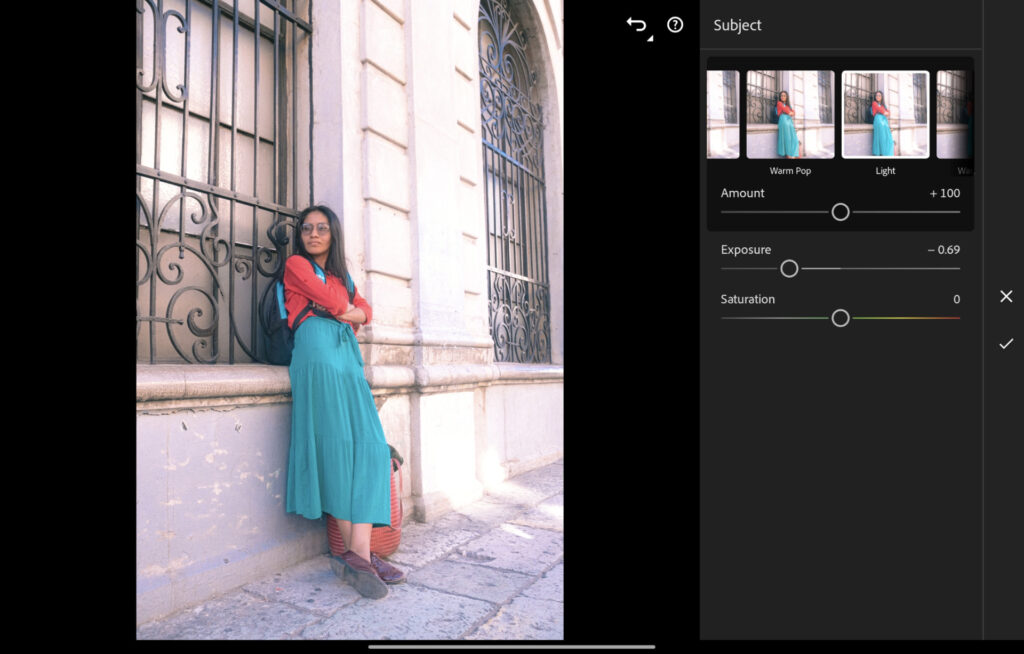
The AI subject select gives you must more control over your edit.
Lightroom’s mobile app brings professional-grade editing to the small screen. Recent updates introduced Quick Actions, which apply smart, one-tap adjustments while intelligently masking key elements for local edits.
When I want full control, Lightroom still offers some of the most precise sliders available, with especially strong color grading, reliable lens corrections, and an excellent denoise tool that delivers clean, natural results.
My favorite feature: The retouch tool allows me to soften blemishes with a slider rather than using a brush tool – which results in a much faster workflow.
Lightroom: My Real World Experience
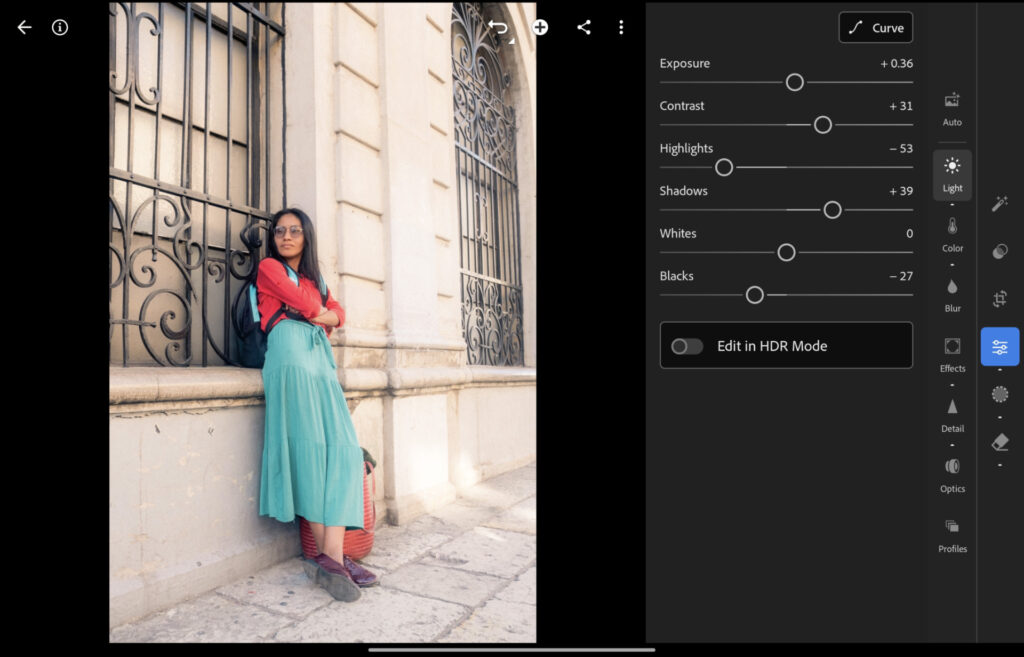
Lightroom feels very fluid to use and helps keep a speedy workflow.
Lightroom on iOS works perfectly and you easily import and export images via the file manager, a connected device or a cloud storage app. Sadly, I found the same isn’t true for Android where I experienced consistent bugs when trying to import from an external device.
The precision is what stands out, especially as I’m using my fingers on a touch screen. The app was very responsive and sliders moved partly in sync with my touch. What I especially like about Lightroom on mobile is that it syncs all the presets I made on Macbook and I can make quick edits without having to start the process over again.
How Much Does Lightroom Cost?
Lightroom doesn’t have an app only price, instead only giving you the option to sign up for the full desktop and mobile package. This shouldn’t be a problem for professionals who are more likely to have a cross-device workflow.
- Month-to-month – $17.99
- Monthly (annual commitment) – $11.99
- Yearly – $119.88
Polarr: The Best Free Photo Editing App
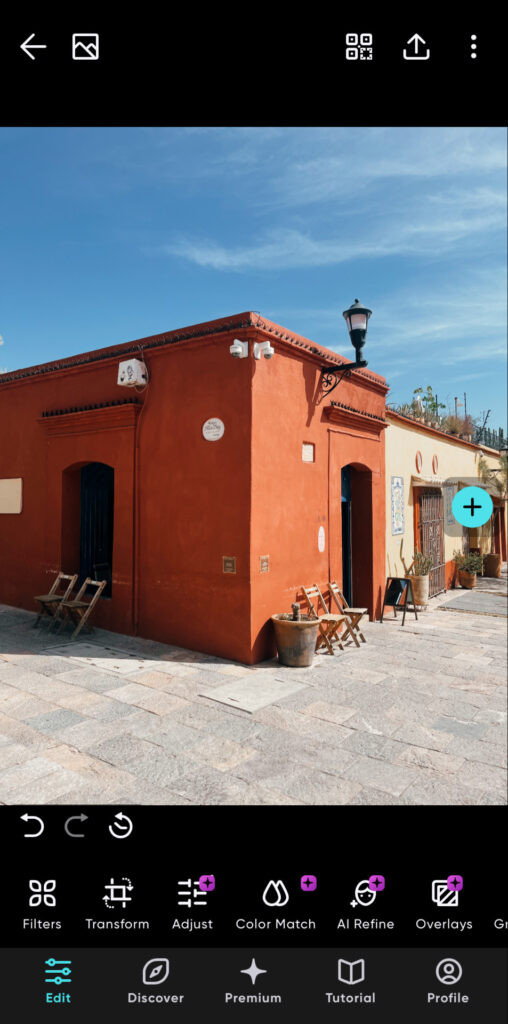
It’s only possible to use the Polarr in vertical orientation.
Polarr’s free version offers enough control to meaningfully improve an image without overwhelming the workflow. Free users can adjust exposure, contrast, white balance, vibrancy, and saturation, and there’s a small but usable selection of presets — the Film and Retro styles being the strongest.
More advanced tools like denoise, HSL, sharpening, and vignetting are locked behind the paid plan. Like VSCO, Polarr is best suited to quick, simple edits rather than detailed image refinement, but as a free editor, it delivers solid results with minimal effort.
My favorite feature: Film and retro filters.
Polarr: My Real World Experience
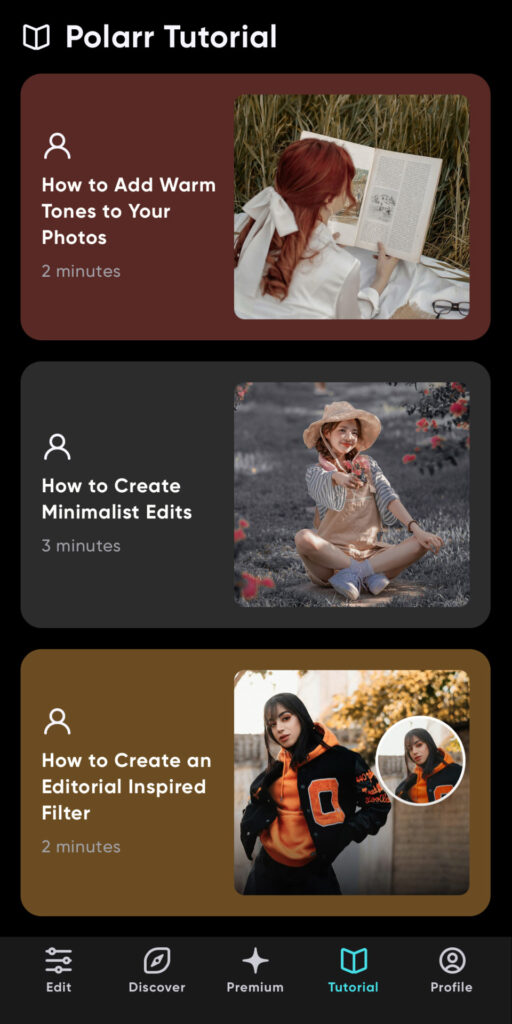
The tutorials are short but useful and to the point.
One downside to the free plan are ads. I didn’t find it to totally ruin the users experience, but one did pop up before the start of each edit. App navigation was excellent; it’s simple and the terminology is easy to understand. I’d also recommend Polarr to those looking for the best photo editing software for beginners.
The tutorials baked into the app are really useful. Not only do they show you how to use the tools, but they teach different editing techniques, again, making it ideal for new photo editors.
How Much Does Polarr Cost?
Polarr is free to use.
Honorable Mentions
These three didn’t quite make the main list, but each one earns a spot for a specific type of editor.
FixThePhoto (iOS and Android) takes a completely different route to everything else here. Instead of editing the shot yourself, you upload it, note what you want changed, and a team of real retouchers sends it back polished within a few hours, all done by hand rather than AI. It’s for anyone who would rather hand the work off entirely, or who needs portrait and body retouching they can’t quite pull off themselves. The app is free to download and you pay per image for the retouching.
Snapseed (iOS and Android) is Google’s free editor, and it recently got a full rebuild that added batch editing, an in-app camera, and one-touch masking. It handles RAW files, keeps everything non-destructive, and does all of it without a single ad or subscription, which I always appreciate. I’d point serious hobbyists here, especially anyone who wants real manual control on their phone without paying a penny, or a capable free companion to their desktop editor.
Afterlight (iOS and Android) leans hard into the analog look, with film-inspired presets, genuine 35mm light leaks, dust textures, and grain that feel a cut above the usual filter packs. There’s proper control underneath too, from curves to selective color, so it isn’t only a one-tap tool. It’s for anyone chasing an authentic film aesthetic who wants more texture to play with than VSCO offers. One thing worth flagging: RAW support is on iOS only, so Android users are limited to JPEGs.
How to Choose the Right Photo Editing App
Not every photo editing app suits the same workflow. If you want fast, preset-driven edits, VSCO or Polarr make sense. If you prefer precise, manual control, Lightroom still leads. If you want AI tools that speed up editing without removing creative control, Luminar Neo offers the best balance. Your device, editing style, and patience matter more than feature counts.
Most apps offer a free plan, trial, or money-back guarantee, so you can test them without committing long-term. I recommend taking advantage of this and spending real time editing with each one – the right choice ultimately comes down to which app feels best in your workflow.
Singing Off
Photo editing in 2026 is less about chasing the biggest feature list and more about choosing software that genuinely fits how you work. Whether you value speed, precision, creative flexibility, or simplicity, every app covered here has its place.
The one that consistently strikes the best balance for me is Luminar Neo. It blends hands-on control with genuinely useful AI tools and works well on both iOS and Android. There’s a 30–day money-back guarantee and you can get a discount when using promocode THEMFRAMES10.
Which app will you use or do you recommend another not mentioned here? Let me know in the comments.
More reading: Luminar Neo vs Lightroom: Honest Comparison Before You Decide
Read our Affiliate Statement.
All images in this article are screenshots from my real-world testing.