
Updated October 23, 2026.
The best photo editing software right now is Luminar. I love its simplicity, and how its tools turn dull RAW files into a captivating frame. Though, it does have some hang ups which may make photographers want to look elsewhere, so I’m sharing the best options for different users, ensuring nobody leaves this article empty handed.
I’ve been using and testing photo editing apps for over 10 years. I’ve seen the good, the average, and those I’d rather forget. In this article, I’m sharing seven core options, plus some honorable mentions. I’ll explain why I chose them, and which type of photographer they’re for.
I’m covering features, design, usability, and of course pricing. There are plenty of screen shots too for you to learn how well each of them processed my RAW files – all of which were shot on my Fujifilm X-T3.
Best Photo Editing Software Compared
| Software | Best For | Price (checked Oct 2026) | Platforms | Standout Feature |
|---|---|---|---|---|
| Luminar | Best overall | $129 to $199 one-time | Windows, macOS, iOS, Android, iPadOS, ChromeOS, Web | Light Depth and Sky Replacement |
| Imagen AI | High-volume editing | $0.05 per image or $129/mo | Windows, macOS | AI profile trained on your own edits |
| Lightroom | Cloud editing across devices | $11.99/mo | Windows, macOS, iOS, Android, iPadOS, Web | Object removal and portrait masking |
| Capture One | Studio and tethered work | $18 to $48.50/mo, or $349 one-time | macOS, Windows, iOS, iPadOS | Color grading and tethering |
| Photomator | Apple users | $119.99 lifetime or $7.99/mo | macOS, iOS, iPadOS | Apple Photos integration |
| Radiant Photo 2 | Automated editing | $129 to $159 one-time | macOS, Windows, iOS, Android | Scene Detection |
| Affinity | Best free | Free | macOS, Windows, iPadOS | Pixel-level layer editing |
Luminar: Best Photo Editing Software Overall
Pros:
- Creative AI tools like Light Depth and Sky Replacement
- Built-in tutorials for every tool
- One-time purchase from $129
Cons:
- Slow to load large imports
- Who it’s for: Beginners to enthusiasts looking for a simple, creative tool to make your images pop.
- Skip it if: You’re a professional photographer looking for advanced tools and strong file management.
- Price: $129 – $199.
- Compatibility: Windows, macOS, iOS, Android, iPadOS, ChromeOS, Web
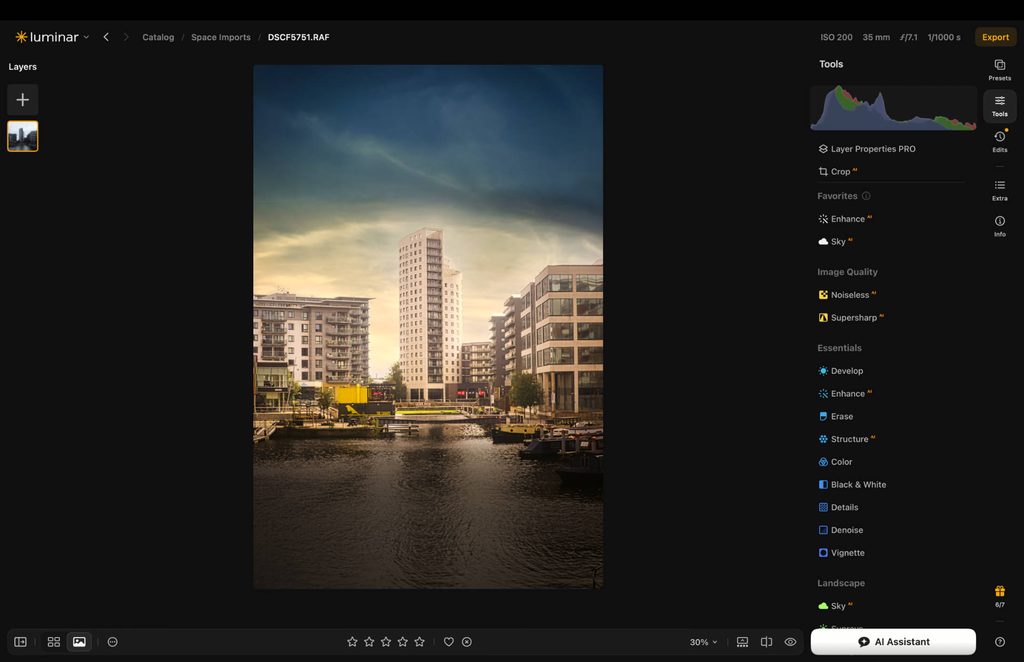
I’ve selected Luminar (formerly Luminar Neo) as the best photo editing software overall because I think it’s the one most photographers will enjoy using the most. Features like Sky Replacement and Light Depth helped me turn a flat RAW file into a print worthy image, in just a couple of clicks.
The design is really working for me. The vibrant colors in the right hand panel make navigation smooth and features easy to identify. It suits beginners too because it has little tutorials embedded into each feature, select it and it will tell you how to use the tool and its best use case.
Luminar: My Real-World Experience
For the most part I like how Luminar functions. Once inside the editing panel, I found that edits would apply in real time, and even more high-powered tools like sky replacements and AI denoise worked in just a handful of seconds.
On the topic of Denoise, Luminar uses AI to analyze how much your shot requires, which you can tweak if you need. I found the results to be pretty good overall, and the shot did not look cartoonish or over processed.
I tested the app’s object removal tool and found it did a good job of removing small items, like a road barrier, but struggled with larger items, such as cars. In all my testing Lightroom remains the gold standard here.
Before object removal….

After removal of the road barriers…

One area of improvement Luminar needs to attend to is processing large batches of images. When I imported 500 RAW files, it struggled to load many of the file previews and took about 10 seconds to load an image in the editing panel. It’s for this reason I can’t recommend it to semi professional or full time professional photographers.
Export times were very good, with Luminar exporting 185 edited images in just over 11 minutes. It did use more battery juice than the other options, eating up 24% of my battery after one hour of editing.
Original RAW file

Final edit in Luminar

Read: Honest Long-Term Luminar Neo Review: Read Before You Buy
Luminar Mobile
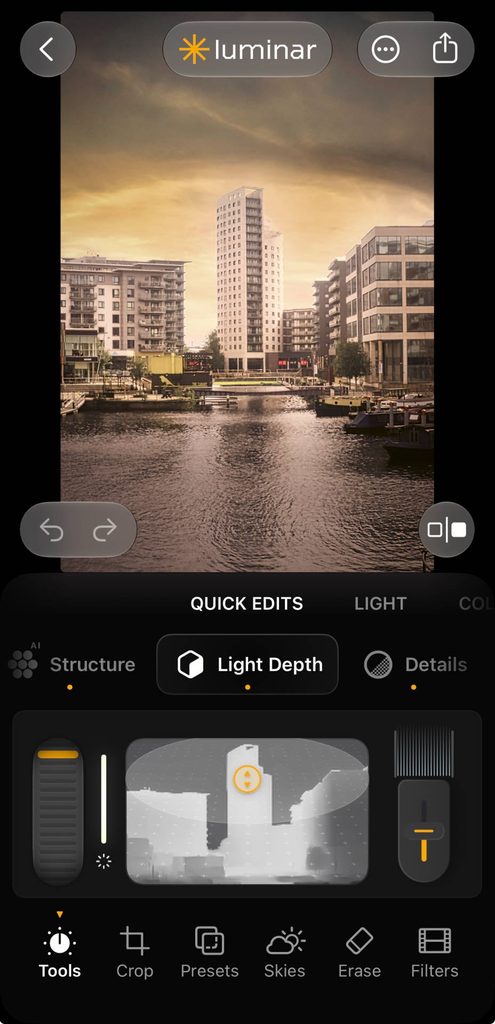
The mobile app is slightly different to desktop, having dials rather than sliders. It works the same with most of the same core features. You can get a detailed idea of the app by reading my Luminar Mobile review.
Read: I Tested Luminar Mobile: Powerful Pocket Editor, With Some Flaws
How Much Does Luminar Cost?
A major advantage to using Luminar is you don’t need to get tied to monthly or yearly subscriptions. You can pay once and own forever.
- Desktop – $129
- Desktop/Mobile – $159
- MAX – $199
The MAX license gets you access to desktop, mobile and the creative library which is filled with more skies, presets and tutorials.
You can use promo code THEMFRAMES10 and get 10% off.
Imagen AI: Best for High-Volume Editing
Pros:
- Learns and mirrors your own editing style
- Vastly reduces time spent editing
- Affordable Pay-as-you-go pricing
Cons:
- Needs 2,000 edited images to train a profile
- AI cropping lacks an artistic eye
- Who it’s for: Large-batch photographers shooting events, weddings and portraits looking for fast turnarounds.
- Skip it if: You’re a beginner or hobbyist working with small batches of photos.
- Price: $0.05 per edit or $129 per month for unlimited use.
- Compatibility: Windows, macOS
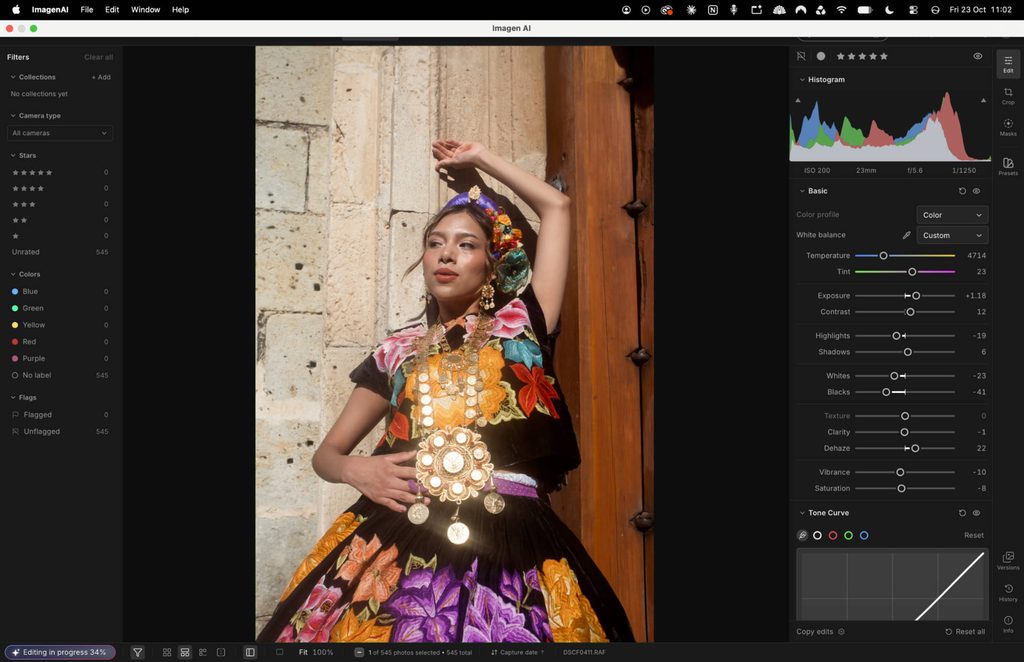
I’ve used Imagen for around 12 months now and it’s transformed my approach to editing my professional portrait sessions. Using my previously edited .XMP files, I’ve trained Imagen’s AI assistant to create an editing profile that looks exactly like my personal style. Instead of spending long hours editing, I’m now finished in around 30 minutes.
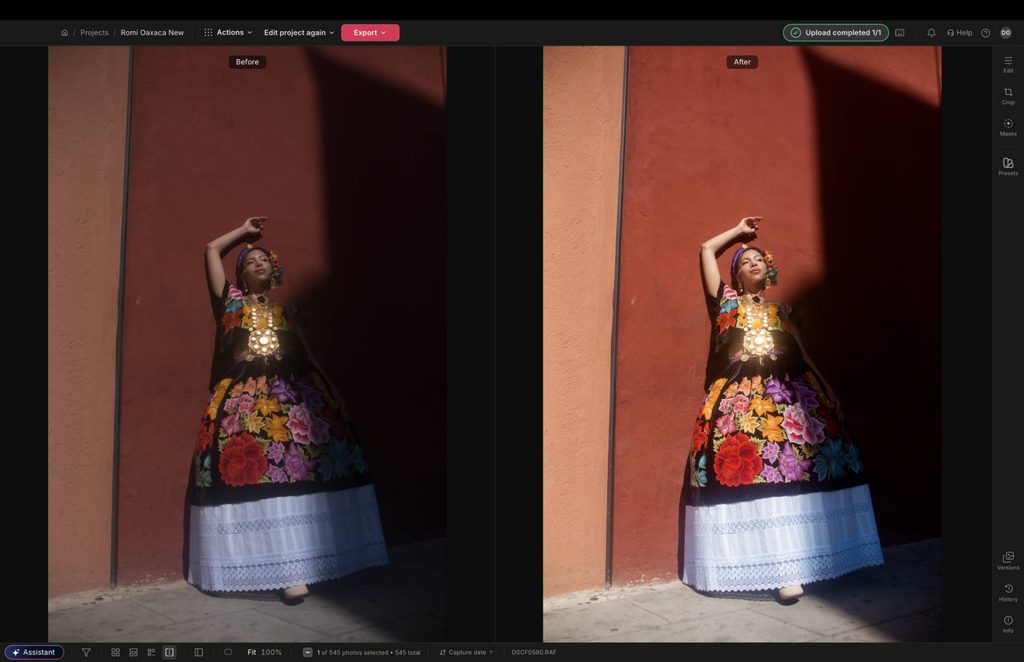
Recent software updates put Imagen toe-to-toe with other professional photo editors. Alongside using an AI profile, I can now make adjustments inside the new editor tools, which gives me full control over masking, global adjustments, color grading and more.
Imagen AI: My Real-World Experience
Imagen is a refreshingly easy to use photo editing software, and training your personalized AI profile is achievable in a handful of clicks. It does require 2000 previously edited .XMP files, which Imagen accesses through either your Lightroom or Photoshop catalogs. Once it’s trained, you simply select your profile and then Imagen does the rest of the editing work for you.
It uses dynamic editing, meaning it edits each image individually, rather than just applying a preset to the full batch. The results were extremely accurate and mirrored my personal editing style – saving me so much time compared to editing manually. It also handled masking tools like blemish removal well.
There’s a built in assistant too, which I found was useful for performing bulk tasks like increasing exposure, or tweaking white balance. It’s also good for finding specific images shot in specific environments.
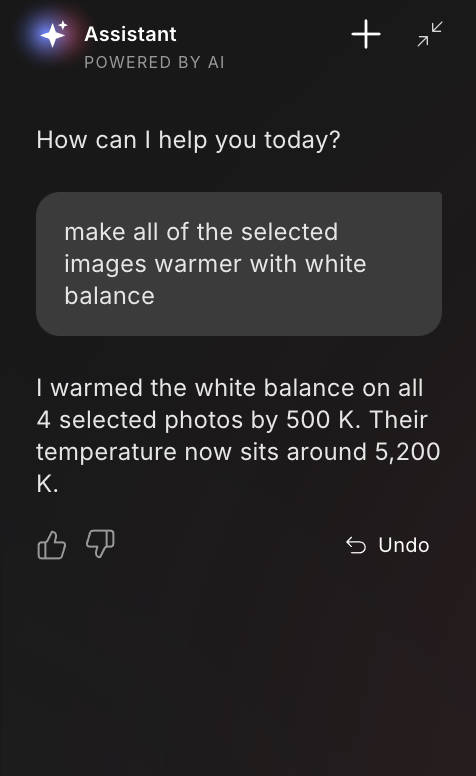
I wasn’t overly impressed with AI-powered cropping, especially for my portraits as I found it opted for a more clinical rather than artistic approach. That was one thing I chose to take over manually in future editing sessions.
Recent updates have taken Imagen to the next level. Prior to October, 2026, all manual editing had to be done in Lightroom, making Imagen feel more like an integration rather than a post-production studio. This has changed and Imagen now has the built in Editor which lets you handle all manual tasks inside the app.
In my testing I found it to be responsive, apply edits in real time and handle actions like color grading with a high level of accuracy. The full batch took around 30 minutes and used only about 5% of my battery. Exports were fast too, taking around seven minutes to get the edited images back onto my hard drive.
Read: Imagen AI Review: I Tried It For 90 Days and the Edits Shocked Me
How Much Does Imagen AI Cost?
Imagen has two pricing options, and is one of the few apps to offer pay as you go pricing.
- PAYG – $0.05
- Unlimited – $129/mo (paid yearly), $165/mo (paid month-to-month).
If you’re managing a busy schedule, then the unlimited plan offers great value, especially for those already spending thousands of dollars outsourcing their editing.
Lightroom: Best for Cloud Editing Across Devices
Pros:
- Best object removal I tested
- Seamless sync across desktop, mobile, and web
- Very stable, even with large shoots
Cons:
- Subscription only
- Portrait masks not available on mobile
- Who it’s for: Photographers who edit across desktop, mobile and web and want reliable, industry-leading tools.
- Skip it if: You don’t want to be tied into Lightroom’s subscription model.
- Price: $11.99/mo
- Compatibility: Windows, macOS, iOS, Android, iPadOS, Web
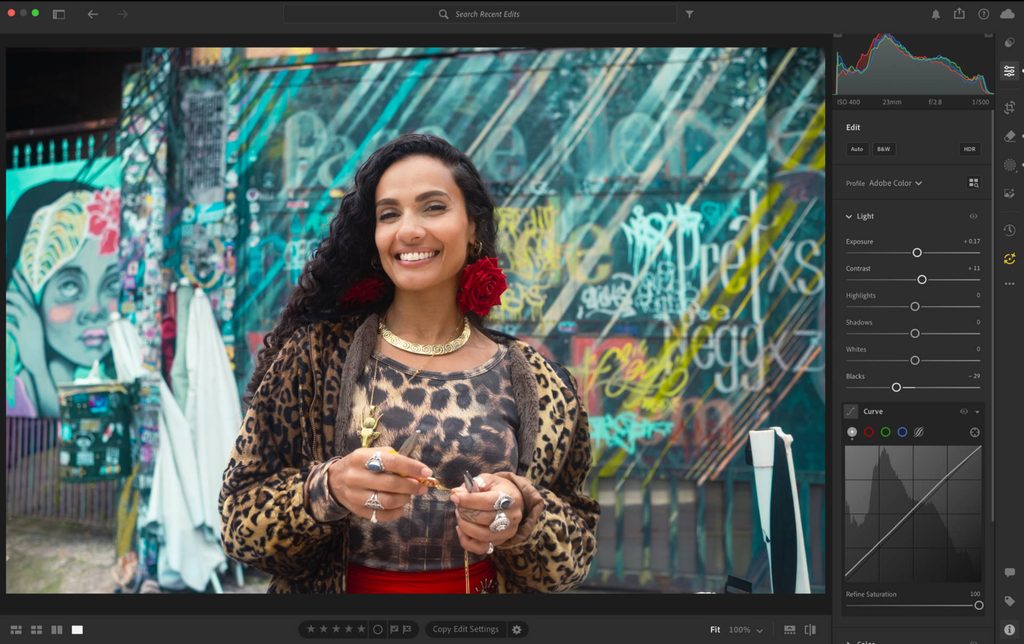
Lightroom (not Lightroom Classic, which is desktop only) is Adobe’s cloud-based app available for desktop, mobile and web. I’ve used it for over a decade for my professional photography because it’s reliable, and usually moves the needle when it comes to offering advanced tools in an easy-to-use manner.
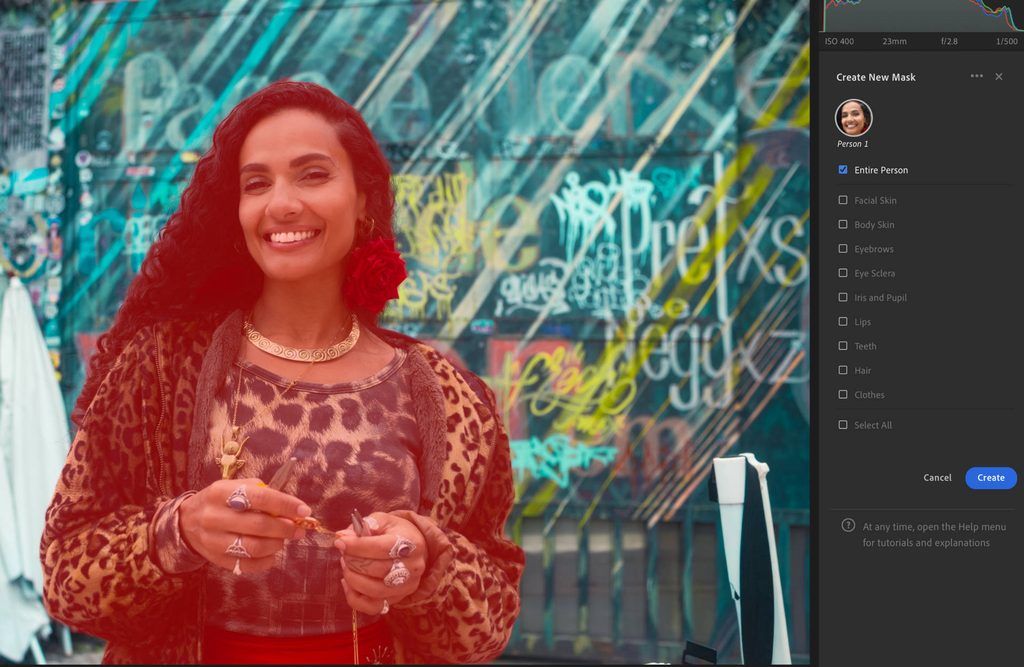
Take its masking tools for example. For portraits you can select specific elements of your subject such as facial skin, clothing, lips and more and make local adjustments to those areas. Its object removal is also the best I’ve tested, offering natural results even when removing larger subjects such as cars for example.
Lightroom: My Real-World Experience
I’ve always been a fan of how Lightroom processes my Fujifilm RAW files, as it keeps the file as close to the original as possible, giving me full control over the edit. It loads the files extremely quickly, allowing me to shift through images and open them for editing pretty much instantaneously.
The design is a little subdued for my tastes, and it lacks the vibrancy you’ll find on Luminar and Photomator. But, what it does offer is a streamlined UI that avoids overcrowding features, making it easy to navigate through different tools.
I find Lightroom to be the most consistent software when it comes to functionality. I very rarely need to force close the app, and it hardly ever freezes or takes time to respond, even with high volume photoshoots. Export times were good, taking 15 minutes 23 seconds to complete, and it only used 15% of battery juice for the course of an hour.
Original RAW file

Final edit

Read: Lightroom vs Lightroom Classic: My 2026 Real-World Verdict
Lightroom Mobile
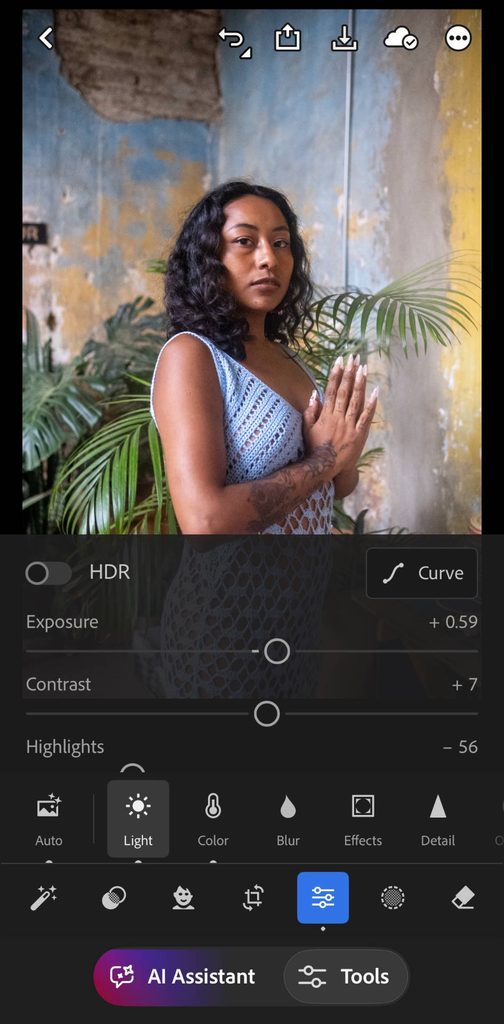
I found that Lightroom syncs edits quickly, and I was able to instantly pick up where I left off when shifting from my Macbook to my iPhone. It does offer most masking tools, but targeted masks for portraits are not available on mobile. The app itself was responsive on my five year old iPhone, with little over heating of the device and zero stalls.
How Much Does Lightroom Cost?
Lightroom offers three payment options, and all of them require a continuous subscription. Those looking for a pay once only deal will need to invest in another option.
- Rolling Monthly – $17.99
- Monthly (12 month commitment) – $11.99
- Yearly – $119.88
The yearly subscription offers the best bang for your buck. Keep in mind if you choose to pay monthly with a 12 month commitment, Adobe will charge you any remaining months if you want to cancel early.
Capture One: Best for Studio and Tethered Work
Pros:
- Market-leading color grading
- Lag-free tethering with cable or wireless
- Very fast export times
Cons:
- Cluttered interface for beginners
- Expensive subscription tiers
- Who it’s for: Professional photographers looking for best-in-class color grading and studio tethering.
- Skip it if: You’re on a tight budget and also require a simple user interface.
- Price: $18 – $48.50/mo
- Compatibility: macOS, Windows, iOS, iPadOS
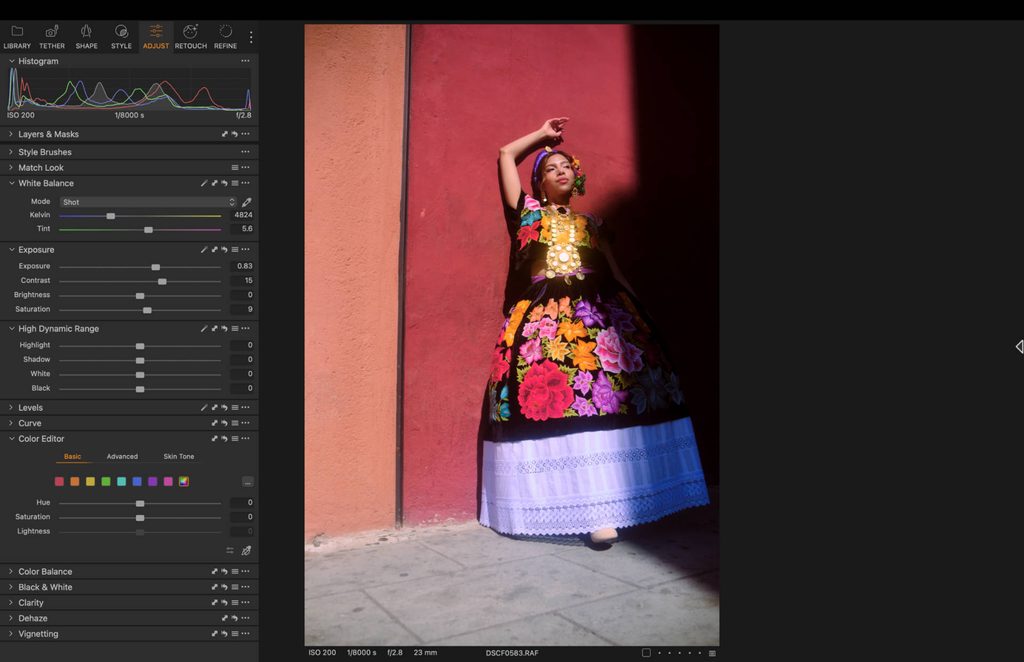
Capture One is a good option if you shoot portraits, either on location or in a studio. The color grading tools are a market leader, as in my testing they provided very granular results, allowing me to experiment with different color palettes without losing a natural look and feel.
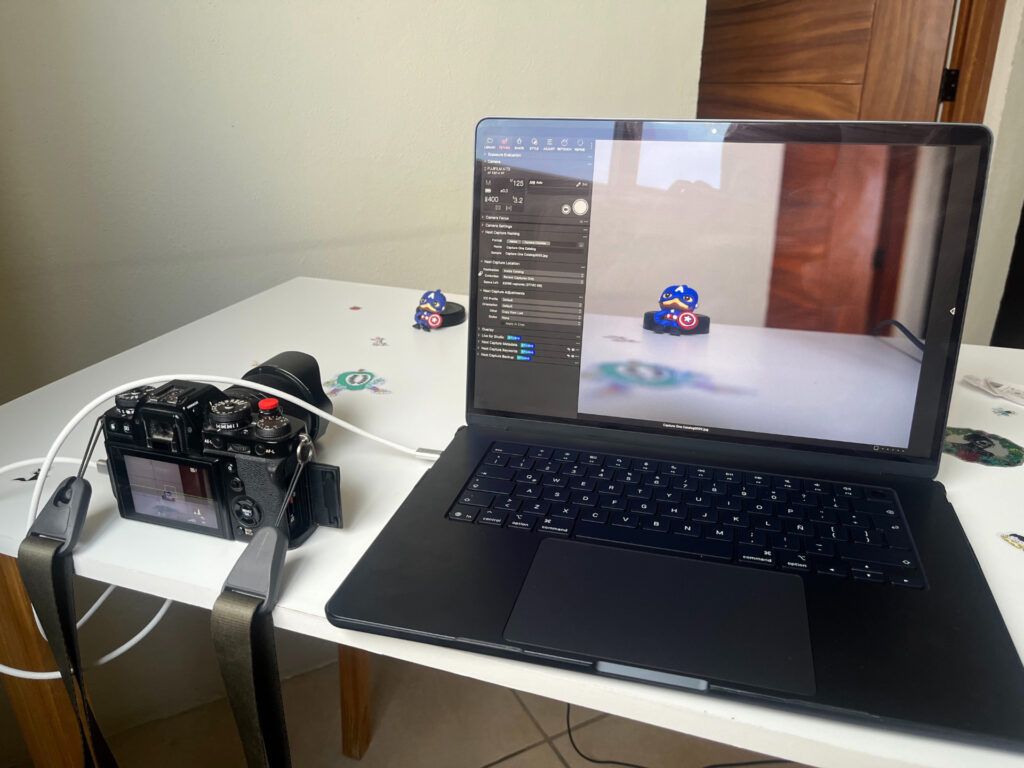
The software also offers tethering, both with a cable and wireless connection. I find this feature is useful for making on the spot lighting adjustments, as issues are much easier to spot when you can see them on a larger screen.
Capture One: My Real-World Experience
I find that Capture One renders portraits beautifully. The software produces really natural looking colors, and this opens up the door to plenty of possibilities when you’re trying to create a mood for your portraiture.
The dedicated Retouch tool is one of my favorite features as it removes blemishes, enhances eyes and evens out skin to a professional standard – the sliders also make it much easier to use compared to the accuracy required when using the brush tool.
The tethering worked as advertised, both with a cable and wirelessly. There was zero lag from taking a photo to it appearing on my screen and it’s useful that I can tweak my camera settings inside the app, without touching my camera.
The overall design is fine, but there are areas of improvement. Tools feel a little tightly cluttered together and it lacks the elegant simplicity that I found on other image editing software. A beginner would feel some overwhelm on first use, but pros will get the hang of it quickly enough.
Performance is good overall, there were some slight stutters here and there, and they were more noticeable when testing against its direct competitor, Lightroom. Export speeds were blazing fast, taking only six minutes and 27 seconds. The app used 22% of battery across a one hour editing session.
Orginal RAW file

Final edit

Read: Capture One Review: The Best Option for Professionals?
Capture One Mobile
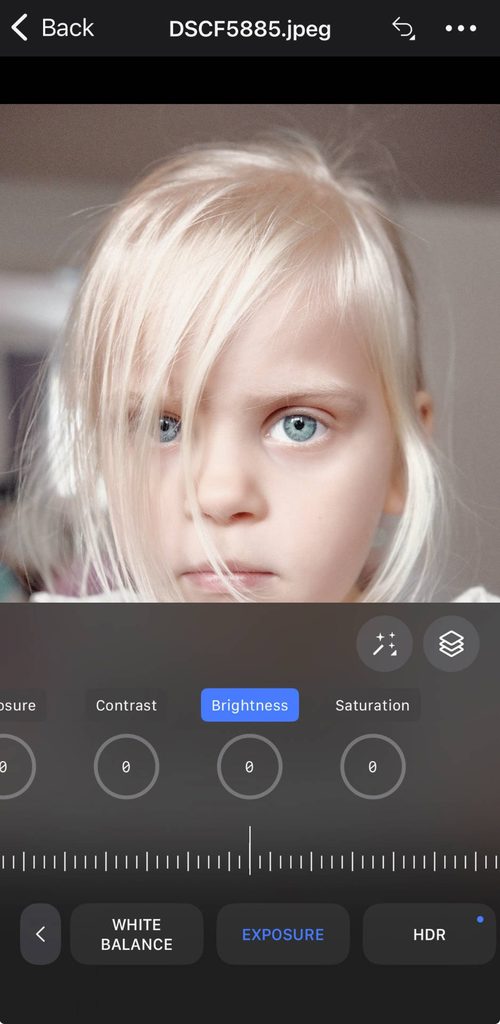
The Capture One mobile app for iOS is a watered down version of the desktop app, and lacks masking tools and, understandably, studio tethering. In my testing I found it was a good way to get the edit off the ground, making light adjustments to exposure, sharpness and saturation. The app itself works well and has a nice clean UI that makes it enjoyable to use and jump through tools.
How Much Does Capture One Cost?
Capture One’s pricing model can be a little confusing, as it staggers its features depending on how much you pay. Pro gets you the desktop app with most features, All-In-One gives you desktop and mobile, plus online collaboration tools and priority support. There’s also Studio, which gets you offline collaboration, multi view screens and more.
- Pro (Desktop only) –Yearly: 216(18 per month) Monthly: $28
- All-in-one (Mobile + Desktop) – Yearly: 296.04(24.67 per month) Monthly: $38
- Studio – 582(48.50 per month) Monthly: $63
- Perpetual Licence –$349 (Pro version)
I think Pro will suit most individual photographers, while the Studio options suit agencies and photographers working in teams.
Photomator: Best for Apple Users
Pros:
- Clean, Apple-style design
- Accurate color grading and masking tools
- Affordable $119.99 lifetime license
Cons:
- Apple devices only
- Limited updates
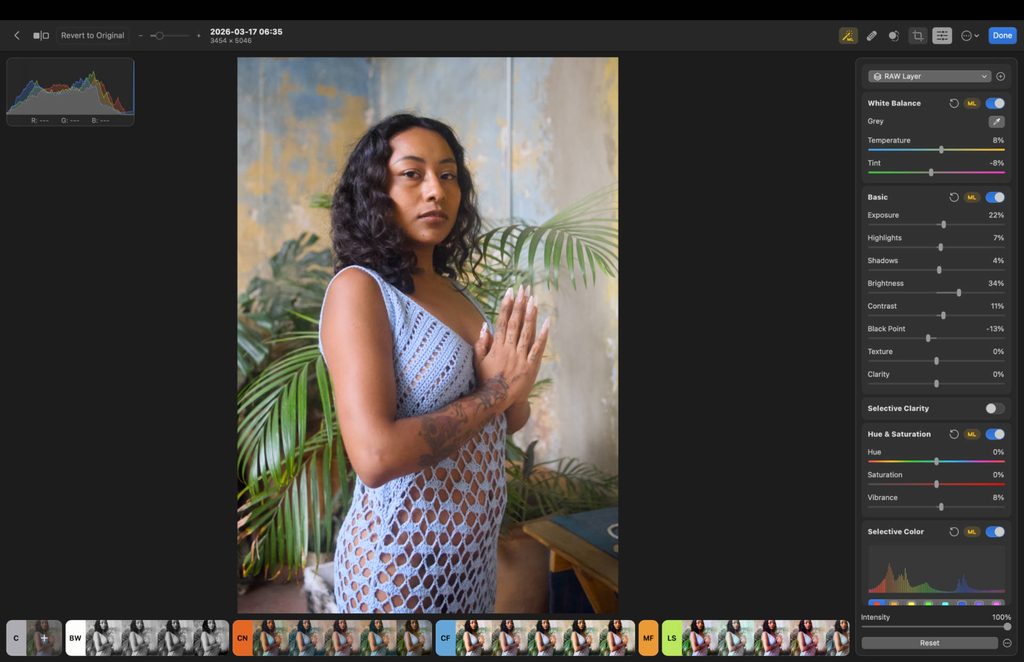
- Who it’s for: Apple users looking for a cross-platform editor that’s powerful and affordable.
- Skip it if: You’re not in the Apple ecosystem.
- Price: $119.99 perpetual license (monthly and annual available).
- Compatibility: macOS, iOS, iPadOS
Photomator is Apple’s user-friendly photo editor that gives you more power than the standard Photos app. It supports a range of RAW file types from different camera brands so you can process files from a dedicated camera rather than just your iPhone.
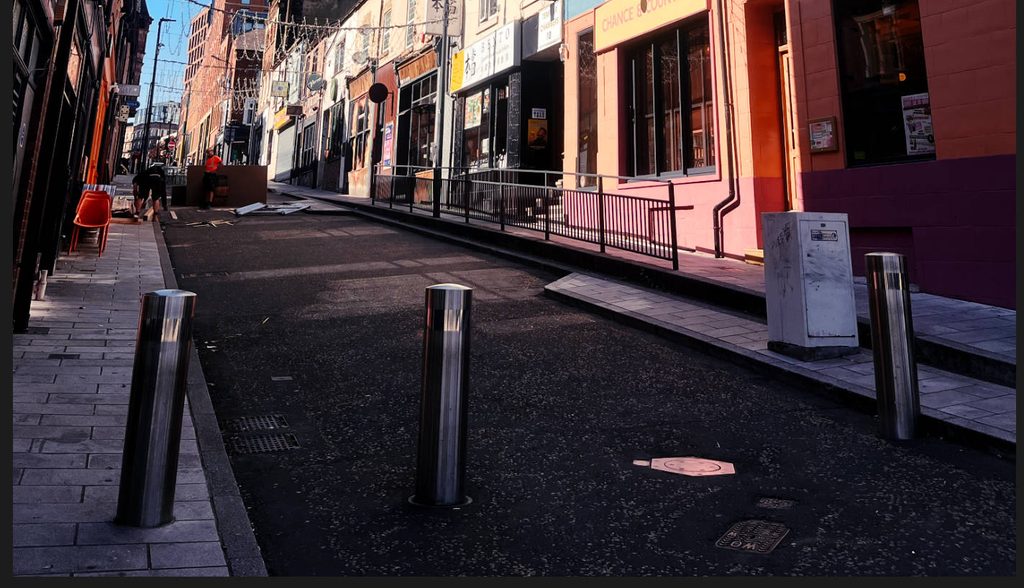
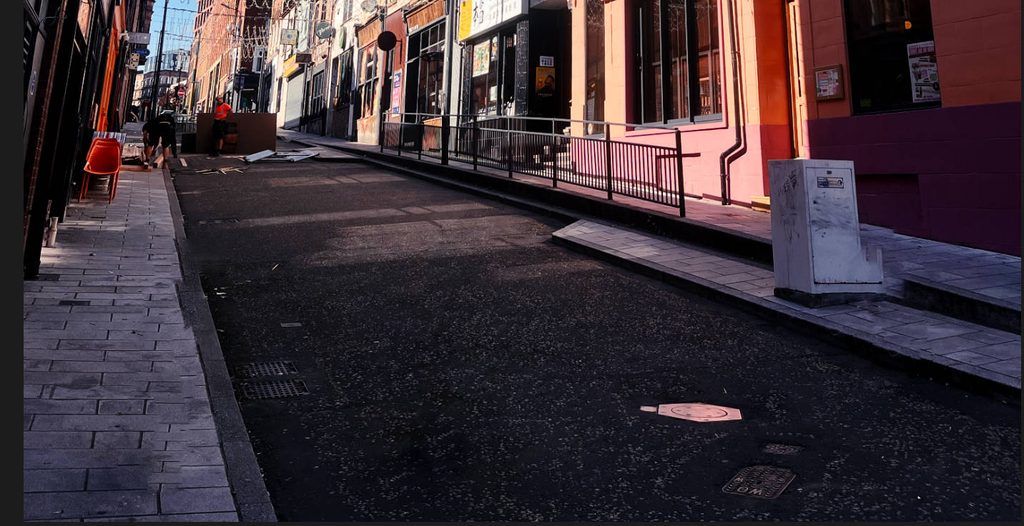
Packed inside you’ll find object removal, which works to a pretty decent standard, but struggles with larger items. There’s a range of masking tools, and in my opinion, solid color grading tools which offer accurate results. The presets are a good starting point to your edit, but expect to make some tweaks before your photo is ready to export.
Before object removal
Road barriers removed
Photomator: My Real-World Experience
What I love the most about Photomator is that it syncs perfectly with Apple’s design language. It has a professional touch, but still offers that glowing, calming look that’s synonymous with Apple’s software. It works pretty well overall, but I did notice some slight stall when going through images, with it sometimes taking a second or two to load a new frame.
Having the ability to toggle features on and off helps you compress your workflow and navigate through the tools you actually use more smoothly. For the most part navigation is bug free, but the right hand panel would sometimes jump back to the top without warning when scrolling down.
When importing images you have the option to manage them through Photos or Files. I highly recommend taking the second option, as importing through Photos puts all of your images into your Apple Photos stream and they will sync across devices. File management in general is basic but sufficient, with a simple rating system from one through five.
In my tests, I exported the same 185 edited frames in 14 minutes and 18 seconds, with a battery usage of only 19%, putting it close to Lightroom in this performance category.
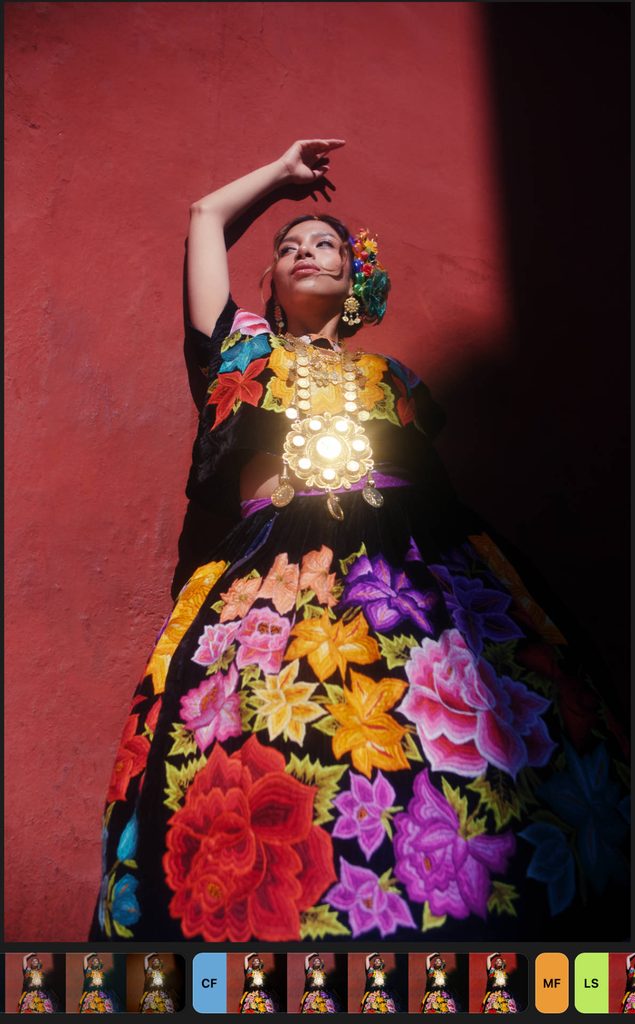
Orginal RAW file

Final edit
Read: Photomator Review (2026): Is Apple’s Photo Editor Actually Good?
Photomator Mobile
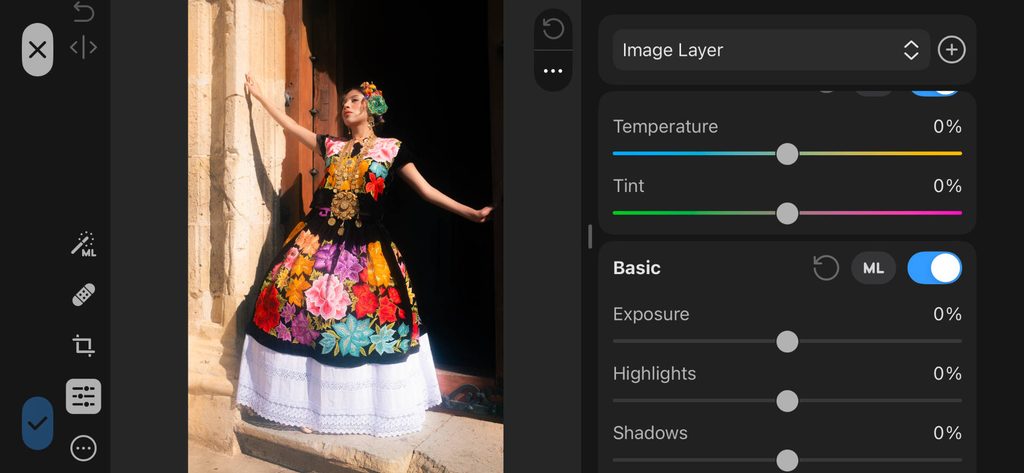
My favorite thing about the Photomator mobile app is that you can edit in horizontal mode. This allows you to see your image on one side and tools on the other, without everything feeling cramped together. The app itself mirrors the user interface of the desktop app, and tools are like-for-like, giving you a consistent workflow.
I think Apple has a really solid photo editor at its disposal, with solid tools and smooth work flow – the main concern is the lack of updates the software receives.
How Much Does Photomator Cost?
Photomator firmly positions itself in the affordable category for pricing. You have three payment options, and none of them will break the bank.
- Monthly – $7.99
- Yearly – $34.99
- Lifetime: $119.99
Lifetime is by far your best option. Try it through the seven-day trial before deciding if it’s right for you.
Radiant Photo 2: Best for Automated Editing
Pros:
- Scene Detection edits for you with natural results
- Polished, easy slider-based design
- Fast exports
Cons:
- Applies one treatment across a whole import
- Limited file management
- Who it’s for: Photographers of any level who want the software to handle most of the editing.
- Skip it if: You want full manual control and a complete pro workflow.
- Price: $129 to $159 (one-time purchase)
- Compatibility: macOS, Windows, iOS, Android
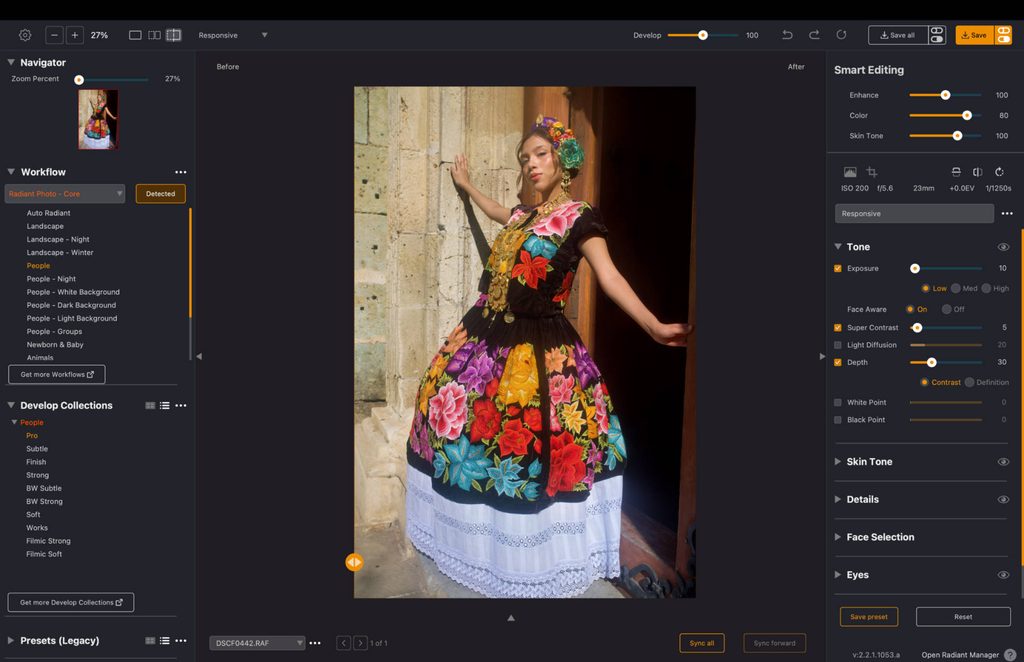
Radiant Photo 2 is built to do most of the editing for you. Developed by travel photographer Elia Locardi, it analyzes your RAW files, works out what the subject is, and applies the adjustments it thinks the image needs.
Its main feature is Scene Detection, and it impressed me. It recognizes whether you’ve shot a portrait, a landscape, or something else, then applies color grading, sharpening, and skin smoothing at a natural level. It noticeably improved flat images without any input from me.
Radiant Photo 2: My Real-World Experience
Beyond Scene Detection, a few tools stood out. The Graduated Filter adds a natural vignette that draws the eye to your subject, and the Tone tool lets you tap through a strip of lighter and darker versions until the mood looks right. The color grading presets are strong too, and they’re aimed at more refined workflows, rather than just quick fixes.
The design is one of its best features. The dark interface with orange sliders looks polished, the spacing is well judged, and I never had to search for a tool. Because almost everything runs on sliders, beginners will find it easy to pick up.
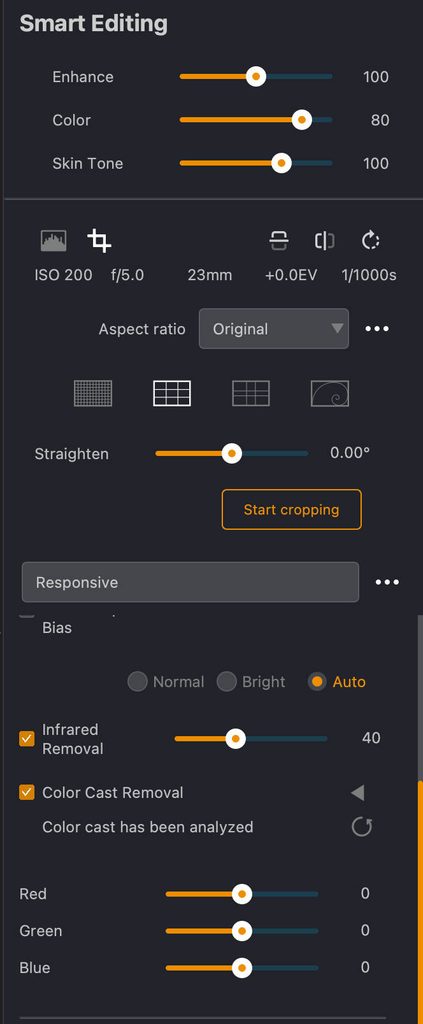
The main drawback is that Scene Detection applies the same treatment across an entire import. If the light changes during a shoot, you’ll need to adjust some images by hand afterward. File management is also a weak point, there’s little in the form of culling tools, or the ability to rank images with a star rating.
It ran well on my MacBook Air M5, with sliders responding instantly. It exported 185 edited images in seven minutes and 25 seconds and used 17% of my battery over an hour of editing.
Orginal RAW file

Final edit

Read: Radiant Photo 2 Review: Why I’m Very Excited About This App
Radiant Photo 2 Mobile
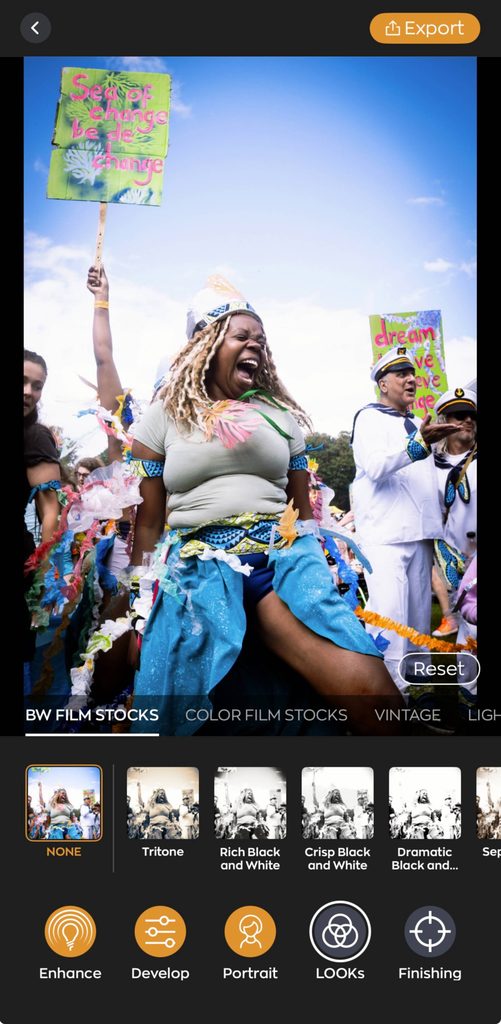
The mobile app leans into presets rather than manual controls. There is a smart slider, which in my testing seemed to just bump up contrast and dehaze. I’d skip the app if you want total control, but the presets and LUTs did set a nice tone for a quick edit. There’s no cross-platform editing here, so you should keep that in mind before making a commitment.
How Much Does Radiant Photo 2 Cost?
Radiant Photo 2 is a one-time purchase, and there’s a 30-day free trial.
- Plugin – $129
- Standalone – $159
The standalone version suits most photographers. Choose the plugin if you want to use it inside Lightroom or Photoshop.
Affinity: Best Free Photo Editing Software
Pros:
- Completely free
- Precise, Photoshop-style masking and layers
- Natural-looking results
Cons:
- No native file management
- Can’t rename masks
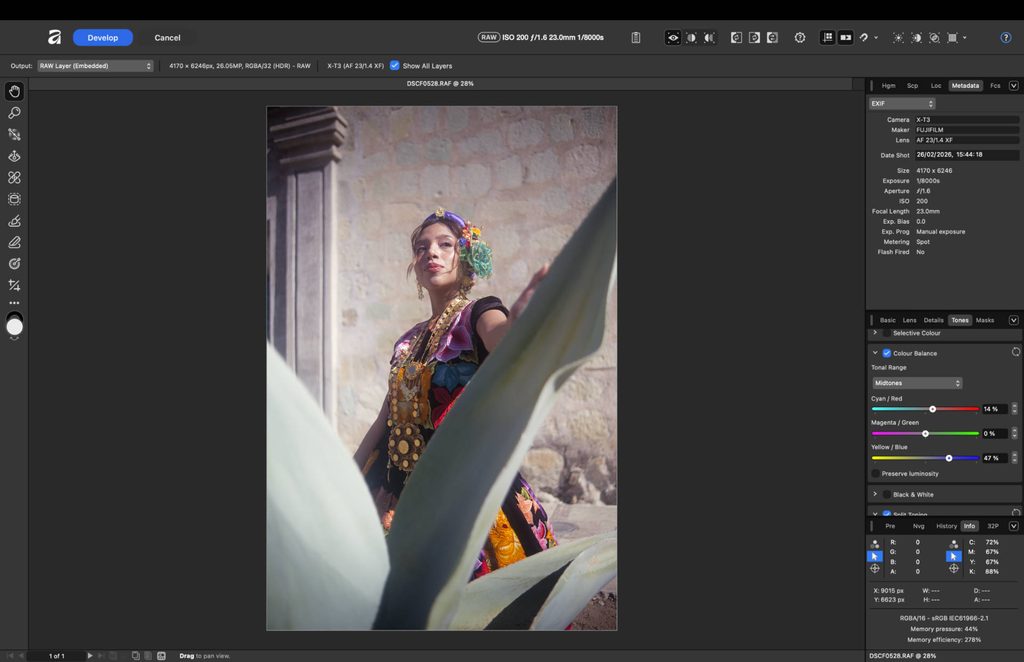
- Who it’s for: Users looking for a free tool that still packs advanced features.
- Skip it if: You rely on file management and a simplified user interface.
- Price: Free
- Compatibility: macOS, Windows, iPadOS
Since Canva bought Affinity, the software has become completely free to use, giving photographers pro-level tools without paying a cent. Think of it as a Photoshop alternative. It supports layers and lets you make both global and pixel-level adjustments, while being slightly simpler to use than Photoshop.
It’s not built for photographers who want quick, minimal edits. It suits those who already have some editing experience and want to work in fine detail on specific parts of their frame, taking their edits further than a standard editor allows.
Affinity: My Real-World Experience
For a free tool, Affinity is very impressive. Sliders and masks apply in real time, and the results look natural rather than overdone. The masking tools gave me a high level of control and precision over different parts of my images. My one complaint is that you can’t rename masks. They simply appear as “pixel mask” or “gradient mask,” which makes it harder to move between them on a detailed edit.
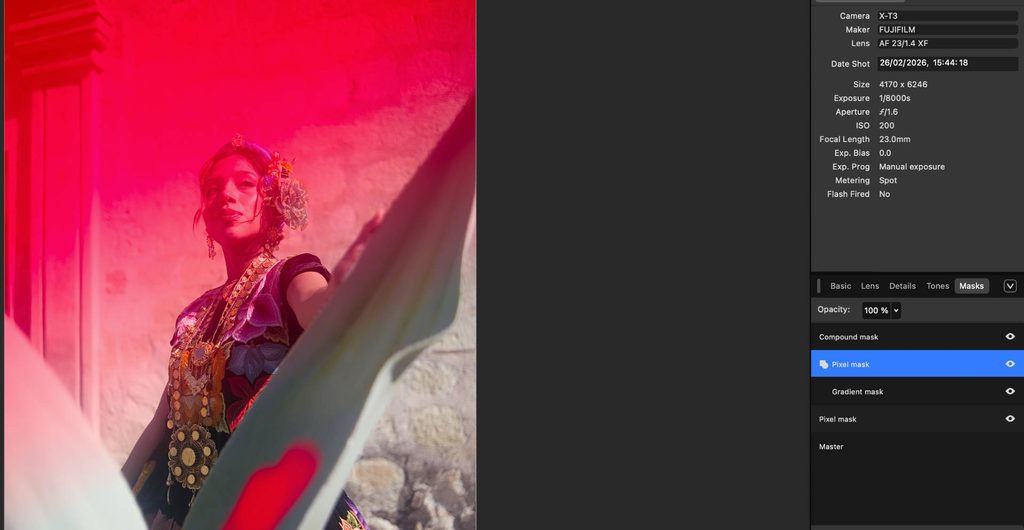
The biggest drawback is the lack of file management, and for many photographers this will be a deal breaker. You can only import one image at a time. To work around it, I used Adobe Bridge, which is also free, to organize my files and open them in Affinity. It works, but it’s not an efficient way to edit.
Exports are also limited to one image at a time, so I couldn’t run my 185-image batch export test. Over an hour of editing, it used around 24% of my battery.
If you can live with those limitations, Affinity is a capable editor, and you’ll save a lot compared to paying for a subscription.
Orginal RAW file
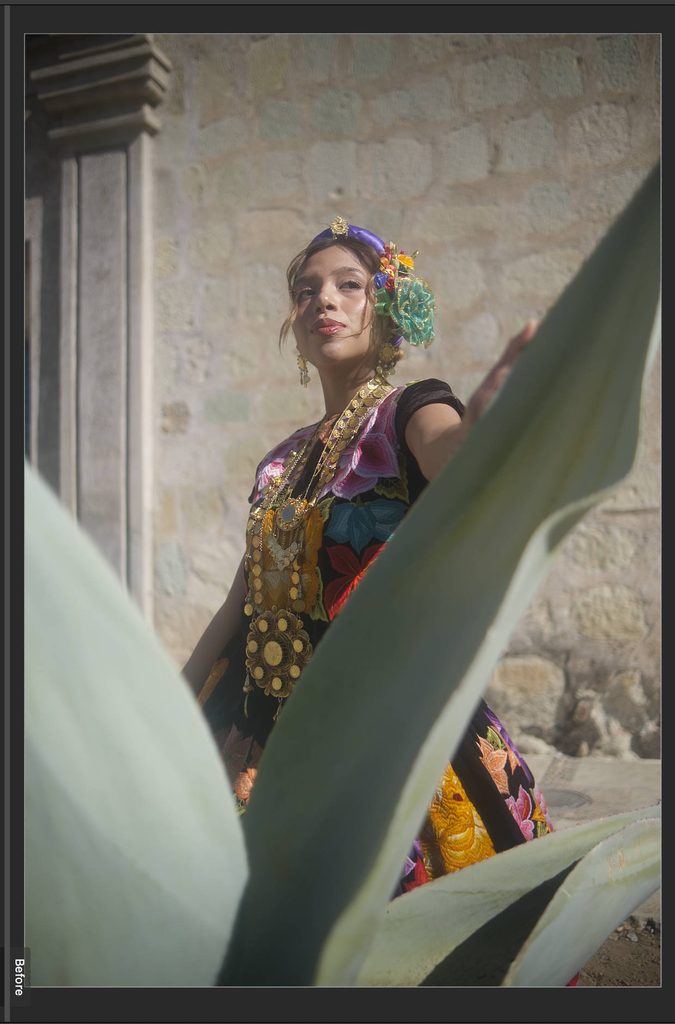
Final edit
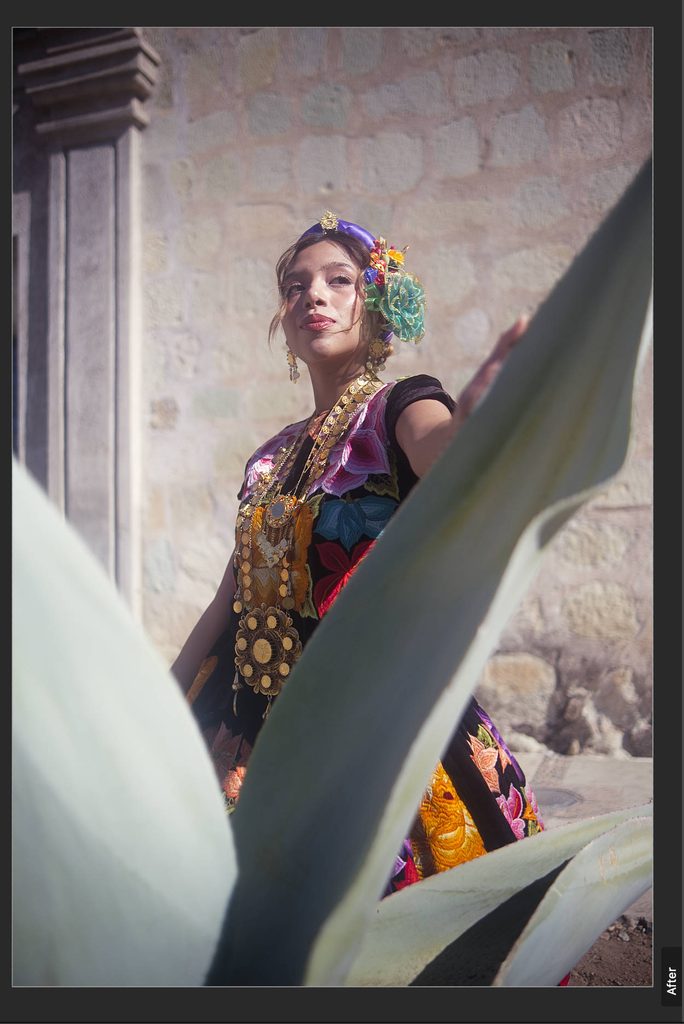
How Much Does Affinity Cost?
Completely free.
Also Considered
- RawTherapee: A free, open-source editor with some of the most detailed RAW processing tools available, including advanced demosaicing and pixel-level corrections. It missed the list because of its steep learning curve and cluttered interface. Even basic tasks like importing images aren’t intuitive, and there’s no drag and drop.
- Polarr: A simple, low-cost editor that’s easy to pick up, which makes it a good starting point for beginners. It missed the list because updates are infrequent, file management is minimal, and the free plan only supports JPEGs
- ON1: It offers some of the best AI noise reduction and sharpening I’ve tested, plus useful extras like AI keywording and a strong Portraits tab, all with a one-time purchase option. It missed the main list because its prone to stalls and crashes, especially during large batch edits.
Read: ON1 Photo RAW Review: What 9 Months of Testing Taught Me
How I Test the Best Photo Editing Software
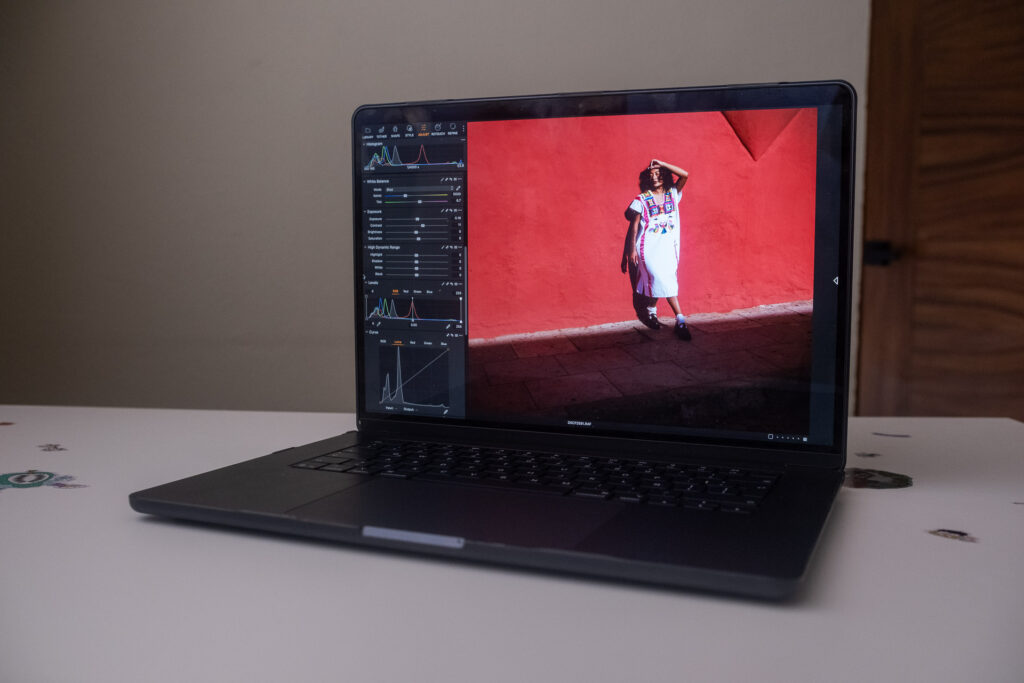
Hardware
- MacBook Air M5: 16GB RAM, 500GB storage. For every app, I imported the same 500 Fujifilm X-T3 RAW files, exported 185 edited images, and measured battery use over one hour of editing.
Read: A Photographer’s MacBook Air M5 Review: Skip the Pro?
How Long I Used Each Tool
- All tools are used for a minimum of 30 days across desktop and mobile. However, I’ve tested all options in this article for 12 months or more, and Lightroom, Imagen and Luminar make up my professional and personal photo editing tools.
FAQ
What is the best photo editing software for beginners?
Luminar is a beginner friendly photo editing software due to its simple user interface and creative tools. It’s affordable too, meaning you don’t need to break the bank to start off your photo editing journey.
Read: The Best Photo Editing Software for Beginners in 2026
What is the best free photo editing software?
Affinity is the best free photo editing software for most users. It offers powerful pixel editing tools, while still giving you everything you need to make global adjustments to your frame.
Is Luminar better than Lightroom?
Luminar is better than Lightroom for photographers who enjoy using creative tools like Light Depth, Sky Replacement and Auto Enhance. Lightroom wins when it comes to file management, masking and color grading.
Read: Luminar Neo vs Lightroom: Honest Comparison Before You Decide
What photo editing software do professionals use?
Professional photographers use photo editing apps like Capture One and Lightroom as they offer the most consistent user experience, high-level file management and accurate RAW processing.
Read: 3 Best AI Photo Editing Software for Professional Workflows in 2026
Signing Off
After years of testing, Luminar remains my number one choice due to its overall balance of usability. It’s simple, fun to use and gives you a lot of tools that can bring more life to your image. I will reiterate, however, that it’s not for professionals, and those of you who are working in photography should look at Imagen, Lightroom and Capture One depending on your use case.
The best way to test out if a photo app is for you is to use it yourself, and you can do so risk free. All of the options above have some form of a free trial so you can see first-hand if they match your requirements and fit nicely into your editing workflow.
If you’re happy to go with my top choice – Luminar gives a 30-day money back gurantee and you can sign up here.
Updated October 23rd, 2026: Fully rewritten after retesting every app on a MacBook Air M5 using the same 500 Fujifilm X-T3 RAW files. Added export and battery results, pros and cons, and Affinity as the best free option. Moved ON1 Photo RAW, Polarr, and RawTherapee to Also Considered, and updated all pricing.
If you purchase a product using the links, I may get a small kick back. This helps me run the site and I thank you advance.