
If you’re weighing up which photo editing app to go with, you’re not alone. Luminar Neo and Photomator are two of the more interesting options in the space right now, and both have improved a lot over the past year. I’ve spent serious time with both as part of reviewing the best photo editing software, so I know where each one excels and where it falls short.
In this comparison I’m walking through everything that matters: core editing tools, AI features, usability, pricing, and who each app is actually best for. By the end, you’ll have a clear picture of which one fits your needs. For anyone looking for the best photo editing software for Mac in particular, both are worth a close look, but they’re not equally suited to every type of photographer.
Luminar Neo vs Photomator: At a Glance
| Luminar Neo | Photomator | |
| Best For | Beginners, enthusiasts, content creators | Smartphone photographers, Apple ecosystem users |
| Platform | macOS, Windows, iOS, Android, ChromeOS | macOS, iPhone, iPad only |
| AI Features | Sky replacement, object removal, AI assistant, denoise, auto enhance | Object removal, auto enhance |
| Pricing (Lifetime) | $119 (desktop) / $159 (cross-device) | $119.99 |
| Free Trial | 14-day money-back guarantee | 7-day free trial |
| Batch Export | Yes | No |
Pros & Cons
Luminar Neo Pros
- Wide range of AI and manual tools
- Available on Mac, Windows, iOS, Android, and ChromeOS
- Stable performance across camera formats
- Competitive one-time pricing with a money-back guarantee
Luminar Neo Cons
- Some tools feel redundant or unnecessary
- Performance slightly behind Lightroom and Capture One
- AI assistant still in beta and inconsistent with complex prompts
Related: Honest Long-Term Luminar Neo Review: Read Before You Buy
Photomator Pros
- Clean, beginner-friendly interface
- Strong RAW editing with natural-looking results
- Affordable, with a lifetime purchase option
- Reliable object removal tool
Photomator Cons
- No batch exporting
- Occasional crashes with Fujifilm RAW files on older hardware
- Limited masking tools compared to competitors
- Available on Apple devices only
Related: Photomator Review (2026): Is Apple’s Photo Editor Actually Good?
Core Editing Tools
Both apps cover the standard editing toolkit you would expect from any capable photo editing app. Exposure, contrast, highlights, shadows, white balance, and color controls are all present in both, and in both cases they respond smoothly during editing.

Luminar Neo.
Luminar Neo goes further with Super Contrast, which lets you target contrast specifically in highlights, midtones, or shadows rather than globally. It also includes Light Depth, a tool that controls where light appears to fall within the frame. These are creative additions that add real value for anyone who wants more control over the final image.
Photomator.
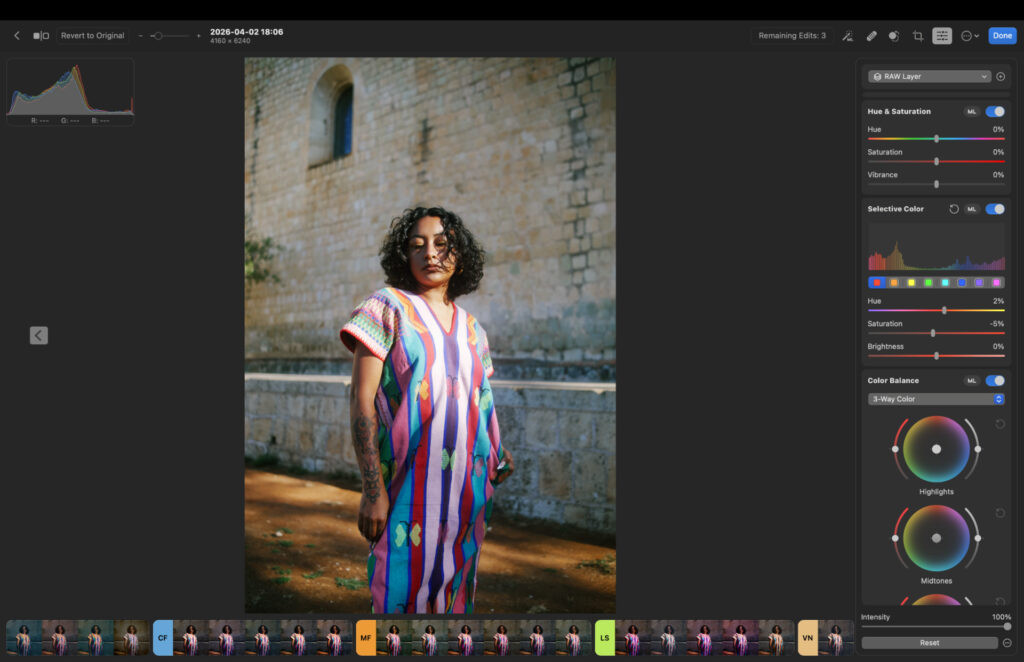
Photomator keeps things leaner. Its color grading tools are well done, with dedicated controls for highlights, midtones, and shadows, plus curves and a solid HSL editor. It also includes adjustable film grain and selective clarity that targets specific tonal ranges rather than applying globally. These are thoughtful touches, but the overall toolkit is narrower.
Masking is solid in both apps, with linear and radial gradients and brush masking available in each. Where Luminar Neo pulls slightly ahead is AI-powered subject selection, which makes isolating subjects faster. Photomator’s masking tools are capable though, and for most everyday edits the difference won’t matter.
AI Features
This is one of the bigger differences between the two photo editing apps, and it’s worth separating clearly from the standard tools.
Luminar Neo has a full suite of AI tools. Object removal is accurate and consistent, sky replacement works well for landscape shooters, and the denoise tool reduces noise without making images look over-processed. Auto enhance analyzes your image and applies global adjustments, though I prefer using it as a starting point rather than a final edit.

Luminar Neo sky replacement.
The standout addition from recent updates is the AI Assistant. You type a short prompt describing what you want changed, and it returns three variations to choose from. For light adjustments it works well, but it still struggles with more specific follow-up prompts. It’s in beta, so that is expected.
Photomator takes a much more restrained approach to AI. Object removal is its main AI-powered tool, and it works accurately for everyday edits. There’s also an auto enhance feature, but beyond that, the AI feature set is limited. You can watch my Photomator review to see how well these tools work in real-world editing sessions…
If AI-assisted editing is important to your workflow, Luminar Neo is clearly ahead.
Related: Best AI Photo Editor in 2026: Top Picks for Smarter, Faster Edits
Presets, LUTs & Workflow Speed
Both apps include presets, but they handle them differently. Luminar Neo has a wide selection covering various styles and genres. They work best as starting points, and experimenting across categories often gives better results than sticking to the suggested groupings.
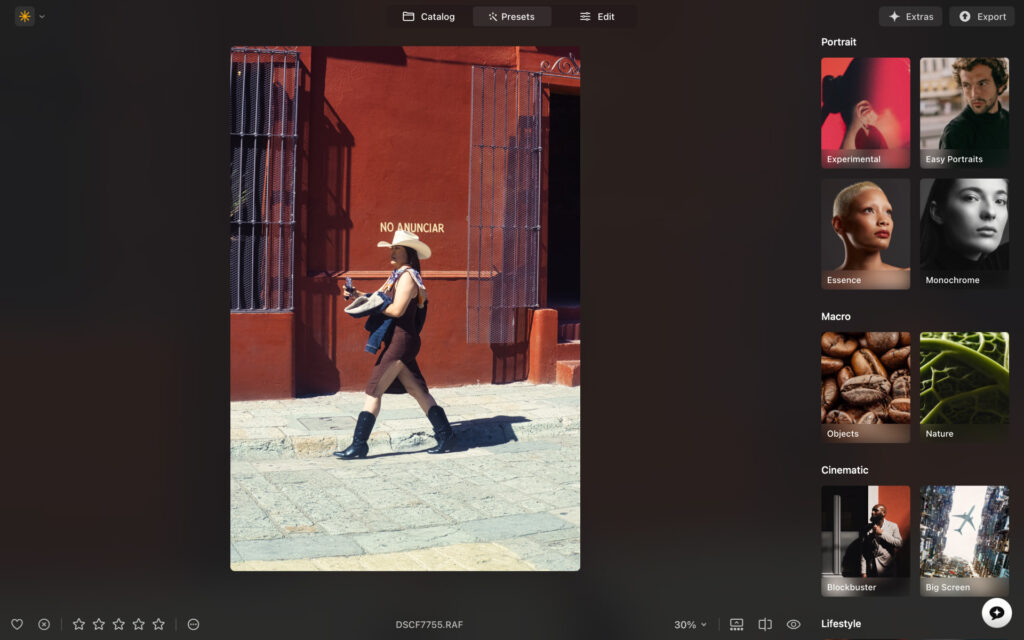
Luminar Neo presets.
Photomator organizes its presets into around 10 clear categories covering black and white, vintage, and cinematic styles. The variety is solid and I regularly found a preset that worked as a clean starting point, either refining it manually or exporting straight away if time was short.
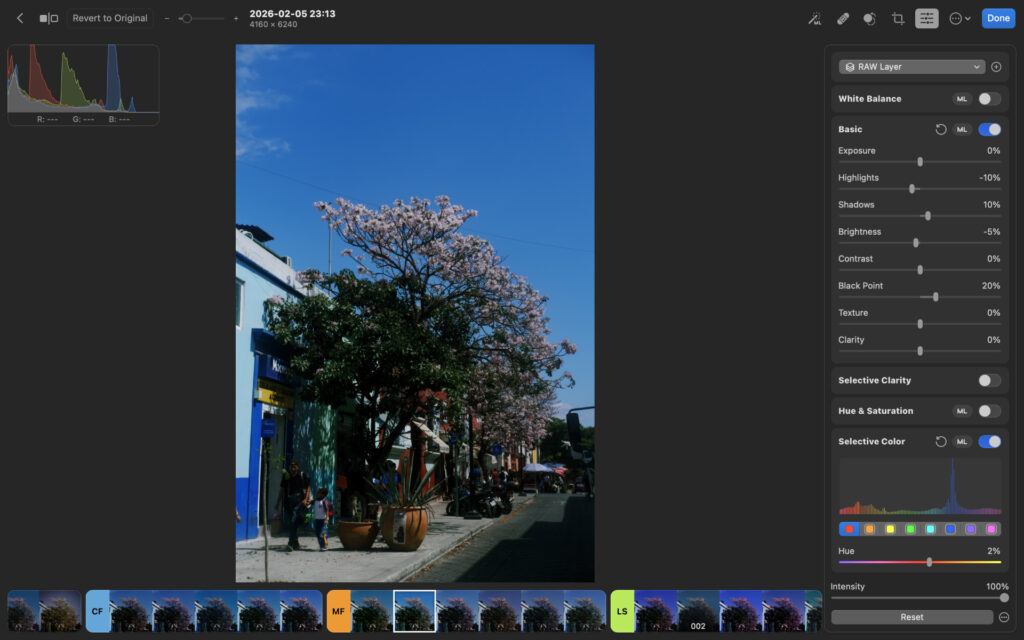
Photomator presets.
Photomator’s LUTs are less impressive overall. Outside of the cinematic options, many feel too heavy-handed for practical use. Luminar Neo’s preset and LUT library has more depth and consistency across categories.
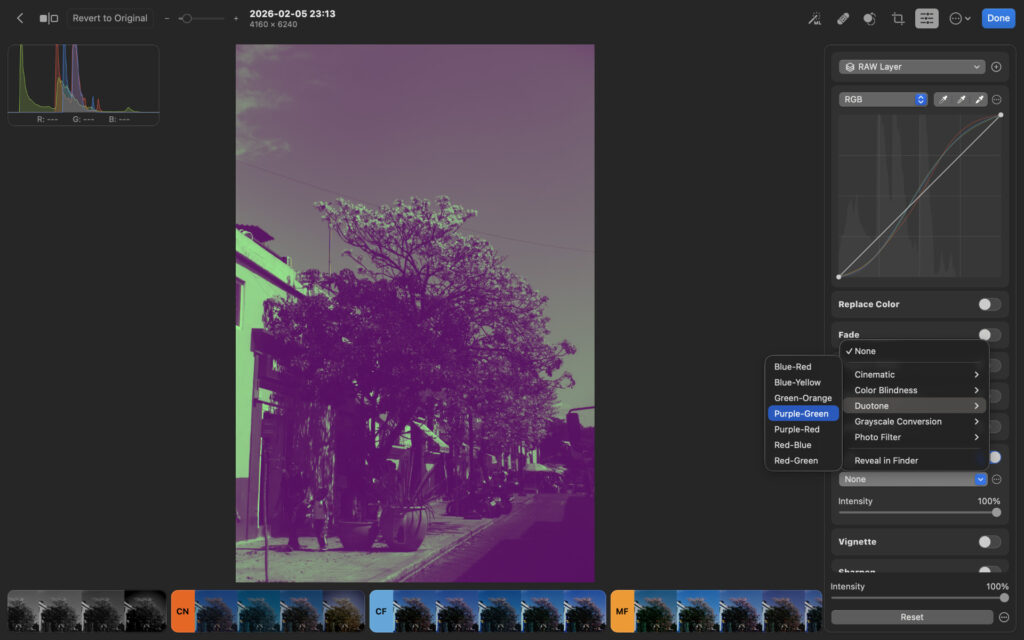
Photomator Luts.
Color Transfer: A Shared Feature Worth Mentioning
Both apps include a Color Transfer tool, which analyzes a separately edited image and applies its tones, colors, and exposure to the image you’re currently working on. It’s a handy way to maintain consistency across a series of photos without manually replicating every adjustment.
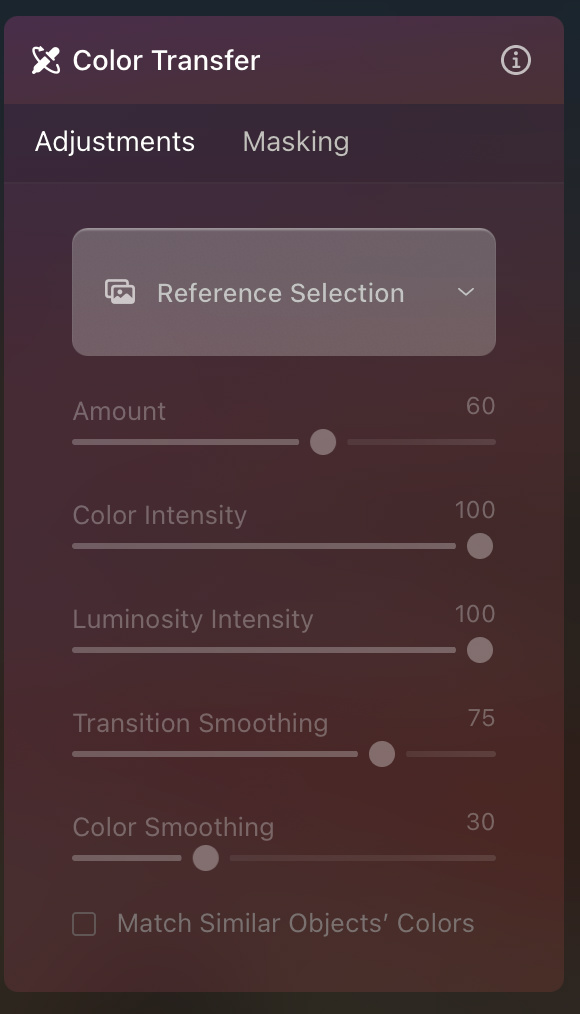
Luminar Neo.
It works in a similar way in both apps, and in my testing both gave usable results. This is one area where neither has a clear advantage.
My Real-World Experience
Testing both apps on a five-year-old MacBook Air M1, Luminar Neo performed smoothly. Images loaded quickly and edits applied without noticeable lag, though it isn’t quite as fast as Lightroom or Capture One. The color-coded interface sections make navigation intuitive, and the built-in tool explanations are helpful for anyone still learning.
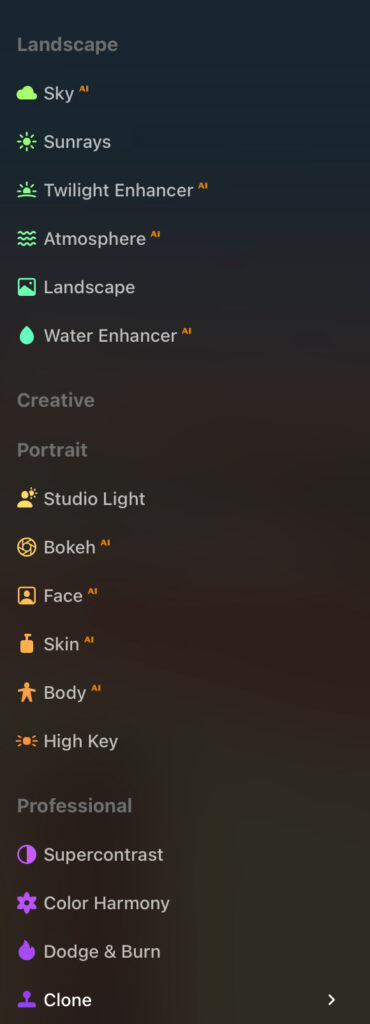
Luminar Neo editing panel.
Photomator also performed well on the same machine in most cases. Edits applied in real time with no delays, and all of the tools worked exactly as expected. The interface is clean and easy to pick up, with the option to hide tools you do not use, which noticeably improves the experience during longer editing sessions.
An issue I have with Photomator relates to imports. When you import your RAW files into the app, they automatically sync to your Photos app, which means you’ll see hundreds (thousands if you shoot weddings) in your Photo library. I’ve not been able to find a way to turn off this workflow issue.
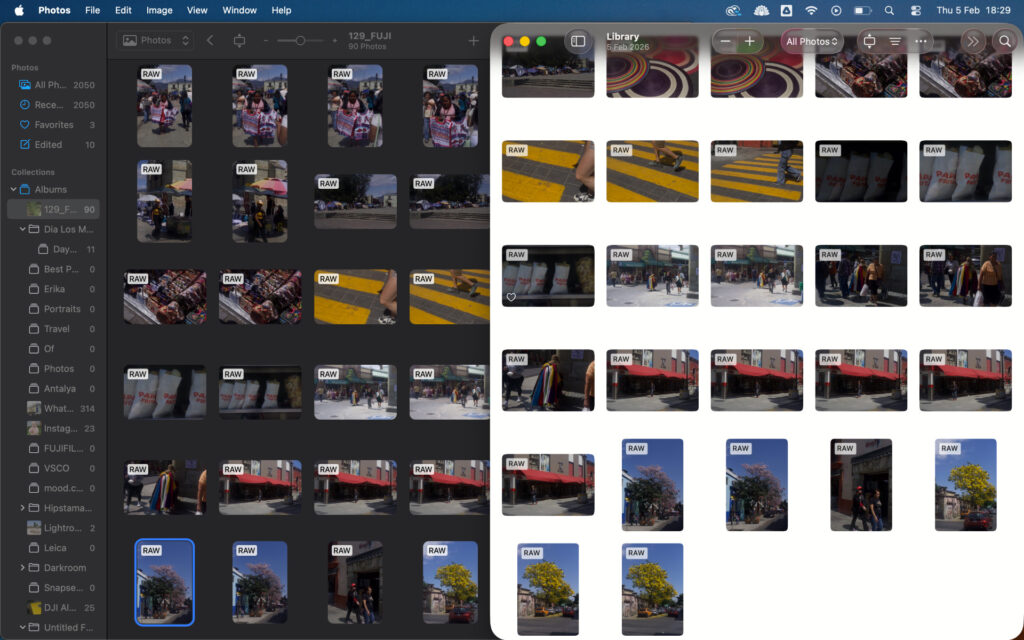
Photomator imports.
Another practical difference that matters for workflow: Photomator does not have batch exporting. Luminar Neo does. If you’re editing a large number of images in a single session, this alone could decide which app suits you.
Luminar Neo was more stable throughout my testing. I did not experience crashes, and performance held up consistently across both camera and smartphone files.
You can watch my full Luminar Neo editing workflow here to see how it performs.
Performance & Stability
Luminar Neo ran reliably throughout my testing with no crashes. The only notable performance caveat is that it is not quite as fast as Lightroom or Capture One, though the gap is small enough that it would not be a dealbreaker for most users.
Photomator’s performance story is more mixed. For iPhone photos it was solid throughout. For Fujifilm X-T3 RAW files on an older Mac, it was less reliable. The crash rate of around 5% is worth being aware of if you shoot with a mirrorless or DSLR camera.
I also encountered an annoying issue where the right-hand panel would jump back to the top while scrolling.
I’ll note, I’ve since upgraded my Macbook Air – you can learn more in my Macbook Air M5 review – and Photomator did handle RAW files much better and had more consistent performance.
Pricing & Value
Both apps offer lifetime purchase options, which puts them in a different category to subscription-only tools like Lightroom. Here is how the pricing breaks down.
Luminar Neo:
- Perpetual Desktop License: $119 (macOS and Windows)
- Cross-Device Perpetual License: $159 (desktop plus mobile apps on iOS, Android, ChromeOS)
- Perpetual Max License: $179 (desktop, mobile, and access to an expanded creative library)
Photomator:
- Yearly: $34.99
- Monthly: $7.99
- Lifetime: $119.99
At the lifetime tier, both apps cost nearly the same on desktop. The difference is that Luminar Neo’s cross-device license at $159 gives you access on Mac, Windows, iOS, Android, and ChromeOS. Photomator’s lifetime license covers Mac, iPhone, and iPad but is Apple-only.
Luminar Neo also offers a 14-day money-back guarantee, which gives you more time to evaluate it before committing. Photomator offers a 7-day free trial.
Who Is Each App Best For?
Choose Luminar Neo if:
- You shoot on a mix of devices and need broad OS compatibility
- AI tools are an important part of your editing workflow
- You edit in volume and need batch exporting
- You want more creative control over masking and advanced adjustments
- You’re a beginner, enthusiast, or content creator wanting room to grow
Choose Photomator if:
- You’re primarily a smartphone photographer already in the Apple ecosystem
- You want a clean, minimal interface with fewer features to navigate
- You mostly shoot on an iPhone and do not need advanced masking or batch tools
- You’re on a newer Mac where stability issues are less likely to occur
Luminar Neo vs Photomator: Final Verdict
Both are solid photo editing apps in their own right, but they are aimed at different types of photographers. Photomator is a clean, well-designed tool that works well for casual photographers and iPhone users already in the Apple ecosystem. The interface is approachable, the core tools perform well, and the pricing is fair.
That said, Luminar Neo is the stronger option for most people. It covers more ground, it is more stable across different camera formats, and it runs on Mac, Windows, iOS, Android, and ChromeOS. Its AI toolkit goes well beyond what Photomator offers, and it includes batch exporting which is a practical necessity for anyone editing regularly.
Photomator has a strong foundation and shows real potential. But right now, the limitations around masking, batch workflow, stability with non-iPhone files, and platform availability hold it back from competing directly with Luminar Neo.
My recommendation is Luminar Neo. It gives you more tools, better stability, broader compatibility, and more room to develop your editing skills over time.
You can try it risk-free with a 14-day money-back guarantee. Sign up here.
More reading: I Tried Imagen AI for 90 Days: The Edits Shocked Me
This article contains affiliate links. If you buy through them, we may earn a commission at no extra cost to you. Read our Affiliate Statement.